// CAN’T SEE YOU? CAN’T HEAR YOU?
Camera or microphone not working? Fix it
The call starts, but the picture is black, says “no camera found”, or nobody can hear you. Most of the time it’s one of three things: Windows’ own privacy switch, a slider or key on the laptop, or the call program using the wrong device. Here’s the order to check them. Rated 4.9 on Google.
- ● Teams, Zoom, WhatsApp and more
- ● Windows 11 and 10
- ● Laptops and webcams
/01 — QUICK CHECKS
Try these first
- Black picture? Many laptops have a little slider over the lens, or a key with a camera picture on it that switches the camera off. Slide it open or press the key.
- Close other programs that might be using it: another call program, the Camera app, a browser tab with a video call. Many cameras only work in one program at a time.
- A plug-in webcam or headset? Unplug it, wait ten seconds and plug it into a different USB socket, straight into the PC rather than a hub.
- Restart the computer (Restart, not Shut down).
- Test it on its own: our webcam and microphone test shows the picture and a sound level in your browser. If it works there, the problem is the call program’s settings (step 4).
// FIX IT WITH ME · STEP BY STEP
Get them working, step by step
The steps from this guide, one at a time, in the order that fixes the most cases fastest. Tell it what happened and it shows the next step. Nothing here leaves your device.Last reviewed 30 October 2026
-
01Check the slider and keys
Open any slider over the lens, press the camera or microphone key if there is one, and close other programs that might be using the camera.
Do the camera and microphone work now? -
02Switch on Windows’ privacy settings
Settings, Privacy & security, Camera and Microphone: switch on access, Let apps access and Let desktop apps access.
Do the camera and microphone work now? -
03Pick the right microphone
Settings, System, Sound, Input: choose the microphone you talk into and check the bar moves.
Do the camera and microphone work now? -
04Pick the devices in the call program
In Teams, Zoom or the browser, choose the same camera, microphone and speaker, and allow access when asked.
Do the camera and microphone work now? -
05Check Device Manager
Under Cameras, enable it if it is switched off, or uninstall it and restart if it shows a warning.
Do the camera and microphone work now?
Rather have it done for you? Remote help from £20, or in person across Bournemouth, Christchurch, Poole, Ringwood and the New Forest, with no call-out fee.
Sorted{mins}. Nice work.
Make a test call with a friend, or use our webcam and microphone test.
Still not working after all five steps? That is a remote job.
With your permission we connect to your screen and sort it in one session. Usually the same day, remote help from £20, and no fix, no fee.
Camera or microphone not working? Fix it - the fix order (365techies.co.uk/camera-or-microphone-not-working/) 1. Check the slider and keys: Open any slider over the lens, press the camera or microphone key if there is one, and close other programs that might be using the camera. 2. Switch on Windows’ privacy settings: Settings, Privacy & security, Camera and Microphone: switch on access, Let apps access and Let desktop apps access. 3. Pick the right microphone: Settings, System, Sound, Input: choose the microphone you talk into and check the bar moves. 4. Pick the devices in the call program: In Teams, Zoom or the browser, choose the same camera, microphone and speaker, and allow access when asked. 5. Check Device Manager: Under Cameras, enable it if it is switched off, or uninstall it and restart if it shows a warning. Still stuck? 365 Techies fix it remotely: 01202 775566 - https://365techies.co.uk/remote-support/At a glance
| Black picture | Look for a slider over the lens, or a key with a camera picture on it. |
|---|---|
| Privacy switch | Settings, Privacy & security, Camera (or Microphone): access on, for apps and for desktop apps. |
| One program at a time | Many cameras work in one program at a time: close the others. |
| The wrong device | In Teams or Zoom, pick the right camera, microphone and speaker in its own settings. |
| “No camera found” | Device Manager: is it switched off, or showing a warning? |
| Test it | Our free webcam and microphone test, in your browser. |
// NEED THIS FIXED RIGHT NOW?
Skip the DIY — call 01202 775566 and we can be looking at your screen within minutes. You watch everything we do, and most problems on this page are fixed in one short remote session. (Mon–Fri, 9am–5pm.)
/02 — WINDOWS’ PRIVACY SWITCHES
Check Windows hasn’t switched them off
Windows has its own on/off switches for the camera and microphone, and when they’re off every program sees nothing at all. They get switched off by accident, by a privacy tool or after an update.
- Windows 11: Settings, Privacy & security, Camera. Switch on Camera access and Let apps access your camera, then further down Let desktop apps access your camera: Zoom, the Teams program and most browsers are desktop apps.
- Then the same for Microphone, under Privacy & security.
- Windows 10: Settings, Privacy, Camera (and Microphone): “Allow access on this device” (press Change), “Allow apps to access” and “Allow desktop apps to access”.
Security software can block it too. Some antivirus programs have their own webcam protection: if it asks whether a program may use the camera, allow the one you trust.
/03 — THE MICROPHONE
When they can’t hear you
- Muted? Check the mute button in the call itself, the mute switch on a headset’s cable, and any microphone key on the laptop (often with a light).
- The right microphone: Settings, System, Sound, under Input, pick the one you’re talking into: a headset, a webcam’s microphone or the laptop’s own.
- Test it: on the same Input page, choose the microphone and speak: the bar should move. Turn its Input volume up if it barely moves.
/04 — THE CALL PROGRAM
Pick the right devices in Teams, Zoom or WhatsApp
Call programs choose their own camera, microphone and speaker, and don’t always follow Windows:
- Teams: Settings, Devices (or the arrow next to the camera and microphone buttons during a call).
- Zoom: Settings, Video and Audio, or the small arrows next to Start Video and Mute.
- WhatsApp and browsers: when the website asks to use the camera or microphone, choose Allow. Blocked by mistake? Click the padlock or camera icon at the left of the address bar and allow it.
/05 — NO CAMERA FOUND
When Windows can’t find the camera at all
- Right-click Start and open Device Manager. Open Cameras (or Imaging devices).
- A down arrow on it means it’s switched off: right-click it, Enable device.
- A yellow warning sign: right-click it, Uninstall device, then restart: Windows sets it up again by itself. Still showing? Settings, Windows Update, Advanced options, Optional updates, or the PC maker’s support site.
- Not listed at all on a laptop: check the slider and camera key again, and look in the PC’s start-up settings for a camera switch. Still nothing usually means a hardware fault.
/06 — THE QUICK WAY
Let our free app check them
FREE · WINDOWS 10 & 11 · NO SIGN-UP
Camera & microphone: what’s stopping them?
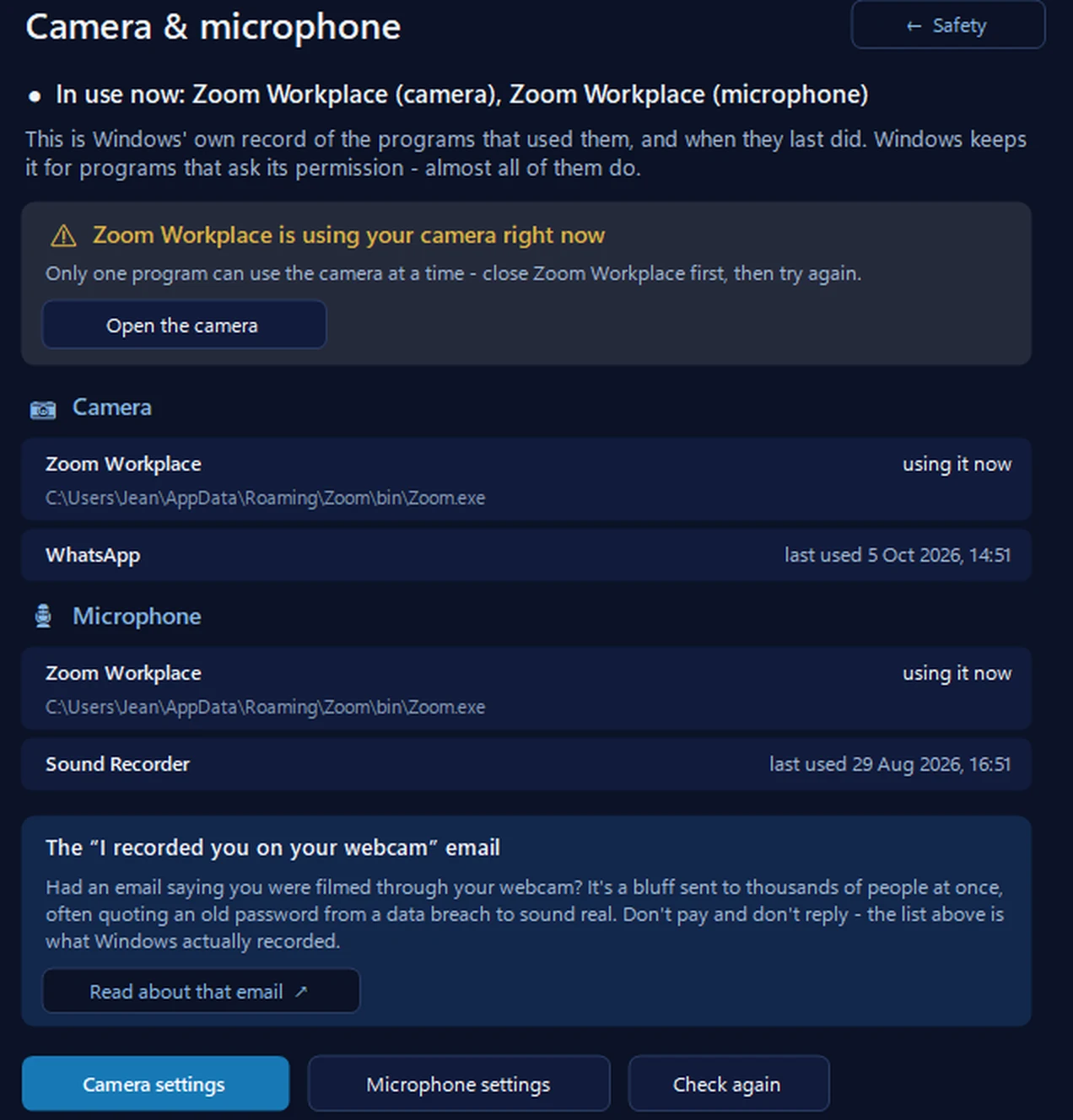
It says in plain words whether Windows can see the camera, whether it’s switched off in Device Manager or reporting a problem, whether Windows’ privacy settings have the camera or microphone off for every program, and which program is using the camera right now. It lists which programs used the camera and microphone and when, and buttons open the camera and Windows’ privacy settings. Its Sound check tests the microphone with a live bar. It only reads.
In the app: Safety, then Camera & microphone.
Download 365 PC Manager free ↓What else it checks
Made by us, a family IT firm in Bournemouth since 1995, and digitally signed by 365 Techies Ltd.
/07 — WHEN TO CALL US
When to call us
Still not right? Ring 01202 775566 or text 07520 615332, Monday to Friday, 9 to 5. With your permission we connect to your Windows PC and sort it while you watch: usually the same day, remote help from £20, and no fix, no fee. If the camera or microphone has failed, we can fit a replacement or set up a plug-in webcam or headset for you: see computer repairs.
FAMILY-RUN SINCE 1995 · ★ 4.9 ON GOOGLE · 200+ COMPUTERS UNDER OUR CARE · NO FIX, NO FEE · SAME-DAY REMOTE SUPPORT
// GOOD QUESTIONS
Frequently asked
Why is my laptop camera showing a black screen?
Usually a slider over the lens or a camera key has switched it off, or another program is using it. Open the slider, press the key, close other call programs and try again.
Why does Teams or Zoom say no camera found?
Check Windows’ privacy settings first: Settings, Privacy & security, Camera, with Let desktop apps access your camera switched on. Then pick the camera in the program’s own settings, and look in Device Manager if it’s still missing.
Why can’t people hear me on calls?
Check you aren’t muted in the call or on the headset, that the right microphone is chosen in Settings, System, Sound, Input and in the call program, and that the microphone privacy switch is on.
Where are the camera privacy settings in Windows 11?
Settings, Privacy & security, Camera. Switch on Camera access, Let apps access your camera and Let desktop apps access your camera. The microphone has the same three, under Microphone.
Can I test my camera and microphone online?
Yes: our free webcam and microphone test shows the picture and a sound level in your browser. Nothing is recorded or sent.
Can I see which programs used my camera?
Yes. Windows keeps a record: Settings, Privacy & security, Camera, Recent activity. Our free app lists it too, with when each program last used the camera and microphone.
Can you fix it remotely?
Usually, yes: settings, drivers and call programs are a remote job, and we test it on a call with you. A failed camera or microphone needs a repair or a plug-in replacement.
// Still stuck?
Still can’t see or hear you?
With your permission we connect to your Windows PC, get the camera and microphone working, and test them on a call with you. Call 01202 775566 or text 07520 615332.
We’ll fix it with you
- Checking the problem is free
- Fixes from £20, agreed before we start
- We phone first, and you watch every step
Stop it happening again
- A full service every six weeks, written up
- Every program kept up to date
- Unlimited remote help when you need it
Plans from £18.25 a month per computer · cancel any time
Mon–Fri 9–5 · family-run since 1995 · rated 4.9 on GoogleStart with the quick checks →