// BITLOCKER RECOVERY SCREEN
Computer asking for a BitLocker recovery key?
A blue screen says “BitLocker recovery” and wants a 48-digit key you have never heard of. Don’t panic, and don’t reset anything: your files are still there, just locked. Most people find the key in a minute, on their phone. Here’s where to look, why Windows asked, and how to stop it asking again. Rated 4.9 on Google.
- ● Usually found in a minute
- ● Free drive encryption check app
- ● Windows specialists since 1995
/01 — START HERE
Your files are still there: don’t reset anything yet
The BitLocker recovery screen appears when the drive inside your PC is encrypted and Windows couldn’t unlock it automatically as it started. Microsoft says you may be asked for the key “due to a security risk or hardware change” (Microsoft). Everything is still on the drive. It just needs the 48-digit key to open it.
Don’t reset or reinstall Windows to get past it. Resetting removes all your files, and without the key they can’t be got back. Find the key first: the next section shows where.
Many people are surprised their PC was encrypted at all. Windows switches on device encryption by itself on many PCs — Windows Home included — when you first set it up and sign in with a Microsoft account, and attaches the key to that account (Microsoft). Since Windows 11 version 24H2 it does so on more PCs than before (Microsoft Learn). So the key is usually waiting for you online.
// FIX IT WITH ME · STEP BY STEP
Find the key, step by step
The steps from this guide, one at a time, in the order that fixes the most cases fastest. Tell it what happened and it shows the next step. Nothing here leaves your device.Last reviewed 13 October 2026
-
01Don’t reset the PC
Your files are still on the drive. Resetting or reinstalling Windows removes them, and without the key they can’t be got back.
Is that step done? -
02Note the Key ID
Write down the first 8 characters of the Key ID shown on the BitLocker recovery screen.
Is that step done? -
03Look in your Microsoft account
On your phone or another computer, go to aka.ms/myrecoverykey, sign in with the Microsoft account used on the PC, and find the key with the matching ID.
Is that step done? -
04Try the other places
A work or school account at aka.ms/aadrecoverykey, a printout with the PC’s paperwork, a USB stick, or whoever set the PC up.
Is that step done? -
05Stop it asking again
Once in, suspend and resume BitLocker protection so Windows locks itself to the new set-up, and keep a copy of the key away from the PC.
Is that step done?
Rather have it done for you? Remote help from £20, or in person across Bournemouth, Christchurch, Poole, Ringwood and the New Forest, with no call-out fee.
Sorted{mins}. Nice work.
Write the Key ID down before you start looking.
Still no key? Ring us before you reset anything.
With your permission we connect to your screen and sort it in one session. Usually the same day, remote help from £20, and no fix, no fee.
Computer asking for a BitLocker recovery key? - the fix order (365techies.co.uk/computer-asking-for-bitlocker-recovery-key/) 1. Don’t reset the PC: Your files are still on the drive. Resetting or reinstalling Windows removes them, and without the key they can’t be got back. 2. Note the Key ID: Write down the first 8 characters of the Key ID shown on the BitLocker recovery screen. 3. Look in your Microsoft account: On your phone or another computer, go to aka.ms/myrecoverykey, sign in with the Microsoft account used on the PC, and find the key with the matching ID. 4. Try the other places: A work or school account at aka.ms/aadrecoverykey, a printout with the PC’s paperwork, a USB stick, or whoever set the PC up. 5. Stop it asking again: Once in, suspend and resume BitLocker protection so Windows locks itself to the new set-up, and keep a copy of the key away from the PC. Still stuck? 365 Techies fix it remotely: 01202 775566 - https://365techies.co.uk/remote-support/At a glance
| What it is | Your drive is encrypted (BitLocker, or Windows’ “device encryption”) and Windows couldn’t unlock it by itself this time, so it wants the 48-digit recovery key. |
|---|---|
| Most likely place | Your Microsoft account. On your phone, go to aka.ms/myrecoverykey, sign in, and match the Key ID shown on the blue screen. |
| Other places | A work or school account (aka.ms/aadrecoverykey), a printout, a USB stick, or whoever set the PC up. |
| Why now | Usually a BIOS update, a repair or new part, a changed start-up setting, or occasionally a Windows update. |
| Asks every restart? | Type the key once, then suspend and resume BitLocker so Windows locks itself to the new set-up. |
| No key anywhere? | Nobody can unlock it — not Microsoft, not us. Check every possible place before you reset anything. |
| Free check | Drive encryption in our free 365 PC Manager app shows whether your drive is encrypted and whether Windows saved its key. |
/02 — FIND THE KEY
Where your recovery key is, in the order to look
On the blue screen, write down the Key ID. Microsoft says the first 8 characters are enough: they tell you which key is the right one if there are several. Then, on your phone or another computer:
- Your Microsoft account. Go to aka.ms/myrecoverykey and sign in with the Microsoft account used on the PC — the email you sign in to Windows, Outlook.com or Xbox with. Find the key whose ID matches and type the 48 digits in. If someone else set the PC up for you, it may be in their account.
- A work or school account. If the PC was ever signed in to one, go to aka.ms/aadrecoverykey, sign in, choose Devices, then View BitLocker Keys — or ask that organisation’s IT team.
- A printout or a USB stick. When BitLocker is switched on by hand, Windows offers to print the key or save it to a USB stick. Look wherever you keep the PC’s paperwork. If it’s on a USB stick, plug the stick into the locked PC.
- Whoever set the PC up. A shop, a relative, your employer or your IT company may have saved it.
The key is eight groups of six digits. If the number keys don’t respond, the screen itself tells you to use F1 to F10 instead (F10 for 0). The full list of places is on Microsoft’s Find your BitLocker recovery key page.
/03 — WHY IT ASKED
Why Windows suddenly asked for it
BitLocker checks that nothing about how the PC starts has changed since it was locked. If something has, it wants proof it’s you. Microsoft’s list of common triggers includes (Microsoft Learn):
- A BIOS or firmware update — the commonest on laptops, especially when the maker’s update app or Windows Update installs one.
- A repair or new part — a new motherboard, or the drive moved into another computer.
- A changed start-up setting — the security chip (TPM) cleared or switched off, or the PC set to start from a DVD or USB stick before the hard drive.
- Docking or undocking a laptop, on some set-ups.
- Too many wrong PINs, if your PC asks for a BitLocker PIN as it starts.
- Occasionally, a Windows update. Microsoft has confirmed it more than once — for example in May 2025, when an update sent some Windows 10 business PCs to the recovery screen (BleepingComputer).
None of these means the PC has been hacked. It’s BitLocker doing its job.
/04 — ASKS EVERY TIME?
If it asks for the key every time you restart
Dell explains that if BitLocker isn’t suspended before a BIOS update, the PC can ask for the recovery key on every restart afterwards (Dell). Once you’re in with the key, lock it to the new set-up:
- Windows Pro: open Control Panel, then System and Security, then BitLocker Drive Encryption, and choose Suspend protection. Restart, then come back and choose Resume protection if it hasn’t switched back on by itself.
- Windows Home (device encryption) has no BitLocker page in Control Panel. Right-click Start and choose Terminal (Admin) — on Windows 10, Windows PowerShell (Admin) — then type manage-bde -protectors -disable C: -RebootCount 1 and press Enter, then restart once. Protection switches back on by itself after that restart.
- Unplug any dock or USB drive and make sure the PC is set to start from its own drive first.
Microsoft says suspending leaves the drive fully encrypted, and suspending then resuming reseals the key without needing the recovery key again (Microsoft Learn). Before the next BIOS update, suspend protection first, as Dell and Microsoft both advise.
/05 — NO KEY ANYWHERE?
If you can’t find the key
This is the hard part, so it’s worth being straight about it: without the key, nobody can unlock the drive. Microsoft says its support “doesn’t have the ability to retrieve, provide, or recreate a lost BitLocker recovery key” (Microsoft). Data recovery firms can’t get round it either — that’s the whole point of encryption — and anyone who promises otherwise is after your money.
Before you give up:
- Check every Microsoft account anyone in the house has used, and ask whoever set the PC up.
- Undo what changed, if you can: put the old part back, or set the start-up order and BIOS settings back as they were. Microsoft suggests undoing the change if the key can’t be found.
- Ring us, and we’ll go through every place with you before anything is wiped.
If the key really is gone, the only way to use the PC again is to reset it, which removes everything on it. Your files can then only come back from a backup: OneDrive, an external drive or another copy.
/06 — WHILE IT WORKS
Check your key now, while the PC starts normally
If your PC is working today, take a minute now. It’s the difference between a five-minute fix and losing everything.
- Is your drive encrypted? Open Settings, then Privacy & security, then Device encryption (on Windows Pro, also Control Panel, BitLocker Drive Encryption). On many PCs File Explorer also shows a padlock on the C: drive.
- Is the key saved? Go to aka.ms/myrecoverykey and check there’s a key with this PC’s name.
- Keep a copy away from the PC. Write the 48 digits down or print them, and keep them with the PC’s paperwork — not in a file on the PC itself.
- Back up your files anyway. Encryption protects them from a thief, not from a lost key or a failed drive.
/07 — THE QUICK WAY
Let our free app check it for you
FREE · WINDOWS 10 & 11 · NO SIGN-UP
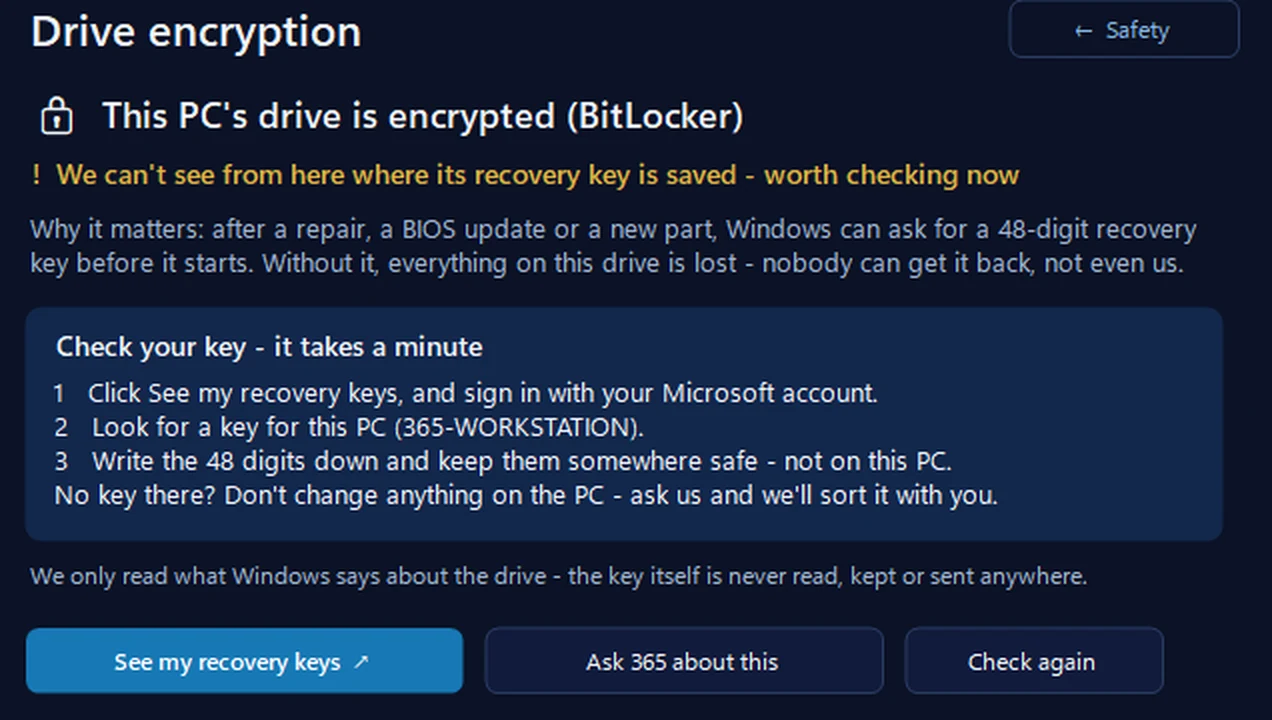
Drive encryption: is your drive locked, and is its key safe?
It shows whether this PC’s drive is encrypted, and reads Windows’ own record of when its recovery key was saved — to your Microsoft account or a work or school account — or failed to be. If it can’t see a record, it says so plainly and walks you through checking your keys, with a button that opens your Microsoft account’s recovery keys page. The key itself is never read, kept or sent anywhere.
In the app: Safety, then Drive encryption.
Download 365 PC Manager free ↓What else it checks
Made by us, a family IT firm in Bournemouth since 1995, and digitally signed by 365 Techies Ltd. It runs in Windows, so check now, while the PC starts normally.
/08 — WHEN TO CALL US
When to call us
Stuck at the blue screen? Ring us and we’ll talk you through every place the key could be, on the phone, before anything is reset.
Once the PC is starting again — or if it keeps asking after you’ve suspended and resumed protection — we can check the key is saved in two safe places, so this never catches you out again. Ring 01202 775566 or text 07520 615332, Monday to Friday, 9 to 5. With your permission we connect to your Windows PC and sort it while you watch: usually the same day, remote help from £20, and no fix, no fee.
FAMILY-RUN SINCE 1995 · ★ 4.9 ON GOOGLE · 200+ COMPUTERS UNDER OUR CARE · NO FIX, NO FEE · SAME-DAY REMOTE SUPPORT
// GOOD QUESTIONS
Frequently asked
Why is my computer asking for a BitLocker recovery key?
Because the drive is encrypted and something about how the PC starts has changed — usually a BIOS update, a repair, a new part or a changed start-up setting — so Windows wants proof it’s you before it unlocks the drive. Your files are still there.
Where do I find my BitLocker recovery key?
Most often in your Microsoft account: go to aka.ms/myrecoverykey on your phone, sign in, and match the Key ID on the screen. Otherwise a work or school account (aka.ms/aadrecoverykey), a printout, a USB stick, or whoever set the PC up.
Will Microsoft give me my recovery key?
Only through your own Microsoft account. Microsoft support says it can’t retrieve, provide or recreate a lost recovery key, so if it isn’t in an account you can sign in to, they can’t help with it.
Why did my PC encrypt itself?
Windows switches device encryption on by itself on many PCs when they’re first set up with a Microsoft account, and saves the key to that account. Since Windows 11 version 24H2 it happens on more PCs, Windows Home included.
Can I get past the screen without the key?
Only by resetting the PC, which erases everything on the drive. Find the key first, and ring us before you choose anything that resets or reinstalls Windows.
Should I switch BitLocker off?
Usually not. On a laptop especially, it keeps your files private if it’s lost or stolen. What matters is that the key is saved somewhere you can get to it, and a copy is kept away from the PC.
// Still stuck?
Can’t find the key?
Ring us before you reset anything. We go through every place the key could be with you, then get the PC starting normally again. Call 01202 775566 or text 07520 615332.
We’ll fix it with you
- Checking the problem is free
- Fixes from £20, agreed before we start
- We phone first, and you watch every step
Stop it happening again
- A full service every six weeks, written up
- Every program kept up to date
- Unlimited remote help when you need it
Plans from £18.25 a month per computer · cancel any time
Mon–Fri 9–5 · family-run since 1995 · rated 4.9 on GoogleWhere to find the key →