// FREE SCREEN TEST
Free dead pixel test
Fill your screen with one colour at a time to spot dead or stuck pixels, light leaking in at the edges, and patchy or stripy areas. Ideal for a new laptop or monitor while you can still send it back. Nothing to install, and nothing flashes. Rated 4.9 on Google.
- ● One colour at a time
- ● Laptops, monitors and TVs
- ● No flashing
/01 — THE TEST
Test your screen for dead pixels
Wipe the screen with a soft, dry cloth first: a speck of dust looks just like a dead pixel. Turn the brightness up, then start the test and look closely at each colour, corner to corner.
Tap the screen, or press the space bar or an arrow key, for the next colour. Press Esc, or tap the last colour, to finish. Nothing flashes.
At a glance
| How to use it | Clean the screen, press Start, then tap for each colour and look closely. |
|---|---|
| Dead pixel | A dot that stays black on every colour. It usually can’t be fixed. |
| Stuck pixel | A dot that stays one bright colour. It sometimes clears by itself. |
| Light at the edges | On the black screen, in a dark room: backlight bleed. A little is normal on many screens. |
| Stripes in the fade | Banding: often a colour setting or cable, sometimes the screen. |
| New screen? | Test it straight away. Within 30 days you can reject faulty goods under the Consumer Rights Act. |
/02 — WHAT YOU’RE LOOKING FOR
What each fault looks like
- Dead pixel: a tiny dot that stays black on every colour, easiest to see on white.
- Stuck pixel: a dot that stays red, green or blue whatever the colour, easiest to see on black.
- Bright (hot) pixel: a white dot on the black screen.
- Backlight bleed: pale patches of light at the edges or corners of the black screen, best seen in a dark room. A little is normal on many screens; large bright patches are not.
- Patchy areas: parts of the grey screen lighter or darker than the rest.
- Banding: stripes in the black-to-white fade instead of a smooth change. Often a colour setting or the cable; sometimes the screen.
/03 — WHAT TO DO
Found one? What to do
- Make sure it’s not dust. Wipe gently and test again.
- Give a stuck pixel a few days. Stuck pixels sometimes clear by themselves with normal use. Dead pixels usually don’t.
- Don’t press on the screen or use a “pixel fixer” that flashes colours quickly. Pressing can damage the screen, and fast flashing can trigger seizures in people with photosensitive epilepsy, which is why this test never flashes.
- Bought it in the last 30 days? Under the Consumer Rights Act you can reject faulty goods for a refund within 30 days. Whether a single pixel counts as a fault is often decided by the maker’s pixel policy, so ask the retailer straight away.
- Check the cable and settings for banding. Try another cable or port, and make sure the screen runs at its own best resolution and refresh rate: see monitor stuck at 60Hz.
- A laptop screen with lines, patches or many dead pixels usually needs a new screen. We can fit one, with the price agreed first.
/04 — THE QUICK WAY
Check your screen’s settings with our free app
FREE · WINDOWS 10 & 11 · NO SIGN-UP
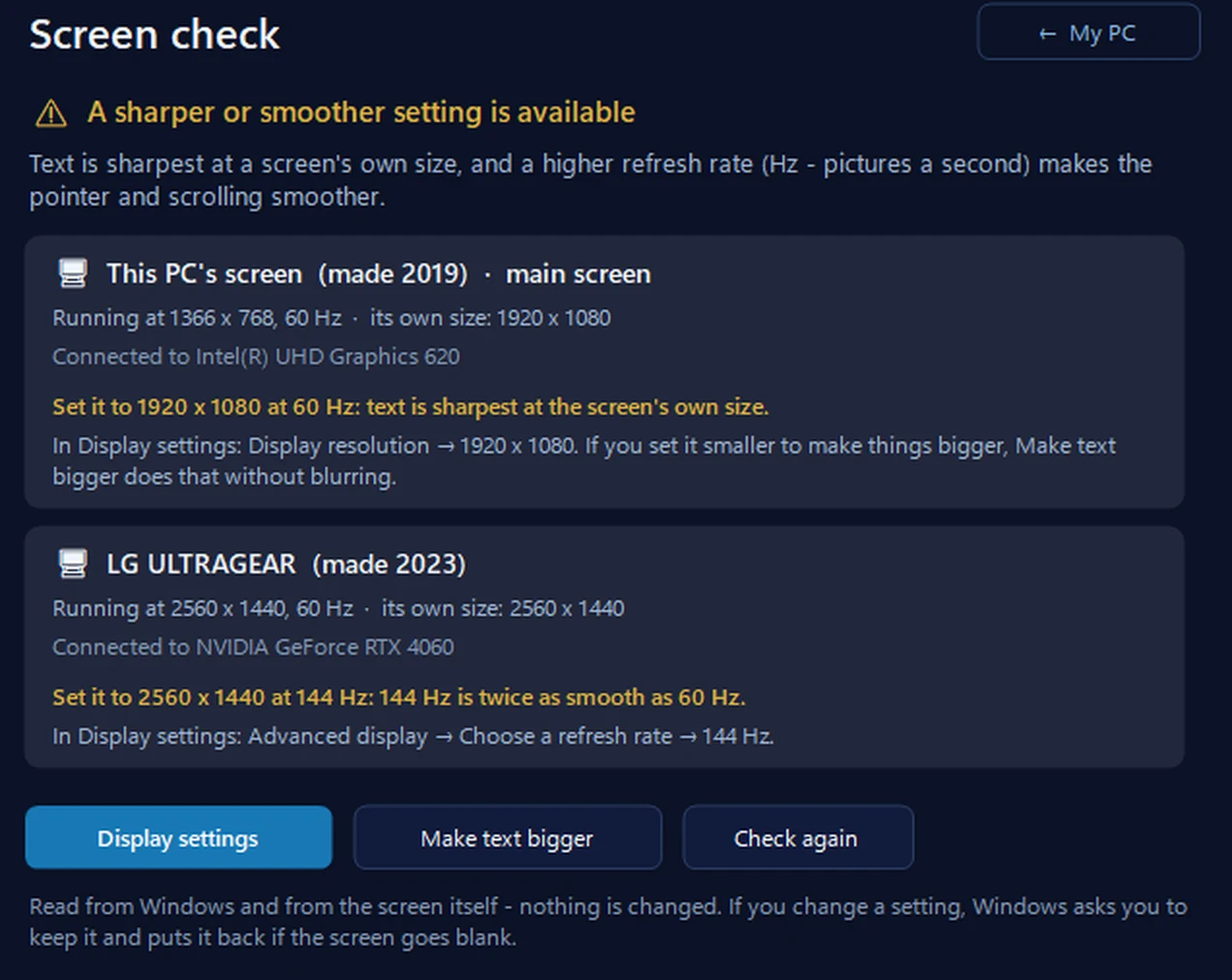
Screen check: is your screen at its sharpest and smoothest?
For every screen it shows the name and year it was made, the size and refresh rate it’s running at, its own best size, and a better setting when Windows offers one. It never changes the setting itself — it opens Display settings, and Windows puts the old setting back if the screen goes blank.
In the app: My PC, then Screen check.
Download 365 PC Manager free ↓What else it checks
Made by us, a family IT firm in Bournemouth since 1995, and digitally signed by 365 Techies Ltd.
/05 — WHEN TO CALL US
When to call us
Still not right? Ring 01202 775566 or text 07520 615332, Monday to Friday, 9 to 5. With your permission we connect to your Windows PC and sort software problems while you watch: usually the same day, remote help from £20, and no fix, no fee. If it’s the laptop screen itself, we collect the laptop free across Bournemouth, Christchurch, Poole and Dorset, tell you the price before any work, repair it and bring it back.
FAMILY-RUN SINCE 1995 · ★ 4.9 ON GOOGLE · 200+ COMPUTERS UNDER OUR CARE · NO FIX, NO FEE · SAME-DAY REMOTE SUPPORT
// GOOD QUESTIONS
Frequently asked
How do I check my screen for dead pixels?
Clean the screen, turn the brightness up, and start the full-screen test on this page. Look for dots that stay black on white, or stay coloured on black.
What’s the difference between a dead and a stuck pixel?
A dead pixel stays black on every colour. A stuck pixel stays one colour, such as red or green. Stuck pixels sometimes clear by themselves; dead pixels usually don’t.
Can a dead pixel be fixed?
Usually not. A stuck pixel may clear with normal use over a few days. Don’t press on the screen or use flashing “fixers”: pressing can damage it, and fast flashing can trigger seizures in people with photosensitive epilepsy.
Is a dead pixel covered by the warranty?
It depends on the maker’s pixel policy. Within 30 days of buying, the Consumer Rights Act lets you reject faulty goods, so test a new screen straight away and tell the retailer.
Why is there light at the edges of the black screen?
That’s backlight bleed. A little is normal on many LCD screens and is easiest to see in a dark room. Large, bright patches can be a fault.
Can I test a TV with it?
Yes: open this page in the TV’s web browser, or connect a laptop to the TV and test full screen.
Found a fault on your screen?
We can check whether it’s the screen or a setting, and replace laptop screens, with the price agreed first. Call 01202 775566 or text 07520 615332.
01202 775566 · help@365techies.co.uk · MON–FRI 9AM–5PM