// A FREE DAY AND DATE CLOCK
A free dementia clock for any screen
The day, whether it’s morning, afternoon, evening or night, the date and the time, in big, clear words. Open it full screen on a spare laptop or tablet and it becomes a day clock for someone living with dementia. Free, no sign-up, and nothing is sent anywhere. Rated 4.9 on Google.
- ● Free, no sign-up
- ● Big, clear words
- ● Any laptop or tablet
/01 — THE CLOCK
A free day and date clock, right here
It shows the day, whether it’s morning, afternoon, evening or night, the date and the time, in words big enough to read across a room. Press the button and it fills the screen. It can say the time out loud too, like a talking clock. Choose what it shows underneath; it remembers your choices on this device.
Works in any up-to-date web browser on a computer, laptop or tablet. To open the clock straight away next time, bookmark this link or add it to the home screen: 365techies.co.uk/dementia-clock/#clock. Nothing is sent anywhere: your choices are remembered on this device only.
At a glance
| What it shows | The day, morning, afternoon, evening or night, the date and the time, in big, clear words. |
|---|---|
| What it costs | Nothing. No sign-up, no adverts, and nothing you choose is sent anywhere. |
| What you need | Any computer, laptop or tablet with an up-to-date web browser, left plugged in. |
| Clocks going forward or back | Handled, as long as the device sets its own time and is on UK time. |
| The year | Left off unless you tick it: Alzheimer’s Society notes the year can confuse some people. |
| Talking clock | Press Say the time, or tick Say the time every hour. It uses the voice built into the device. |
| On a Windows PC | Our free 365 PC Manager app adds a Day and date screensaver that appears by itself. |
/02 — WHY IT HELPS
Why a day clock helps someone with dementia
We use the time to plan our day: meals, going out, going to bed. University Hospital Southampton’s dementia team explains that losing track of it can leave someone disorientated, anxious and confused, and that many people with dementia lose the meaning of an ordinary clock face. A day clock spells it out in words instead.
That’s why the day and the part of the day are the biggest words here, and the time is smaller. Alzheimer’s Society leaves the year off one of its calendar clocks because it may confuse some people, so this clock leaves it off too, unless you tick The year.
It won’t suit everyone: some people find a screen confusing, or stop noticing it. Try it for a week or two. For advice on what else might help, ask the memory service or GP, or see Alzheimer’s Society.
/03 — SET IT UP
Turn an old laptop or tablet into a day clock
- Plug it in for good. A clock on battery goes flat. An old laptop or tablet that’s too slow for anything else is ideal.
- Open the clock. Press Open the clock full screen above, or go straight to 365techies.co.uk/dementia-clock/#clock. Bookmark it, or on an Android tablet use Chrome’s menu and Add to Home screen, so it’s one tap next time.
- Keep the screen on. In Chrome and Edge the clock asks the device to keep the screen on while it’s showing, and says if it can’t. To be sure, on Windows go to Settings, System, then Power (Power & battery on a laptop) and set the screen and sleep times for when it’s plugged in to Never. On an Android tablet: Settings, Display, Screen timeout, the longest time.
- Let it set its own time. Check the device sets the time automatically, in UK time, so it changes for British Summer Time by itself.
- Quiet it down. Turn off notifications and sounds so nothing pops up over the clock: on Windows, Settings, System, Notifications; on Android, Do not disturb.
- Put it where it’s seen. Facing their chair or bed, at eye level, out of bright sunlight. White on black is gentler at night; black on cream is easiest to read in a bright room.
- Check it when you visit. Windows sometimes restarts overnight to finish updates, and then the clock needs opening again.
/04 — ON A WINDOWS PC
On a Windows PC: a Day and date screensaver
If they still use their Windows PC, a screensaver can be the clock: it appears by itself whenever the PC is left alone, and goes at a touch of the mouse, so the PC still works for everything else.
FREE · WINDOWS 10 & 11 · NO SIGN-UP
Day and date: a clock screensaver for Windows
Pick Day and date and it fills the screen whenever the PC is resting: the day, the date, morning, afternoon, evening or night, and the time, in big, clear words. It can show your own photos behind the words, dimmed so they stay readable, and use a 24-hour clock. The words drift slowly round the screen. The same page sets when the screen switches off — choose Never for a clock that stays on.
In the app: Photos & files, then Screensaver & photos.
Download 365 PC Manager free ↓What else it checks
Made by us, a family IT firm in Bournemouth since 1995, and digitally signed by 365 Techies Ltd. A touch of the mouse or keyboard brings the desktop back.
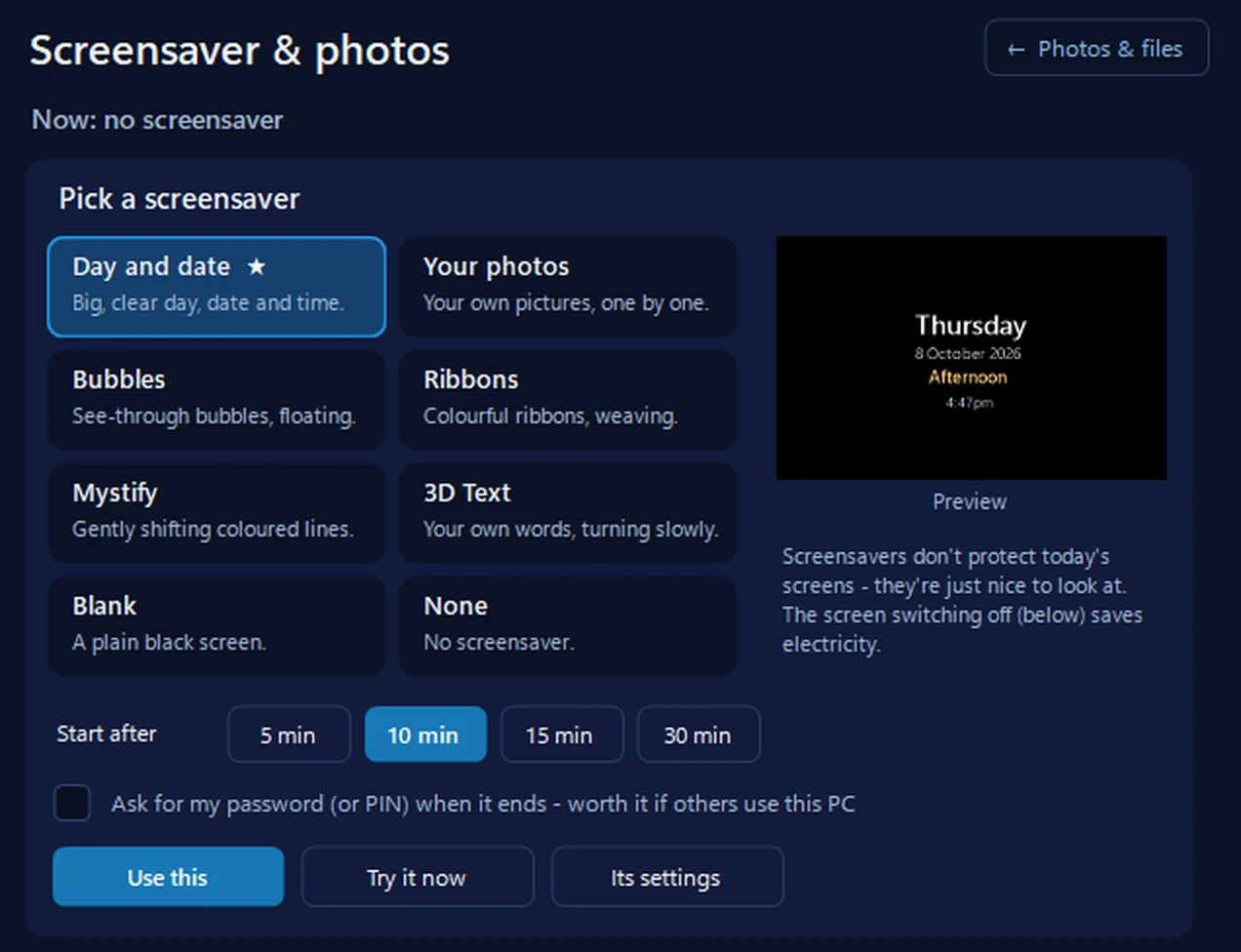
- In the app, open Photos & files, then Screensaver & photos, and pick Day and date.
- Choose Start after 5 min. If the PC is only theirs, leave Ask for my password unticked. Press Use this. Its settings adds their photos behind the words, or a 24-hour clock.
- Under Turn the screen off after, choose Never, and set Windows’ sleep time to Never when plugged in (step 3 above).
/05 — SCREEN OR SHOP CLOCK?
A screen, or a clock from a shop?
A plug-in day clock from a shop — Alzheimer’s Society sells several — does one job, needs no setting up, and radio-controlled ones change for British Summer Time by themselves. This clock is free if you have a spare screen, shows bigger words than most, and lets you choose exactly what it shows.
A laptop or tablet left on all day uses some electricity; our running cost calculator works out what.
/06 — WANT A HAND?
We can set it up for you
We can set up an old Windows laptop as a day clock for a relative, or put the Day and date screensaver on their PC. Ring 01202 775566 or text 07520 615332, Monday to Friday, 9 to 5. With your permission we connect to your Windows PC and sort it while you watch: usually the same day, remote help from £20, and no fix, no fee.
FAMILY-RUN SINCE 1995 · ★ 4.9 ON GOOGLE · 200+ COMPUTERS UNDER OUR CARE · NO FIX, NO FEE · SAME-DAY REMOTE SUPPORT
// GOOD QUESTIONS
Frequently asked
What is a dementia clock?
A clock that spells out the day, the part of the day and often the date in words, for people who find an ordinary clock face hard to follow. Many show “Tuesday morning” as well as the time.
Is this dementia clock really free?
Yes. No sign-up, no adverts, and nothing you choose is sent anywhere. It runs in your web browser.
Will it change when the clocks go forward or back?
Yes, as long as the device sets its own time automatically and is on UK time. The clock reads the device’s own time.
Does it need the internet?
Only to open it. Once it’s showing, it keeps going from the device’s own clock if the internet drops. If the page is closed or the device restarts, it needs the internet to open again.
Why doesn’t it show the year?
Alzheimer’s Society leaves the year off one of its calendar clocks because it may confuse some people, so we leave it off unless you tick The year.
Will leaving it on mark the screen?
The words drift slowly round the screen, so no part of it shows the same thing for long. Turning the brightness down a little helps too.
Can it say the time out loud, like a talking clock?
Yes. Press Say the time and it says the day, the part of the day, the date and the time. Tick Say the time every hour and it says it on the hour while this page is open. It uses the voice built into the device’s web browser, so the sound needs to be on.
Can a Windows PC show it as a screensaver?
Yes. Our free 365 PC Manager app adds a Day and date screensaver: Photos & files, then Screensaver & photos. It can show your own photos behind the words.
Want it set up for you?
We can turn an old Windows laptop into a day clock for a relative, or put the Day and date screensaver on their PC. Call 01202 775566 or text 07520 615332.
01202 775566 · help@365techies.co.uk · MON–FRI 9AM–5PM