How powerful is your graphics card?
A demanding real-time 3D scene renders live in your browser while we measure how many frames your GPU can push — with a graphics score, live FPS, advanced stress-testing options and honest advice. Nothing to install, completely safe, and fun to watch.
★ Rated 4.9 on GoogleFamily-run since 1995No fix, no fee
Live 3D graphics benchmark
Renders a demanding real-time 3D scene and measures how many frames your graphics can push. Pick a test below and press start — watch it run live.
Advanced testing options
Also: Build a PC
// WHAT YOUR SCORE MEANS
Your graphics, in plain English
Integrated / basic
Perfect for everyday work, web, email, video calls and office apps. Modern 3D games and 4K editing will struggle — but that’s rarely what these machines are for.
Entry-level
Comfortable for everyday use, lighter or older games and casual creative work. A dedicated card would lift gaming and creative performance a lot.
Mainstream
A solid all-rounder — 1080p gaming, photo and video editing and most creative apps run well. A great balance of power and value.
High-end
Strong for 1440p gaming, 4K video editing, 3D rendering and demanding creative and engineering work. A genuinely capable machine.
Enthusiast
Top-tier performance for 4K gaming, real-time 3D, video production and local AI workloads. Not much will slow this down.
Score isn’t everything
Drivers, cooling, dust, laptop power mode and thermals all matter. A graphics card that benches low is often fixable, not finished — ask us before you replace it.
// DO YOU EVEN NEED ONE?
How much graphics power do you actually need?
The honest answer? Most people don’t need much. If your computer is for email, web, Microsoft 365, video calls and everyday tasks, even basic integrated graphics are plenty — and a slow computer is far more often about an old hard drive, too little memory or software clutter than the graphics card. Our full PC benchmark will show you where the real bottleneck is.
A powerful graphics card genuinely matters if you play modern games, edit 4K video, do 3D, CAD or rendering, run AI models locally, or drive several high-resolution screens. If that’s you and your score came back low, an upgrade transforms the experience.
Not sure which camp you’re in? That’s exactly what we’re here for — ask us and we’ll give you a straight answer, with no upsell.
- Modern PC gaming
- 4K & multi-camera video editing
- 3D modelling, CAD & rendering
- Running AI models on your own machine
- Multiple high-res or high-refresh monitors
- Live streaming & content creation
// GRAPHICS CARD TEMPERATURES
How hot should your graphics card get?
Under a heavy load, such as a game or the benchmark above, most graphics cards run at about 60 to 85°C, and 30 to 50°C when the PC is idle. Each card has its own limit, where it starts slowing itself down to protect itself: NVIDIA lists it as the maximum GPU temperature on each card’s specification page — 93°C for an RTX 3090, for example. AMD cards also report a “hotspot” reading, which normally runs well above the main one.
Check yours while it works: press Ctrl + Shift + Esc, choose Performance and click GPU. Windows shows a separate graphics card’s temperature there (built-in graphics usually has none). Run the benchmark in another window and watch it climb.
Running close to its limit, fans loud and the frame rate dipping after a few minutes? The usual causes are dust in the card’s fans and heatsink, poor airflow through the case, or old thermal paste and pads on a card a few years old. Clear the dust first (PC off and unplugged, short bursts of compressed air, holding the fans still); the rest is in gaming PC slow or won’t load games, and for a laptop, laptop overheating.
FREE · WINDOWS 10 & 11 · NO SIGN-UP
Watch an NVIDIA card while you play
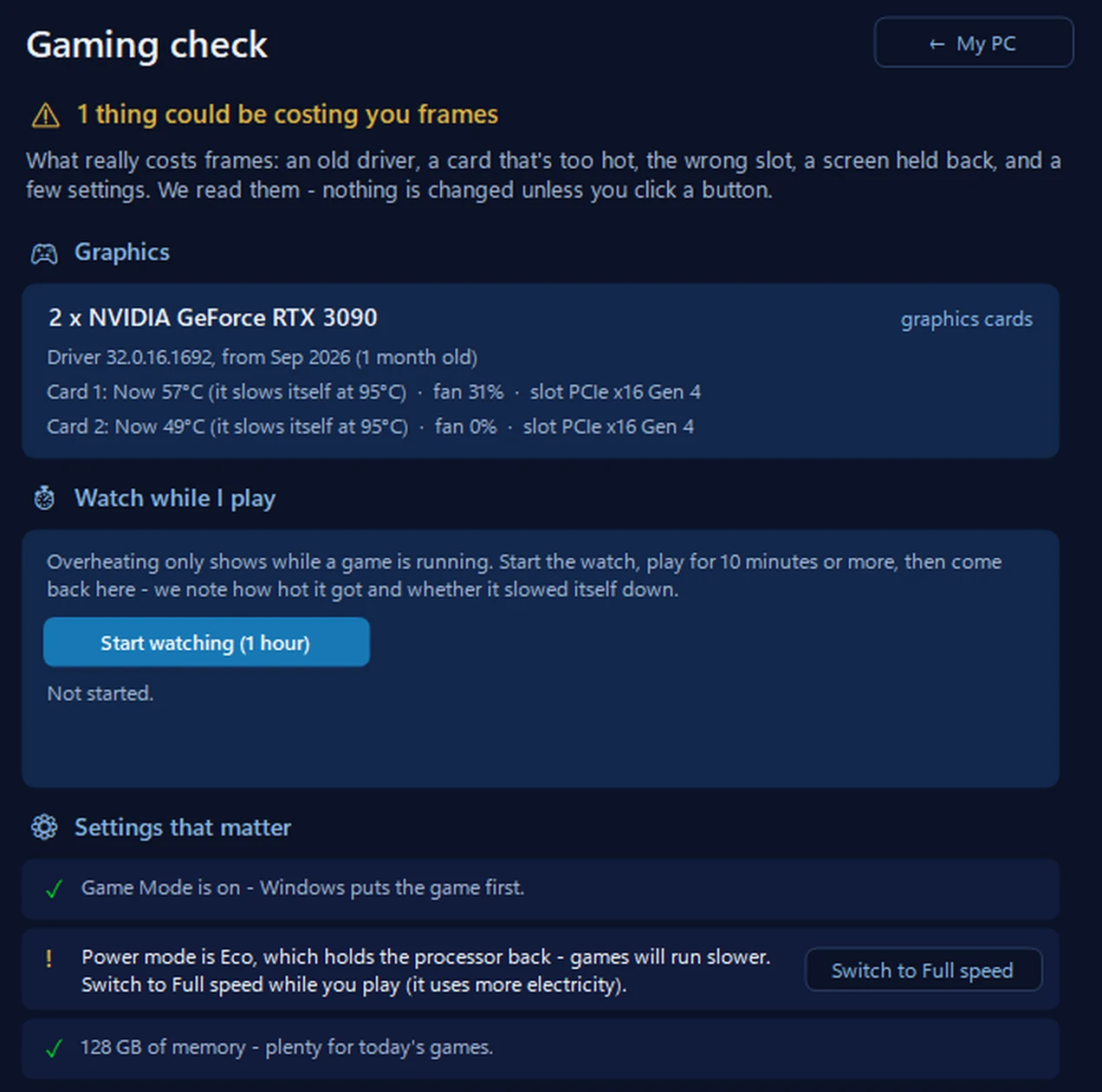
A card can be fine the day you check it and too hot every evening you play. On an NVIDIA card, our free app’s Gaming check reads its temperature with NVIDIA’s own software, along with the point where that card starts slowing itself down and its fan, and says how old its driver is. Watch while I play keeps an eye on it for up to an hour while you game, then tells you how hot the card got and whether it slowed itself down. It only reads: it never touches a fan, a speed or a setting. For other cards, Task Manager’s reading above is the one to watch.
In the app: My PC, then Gaming check.
Download 365 PC Manager free ↓What else it checks
Made by us, a family IT firm in Bournemouth since 1995, and digitally signed by 365 Techies Ltd.
// GOOD QUESTIONS
Frequently asked
How does this graphics benchmark work?
It renders a demanding real-time 3D scene in your browser using WebGL — the same technology games use — and measures how many frames per second your graphics card can push through it. From that it works out a graphics score, your average and 1% low frame rates, and roughly how your GPU compares. It’s all measured live on your own machine; nothing is installed or uploaded.
How accurate is it? Can I compare it to 3DMark?
Treat it as an indicative, relative guide rather than a lab-grade result. Browser, graphics drivers, laptop power mode, thermals and other open tabs all affect it, and every benchmark uses its own scale — so don’t compare the number directly with 3DMark, Unigine or Geekbench. Compare your machine against our tiers, or re-run it after a driver update or upgrade to see the change.
Is it safe? Will it harm my computer?
Completely safe. It simply makes your graphics card work hard for a few seconds — exactly like playing a game. The fan may spin up; that’s normal and stops the moment the test ends. Nothing is installed, downloaded or sent anywhere.
How hot should my graphics card get?
Most cards run at about 60 to 85°C under a heavy load such as a game or this benchmark, and 30 to 50°C when idle. Each has its own limit where it starts slowing itself down — 93°C for an RTX 3090, for example. Task Manager’s Performance tab shows a separate card’s temperature; how hot should your graphics card get? below has the detail.
Why does it say my graphics card is ‘hidden’?
Some browsers, and stricter privacy settings, mask the exact graphics-chip name to reduce tracking. The benchmark still runs perfectly and your score is unaffected — we just can’t print the card’s name on your score card.
My score looks capped or lower than expected — why?
The most common reason is your screen’s refresh rate capping the frame rate (often 60 FPS) — run the Extreme test to push past it. On a laptop, plug it in and set Windows to Best Performance, because battery-saver throttles the GPU hard. Close other tabs and apps, and make sure hardware acceleration is switched on in your browser.
Does it work on laptops, Macs and phones?
Yes — any device with a modern browser. Laptops throttle on battery, so plug in for a fair result. Phones and tablets score much lower than desktops, which is completely normal — it’s a fun way to see the gap. We’re Windows specialists, so our advice is tuned with Windows PCs in mind.
What do the advanced options do?
Render scale changes the resolution the scene is drawn at (higher is harder on the GPU’s fill rate). Detail / quality controls how much work each pixel does. The effects — soft shadows, ambient occlusion, reflections and glow — each add realistic load, just like game settings. Turn everything up for a proper stress test.
My graphics card is too slow — what are my options?
It depends what you need it for. Sometimes the fix is free (updated drivers, better cooling, the right power mode); sometimes it’s a graphics-card upgrade or a new machine built around what you actually do. We’ll give you an honest steer — book a chat, try our custom PC builder, or see our workstation builds.
// FREE TOOLS
More free computer tools
No sign-up, no catch — free tools built by our techies. See all our free tools →
Free tool
365 PC Manager app
365 PC Manager — our free little Windows app. An honest PC health check — health score, one-tap boost, no fake errors — from real local techies. Digitally signed, it installs in a couple of clicks and uninstalls just as easily.
Try it →Free tool
PC Benchmark
How fast is your computer, really? Six live tests — CPU, encryption, memory, graphics & storage — with a score you can share.
Try it →Free tool
PC Hardware Checker
What’s inside your computer? OS, graphics card, screen, memory and more — revealed instantly, nothing installed.
Try it →Free tool
Computer Fault Checker
Tell us what’s playing up and get the likely cause and best next step.
Try it →Need more graphics grunt?
Whether it’s a creative workstation, a gaming rig or a business PC that’s quietly struggling, we’ll advise honestly, build it, or upgrade what you’ve got — or start with a refurbished business-grade Dell from £510.
01202 775566 · help@365techies.co.uk · MON–FRI 9AM–5PM
// HOW IT WORKS
How to benchmark your graphics card online
This free online GPU benchmark renders a demanding 3D scene in your browser using WebGL and measures how many frames your graphics card can push, giving a graphics score and a tier from integrated to enthusiast — no download and nothing installed.
Step by step
- Pick a test — Choose Quick, Standard or Extreme — Extreme pushes powerful cards past your screen’s frame-rate cap.
- Press Start — A live 3D scene renders while the tool measures your frame rate; you watch it run.
- Read your score and tier — You get a graphics score, average and 1% low FPS, and a tier from integrated to enthusiast.
- Try the advanced options — Change render scale, detail and effects (shadows, reflections) for a proper stress test, then save your score card.
Good to know
Is there an online GPU benchmark that needs no download?
Yes — this one runs entirely in your browser using WebGL, the same technology games use. It renders a real 3D scene, measures your frame rate, and gives a graphics score and tier, with nothing to install.
How accurate is a browser GPU benchmark?
Treat it as an indicative, relative guide rather than a lab result — browser, drivers, laptop power mode and thermals all affect it. Compare against our tiers or re-run after a driver update; don’t compare the number directly with 3DMark.