// SSD AND HARD DRIVE HEALTH
How to check your SSD’s health
Windows keeps an eye on your drive already. Windows 11 shows an NVMe SSD’s estimated remaining life in Settings, and one PowerShell command shows the health of every drive, SSD or hard drive, on Windows 11 and 10. Here’s where to look, what the numbers mean, and when it’s time to back up and replace it. Rated 4.9 on Google.
- ● Windows’ own tools
- ● Free drive check app
- ● Windows specialists since 1995
/01 — WINDOWS 11
Check SSD health in Windows 11 Settings
- Open Settings, then System, then Storage.
- Scroll down to Advanced storage settings and choose Disks & volumes.
- Choose the drive (usually Disk 0) and click Properties.
- Look at Drive health: the estimated remaining life, the available spare and the temperature.
Estimated remaining life counts down from 100% as the SSD wears. Available spare is the drive’s reserve of fresh memory, swapped in for worn-out cells; it should stay high. If the drive reports a problem, Windows shows a warning there, and can pop up a notification that a drive may be at risk of failing.
Drive health only appears for NVMe SSDs, the small stick-shaped drives in most PCs and laptops from the last several years. An older SATA SSD or a hard drive won’t show it: use the next step instead.
// FIX IT WITH ME · STEP BY STEP
Check your drive, step by step
The steps from this guide, one at a time, in the order that fixes the most cases fastest. Tell it what happened and it shows the next step. Nothing here leaves your device.Last reviewed 17 October 2026
-
01Open Disks & volumes
On Windows 11: Settings, System, Storage, Advanced storage settings, Disks & volumes.
Is that step done? -
02Open the drive’s properties
Choose the drive and click Properties. Drive health shows the estimated remaining life, available spare and temperature of an NVMe SSD.
Is that step done? -
03Check any drive in Terminal
Right-click Start, open Terminal and run Get-PhysicalDisk. HealthStatus should say Healthy.
Is that step done? -
04See wear and hours
In Terminal (Admin), run Get-PhysicalDisk | Get-StorageReliabilityCounter to see wear, temperature and power-on hours.
Is that step done? -
05Back up if it warns
If anything says Warning or Unhealthy, back up your files today and replace the drive.
Is that step done?
Rather have it done for you? Remote help from £20, or in person across Bournemouth, Christchurch, Poole, Ringwood and the New Forest, with no call-out fee.
Sorted{mins}. Nice work.
Write down the wear and the hours, so you can compare them in six months.
Drive showing a warning? Back up, then that is a job for us.
With your permission we connect to your screen and sort it in one session. Usually the same day, remote help from £20, and no fix, no fee.
How to check your SSD’s health - the fix order (365techies.co.uk/how-to-check-ssd-health/) 1. Open Disks & volumes: On Windows 11: Settings, System, Storage, Advanced storage settings, Disks & volumes. 2. Open the drive’s properties: Choose the drive and click Properties. Drive health shows the estimated remaining life, available spare and temperature of an NVMe SSD. 3. Check any drive in Terminal: Right-click Start, open Terminal and run Get-PhysicalDisk. HealthStatus should say Healthy. 4. See wear and hours: In Terminal (Admin), run Get-PhysicalDisk | Get-StorageReliabilityCounter to see wear, temperature and power-on hours. 5. Back up if it warns: If anything says Warning or Unhealthy, back up your files today and replace the drive. Still stuck? 365 Techies fix it remotely: 01202 775566 - https://365techies.co.uk/remote-support/At a glance
| Windows 11, NVMe SSDs | Settings, System, Storage, Advanced storage settings, Disks & volumes, then Properties on the drive: Drive health. |
|---|---|
| Any drive, Windows 11 and 10 | In Terminal, Get-PhysicalDisk shows each drive’s HealthStatus: Healthy, Warning or Unhealthy. |
| Wear and hours | In Terminal (Admin), Get-PhysicalDisk | Get-StorageReliabilityCounter shows wear, temperature and power-on hours. |
| Wear | 0% is new. 100% means the SSD has used its rated life; most keep working past it, but plan a replacement. |
| Warning or Unhealthy | Back up today, then replace the drive. Don’t wait for it to fail. |
| Clicking or grinding | A hard drive making noises: switch it off and leave it off. Don’t keep trying it. |
| Free check | Our free 365 PC Manager app shows the drive’s health and temperature, and its health report adds wear and hours. |
/02 — ANY DRIVE
Check any drive with PowerShell (Windows 11 and 10)
Right-click Start and choose Terminal (on Windows 10, Windows PowerShell), then paste this line and press Enter:
Get-PhysicalDisk | Select-Object FriendlyName, MediaType, HealthStatus, OperationalStatus, SizeEach drive is listed with its name, whether it’s an SSD or an HDD, and its HealthStatus: Healthy, Warning or Unhealthy, the drive’s own self-check as Windows reads it (Microsoft).
For the detail, right-click Start, choose Terminal (Admin), say Yes, and paste:
Get-PhysicalDisk | Get-StorageReliabilityCounter | Select-Object DeviceId, Wear, Temperature, PowerOnHours, ReadErrorsUncorrectedNot every drive fills in every column. A blank means the drive doesn’t report it, not that it’s zero (Microsoft).
/03 — WHAT THE NUMBERS MEAN
What each number means
- HealthStatus: Healthy is what you want. Warning or Unhealthy means the drive itself is reporting a problem: back up today.
- Wear (SSDs): how much of its rated life the SSD has used, from 0% when new. At 100% it has done what its maker promised; most keep working past it, but plan the replacement. Windows 11’s estimated remaining life is the same figure the other way round.
- PowerOnHours: how long the drive has been switched on in total. 8,760 hours is a year running day and night; a home PC used a few hours a day takes several years to get there.
- Temperature, in °C. NVMe SSDs often run at 40 to 60°C when busy and slow themselves down when they reach their limit; an old spinning hard drive is happiest below about 50°C.
- ReadErrorsUncorrected: data the drive couldn’t read back. Anything above zero is a reason to back up and have it checked.
/04 — WARNING SIGNS
Signs a drive is failing, whatever the numbers say
- Clicking, grinding or buzzing from a hard drive. Switch it off and leave it off: every restart can scrape away more of the data. See laptop clicking noise and data recovery.
- Files or folders that won’t open, copy very slowly or come back damaged.
- The PC freezing for seconds at a time while the drive light stays on.
- Windows offering to scan and repair the drive at start-up, again and again.
- Blue screens that point at the drive, such as KERNEL_DATA_INPAGE_ERROR or UNMOUNTABLE_BOOT_VOLUME.
/05 — WHAT TO DO
Health warning? What to do, in order
- Back up today: photos, documents and anything you can’t replace, to an external drive or OneDrive. A drive giving warnings can stop without notice. How to back up your photos.
- Don’t run repair tools or “drive booster” programs on a drive that’s failing: they work it hard at the worst moment.
- Replace it. A new SSD with everything copied from the old drive, Windows and programs included, gets you back exactly as you were. On a PC that still has a spinning hard drive, it’s also the biggest speed-up there is: see hard drive upgrade and laptop SSD upgrade.
/06 — THE MAKER’S TOOL
Your drive maker’s own tool
Most SSD makers have a free app that reads the same figures and updates the drive’s own software (its firmware): Samsung Magician, Crucial Storage Executive, WD Dashboard and Kingston SSD Manager, for example. CrystalDiskInfo is a popular free tool that shows the full self-check table for any drive. They all read the same self-check as Windows, so use whichever you find clearest.
/07 — THE QUICK WAY
Let our free app keep an eye on it
FREE · WINDOWS 10 & 11 · NO SIGN-UP
Drive health and temperature, in plain words
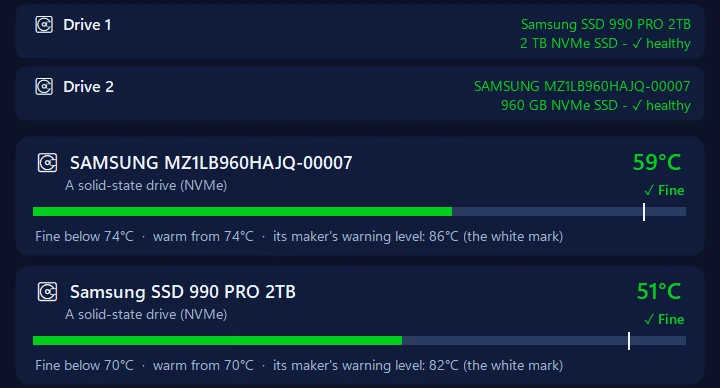
Its This PC page shows Windows’ own drive self-check in plain words — healthy, or worth a look — and its health report adds the SSD’s wear and the drive’s hours of use (Windows asks your permission for those, as in the steps above). Its Temperatures page shows each internal drive against its maker’s own warning level. If Windows ever says a drive may be failing, the app’s Home page tells you to copy your photos and documents somewhere safe that day. It only reads what the drive reports.
In the app: My PC, then This PC, and Temperatures.
Download 365 PC Manager free ↓What else it checks
Made by us, a family IT firm in Bournemouth since 1995, and digitally signed by 365 Techies Ltd.
/08 — WHEN TO CALL US
When to call us
Drive showing a warning, or making noises? Back up first if it still works. Then ring 01202 775566 or text 07520 615332, Monday to Friday, 9 to 5. We fit a new SSD and copy everything across, and if the drive has already stopped, we can try to get your files back. We collect free across Bournemouth, Christchurch, Poole and Dorset.
// FREE · LEARN SOMETHING NEW
13 free, friendly online courses for beginners and older learners — computer basics, email, WhatsApp, staying safe online and more. Short plain-English lessons, a printable certificate at the end, and never a sign-up form.
FAMILY-RUN SINCE 1995 · ★ 4.9 ON GOOGLE · 200+ COMPUTERS UNDER OUR CARE · NO FIX, NO FEE · SAME-DAY REMOTE SUPPORT
// GOOD QUESTIONS
Frequently asked
How do I check my SSD health in Windows 11?
Open Settings, System, Storage, Advanced storage settings, Disks & volumes, choose the drive and click Properties. Drive health shows the estimated remaining life, available spare and temperature of an NVMe SSD.
How do I check SSD health without installing anything?
Right-click Start, open Terminal and run Get-PhysicalDisk. HealthStatus shows Healthy, Warning or Unhealthy for every drive. In Terminal (Admin), Get-PhysicalDisk | Get-StorageReliabilityCounter adds wear, temperature and power-on hours.
What is a good SSD health percentage?
There’s no official pass mark. The figure counts down from 100% as the SSD wears, and everyday home use usually takes only a few percent a year. A warning matters more than the number: if Windows says Warning or Unhealthy, or tells you to back up, act on it whatever the percentage.
How long do SSDs last?
Usually many years in a home PC. SSDs are rated by how much data can be written to them, and everyday use rarely comes close. They’re more often replaced for space or speed than worn out, but any drive can fail without warning, so keep a backup.
Can I check a hard drive the same way?
Yes. Get-PhysicalDisk shows the health of hard drives too, and Get-StorageReliabilityCounter their hours and temperature. Hard drives don’t report wear like SSDs, and one that’s clicking should be switched off, not tested.
Does Windows warn me if my SSD is failing?
Windows 11 can show a notification when an NVMe SSD reports a problem, and Drive health in Settings shows the warning. Older SSDs and hard drives may give no warning at all, which is why a backup matters.
My drive says Warning. What now?
Back up your photos and documents today, then have the drive replaced. We fit a new SSD and copy everything across: call 01202 775566 or text 07520 615332.
// Still stuck?
Drive showing a warning?
Back up first. Then we fit a new SSD, copy everything across and get you running again. Call 01202 775566 or text 07520 615332.
We’ll fix it with you
- Checking the problem is free
- Fixes from £20, agreed before we start
- We phone first, and you watch every step
Stop it happening again
- A full service every six weeks, written up
- Every program kept up to date
- Unlimited remote help when you need it
Plans from £18.25 a month per computer · cancel any time
Mon–Fri 9–5 · family-run since 1995 · rated 4.9 on GoogleCheck it in Settings →