// FORGOTTEN YOUR WI-FI PASSWORD?
Find your Wi-Fi password on your PC
A visitor wants your Wi-Fi, a new printer is asking for the password, and nobody can remember it. If your Windows PC has joined that network before, it already knows the password and can show you in under a minute. Nothing to download, nothing to install. Rated 4.9 on Google.
- ● Under a minute
- ● Windows 11 and 10
- ● Nothing to install
/01 — WINDOWS 11
Windows 11: Settings shows it
- Open Settings, then Network & internet, then Wi-Fi.
- Choose Manage known networks and click your network’s name. (Connected to it now? Network & internet, then Properties at the top, gets you to the same place.)
- Next to Wi-Fi network password, choose Show. There’s the password, and a QR code a phone can scan to join without typing anything.
It works for any network this PC has joined before, even one it isn’t connected to now. No Show button? Your copy of Windows 11 is an older version: the Windows 10 steps below work on it too.
// FIX IT WITH ME · STEP BY STEP
Find the password, quickest way first
One place to look at a time, quickest first. Tell it whether you found it and it shows the next place. Nothing here leaves your device.Last reviewed 26 October 2026
-
01Windows 11: show it in Settings
Open Settings, Network & internet, Wi-Fi, Manage known networks, click your network, then choose Show next to Wi-Fi network password.
Can you see the password? -
02Windows 10, or no Show button
Open Network and Sharing Center, click your Wi-Fi, choose Wireless Properties, then on the Security tab tick Show characters.
Can you see the password? -
03Look on the broadband hub
The original password is printed on the sticker or pull-out card on the back or underneath.
Can you see the password? -
04Ask a connected phone or the provider’s app
An Android phone on the network can share it as a QR code; your provider’s app can usually show it or set a new one.
Can you see the password?
Rather have it done for you? Remote help from £20, or in person across Bournemouth, Christchurch, Poole, Ringwood and the New Forest, with no call-out fee.
Found it{mins}. Nice work.
Use the QR code to get visitors on without reading the password out.
Still can’t find it? That is a quick remote job.
With your permission we connect to your screen and sort it in one session. Usually the same day, remote help from £20, and no fix, no fee.
Find your Wi-Fi password on your PC - the fix order (365techies.co.uk/how-to-find-your-wifi-password/) 1. Windows 11: show it in Settings: Open Settings, Network & internet, Wi-Fi, Manage known networks, click your network, then choose Show next to Wi-Fi network password. 2. Windows 10, or no Show button: Open Network and Sharing Center, click your Wi-Fi, choose Wireless Properties, then on the Security tab tick Show characters. 3. Look on the broadband hub: The original password is printed on the sticker or pull-out card on the back or underneath. 4. Ask a connected phone or the provider’s app: An Android phone on the network can share it as a QR code; your provider’s app can usually show it or set a new one. Still stuck? 365 Techies fix it remotely: 01202 775566 - https://365techies.co.uk/remote-support/At a glance
| Windows 11 | Settings, Network & internet, Wi-Fi, Manage known networks, your network, then Show next to Wi-Fi network password. |
|---|---|
| Windows 10 | Network and Sharing Center, your Wi-Fi, Wireless Properties, the Security tab, then tick Show characters. |
| It works if | This PC has joined that network before: it remembers the password. |
| No PC on it? | The original password is on the sticker or pull-out card on your broadband hub. |
| Changed it and forgot? | Your broadband provider’s app or the hub’s own settings page can show it or set a new one. |
| Keep it private | Anyone with the password can use your broadband, so share it with people you trust. |
// NEED THIS FIXED RIGHT NOW?
Skip the DIY — call 01202 775566 and we can be looking at your screen within minutes. You watch everything we do, and most problems on this page are fixed in one short remote session. (Mon–Fri, 9am–5pm.)
/02 — WINDOWS 10
Windows 10: the Wireless Properties box
- Open Settings, then Network & Internet, then Status, and choose Network and Sharing Center. (On Windows 11, open Control Panel from the Start menu, then Network and Internet, then Network and Sharing Center.)
- Next to Connections, click your Wi-Fi network’s name.
- In the Wi-Fi Status box, choose Wireless Properties.
- On the Security tab, tick Show characters. The password appears in the Network security key box.
This way shows the network you’re connected to now. If Windows asks for an administrator’s password, sign in as the PC’s main user, or ask whoever set the PC up.
/03 — NO PC ON IT?
No computer on that network? Look on the hub
- The sticker or card on your broadband hub. BT, Sky, Virgin Media, EE, TalkTalk and most other providers print the Wi-Fi name and password on a sticker on the back or underneath, or on a card that pulls out. It’s the password the hub came with.
- A phone that’s already connected. On most Android phones, open the Wi-Fi settings, tap the network you’re on and choose Share: it shows a QR code another phone can scan, and many show the password underneath.
- Your broadband provider’s app, or the hub’s own settings page, can usually show the password or let you set a new one.
Changed the password since, so the sticker no longer works? Any PC that has joined since the change has the new one: use the steps above on that PC.
/04 — SHARE IT SAFELY
Sharing it with visitors, safely
- Use the QR code. The one Windows 11 shows beside the password lets a visitor’s phone join by pointing its camera at your screen, so you don’t have to read the password out.
- Print a card for the spare room or the fridge: our free Wi-Fi QR code maker makes one in your browser.
- Keep it to people you trust. Anyone with the password can use your broadband. Don’t post it, or a photo of the sticker, online.
- Given it to someone you’d rather hadn’t got it? Set a new one in your provider’s app or the hub’s settings. Every device then needs the new one, printers included: see printer stopped working after changing the Wi-Fi password.
FREE · WINDOWS 10 & 11 · NO SIGN-UP
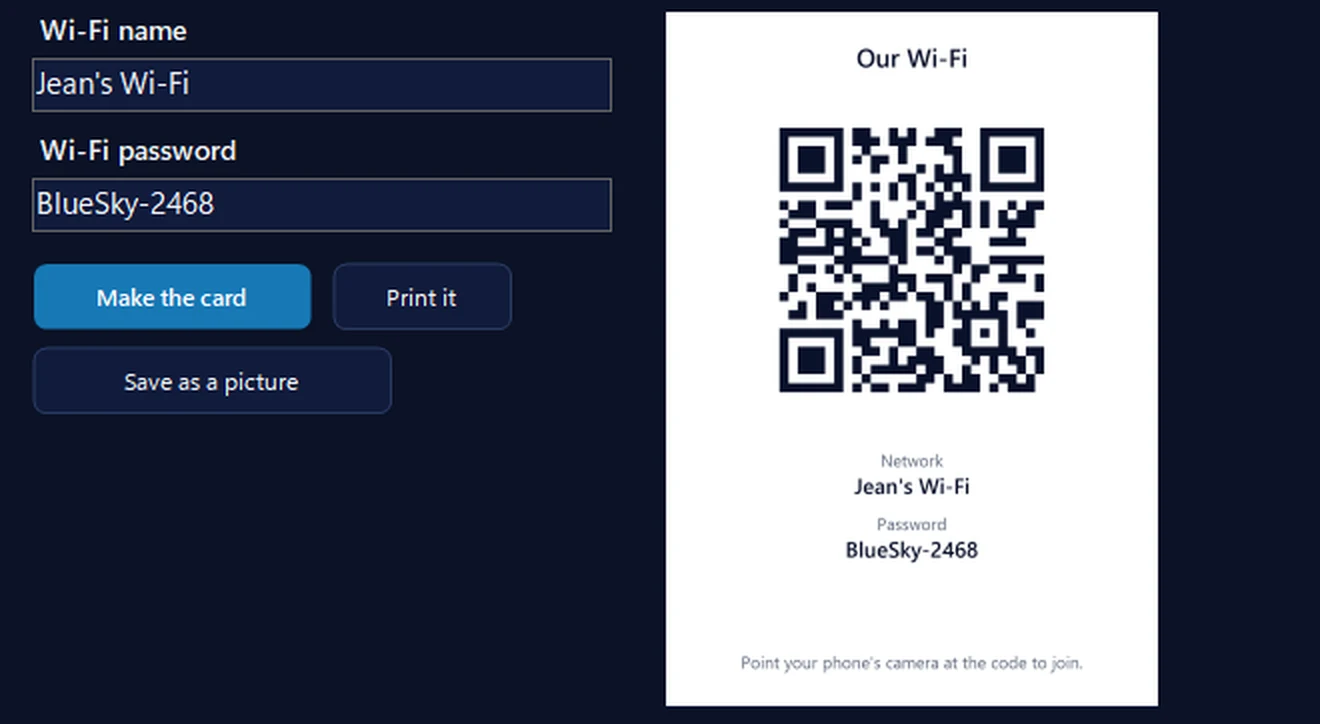
Print a guest Wi-Fi card from your PC
Type your Wi-Fi name and password into our free app and it makes a card with the QR code, the network name and the password on it, ready to print or save as a picture. Visitors point their phone’s camera at it and they’re on. Your password isn’t kept or sent anywhere.
In the app: Internet & email, then More internet tools, then Guest Wi-Fi card.
Download 365 PC Manager free ↓What else it checks
Made by us, a family IT firm in Bournemouth since 1995, and digitally signed by 365 Techies Ltd.
/05 — STILL WON’T CONNECT?
Right password, but it still won’t connect?
- A printer says the password is wrong when it isn’t: usually the hub’s newer security setting. See printer says the Wi-Fi password is incorrect, and on an EE hub the Compatible Wi-Fi fix.
- Capital letters count, and 0 and O, or 1 and l, are easy to mix up on a sticker. The QR code avoids that.
- It connects, then keeps dropping: see Wi-Fi keeps dropping.
- A work laptop may hide the password, or sign in a different way: ask your IT department.
/06 — WHEN TO CALL US
When to call us
Still not right? Ring 01202 775566 or text 07520 615332, Monday to Friday, 9 to 5. With your permission we connect to your Windows PC and sort it while you watch: usually the same day, remote help from £20, and no fix, no fee. We can find the password with you, connect the printer, tablet or smart TV that needs it, or set a new password and reconnect everything. For Wi-Fi that doesn’t reach every room, see Wi-Fi help.
FAMILY-RUN SINCE 1995 · ★ 4.9 ON GOOGLE · 200+ COMPUTERS UNDER OUR CARE · NO FIX, NO FEE · SAME-DAY REMOTE SUPPORT
// GOOD QUESTIONS
Frequently asked
How do I find my Wi-Fi password on my laptop?
On Windows 11, open Settings, Network & internet, Wi-Fi, Manage known networks, click the network and choose Show next to Wi-Fi network password. On Windows 10, use Network and Sharing Center, Wireless Properties, Security, Show characters.
Can I see the password for a network I’m not connected to?
Yes, if the PC has joined it before. On Windows 11, Manage known networks lists every saved network. On Windows 10, open Command Prompt and type netsh wlan show profile name="Your network name" key=clear: the password is next to Key Content. netsh wlan show profiles lists the saved names.
Where is the Wi-Fi password on my router?
On most UK broadband hubs it’s on a sticker on the back or underneath, or a card that pulls out, often labelled Wireless key, Wi-Fi password or Network key. That’s the original one: if it has been changed since, the PC that has joined since knows the new one.
Is it safe to show my Wi-Fi password?
On your own screen, yes. Just don’t post it online or leave the QR code where strangers can scan it: anyone with the password can use your broadband.
Why can’t I see a Show button?
Older versions of Windows 11 don’t have it in Settings. Use the Network and Sharing Center route instead: it works on Windows 11 too, from Control Panel.
Can you help remotely?
Yes. With your permission we connect to your Windows PC, find the password with you and connect whatever needs it. Remote help from £20, no fix, no fee.
// Still stuck?
Still can’t find it?
We can find it with you remotely, connect the printer or tablet that needs it, or set a new password and reconnect everything. Call 01202 775566 or text 07520 615332.
We’ll fix it with you
- Checking the problem is free
- Fixes from £20, agreed before we start
- We phone first, and you watch every step
Stop it happening again
- A full service every six weeks, written up
- Every program kept up to date
- Unlimited remote help when you need it
Plans from £18.25 a month per computer · cancel any time
Mon–Fri 9–5 · family-run since 1995 · rated 4.9 on GoogleShow me the steps →