// MERGE PDFS, ON YOUR OWN PC
Merge PDFs into one, on your PC
An insurer wants your certificate, schedule and MOT “as one PDF”, or a job application wants your CV and references in a single file. Windows can open PDFs but can’t join them by itself. Here’s how to merge them into one on your own Windows PC, free, without uploading them anywhere. Rated 4.9 on Google.
- ● Free on Windows 11 and 10
- ● Nothing uploaded
- ● Originals kept
/01 — START HERE
Can Windows merge PDFs by itself?
No. Windows and Microsoft Edge open, read and print PDFs, and Edge can add a few words, but neither has a button to join two PDFs into one. You need a program or a website that does it.
- Our free Techies PDF does it on your PC, with nothing uploaded (next section).
- The “merge PDF” websites work too, but each means uploading every file to someone else’s computer, which matters for bank statements, payslips and ID (section 5).
- Paid PDF programs join PDFs as well. There’s no need to pay for this one job.
At a glance
| Can Windows do it? | Not by itself. Edge and Windows open PDFs but don’t join them. |
|---|---|
| Free, on your PC | Our Techies PDF: choose the PDFs, put them in order, press Join them into one PDF. |
| Merge or combine? | The same job. Some programs say merge, some combine, some join. |
| Your originals | Left exactly as they were. You get a new, joined PDF. |
| Photos of letters? | Turn them into a PDF first, then join that with the rest. |
| Too big to email after? | Make the joined PDF smaller before you send it. |
/02 — FREE, ON YOUR PC
Merge PDFs with Techies PDF
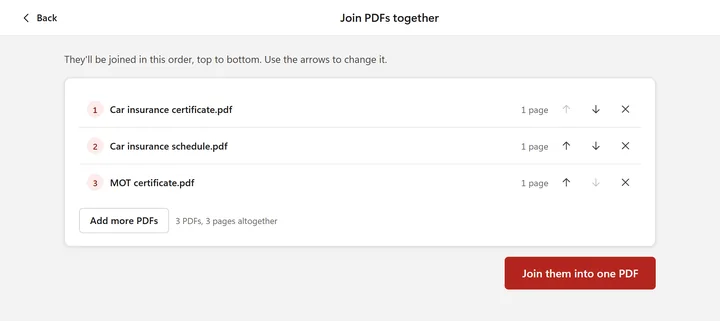
- Open Techies PDF and press Join PDFs together.
- Choose the PDFs, or drop them onto the window from File Explorer or your Downloads.
- Put them in order with the arrows. The one at the top comes first.
- Press Join them into one PDF and choose where to save it, with a name you’ll recognise, such as Car insurance documents.
The PDFs you started with aren’t changed: you get one new PDF with all their pages, in your order.
Watch it done in 25 secondsWatch it done in 21 seconds
FREE · WINDOWS 10 & 11 · NOTHING UPLOADED
Techies PDF: join PDFs into one, on your PC
Choose the PDFs, put them in order and press Join them into one PDF. It also signs, splits, shrinks and fixes PDFs, all on your computer.

On the Microsoft Store, checked by Microsoft. Version 0.2.0, 22 MB, digitally signed by 365 Techies Ltd. Made by us, a family IT firm in Bournemouth since 1995.
/03 — GET IT RIGHT FIRST TIME
Before you join them
- A page upside down or on its side? Put it right first with Turn, move or take out pages in Techies PDF, then join. It’s a scanner’s favourite trick.
- Blank pages from a double-sided scan? Take them out the same way, so the joined PDF isn’t padded with empty pages.
- Letters or receipts photographed on a phone? Turn the photos into a PDF first with Turn photos into a PDF, then join that with the rest.
- Only some pages wanted from a long PDF? Save just those with Take pages out into a new PDF, then join the short one.
- Name the files before you start (1 Certificate, 2 Schedule, 3 MOT) and the order is obvious when you choose them.
/04 — AFTER JOINING
Joined PDF too big to email?
Join five scanned documents and the result can be bigger than your email will send: Gmail stops at 25 MB, and many others at around 20 MB. Photos and scans take the room, so they shrink well. See how to make a PDF smaller: in Techies PDF it’s Make a PDF smaller for email, and our made-up PDF of holiday photos went from 27 MB to 1.3 MB.
Open the joined PDF once before you send it and scroll through: every page there, in the right order, the right way up.
/05 — YOUR PRIVACY
Why not just use a “merge PDF” website?
The free “sign”, “merge” and “compress PDF” websites mostly work. But every one of them means uploading your file to someone else’s computer, often abroad, and the PDFs people need to send are often the private ones: bank statements, payslips, medical and solicitors’ letters, a passport form, a scan of a driving licence.
For anything private, read the website’s privacy policy before you upload, or do the job on your own PC instead, where the file never leaves it.
/06 — WHEN TO CALL US
When to call us
If the pages won’t come out in the right order, a PDF won’t open, or you’d rather someone did it with you on your Windows PC, we can help. Ring 01202 775566 or text 07520 615332, Monday to Friday, 9 to 5. With your permission we connect to your Windows PC and sort it while you watch: usually the same day, remote help from £20, and no fix, no fee.
We work on Windows PCs only, not Macs, iPads or iPhones.
// FREE · LEARN SOMETHING NEW
13 free, friendly online courses for beginners and older learners — computer basics, email, WhatsApp, staying safe online and more. Short plain-English lessons, a printable certificate at the end, and never a sign-up form.
FAMILY-RUN SINCE 1995 · ★ 4.9 ON GOOGLE · 200+ COMPUTERS UNDER OUR CARE · NO FIX, NO FEE · SAME-DAY REMOTE SUPPORT
// GOOD QUESTIONS
Frequently asked
How do I combine PDF files into one for free?
Use a free program such as our Techies PDF on your Windows PC: press Join PDFs together, choose the PDFs, put them in order and press Join them into one PDF. Nothing is uploaded and the originals are kept.
Can Windows merge PDFs without extra software?
No. Windows and Microsoft Edge can open and print PDFs, but neither can join them into one. You need a program, or a website that you upload the files to.
Is merging PDFs the same as combining them?
Yes. Merge, combine and join all mean putting several PDFs into one file, one after another, in the order you choose.
Will merging change my original PDFs?
Not in Techies PDF: it saves a new PDF and leaves the ones you started with as they were.
Can I add photos to the merged PDF?
Turn the photos into a PDF first with Turn photos into a PDF, then join that PDF with the others. iPhone photos (HEIC) need turning into JPG first.
Are merge-PDF websites safe?
Many work, but every file goes to someone else’s computer. For bank statements, payslips or ID, join them on your own PC instead.
Rather we did it with you?
We set it up on your Windows PC while you watch, and do the first one together. Call 01202 775566 or text 07520 615332.
01202 775566 · help@365techies.co.uk · MON–FRI 9AM–5PM