// CDs ON WINDOWS 11
How to play a CD on Windows 11
Put the CD in and Windows 11’s Media Player should start it. If nothing happens, open Media Player and choose the CD, or open it from File Explorer. And if your laptop has no CD drive — most new ones don’t — a plug-in USB CD drive, usually under £25, works straight away. Here’s each step, and how to copy your CDs onto the computer. Rated 4.9 on Google.
- ● Works with any USB CD drive
- ● Free CD player and copier
- ● Windows specialists since 1995
/01 — START HERE
Playing a CD on Windows 11, step by step
- Put the CD in, label side up. Give it ten seconds or so to spin up. Windows may ask what to do with audio CDs: choose Play audio CD.
- Nothing happened? Click Start, type Media Player and open it. The CD appears in its list on the left: choose it and press Play.
- Or use File Explorer. Open File Explorer (the folder on the taskbar), click This PC and double-click the CD drive. Double-click Track01 to start playing.
Prefer the old Windows Media Player you know? It’s still in Windows 11 as Windows Media Player Legacy — type that name in the Start menu. If it isn’t there, open Settings > System > Optional features (on some versions, Settings > Apps > Optional features), choose View features, search for Windows Media Player Legacy, tick it and choose Next, then Add.
// FIX IT WITH ME · STEP BY STEP
Get your CD playing, step by step
The steps from this guide, one at a time, in the order that fixes the most cases fastest. Tell it what happened and it shows the next step. Nothing here leaves your device.Last reviewed 17 October 2026
-
01Put the CD in
Put the CD in the drive, label side up, and give it about ten seconds. If Windows asks what to do with audio CDs, choose Play audio CD.
Is it playing now? -
02Open Media Player if nothing happens
Click Start, type Media Player and open it. Choose the CD in its list on the left and press Play.
Is it playing now? -
03Or open the CD in File Explorer
Open File Explorer, click This PC, double-click the CD drive and double-click Track01.
Is it playing now? -
04No CD drive? Plug in a USB one
Plug a USB CD or DVD drive straight into the computer, not a hub. If it has two USB plugs, use both. Windows uses it with nothing to install.
Is it playing now? -
05Still not recognised?
Check the drive appears under This PC, try another USB socket and another CD, and in Settings, Bluetooth and devices, AutoPlay, set Audio CD to play.
Is it playing now?
Rather have it done for you? Remote help from £20, or in person across Bournemouth, Christchurch, Poole, Ringwood and the New Forest, with no call-out fee.
Sorted{mins}. Nice work.
Set Audio CD to play in AutoPlay, so next time it starts by itself.
Still won’t play after all five steps? That is a remote job.
With your permission we connect to your screen and sort it in one session. Usually the same day, remote help from £20, and no fix, no fee.
How to play a CD on Windows 11 - the fix order (365techies.co.uk/how-to-play-a-cd-on-windows-11/) 1. Put the CD in: Put the CD in the drive, label side up, and give it about ten seconds. If Windows asks what to do with audio CDs, choose Play audio CD. 2. Open Media Player if nothing happens: Click Start, type Media Player and open it. Choose the CD in its list on the left and press Play. 3. Or open the CD in File Explorer: Open File Explorer, click This PC, double-click the CD drive and double-click Track01. 4. No CD drive? Plug in a USB one: Plug a USB CD or DVD drive straight into the computer, not a hub. If it has two USB plugs, use both. Windows uses it with nothing to install. 5. Still not recognised?: Check the drive appears under This PC, try another USB socket and another CD, and in Settings, Bluetooth and devices, AutoPlay, set Audio CD to play. Still stuck? 365 Techies fix it remotely: 01202 775566 - https://365techies.co.uk/remote-support/At a glance
| To play a CD | Put it in. If nothing starts, open Media Player from the Start menu and choose the CD, or open the CD drive in File Explorer. |
|---|---|
| No CD drive? | Most new laptops have none. A USB CD or DVD drive, usually under £25, plugs in and works with no setup. |
| The old Windows Media Player | Still there on Windows 11 as Windows Media Player Legacy, and can be added from Optional features if it’s missing. |
| Copying CDs | Media Player copies to AAC, FLAC, WMA or ALAC, but not MP3. The old Windows Media Player and our free app copy to MP3. |
| Not recognised? | Check the drive appears under This PC, plug a USB drive straight into the computer, and try a different CD. |
| Free check | Our free 365 PC Manager app plays CDs, copies them to MP3 with the song names, and tells you if there’s no drive. |
/02 — NO CD DRIVE?
No CD drive on your laptop? A USB one works
Most laptops made in the last few years have no CD drive, and many desktops don’t either. You don’t need a new computer: a USB CD or DVD drive — a slim box with a USB lead, usually under £25 — plugs into any USB socket and Windows uses it straight away, with nothing to install.
- Plug it straight into the computer, not into a USB hub or the keyboard: CD drives need more power than a hub gives.
- Some come with a Y-shaped lead with two USB plugs: if the drive won’t spin, plug in both.
- Newer laptops may only have the small, oval USB-C sockets: buy a drive with a USB-C lead, or use a small adapter.
/03 — NOT RECOGNISED?
CD won’t play or isn’t recognised?
- Is the drive there? In File Explorer, click This PC. You should see a DVD RW Drive or similar. If it’s missing, unplug a USB drive and plug it into a different socket; for a built-in drive, restart the computer.
- Try another CD. A scratched or dirty disc can fail. Wipe it gently from the centre outwards with a soft cloth.
- Some CDs from the early 2000s were copy-protected and refuse to play on computers. If one CD fails and others play, that may be why.
- Choose what happens when you put a CD in. Open Settings > Bluetooth & devices > AutoPlay and set Audio CD to play it.
- Plays but no sound? Click the speaker icon by the clock and check the volume and where the sound is going — see our radio guide’s no-sound checks.
/04 — COPY YOUR CDS
Copy your CDs onto the computer
Copying (or “ripping”) your CDs means you can play them without the disc, on the computer or a phone. Three free ways:
- Media Player (Windows 11’s own): choose the CD and press Rip CD. It saves to AAC, FLAC, WMA or ALAC — but not MP3. Choose the format in its Settings first.
- Windows Media Player Legacy: open Rip settings > Format > MP3, then Rip CD. MP3 plays on almost anything.
- Our free 365 PC Manager app: copies to MP3 and looks up the album, artist and song names for you.
Either way, the songs land in your Music folder. Copy that folder to a USB stick or OneDrive too, so the music is safe if the computer ever fails.
/05 — THE QUICK WAY
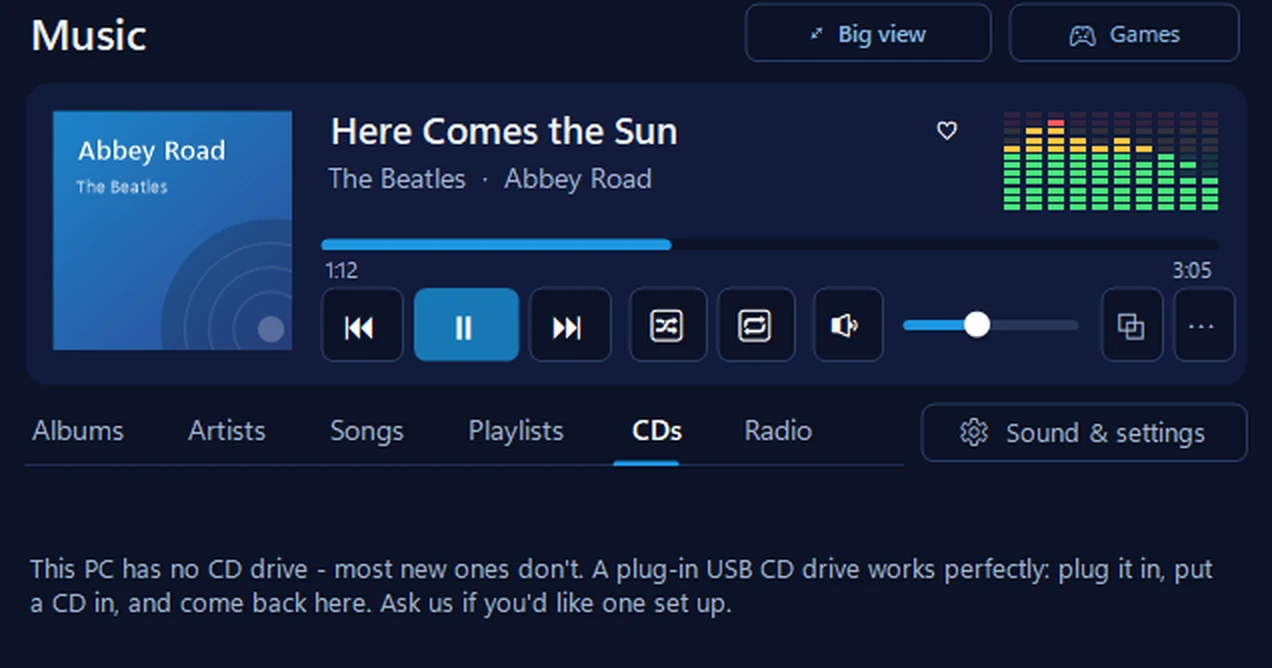
Our free app plays and copies CDs
FREE · WINDOWS 10 & 11 · NO SIGN-UP
CDs: play them, and copy them to MP3
Put a CD in and it plays. It can also copy the CD, saving every song as an MP3 in your Music folder, with the album, artist and song names looked up for you on MusicBrainz (only the disc’s ID is sent, and you can correct the names). No CD drive? It says so, and tells you what to plug in.
In the app: Music & games, then the CDs tab.
Download 365 PC Manager free ↓What else it checks
Made by us, a family IT firm in Bournemouth since 1995, and digitally signed by 365 Techies Ltd.
/06 — WHEN TO CALL US
When to call us
If the CD drive isn’t recognised, or you’d like your whole CD shelf copied onto the computer and kept safe, we can help. Ring 01202 775566 or text 07520 615332, Monday to Friday, 9 to 5. With your permission we connect to your Windows PC and sort it while you watch: usually the same day, remote help from £20, and no fix, no fee.
// FREE · LEARN SOMETHING NEW
13 free, friendly online courses for beginners and older learners — computer basics, email, WhatsApp, staying safe online and more. Short plain-English lessons, a printable certificate at the end, and never a sign-up form.
FAMILY-RUN SINCE 1995 · ★ 4.9 ON GOOGLE · 200+ COMPUTERS UNDER OUR CARE · NO FIX, NO FEE · SAME-DAY REMOTE SUPPORT
// GOOD QUESTIONS
Frequently asked
Does Windows 11 still play CDs?
Yes. Windows 11’s Media Player plays audio CDs, and the old Windows Media Player is still available as Windows Media Player Legacy. What many new computers lack is the CD drive itself.
My laptop has no CD drive. What do I need?
A USB CD or DVD drive, usually under £25. It plugs into a USB socket and works straight away. Check whether your laptop has the usual rectangular USB sockets or only the small oval USB-C ones, and buy a drive to match.
Where has Windows Media Player gone?
Windows 11 has a newer app called Media Player. The old one is still there as Windows Media Player Legacy: type that in the Start menu, or add it from Settings, Optional features, View features.
Can Windows 11 copy a CD to MP3?
Not with the new Media Player, which copies to AAC, FLAC, WMA or ALAC. Windows Media Player Legacy can (Rip settings, Format, MP3), and so can our free 365 PC Manager app.
Why does one CD play and another not?
Usually a scratched or dirty disc. A few CDs from the early 2000s were also copy-protected in ways that stop them playing on computers.
Is it legal to copy my own CDs in the UK?
Strictly, UK law has had no exception for copying your own CDs since 2015, when the High Court overturned the one brought in the year before. In practice, copying music you own for your own listening is widely done; never share or sell the copies.
Will my copied songs have their names?
Media Player and Windows Media Player Legacy look the names up online when they can. Our free app looks the album, artist and song names up on MusicBrainz, the free online music encyclopaedia, and lets you correct them.
Can you copy all my CDs for me?
Yes. We can set it up remotely so copying each CD is one click, or do the whole shelf for you. Remote help is from £20 and no fix, no fee. Ring 01202 775566.
// Still stuck?
CDs still won’t play? We’ll sort it.
We connect to your Windows PC, get the CD drive working and set up your music, while you watch. Usually the same day. No fix, no fee. Call 01202 775566 or text 07520 615332.
We’ll fix it with you
- Checking the problem is free
- Fixes from £20, agreed before we start
- We phone first, and you watch every step
Stop it happening again
- A full service every six weeks, written up
- Every program kept up to date
- Unlimited remote help when you need it
Plans from £18.25 a month per computer · cancel any time
Mon–Fri 9–5 · family-run since 1995 · rated 4.9 on GoogleSee remote support →