// SIGN A PDF, ON YOUR OWN PC
Sign a PDF without printing it
A form arrives by email: fill it in, sign it, send it back. The old way is print, sign, scan and email, which is no good without a printer. Here’s how to fill in and sign a PDF on your Windows PC instead, free, with the file never leaving your computer. Rated 4.9 on Google.
- ● No printer needed
- ● Free on Windows 11 and 10
- ● Nothing uploaded
/01 — START HERE
Which way is right for you
- You just need it done, now: Microsoft Edge is already on every Windows PC and can sign a PDF with a drawn signature (next section).
- You want it to look neat, or you sign forms often: our free Techies PDF keeps your signature, typed, drawn or from a photo, and puts it on the line at the right size (section 3).
- The form has no boxes to type in (it was scanned, say): both ways can put words anywhere on the page.
- It must be “digitally signed” with a certificate, or signed in front of a witness: that’s a different thing (section 5).
At a glance
| Already on your PC | Microsoft Edge opens PDFs. Type into the form’s boxes, use Draw to sign with the mouse or a finger, and Add text for your name and the date. |
|---|---|
| Neatest result | Our free Techies PDF: a typed, drawn or photographed signature, placed on the line and sized to fit. |
| Is it accepted? | For most everyday forms, yes. Some documents, such as a will, must still be signed on paper. If in doubt, ask whoever sent it. |
| What it is | A picture of your signature on the page, not a certified digital signature. |
| Your original | Save a copy, so the blank form is still there if you need to start again. |
| Uploading | Not needed for any of this. Both ways work on your own PC. |
/02 — ALREADY ON YOUR PC
Sign a PDF in Microsoft Edge
- Right-click the PDF, choose Open with, then Microsoft Edge. (On many PCs a PDF opens in Edge anyway.)
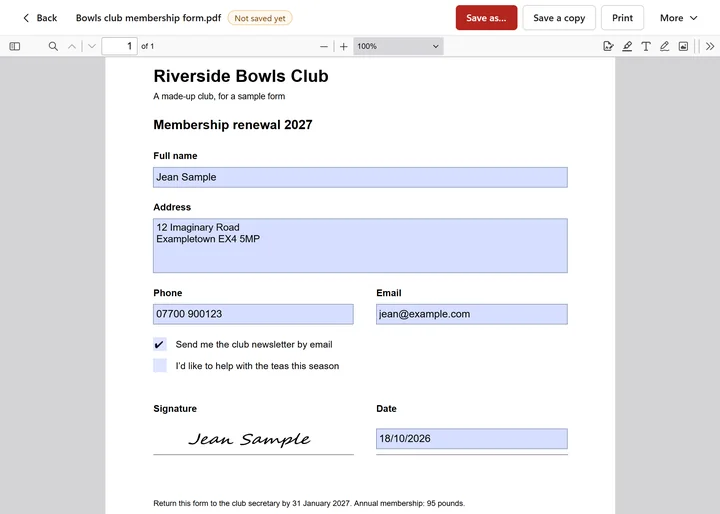
- If the form has boxes, click in each one and type. Tick boxes work too.
- To sign, choose Draw on the toolbar at the top (the pen), pick a dark colour, and sign on the line with the mouse, a touchpad, a pen or your finger on a touch screen.
- For your printed name and the date where there are no boxes, choose Add text, click where it should go, and type.
- Choose Save as at the top right and give it a new name, so the blank form is kept too.
Two honest limits. A signature drawn with a mouse looks shaky, and once drawn it can’t be moved or resized: rub it out with Erase and try again. And Edge’s buttons move about a little between versions, so yours may look slightly different.
/03 — THE NEATER WAY, FREE
Sign a PDF with Techies PDF
We made Techies PDF for the PDF jobs our customers ring us about, and signing forms is the one that comes up most. It’s free, it runs on your Windows PC and it doesn’t send your files anywhere.
- Open Techies PDF, press Open a PDF and choose the form (or drop it onto the window).
- Click in the boxes and type. If it has no boxes, Text puts words anywhere on the page.
- Press Add or edit signatures: type your name in a handwriting style, draw it with the mouse or a finger, or use a photo of your signature.
- Put it on the line and make it bigger or smaller to fit.
- Press Save. The version before is kept on your PC too, in case you need it back.
FREE · WINDOWS 10 & 11 · NOTHING UPLOADED
Techies PDF: fill in and sign a PDF, on your PC
Type into the form, add your signature, put it on the line and press Save. It also joins, shrinks and fixes PDFs, all on your computer.

On the Microsoft Store, checked by Microsoft. Version 0.2.0, 22 MB, digitally signed by 365 Techies Ltd. Made by us, a family IT firm in Bournemouth since 1995.
/04 — A SIGNATURE THAT LOOKS LIKE YOURS
Use a photo of your real signature
A drawn-with-the-mouse signature rarely looks like the real thing. A photo of your own does, and you only make it once:
- Sign a sheet of plain white paper with a dark pen, a little bigger than usual.
- Photograph it with your phone in good light, straight on, with no shadow across it, and get the photo onto your PC (by email to yourself is fine, or Phone Link on an Android phone).
- In Techies PDF, choose the photo when you add a signature. It keeps it for next time.
Keep that photo somewhere private on your PC, not in a shared folder or your email’s sent items: it’s your signature.
/05 — WILL THEY ACCEPT IT?
Is a signature on a PDF accepted?
For most everyday paperwork, yes: a membership or consent form, a tenancy form, a letter of authority, a school trip slip. In the UK an electronic signature is generally accepted for documents like these, and the person who sent the form decides what they’ll take.
- Some documents must be signed on paper, such as a will, and some must be signed in front of a witness. If the form says “sign in ink” or asks for a witness, do that.
- A certified “digital signature” is a different thing: a signature backed by a certificate, used by some businesses and solicitors. Edge and Techies PDF both put a picture of your signature on the page, which is what most forms want, not a certified one.
- Not sure? Ask whoever sent you the form. It takes one email and saves sending it twice.
/06 — SENDING IT BACK
Before you send it back
- Open the saved copy and check every box, the signature and the date are there. It’s the saved file they’ll get, not what was on the screen.
- Attach the saved copy to your reply, not the blank one you were sent: they’re easy to mix up in Downloads.
- Too big to email? Forms with photos in can be. Make the PDF smaller first.
- Several forms to send as one? Merge them into one PDF.
/07 — YOUR PRIVACY
Why not just use a “sign PDF” website?
The free “sign”, “merge” and “compress PDF” websites mostly work. But every one of them means uploading your file to someone else’s computer, often abroad, and the PDFs people need to send are often the private ones: bank statements, payslips, medical and solicitors’ letters, a passport form, a scan of a driving licence.
For anything private, read the website’s privacy policy before you upload, or do the job on your own PC instead, where the file never leaves it.
/08 — WHEN TO CALL US
When to call us
If a form won’t take your typing, the signature won’t sit right, or you’d rather someone did the first one with you on your Windows PC, we can help. Ring 01202 775566 or text 07520 615332, Monday to Friday, 9 to 5. With your permission we connect to your Windows PC and sort it while you watch: usually the same day, remote help from £20, and no fix, no fee.
We work on Windows PCs only, not Macs, iPads or iPhones.
// FREE · LEARN SOMETHING NEW
13 free, friendly online courses for beginners and older learners — computer basics, email, WhatsApp, staying safe online and more. Short plain-English lessons, a printable certificate at the end, and never a sign-up form.
FAMILY-RUN SINCE 1995 · ★ 4.9 ON GOOGLE · 200+ COMPUTERS UNDER OUR CARE · NO FIX, NO FEE · SAME-DAY REMOTE SUPPORT
// GOOD QUESTIONS
Frequently asked
How do I sign a PDF for free on Windows?
Open it in Microsoft Edge, which comes with Windows, and use Draw to sign with the mouse or a finger, then Save as. For a neater signature that you can move and resize, or one made from a photo of your real signature, use our free Techies PDF program.
Can I sign a PDF without printing it?
Yes. Edge and Techies PDF both let you fill in and sign a PDF on screen and save it, ready to email back. No printer or scanner needed.
Why can’t I type into the form?
The PDF has no boxes to type in, usually because it was scanned or made from a picture. Use Add text in Edge, or Text in Techies PDF, to put your words anywhere on the page.
Is a signature on a PDF legally accepted?
For most everyday forms in the UK, yes. Some documents, such as a will, still have to be signed on paper, and some need a witness. If you’re unsure, ask whoever sent you the form.
Can I sign a PDF in Adobe Acrobat Reader?
Yes: if you already have Adobe’s free Acrobat Reader, its Fill & Sign tool does the same job. You don’t need it, though: Edge is already on your PC, and Techies PDF is free.
Are free sign-a-PDF websites safe?
Many work, but they all mean uploading your form, with your name, address and signature on it, to someone else’s computer. For anything private, sign it on your own PC instead.
Still stuck with a form?
We set it up on your Windows PC while you watch, and show you how to sign the next one yourself. Call 01202 775566 or text 07520 615332.
01202 775566 · help@365techies.co.uk · MON–FRI 9AM–5PM