// LAPTOP OVERHEATING
Laptop overheating? How to cool it down
The fan roars, the underside is too hot for your lap, it slows to a crawl or switches itself off. Laptops are built to run warm, and most overheating comes down to air that can’t get through: where it sits, dust in the vents, or a program working it flat out. Here are the free fixes in order, and when it needs opening up. Rated 4.9 on Google.
- ● Free fixes first
- ● Free temperature check app
- ● Windows specialists since 1995
/01 — IS IT TOO HOT?
How hot is too hot for a laptop?
Laptops run warm. Under a heavy load, such as a game, a video call or a big update, the processor can run in the 80s or 90s °C and the fan spins up: that’s what it’s designed to do. Processors protect themselves. As they near their limit, around 100°C for most laptop chips, they slow down, and if that isn’t enough the laptop switches off.
Signs it’s running hotter than it should:
- The fan is loud all the time, even when you’re only reading email.
- It’s too hot to touch near the vents or underneath.
- It slows down or stutters after a few minutes of work, then speeds up again once it cools: that’s the processor slowing itself down.
- It switches off by itself under load, with no warning. Windows records it as “Windows was not properly shut down” in Reliability Monitor.
Windows doesn’t show the processor’s own temperature. Your laptop maker’s app sometimes does, or a free monitoring tool such as HWiNFO.
// FIX IT WITH ME · STEP BY STEP
Cool it down, step by step
The steps from this guide, one at a time, in the order that fixes the most cases fastest. Tell it what happened and it shows the next step. Nothing here leaves your device.Last reviewed 17 October 2026
-
01Put it on a hard surface
Use it on a table, desk or laptop stand so the vents underneath can breathe.
Is it running cooler? -
02Find what’s working it hard
Open Task Manager (Ctrl + Shift + Esc), sort Processes by CPU, and close or update anything stuck near the top.
Is it running cooler? -
03Choose a cooler power mode
Settings, System, Power & battery, Power mode: Balanced or Best power efficiency.
Is it running cooler? -
04Update Windows, the BIOS and drivers
Install Windows updates, then the laptop maker’s BIOS and driver updates.
Is it running cooler? -
05Clean the vents
Shut it down and unplug it, then use short bursts of compressed air through the vents, holding the fan still.
Is it running cooler? -
06Have it cleaned inside
If it still runs hot, the heatsink needs cleaning and the thermal paste replacing.
Is it running cooler?
Rather have it done for you? Remote help from £20, or in person across Bournemouth, Christchurch, Poole, Ringwood and the New Forest, with no call-out fee.
Sorted{mins}. Nice work.
Give it ten minutes of normal use after each step, then feel the underside again.
Still hot after all six steps? That is a job for us.
With your permission we connect to your screen and sort it in one session. Usually the same day, remote help from £20, and no fix, no fee.
Laptop overheating? How to cool it down - the fix order (365techies.co.uk/laptop-overheating/) 1. Put it on a hard surface: Use it on a table, desk or laptop stand so the vents underneath can breathe. 2. Find what’s working it hard: Open Task Manager (Ctrl + Shift + Esc), sort Processes by CPU, and close or update anything stuck near the top. 3. Choose a cooler power mode: Settings, System, Power & battery, Power mode: Balanced or Best power efficiency. 4. Update Windows, the BIOS and drivers: Install Windows updates, then the laptop maker’s BIOS and driver updates. 5. Clean the vents: Shut it down and unplug it, then use short bursts of compressed air through the vents, holding the fan still. 6. Have it cleaned inside: If it still runs hot, the heatsink needs cleaning and the thermal paste replacing. Still stuck? 365 Techies fix it remotely: 01202 775566 - https://365techies.co.uk/remote-support/At a glance
| Normal or too hot? | Warm under load and a busy fan are normal. Too hot to touch, a fan that never quietens, slowing down or switching off are not. |
|---|---|
| Fix 1: the surface | Use it on a hard, flat surface. Beds, sofas, cushions and laps block the vents underneath. |
| Fix 2: what’s working it | Task Manager (Ctrl + Shift + Esc), Processes, sort by CPU. Close or update anything stuck near the top. |
| Fix 3: the power mode | Settings, System, Power & battery: Balanced or Best power efficiency runs cooler. |
| Fix 4: the vents | Switched off and unplugged, short bursts of compressed air through the vents, holding the fan still. |
| When it needs opening | Still hot after all that, usually after two to four years: dust packed on the heatsink and dried-out thermal paste. |
| Free check | Our free 365 PC Manager app shows whether Windows is slowing the processor to cool it, and how hot the drives and graphics chip run. |
/02 — THE FREE FIXES
The free fixes, in order
- Give it air. Use it on a table, a desk or a laptop stand. Most laptops breathe in through the underside, so a bed, sofa, cushion or your lap smothers them. A cooling pad helps a little; a hard surface helps most.
- See what’s working it hard. Press Ctrl + Shift + Esc for Task Manager, choose Processes and click the CPU column. A program near the top that you aren’t using, such as a browser tab, a game launcher or a stuck update, keeps the fan going. Close it, update it, or restart.
- Choose a cooler power mode. On Windows 11: Settings, System, Power & battery, Power mode, then Balanced or Best power efficiency. On Windows 10, click the battery icon and move the slider left. Your laptop maker’s own app may have a quiet or cool mode too.
- Update it. Install Windows updates, then your laptop maker’s BIOS and driver updates from its support app or website. Makers often improve fan control in BIOS updates. Keep it plugged in while a BIOS update runs.
- Clear the vents, as below.
- Keep it out of the sun and away from radiators, and never leave it running in a bag with the lid shut.
/03 — CLEAN THE VENTS
How to clean the vents safely
- Shut it down (not sleep) and unplug the charger.
- Find the vents: usually underneath, and at the side or back where the warm air comes out.
- Use a can of compressed air in short bursts, held upright, from a few centimetres away. Blow in through the outlet vents at an angle, so the dust comes out rather than going further in.
- If you can see the fan through a vent, hold it still with a cotton bud, so the air doesn’t spin it faster than it’s made to go.
Don’t use a vacuum cleaner on the vents, or poke anything inside. If it still runs hot afterwards, the dust is usually packed between the fan and the heatsink, where air from outside can’t shift it.
/04 — WHEN IT NEEDS OPENING
When a laptop needs opening up
After two to four years, most laptops that run hot have the same two problems inside:
- Dust packed on the heatsink, the metal fins the fan blows through. A felt-like layer forms there that blowing through the vents won’t move.
- Dried-out thermal paste between the processor and its heatsink. It carries the heat away from the chip; once it dries, the chip runs hotter for the same work.
The fix is to open the laptop, clean the fan and heatsink properly, and replace the thermal paste (and the thermal pads, where it has them). A fan that rattles or whines gets replaced. It’s fiddly on most laptops, the clips and ribbon cables break easily, and opening it can affect a warranty, so unless you’ve done it before, it’s worth having done.
Gaming laptops need it soonest, because they push the most heat through the smallest space: see Dell G15 overheating for one we see a lot.
/05 — WHAT HEAT DOES
What heat does to the rest of the laptop
- The battery wears faster when it’s kept hot. If the case bulges or the touchpad lifts, stop using it straight away. How to check your battery’s health.
- The drive: solid-state drives slow themselves down when they get too hot, and an old spinning hard drive wears out sooner. How to check your drive’s health.
- Crashes: a laptop that freezes or switches off only when it’s working hard often has a heat problem rather than a software one. See why does my PC keep crashing?
/06 — THE QUICK WAY
See what’s running hot with our free app
FREE · WINDOWS 10 & 11 · NO SIGN-UP
Temperatures: is anything running hot?
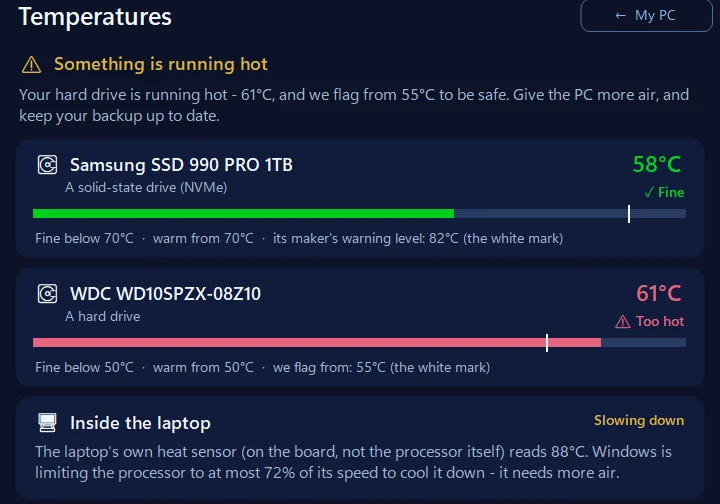
Its Temperatures page shows, on most laptops, whether Windows is slowing the processor down to cool it, each internal drive’s temperature against its maker’s own warning level, and a graphics chip’s temperature where Windows reports one, with tips for a laptop or a desktop, whichever yours is. It doesn’t show the processor’s own temperature, because Windows doesn’t share it without extra driver software, and it never guesses. It only reads: it never touches the fan or a setting.
In the app: My PC, then Temperatures.
Download 365 PC Manager free ↓What else it checks
Made by us, a family IT firm in Bournemouth since 1995, and digitally signed by 365 Techies Ltd.
/07 — WHEN TO CALL US
When to call us
Still running hot after the free fixes? It needs opening up. We clean the fan and heatsink, replace the thermal paste, fit a new fan if the old one is worn, and check the BIOS and power settings, with a clear price before we start. We collect free across Bournemouth, Christchurch, Poole and Dorset, and bring it back. Not sure it’s heat? With your permission we can look remotely first at what’s working it hard.
Ring 01202 775566 or text 07520 615332, Monday to Friday, 9 to 5. More on our laptop repair page.
FAMILY-RUN SINCE 1995 · ★ 4.9 ON GOOGLE · 200+ COMPUTERS UNDER OUR CARE · NO FIX, NO FEE · SAME-DAY REMOTE SUPPORT
// GOOD QUESTIONS
Frequently asked
Why is my laptop overheating?
Usually because air can’t get through: a soft surface under it, dust in the vents and on the heatsink, or a program keeping the processor busy. After a few years, dried-out thermal paste adds to it.
How do I cool down my laptop quickly?
Move it to a hard, flat surface, close programs you aren’t using, and switch the power mode to Balanced or Best power efficiency. If it’s too hot to touch, shut it down and let it cool.
How hot is too hot for a laptop?
Processors can run in the 80s and 90s °C under heavy load, and slow themselves down at their limit, around 100°C on most laptop chips. Too hot to touch, a fan that never quietens, slowing down or switching off are the signs it’s running hotter than it should.
Can overheating damage a laptop?
Processors protect themselves by slowing down and switching off, so sudden damage is rare. Running hot for months does wear the battery faster and shortens the life of the fan and the drive.
Why is my laptop fan so loud?
It’s working hard to move heat: a busy program, a warm room or dust slowing the air. If it’s loud even when the laptop is doing very little, clean the vents, and if that doesn’t help, it needs cleaning inside.
Does a laptop cooling pad work?
It helps a little, mostly by lifting the laptop off soft surfaces and moving more air underneath. It won’t fix a heatsink packed with dust.
Can you clean my laptop for me?
Yes. We clean the fan and heatsink, replace the thermal paste and check the fan, with a clear price first, and collect free across Bournemouth, Christchurch, Poole and Dorset. Call 01202 775566 or text 07520 615332.
// Still stuck?
Still running hot?
We clean it out properly, replace the dried-out thermal paste and check the fan, with a clear price first, and collect free across Bournemouth, Christchurch, Poole and Dorset. Call 01202 775566 or text 07520 615332.
We’ll fix it with you
- Checking the problem is free
- Fixes from £20, agreed before we start
- We phone first, and you watch every step
Stop it happening again
- A full service every six weeks, written up
- Every program kept up to date
- Unlimited remote help when you need it
Plans from £18.25 a month per computer · cancel any time
Mon–Fri 9–5 · family-run since 1995 · rated 4.9 on GoogleThe free fixes →