// PLUGGED IN, NOT CHARGING?
Laptop plugged in but not charging?
The charger is in, but the battery says “plugged in, not charging”, charges slowly, or won’t go past a certain percentage. Often the laptop is protecting the battery on purpose. Here’s how to tell, and what to check next, before you buy a new battery or charger. Rated 4.9 on Google.
- ● Often on purpose
- ● Windows 11 and 10
- ● Battery replacements, price first
/01 — IS IT ON PURPOSE?
Check it isn’t protecting the battery on purpose
- A heart on the battery icon: hover over the battery in the taskbar. If it shows a heart and says Fully Smart charged, Windows’ Smart charging has paused charging below 100% on purpose, to slow battery wear (Microsoft). Nothing is wrong.
- It always stops at the same level, such as 50, 60 or 80%: most laptop makers have a battery-care setting that does this, in their own app or in the laptop’s setup screen. Dell, HP, Lenovo and ASUS all have one.
If the laptop mostly stays plugged in, leave it on: the battery will last longer. Switch it off in the maker’s app before a trip, when you want a full charge.
// FIX IT WITH ME · STEP BY STEP
Get it charging, step by step
The steps from this guide, one at a time, in the order that fixes the most cases fastest. Tell it what happened and it shows the next step. Nothing here leaves your device.Last reviewed 12 October 2026
-
01Check it is not on purpose
A heart on the battery icon (Fully Smart charged) or a fixed stopping point means a battery-care setting is on.
Is it charging now? -
02Use the laptop’s own charger
Plug it into the charging socket, try another wall socket, and check the cable for damage.
Is it charging now? -
03Do a full power-off
Shut down, unplug the charger, hold the power button for 15 seconds, then plug in and start.
Is it charging now? -
04Reinstall the battery driver
Device Manager, Batteries, Microsoft ACPI-Compliant Control Method Battery: uninstall it and restart.
Is it charging now? -
05Check the battery’s health
Run powercfg /batteryreport and compare Design capacity with Full charge capacity.
Is it charging now?
Rather have it done for you? Remote help from £20, or in person across Bournemouth, Christchurch, Poole, Ringwood and the New Forest, with no call-out fee.
Sorted{mins}. Nice work.
Leave it plugged in for 20 minutes and check the percentage has gone up.
Still not charging after all five steps? That is usually the battery or socket.
With your permission we connect to your screen and sort it in one session. Usually the same day, remote help from £20, and no fix, no fee.
Laptop plugged in but not charging? - the fix order (365techies.co.uk/laptop-plugged-in-not-charging/) 1. Check it is not on purpose: A heart on the battery icon (Fully Smart charged) or a fixed stopping point means a battery-care setting is on. 2. Use the laptop’s own charger: Plug it into the charging socket, try another wall socket, and check the cable for damage. 3. Do a full power-off: Shut down, unplug the charger, hold the power button for 15 seconds, then plug in and start. 4. Reinstall the battery driver: Device Manager, Batteries, Microsoft ACPI-Compliant Control Method Battery: uninstall it and restart. 5. Check the battery’s health: Run powercfg /batteryreport and compare Design capacity with Full charge capacity. Still stuck? 365 Techies fix it remotely: 01202 775566 - https://365techies.co.uk/remote-support/At a glance
| A heart on the battery icon | Windows’ Smart charging is holding the battery below 100% on purpose, to make it last longer. |
|---|---|
| Stops at 50 to 80% | A battery-care setting from the laptop maker is probably switched on. |
| “Charging slowly” | The charger or cable isn’t powerful enough, or isn’t the laptop’s own. |
| Nothing at all | Try another wall socket, check the cable, and look for a loose or damaged plug. |
| Worn-out battery | Windows’ battery report shows how much charge it still holds. |
| Bulging case or raised touchpad | Stop using it and unplug it: a swollen battery needs replacing safely. |
/02 — THE CHARGER
Check the charger, cable and socket
- Use the laptop’s own charger. If Windows says the PC is charging slowly, the charger or cable can’t supply enough power: a phone charger, even a USB-C one, usually can’t charge a laptop.
- The right socket: on laptops with several USB-C sockets, only some charge. Look for a charging symbol beside it.
- Look at the charger’s light (if it has one), try another wall socket, and check the cable for kinks, splits or a scorched plug. Stop using a damaged charger.
- A loose plug: if it only charges when you hold the plug at an angle, the laptop’s charging socket may be worn. That’s a repair.
- Unplug power-hungry extras such as external drives, and let it charge while it’s asleep or switched off.
/03 — RESET THE BATTERY READING
Make Windows read the battery afresh
- Restart (Restart, not Shut down).
- A full power-off: shut down, unplug the charger, hold the power button for 15 seconds, then plug back in and start it.
- Reinstall the battery driver: with the charger plugged in, right-click Start, choose Device Manager, open Batteries, right-click Microsoft ACPI-Compliant Control Method Battery, choose Uninstall device, then restart. Windows puts it back by itself. Microsoft documents this fix for its own Surface laptops, and it often helps others.
- Update the laptop’s firmware (BIOS) from the maker’s support website or update app: charging is managed partly by the firmware.
/04 — IS THE BATTERY WORN OUT?
Is the battery worn out?
Batteries hold less charge as they age. Windows can tell you how much:
- Right-click Start and choose Terminal (Windows PowerShell on Windows 10).
- Type powercfg /batteryreport and press Enter. It saves a report called battery-report.html in your user folder.
- Open it and compare Design capacity with Full charge capacity. If the full charge is far below the design figure, the battery is worn and a new one will last much longer.
Bulging case, raised touchpad or a battery warning? Stop using the laptop and unplug it: see swollen laptop battery. Also see laptop shuts down at 30% and laptop turns off when unplugged.
/05 — THE QUICK WAY
Let our free app check the battery
FREE · WINDOWS 10 & 11 · NO SIGN-UP
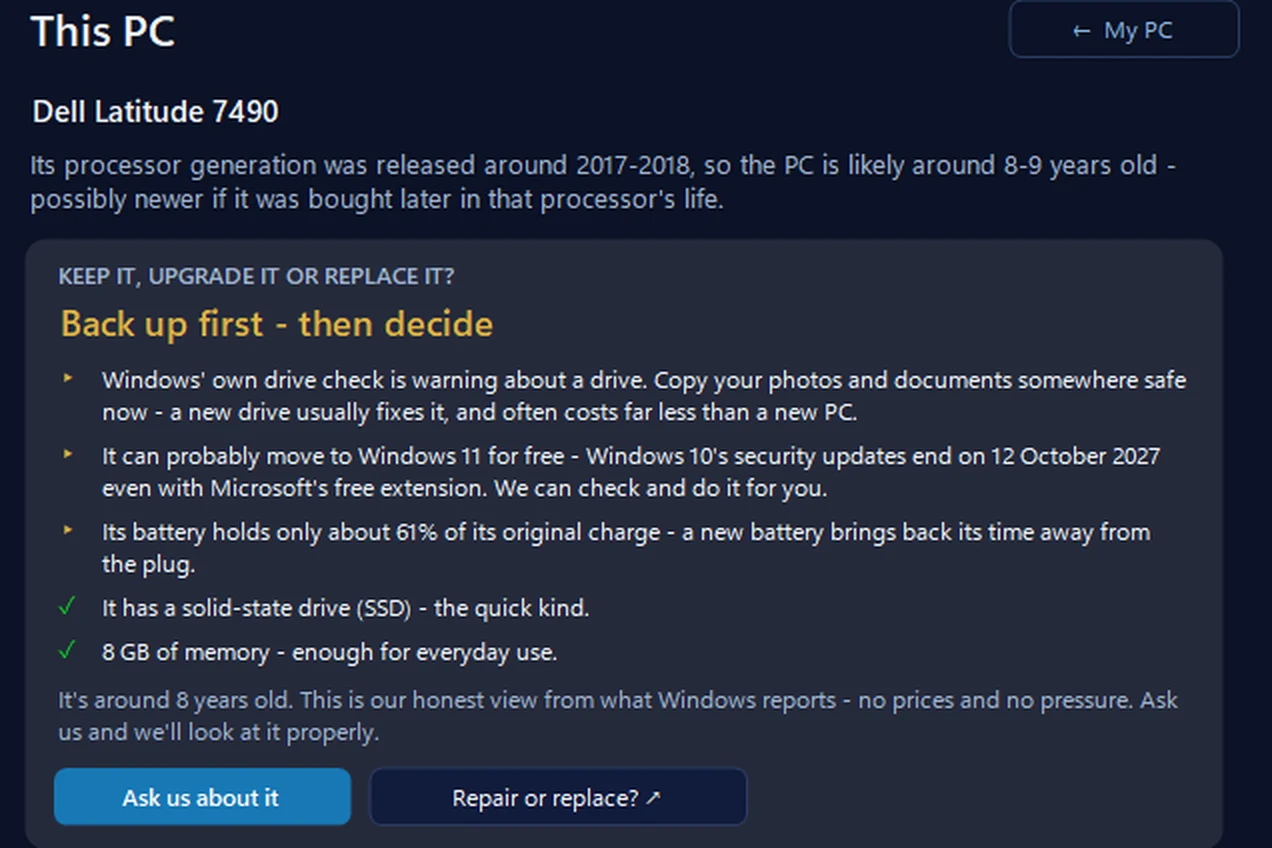
Keep it, upgrade it or replace it?
Its This PC page reads the facts from Windows, including the battery’s wear, along with the drive, the memory, Windows 11 readiness and roughly how old the processor is. Then it gives a plain verdict — keep it, upgrade a part or replace it — and a drive that’s failing always comes first: back up. No prices and no pressure.
In the app: My PC, then This PC.
Download 365 PC Manager free ↓What else it checks
Made by us, a family IT firm in Bournemouth since 1995, and digitally signed by 365 Techies Ltd.
/06 — WHEN TO CALL US
When to call us
Still not right? Ring 01202 775566 or text 07520 615332, Monday to Friday, 9 to 5. With your permission we connect to your Windows PC and sort it while you watch: usually the same day, remote help from £20, and no fix, no fee. If the battery or charging socket is worn, we collect the laptop free across Bournemouth, Christchurch, Poole and Dorset, tell you the price before any work, replace it and bring it back. Dell laptop? See Dell battery replacement.
FAMILY-RUN SINCE 1995 · ★ 4.9 ON GOOGLE · 200+ COMPUTERS UNDER OUR CARE · NO FIX, NO FEE · SAME-DAY REMOTE SUPPORT
// GOOD QUESTIONS
Frequently asked
Why does my laptop say plugged in, not charging?
Often it’s on purpose: Windows’ Smart charging or the maker’s battery-care setting stops charging early to make the battery last. Otherwise it’s usually the charger, the socket or a worn battery.
Why does my laptop stop charging at 80%?
A battery-care setting is switched on, in the maker’s app or the laptop’s setup screen. Leave it on if the laptop mostly stays plugged in; switch it off when you need a full charge.
Can I charge my laptop with a phone charger?
Usually not: most phone chargers can’t supply enough power, and Windows may say the PC is charging slowly. Use the laptop’s own charger.
How do I check my laptop battery’s health?
Run powercfg /batteryreport in Terminal and compare Design capacity with Full charge capacity in the report. Our free 365 PC Manager app shows the battery’s wear on its This PC page.
Is it bad to leave a laptop plugged in all the time?
Laptops stop charging when the battery is full, and battery-care settings that stop at around 80% help it last longer if it’s always plugged in.
Can you replace my laptop battery?
Yes. We collect the laptop locally, tell you the price before any work, fit the new battery and bring it back.
// Still stuck?
Still not charging?
We check the settings remotely, and replace worn batteries and charging sockets with the price agreed first. Call 01202 775566 or text 07520 615332.
We’ll fix it with you
- Checking the problem is free
- Fixes from £20, agreed before we start
- We phone first, and you watch every step
Stop it happening again
- A full service every six weeks, written up
- Every program kept up to date
- Unlimited remote help when you need it
Plans from £18.25 a month per computer · cancel any time
Mon–Fri 9–5 · family-run since 1995 · rated 4.9 on GoogleIs it on purpose? →