// LENOVO VANTAGE
Lenovo Vantage keeps popping up?
Lenovo Vantage is Lenovo’s own app on most Lenovo laptops. It handles updates, the warranty and handy laptop settings, including how the battery charges. Its messages and offers can get repetitive. You can quieten them, or remove it, but set the battery the way you want first. Rated 4.9 on Google.
- ● Quieten it
- ● The battery setting
- ● Keep it or remove it
/01 — WHAT IT IS
What Lenovo Vantage does
Lenovo Vantage comes on most Lenovo laptops and desktops. It checks for driver, BIOS and software updates for your model, shows the warranty, and holds settings Windows doesn’t have, such as the battery charging mode (stopping at around 80 per cent to make the battery last longer), keyboard backlight and camera privacy. Business ThinkPads often have Lenovo Commercial Vantage instead, which does the same jobs without the offers.
// FIX IT WITH ME · STEP BY STEP
Quieten it, step by step
The steps from this guide, one at a time, in the order that fixes the most cases fastest. Tell it what happened and it shows the next step. Nothing here leaves your device.Last reviewed 29 October 2026
-
01Open Lenovo Vantage
Open Lenovo Vantage from the Start menu.
Has it gone quiet? -
02Switch off its messages
Open its settings or preferences, find Messages and switch off app feature and marketing messages.
Has it gone quiet? -
03Block it in Windows
Settings, System, Notifications: turn Lenovo Vantage off.
Has it gone quiet? -
04Set the battery first
If you will remove Vantage, choose the battery charging mode you want before you do.
Has it gone quiet? -
05Or uninstall it
Settings, Apps, Installed apps: uninstall Lenovo Vantage, then Lenovo Vantage Service, and restart.
Has it gone quiet?
Rather have it done for you? Remote help from £20, or in person across Bournemouth, Christchurch, Poole, Ringwood and the New Forest, with no call-out fee.
Sorted{mins}. Nice work.
If the laptop is plugged in most of the time, use the battery conservation mode.
Still popping up? That is a quick remote job.
With your permission we connect to your screen and sort it in one session. Usually the same day, remote help from £20, and no fix, no fee.
Lenovo Vantage keeps popping up? - the fix order (365techies.co.uk/lenovo-vantage-keeps-popping-up/) 1. Open Lenovo Vantage: Open Lenovo Vantage from the Start menu. 2. Switch off its messages: Open its settings or preferences, find Messages and switch off app feature and marketing messages. 3. Block it in Windows: Settings, System, Notifications: turn Lenovo Vantage off. 4. Set the battery first: If you will remove Vantage, choose the battery charging mode you want before you do. 5. Or uninstall it: Settings, Apps, Installed apps: uninstall Lenovo Vantage, then Lenovo Vantage Service, and restart. Still stuck? 365 Techies fix it remotely: 01202 775566 - https://365techies.co.uk/remote-support/At a glance
| What it is | Lenovo’s own app: updates, warranty, battery and other laptop settings. |
|---|---|
| Quieten it | In Vantage: its settings or preferences, Messages, switch off app features and marketing. |
| Block it in Windows | Settings, System, Notifications: turn Lenovo Vantage off. |
| Before removing it | Set the battery charging mode the way you want: changing it later needs Vantage. |
| Remove it | Settings, Apps, Installed apps: Lenovo Vantage, then Lenovo Vantage Service. |
| Want it back? | It’s free in the Microsoft Store. |
/02 — TURN IT DOWN
Turn off Lenovo Vantage messages
- Open Lenovo Vantage from the Start menu.
- Open its settings or preferences (the gear, or the arrow by your name at the top right, depending on the version), find Messages, and switch off the app feature and marketing messages.
- If messages still appear, switch them off in Windows: Settings, System, Notifications, then turn Lenovo Vantage off.
- Want it not to start with Windows at all? Settings, Apps, Startup, and switch it off there.
Lenovo moves these menus between versions, so the names may differ slightly on yours.
/03 — BEFORE YOU REMOVE IT
First: set the battery the way you want
On many Lenovo laptops, Vantage is where you choose how the battery charges: full to 100 per cent, or a conservation or threshold mode that stops earlier so the battery wears more slowly, which is good for a laptop that’s plugged in most of the time. Without Vantage you can’t change it, so set it first.
Unsure how worn the battery is already? See how to check laptop battery health.
/04 — REMOVE IT
Uninstall Lenovo Vantage properly
- Open Settings, Apps, Installed apps.
- Find Lenovo Vantage and choose Uninstall.
- Then uninstall Lenovo Vantage Service, the background part, if it’s listed.
- Restart the PC.
You can get Lenovo Vantage back free from the Microsoft Store at any time. Driver and BIOS updates are also on Lenovo’s support website, and Windows Update brings most drivers.
/05 — KEEP IT OR NOT?
Should you keep it?
Keep it if you use its battery mode, want Lenovo’s BIOS updates offered to you, or like its keyboard and camera settings. Quieten the messages instead.
Remove it if you never open it and the messages bother you. Windows runs perfectly well without it.
/06 — THE QUICK WAY
Let our free app say what’s worth keeping
FREE · WINDOWS 10 & 11 · NO SIGN-UP
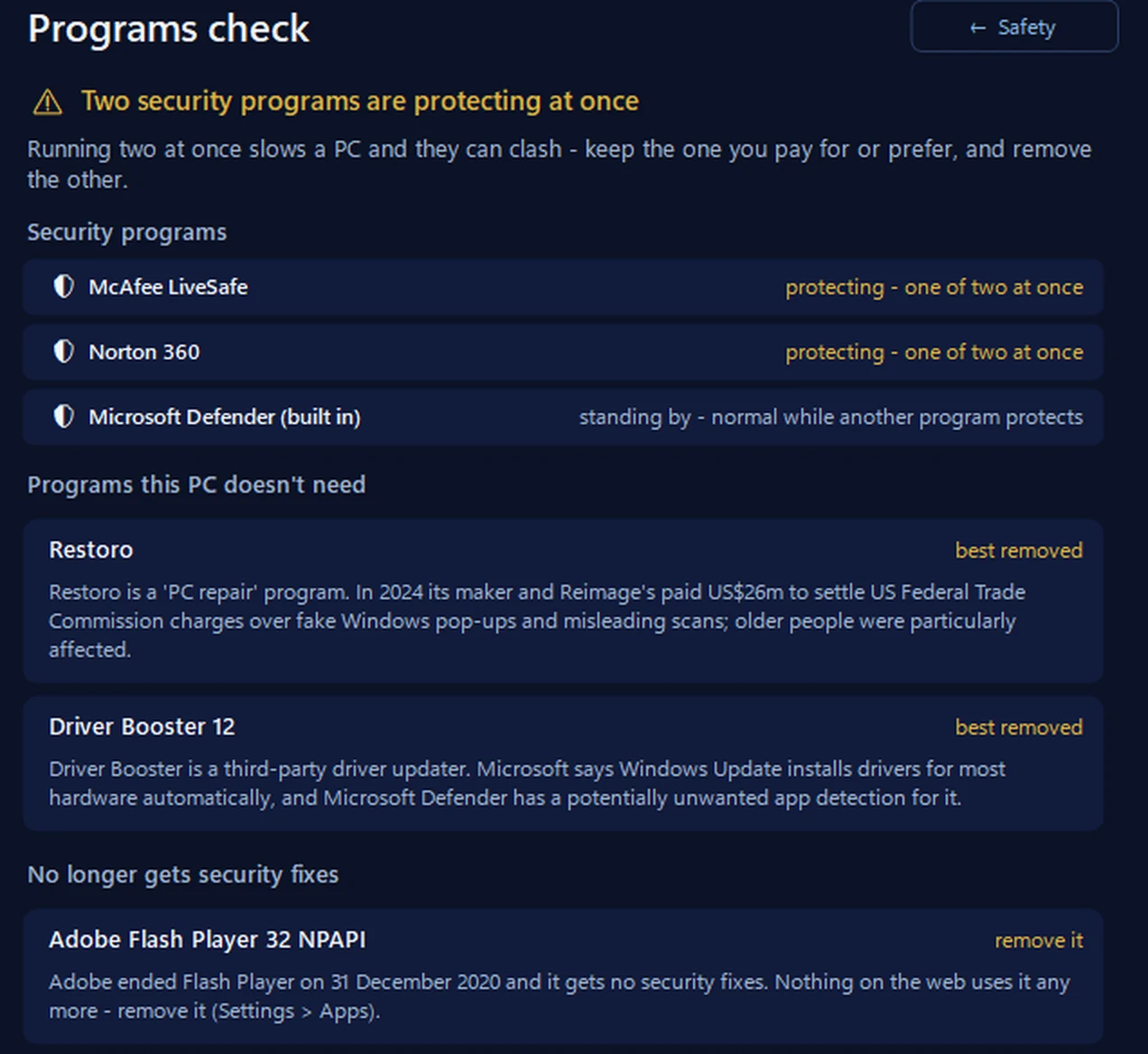
Programs check: what’s worth keeping on your PC
It looks through your installed programs and says which are fine to keep — the PC maker’s own app, HP’s, Lenovo’s or Dell’s, is one of them — and which the PC doesn’t need: tune-up tools, driver updaters, adware and programs that no longer get security fixes, each with the reason. It also says which security program is protecting the PC. It only reads: you remove things in Settings.
In the app: Safety, then Programs check.
Download 365 PC Manager free ↓What else it checks
Made by us, a family IT firm in Bournemouth since 1995, and digitally signed by 365 Techies Ltd.
/07 — WHEN TO CALL US
When to call us
Still not right? Ring 01202 775566 or text 07520 615332, Monday to Friday, 9 to 5. With your permission we connect to your Windows PC and sort it while you watch: usually the same day, remote help from £20, and no fix, no fee. We can set the battery mode, quieten or remove the Lenovo apps you don’t want, and do the BIOS update safely, BitLocker included.
FAMILY-RUN SINCE 1995 · ★ 4.9 ON GOOGLE · 200+ COMPUTERS UNDER OUR CARE · NO FIX, NO FEE · SAME-DAY REMOTE SUPPORT
// GOOD QUESTIONS
Frequently asked
How do I stop Lenovo Vantage pop-ups?
In Vantage, open its settings or preferences, find Messages and switch off the app feature and marketing messages. If they continue, Settings, System, Notifications, and turn Lenovo Vantage off.
Can I uninstall Lenovo Vantage?
Yes. Settings, Apps, Installed apps: uninstall Lenovo Vantage, then Lenovo Vantage Service, and restart. It’s free to reinstall from the Microsoft Store.
Do I need Lenovo Vantage?
No, Windows works without it. Keep it if you use its battery charging mode or want Lenovo’s BIOS updates offered to you.
What happens to the battery setting if I remove Vantage?
Set it the way you want first: Vantage is where you change it, so you’d need Vantage back to change it again.
Is Lenovo Vantage safe?
Yes, it’s Lenovo’s own app. Keep it updated, as you would any program.
Can you sort it for me?
Yes. With your permission we connect to your Windows PC and sort it while you watch. Remote help from £20, no fix, no fee.
// Still stuck?
Not sure what to keep on your Lenovo?
With your permission we connect to your Windows PC and sort it with you: what to keep, what to remove, and the updates done. Call 01202 775566 or text 07520 615332.
We’ll fix it with you
- Checking the problem is free
- Fixes from £20, agreed before we start
- We phone first, and you watch every step
Stop it happening again
- A full service every six weeks, written up
- Every program kept up to date
- Unlimited remote help when you need it
Plans from £18.25 a month per computer · cancel any time
Mon–Fri 9–5 · family-run since 1995 · rated 4.9 on GoogleTurn the messages off →