Microsoft Office & 365 Problems
Microsoft Office “Unlicensed Product” Error — the Real Fixes, in the Right Order
Word’s title bar suddenly shouts UNLICENSED PRODUCT, Excel says “most features are turned off”, and the invoice you were halfway through won’t save. First, the good news: your documents are fine, and in most cases you already own a perfectly valid licence — Office has simply lost track of it. This page walks through the causes we actually find on Dorset customers’ machines, from the thirty-second checks to the deep fixes Microsoft quietly moved into its documentation archive.
Rated 4.9 on GoogleFamily-run since 1995 · no fix, no feeFirst, breathe
What “Unlicensed Product” actually means (and what it doesn’t)
The error wears several outfits depending on which app you’re in: Word shows UNLICENSED PRODUCT in the title bar, Excel adds “most features are turned off”, and Microsoft 365 sometimes says “We couldn’t verify your subscription” or “Product Deactivated”. They are all the same underlying problem: Office phones home to check your licence, doesn’t get the answer it wants, and drops into reduced-functionality mode — you can usually still open and print documents, but editing and saving are switched off.
Two things worth knowing before you touch anything:
- Your files are not lost or damaged. Nothing on your computer has been deleted. The moment the licence check succeeds again, everything works exactly as before.
- It very often happens to people who are paying correctly. The most common causes we see are a wrong signed-in account, a stale credential left on the machine, or a renewal card that quietly expired — not piracy, and not a scam.
One reason this error feels so hard to fix yourself: Microsoft’s deeper troubleshooting guide for it was moved into the archived “previous versions” section of its documentation in early 2025, so the best fixes barely show up in a Google search any more. The junk-tool websites that rank instead will try to sell you software you don’t need. You don’t. Work down this page in order.
// NEED THIS FIXED RIGHT NOW?
Skip the DIY — call 01202 775566 and we can be looking at your screen within minutes. You watch everything we do, and most problems on this page are fixed in one short remote session. (Mon–Fri, 9am–5pm.)
Branch one — home & personal
You bought Microsoft 365 yourself: three quick checks
If this is a home PC or a one-person business with a personal Microsoft 365 subscription, start here — these three checks often solve it in under ten minutes.
1. Has the subscription actually renewed?
Sign in at account.microsoft.com/services (in a web browser, not in Office) and look at your Microsoft 365 subscription. If it shows as expired, the usual culprit is a replaced or out-of-date bank card — the renewal payment silently failed. Update the payment method or renew, then in any Office app go to File > Account > Update Licence (or just sign out and back in).
2. Are you signed into the right Microsoft account?
This is the classic. Open Word and look at File > Account — the name and email in the top corner is the account Office is checking for a licence. If a family member, an employee, or whoever set the PC up signed in with their account, Office is looking for a subscription that account doesn’t have. Sign out, sign in with the account that actually pays for Microsoft 365, and the error usually clears on restart.
3. Is more than one copy of Office installed?
Second-hand PCs and machines “helpfully” set up with a trial often have two Office installations fighting each other. Check Settings > Apps > Installed apps: if you see more than one Microsoft 365 or Office entry, uninstall the ones you don’t pay for, restart, and sign in again. Windows also has a built-in Microsoft 365 activation troubleshooter in the Get Help app — search “activation” there and it will walk through the same checks automatically.
The quick check
Let our free app read your Office licence
Not sure which of these you’re in? On a Windows PC, our free app reads Office’s own licence record and says it in plain words, in a few seconds.
FREE · WINDOWS 10 & 11 · NO SIGN-UP
Is your Office licence OK?
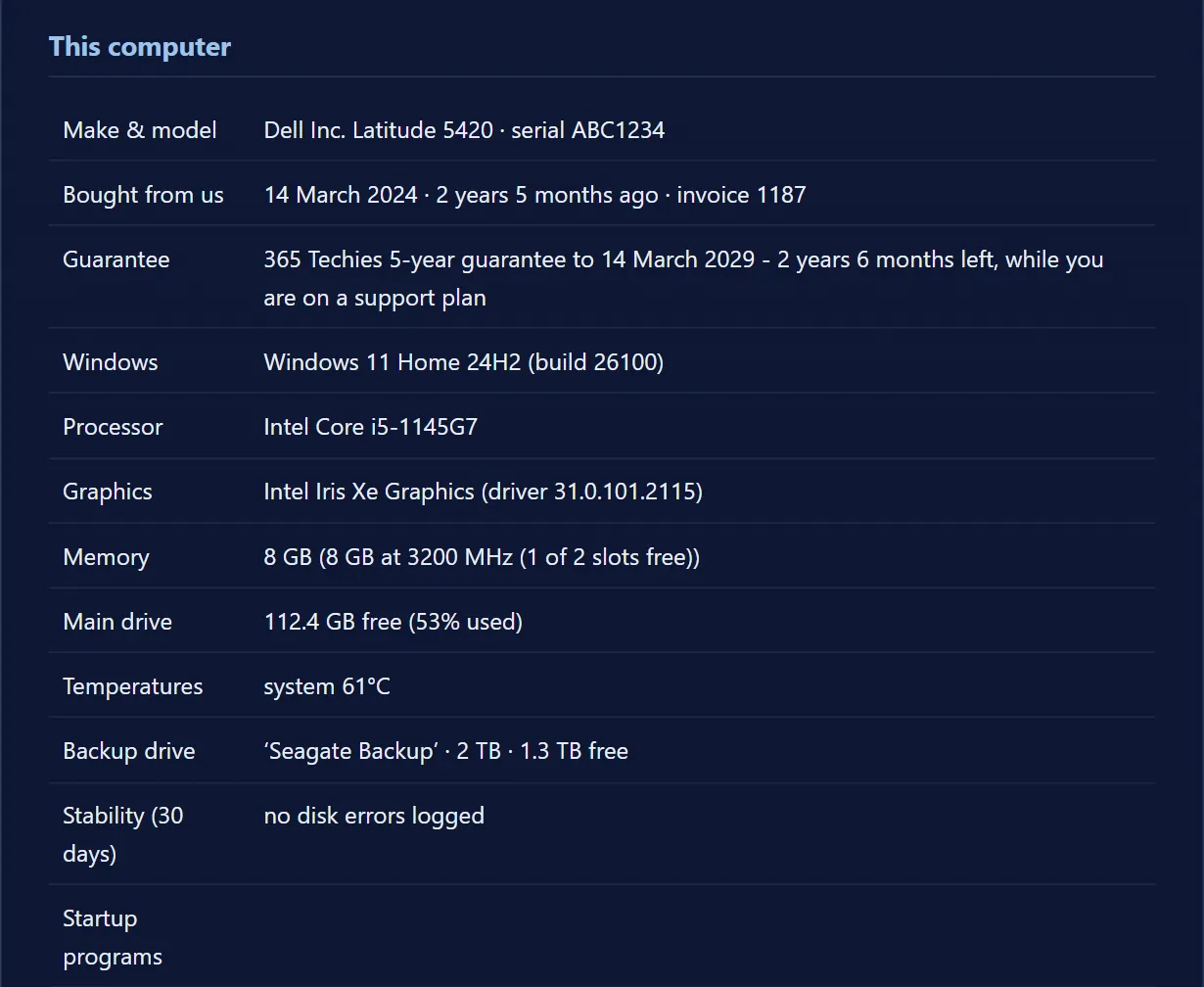
Its This PC page shows which Office is installed and what Office’s own licence record says: licensed (with the date Microsoft last confirmed the subscription), subscription ended (still working until a date it names), not licensed — the “Unlicensed Product” state — or not signed in with the account that has the subscription. For an Office bought once, it says when its security fixes end. Where it can’t tell, it says so rather than guess, and it keeps nothing personal: no email address, no account.
In the app: My PC, then This PC.
Download 365 PC Manager free ↓What else it checks
Made by us, a family IT firm in Bournemouth since 1995, and digitally signed by 365 Techies Ltd.
Branch two — work & business
The licence belongs to a business: where it goes wrong
On a work machine the same error has a different set of causes, because the licence lives in your organisation’s Microsoft 365 tenant rather than a personal account.
- Wrong or stale work account. File > Account again: is Office signed into the current work email, or an old address from before a rename, a migration, or a previous job? Sign out of the wrong identity completely, then sign in fresh. If the PC keeps flipping between a personal and a work account with the same email address, that’s a known Microsoft tangle — our guide to Teams opening the wrong account explains the personal-vs-work account split and how to fix it for good.
- The licence was never assigned — or got unassigned. Paying for Microsoft 365 Business isn’t enough; each user needs the licence ticked against their name. Whoever has admin access should check admin.microsoft.com > Users > Active users, open the affected person, and confirm a Microsoft 365 licence is assigned. Licences also drop off when a subscription’s seat count is reduced or a renewal payment fails.
- Leftover credentials on a shared or second-hand PC. A machine that previously belonged to someone else often still carries their saved Office sign-in, and Office checks that licence instead of yours. The credential clean-up in the next section fixes this.
- The person who set it all up has left. If Office — or the whole Microsoft 365 admin side — was registered under an ex-employee’s account, you have a bigger untangling job than one error message. Start with our guide for when an employee leaves and you don’t know the passwords.
Branch three — the archived fixes
The deeper fixes Microsoft moved to its archive
When the quick checks don’t clear it, the problem is usually a stale identity cached somewhere on the PC. These fixes come from Microsoft’s own IT-professional guidance — the document that was retired to the documentation archive in February 2025, which is why almost nobody finds them any more. They work, but they are advanced: go carefully, and if any of this feels uncomfortable, a remote session from £20 is the sensible shortcut — we do these exact steps while you watch.
Clear cached Office credentials
Open Credential Manager (search for it in the Start menu), choose Windows Credentials, and remove every entry that starts with MicrosoftOffice16. Restart Office and sign in with the correct account — it now has no stale identity to fall back on.
Disconnect old work or school accounts
Go to Settings > Accounts > Access work or school and disconnect any account that shouldn’t be there — old employers, previous IT setups, accounts nobody recognises. Office inherits these connections and will happily check the wrong one.
Reset Office’s identity cache (registry — advanced)
Office keeps its known identities in the registry under HKCU\Software\Microsoft\Office\16.0\Common\Identity\Identities. Deleting that key forces Office to rebuild it cleanly at the next sign-in. Before touching the registry, back it up (File > Export in Registry Editor) — a wrong deletion elsewhere can cause real damage. If you’re not confident here, stop and call us; this is a two-minute job for us and a nervy one for most people.
The full activation reset
For the genuinely stubborn cases, Microsoft provides a procedure to reset the activation state of Microsoft 365 Apps completely — wiping every cached licence and identity so the machine starts from scratch. It’s the licensing equivalent of a factory reset and it’s the last resort we reach for in remote sessions when everything above has failed.
Branch four — the environment
When it’s the computer, not the licence
Sometimes the licence and accounts are perfect, but Office physically can’t reach Microsoft’s licensing service to prove it. Three things to rule out:
- Wrong date and time. Licence checks are cryptographically time-stamped, so a PC whose clock has drifted badly (common after a flat motherboard battery on older machines) fails activation for no visible reason. Check Settings > Time & language and turn “Set time automatically” on.
- Firewall, VPN or security software in the way. Overzealous third-party firewalls, proxies and some VPNs block the connection Office uses to verify licences. Try temporarily pausing the VPN or security suite and clicking File > Account > Update Licence again — if it works, add an exception rather than leaving protection off.
- A broken Office installation. Windows updates and half-finished upgrades can damage Office’s Click-to-Run plumbing. Go to Settings > Apps > Installed apps, find Microsoft 365, choose Modify, and run Quick Repair first (fast, offline). If the error survives, run Online Repair — slower, needs internet, but rebuilds the installation properly without touching your documents or settings.
One thing we’ll say plainly because the rest of the internet won’t: never fix this with a cheap product key from an online marketplace or a “free activator” tool. Grey-market keys get revoked — putting you right back here — and activator downloads are one of the most reliable ways to infect a business PC with malware. You already pay for Office; the fix is making it recognise that, not buying it twice.
// STOP IT HAPPENING AGAIN
Never see “Unlicensed Product” again
This error almost never strikes machines where somebody is actually watching the licences. Managed Microsoft 365 puts someone on it, and the six-weekly service keeps Office and everything else on the machine up to date.
// WHY IT MATTERS MORE NOW
Criminals now use AI to hunt for a single out-of-date program to use as a back door.
The UK’s National Cyber Security Centre expects AI to mean increasing the volume of attacks against systems that have not been updated with security fixes
.
NCSC, Impact of AI on cyber threat from now to 2027, May 2025
- A program that missed its updatesNot just Windows: the browser, the PDF reader, the printer software. Closed by: every program updated, every six weeks.
- A message that looks genuineScam emails and texts written with AI no longer give themselves away with clumsy spelling. Closed by: someone to check with before you click.
- A backup that quietly stoppedWhen ransomware or a dead drive strikes, a working backup is the difference. Closed by: a backup that is checked, not assumed.
SUPPORT PLAN · EVERY SIX WEEKS
Licences watched, machines kept current
- Managed Microsoft 365: licences assigned properly and renewals watched, so a dead card never silently kills your subscription
- Every program updated every six weeks, Microsoft 365 included
- Antivirus, firewall, drive encryption and backup checked and written down in a dated Service Report
£18.25 a month per computer at home, plus £4.85 per Microsoft 365 user · business from £24.38. Rolling monthly, no lock-in.
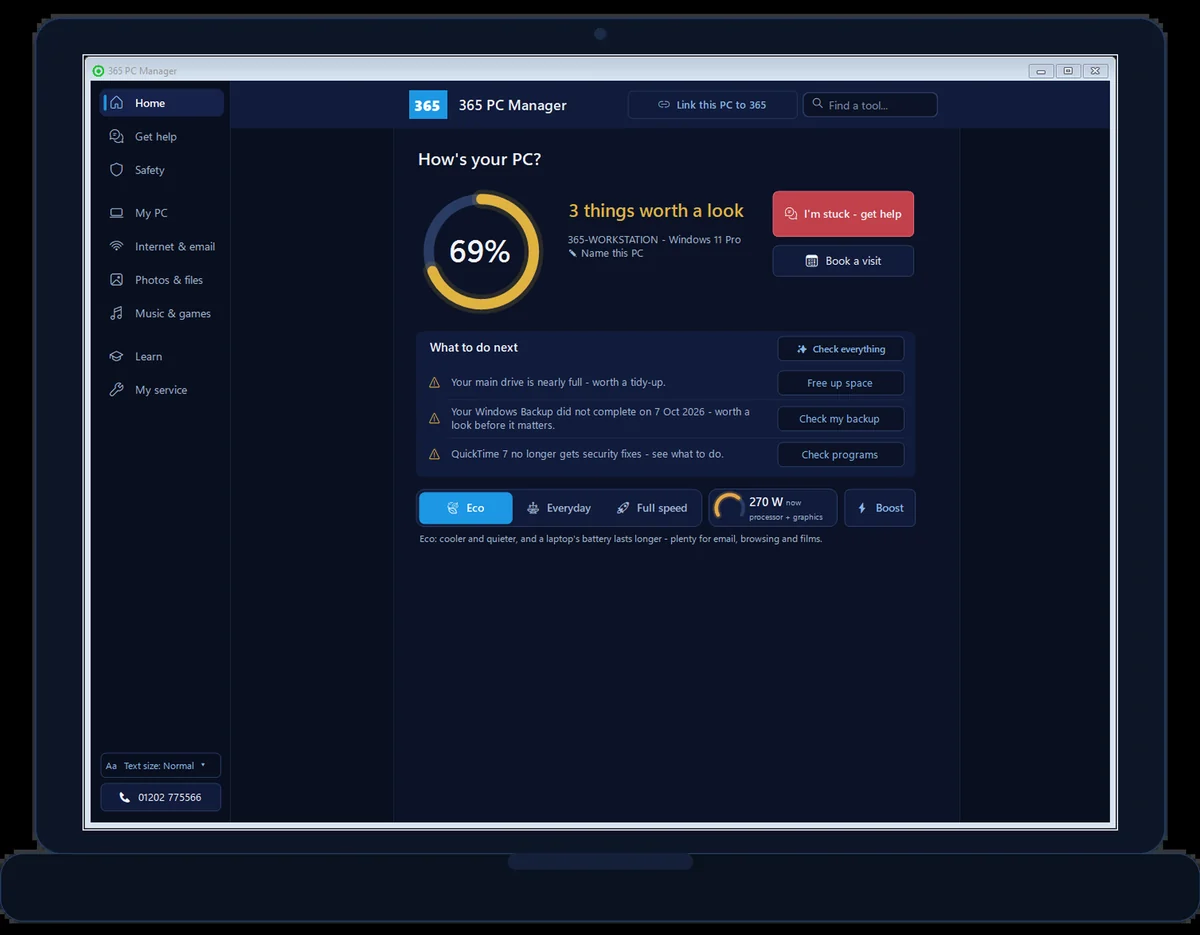
FREE APP · WINDOWS · REAL SCREENSHOT
See how this PC is really doing
- Exact memory, drive health and free space
- Whether antivirus is on and a backup actually exists
- Battery wear, and when Windows is waiting for a restart
- Risky programs, network openings and missed Windows updates
365 PC Manager, digitally signed by 365 Techies Ltd. No fake errors, no scare tactics. It shows you where you stand; it isn’t an antivirus.
Never again
How our customers stopped seeing this error altogether
We’ve handled Office licensing since Office 95 — literally — and taught Microsoft Office for more than ten years at our own Dorset Microsoft Education Resource Centre. In all that time, the pattern hasn’t changed: this error almost never strikes machines where somebody is actually watching the licences.
That’s the honest pitch for managed Microsoft 365, priced per plan: we assign the licences properly, watch the renewals so a dead card never silently kills your subscription, keep sign-ins tidy, and when we do any work you get a written Service Report explaining what was done and why. Nobody on the plan sits staring at “Unlicensed Product” on invoice day wondering who to ring — they already know.
For everything else, we’re remote-first: a secure session from £20, arranged with a call before we connect so you know it’s really us, Mon–Fri 9–5. If a machine needs hands-on work we collect it free locally — we don’t run a walk-in shop, but we do come to you. Not sure which Microsoft 365 subscription you should even be paying for? Our plain-English guide to choosing the right Microsoft 365 plan is the place to start, and if your business leans hard on spreadsheets, our Excel spreadsheet rescue service covers the workbooks the licence error was keeping you away from.
// RELATED
- Office 2021 support ends 13 October 2026 — it keeps working, and what to move to when you are ready
- Teams keeps opening the wrong account — the same personal-vs-work account tangle, on the Teams side
- An employee left and you don’t know the passwords — when the licences were set up in a leaver’s name
- Which Microsoft 365 plan do you actually need? — plain-English guide before you renew anything
- Excel spreadsheet rescue — for the workbook the licence error was keeping you away from
- Microsoft 365 support — the hub for every Office and 365 problem we cover
- Common Outlook problems — if email is what’s broken, start there instead
FAMILY-RUN SINCE 1995 · ★ 4.9 ON GOOGLE · 200+ COMPUTERS UNDER OUR CARE · NO FIX, NO FEE · SAME-DAY REMOTE SUPPORT
// GOOD QUESTIONS
Frequently asked
Will I lose my documents while Office says Unlicensed Product?
No. Reduced-functionality mode disables editing and saving in the Office apps, but every file on your computer and in OneDrive is untouched. You can usually still open and print documents while you fix the licence, and everything returns to normal the moment activation succeeds.
Why does Word say Unlicensed Product when I pay for Microsoft 365?
Very often Office is simply signed into the wrong Microsoft account — check File > Account to see which one it’s using. The other common causes are a renewal payment that silently failed on an expired card, a licence that was never assigned to your user in a business subscription, or stale credentials cached on the PC.
How do I check which account Office is signed into?
Open Word or Excel and go to File > Account. The name and email shown at the top is the account Office checks for a licence. If it isn’t the account that pays for your Microsoft 365 subscription, sign out there, sign back in with the right one, and restart the app.
Excel says “most features are turned off” — is that a different problem?
No — it’s the same licensing error with Excel’s wording. Word shows UNLICENSED PRODUCT in the title bar, Excel says most features are turned off, and some machines show “We couldn’t verify your subscription” or “Product Deactivated”. All of them respond to the same fixes, in the same order.
What does “We couldn’t verify your subscription” mean?
Office tried to confirm your licence with Microsoft and couldn’t get a valid answer. That can mean the subscription lapsed, the signed-in account doesn’t hold the licence, or the PC couldn’t reach Microsoft’s licensing service at all — a wrong system clock, a VPN or an overzealous firewall can all block the check.
I bought a second-hand PC and Office demands activation — what now?
The previous owner’s Office sign-in is almost certainly still cached on the machine. Remove any MicrosoftOffice16 entries in Credential Manager, disconnect unknown accounts under Settings > Accounts > Access work or school, then sign in with your own Microsoft 365 account. If the PC came with Office “included” but no legitimate subscription, you’ll need your own — we can advise on the cheapest honest route.
Our employee left and Office was licensed under their account — can we recover it?
Usually, yes. If you have Microsoft 365 admin access, reassign the licence to the right user in the admin centre and sign the machines into the correct accounts. If the leaver held the admin keys too, it’s a bigger untangling job — our employee-left guide covers it, and we handle these takeovers regularly.
Should I just buy a cheap Office key online to make the error go away?
Please don’t. Grey-market keys are frequently revoked by Microsoft, which lands you straight back at Unlicensed Product, and “activator” downloads are a well-known malware source. In almost every case we see, the customer already owns a valid licence — the fix is getting Office to recognise it, which costs from £20 remotely, not another licence.
How quickly can you fix this remotely?
Most unlicensed-product cases are resolved in a single remote session from £20 — we call first, connect securely while you watch, and work through the same checks on this page plus the deeper resets where needed. We’re open Mon–Fri 9–5 on 01202 775566, or text 07520 615332. We won’t promise a guaranteed same-day fix, but licensing jobs are usually quick ones.
Can this error be prevented permanently?
Very nearly. On managed Microsoft 365 with us we assign licences correctly, watch renewals so a failed card payment never silently cancels your subscription, and keep account sign-ins tidy — the three causes behind almost every case of this error. Any work we do comes with a written Service Report.
// Still stuck?
Work stopped dead by a licensing error?
We untangle Office activation problems remotely from £20 — we call before we connect, and you watch everything we do. Family-run, Mon–Fri 9–5, on 01202 775566 or text 07520 615332.
We’ll fix it with you
- Checking the problem is free
- Fixes from £20, agreed before we start
- We phone first, and you watch every step
Stop it happening again
- A full service every six weeks, written up
- Every program kept up to date
- Unlimited remote help when you need it
Plans from £18.25 a month per computer · cancel any time
Mon–Fri 9–5 · family-run since 1995 · rated 4.9 on GoogleCall 01202 775566 →