// MONITOR STUCK AT 60HZ
Monitor stuck at 60Hz?
You paid for a 144Hz, 165Hz or 240Hz monitor, but Windows says 60Hz and games don’t feel any smoother. The monitor is almost never faulty: it’s a setting, the cable, the socket, or the graphics driver. Here’s the order to check them in. Rated 4.9 on Google.
- ● Usually a five-minute fix
- ● Free screen check app
- ● Gaming PC tune-ups in Dorset
/01 — START HERE
Monitor stuck at 60Hz? Start here
When you plug in a new monitor, Windows usually starts it at a safe 60Hz — sixty pictures a second — even if it can do 144Hz or more. So the first thing to check is simply what Windows has chosen.
On Windows 11, open Settings > System > Display > Advanced display. Pick the right screen at the top if you have more than one, then look at Choose a refresh rate. On Windows 10 it’s Settings > System > Display > Advanced display settings.
If 144Hz (or whatever your monitor promises) is in that list, choose it and you’re done. If the list stops at 60Hz, something between the computer and the screen can’t carry more, and the fixes below find what.
// FIX IT WITH ME · STEP BY STEP
Get it off 60Hz, step by step
The steps from this guide, one at a time, in the order that fixes the most cases fastest. Tell it what happened and it shows the next step. Nothing here leaves your device.Last reviewed 12 October 2026
-
01Choose the refresh rate in Windows
Open Settings, System, Display, Advanced display, pick the screen, and choose the highest rate under Choose a refresh rate.
Is the higher refresh rate there now? -
02Plug into the graphics card’s socket
On a desktop, connect the monitor to the sockets on the graphics card, usually a row lower down on the back, not the ones beside the USB ports.
Is the higher refresh rate there now? -
03Use a DisplayPort or high-speed HDMI cable
Use the DisplayPort cable that came with the monitor, or an HDMI cable marked Premium High Speed or Ultra High Speed into an HDMI 2.0 or 2.1 socket, with no adapters or docks in between.
Is the higher refresh rate there now? -
04Install the proper graphics driver
In Device Manager, under Display adapters, if it says Microsoft Basic Display Adapter, install the driver from NVIDIA, AMD or Intel or your PC maker.
Is the higher refresh rate there now? -
05Check the monitor’s own menu
Switch on the monitor’s high-refresh or DisplayPort setting in its own menu if it has one, then check Choose a refresh rate again.
Is the higher refresh rate there now?
Rather have it done for you? Remote help from £20, or in person across Bournemouth, Christchurch, Poole, Ringwood and the New Forest, with no call-out fee.
Sorted{mins}. Nice work.
Choose it in Advanced display, then restart once to be sure it sticks.
Still stuck at 60Hz after all five steps? That is a remote job.
With your permission we connect to your screen and sort it in one session. Usually the same day, remote help from £20, and no fix, no fee.
Monitor stuck at 60Hz? - the fix order (365techies.co.uk/monitor-stuck-at-60hz/) 1. Choose the refresh rate in Windows: Open Settings, System, Display, Advanced display, pick the screen, and choose the highest rate under Choose a refresh rate. 2. Plug into the graphics card’s socket: On a desktop, connect the monitor to the sockets on the graphics card, usually a row lower down on the back, not the ones beside the USB ports. 3. Use a DisplayPort or high-speed HDMI cable: Use the DisplayPort cable that came with the monitor, or an HDMI cable marked Premium High Speed or Ultra High Speed into an HDMI 2.0 or 2.1 socket, with no adapters or docks in between. 4. Install the proper graphics driver: In Device Manager, under Display adapters, if it says Microsoft Basic Display Adapter, install the driver from NVIDIA, AMD or Intel or your PC maker. 5. Check the monitor’s own menu: Switch on the monitor’s high-refresh or DisplayPort setting in its own menu if it has one, then check Choose a refresh rate again. Still stuck? 365 Techies fix it remotely: 01202 775566 - https://365techies.co.uk/remote-support/At a glance
| Is the monitor faulty? | Rarely. Windows has set it to 60Hz, or the cable, socket or driver can’t carry more. |
|---|---|
| First check | Settings > System > Display > Advanced display > Choose a refresh rate. |
| 144Hz not in the list? | Then it’s the cable, the socket or the graphics driver — work down the fixes below. |
| Desktop trap | The screen plugged into the motherboard’s socket instead of the graphics card’s. |
| Laptop trap | Some laptops drop the screen to 60Hz on battery: plug the charger in and check again. |
| Free check | The Screen check in our free 365 PC Manager app shows the rate each screen runs at and the best one Windows offers. |
// NEED THIS FIXED RIGHT NOW?
Skip the DIY — call 01202 775566 and we can be looking at your screen within minutes. You watch everything we do, and most problems on this page are fixed in one short remote session. (Mon–Fri, 9am–5pm.)
/02 — WHY IT HAPPENS
Why a fast monitor runs at 60Hz
- Windows picked 60Hz. It plays safe with a new screen and never raises the rate on its own.
- The cable or socket can’t carry it. Older HDMI sockets and cables often can’t send more than 60Hz at higher resolutions, and many monitors only allow their top rate over DisplayPort.
- It’s plugged into the wrong socket. On a desktop with a graphics card, the sockets near the USB ports belong to the motherboard, not the graphics card.
- The graphics driver is missing. If Windows is using its own basic display driver, it only offers 60Hz.
- Something in between limits it. Docking stations, USB-C hubs and adapters often cap the refresh rate.
/03 — THE FIXES
Get it running at its proper rate, in order
- Choose the refresh rate. Settings > System > Display > Advanced display > Choose a refresh rate, and pick the highest. Windows asks whether to keep it; say yes if the picture looks right.
- Use the graphics card’s socket. On a desktop, plug the monitor into the sockets on the graphics card — usually a row lower down on the back — not the ones beside the USB ports.
- Use the right cable. Use the DisplayPort cable that came with the monitor, or an HDMI cable marked Premium High Speed or Ultra High Speed into an HDMI 2.0 or 2.1 socket. Leave out adapters and docks while you test.
- Install the proper graphics driver. Right-click Start, choose Device Manager, open Display adapters. If it says Microsoft Basic Display Adapter, install the driver from NVIDIA, AMD or Intel, or your PC maker’s support page.
- Check the monitor’s own menu. Some monitors need their high-refresh or DisplayPort setting switched on in their own buttons-and-menu, and a few hide their top rate behind an overclock option. The manual says which.
After each step, go back to Choose a refresh rate and see if the higher number has appeared.
/04 — LAPTOPS
On a laptop: check it on the charger
Many laptops lower the screen’s refresh rate on battery to make it last longer, and some show a Dynamic option that changes the rate on its own. Plug the charger in, then look at Choose a refresh rate again. For a second, external screen, the same cable and socket rules apply: a USB-C or Thunderbolt socket with DisplayPort, or the laptop’s HDMI socket if it is HDMI 2.0 or newer.
/05 — BLURRY TOO?
Text blurry as well? Check the size
A screen looks its sharpest at its own size — its native resolution, the one Windows marks (Recommended) under Settings > System > Display > Display resolution. Running a 2560 × 1440 monitor at 1920 × 1080 makes text soft and fuzzy. If you lowered it to make things bigger, set it back to the recommended size and use Scale on the same page instead: it makes everything bigger without blurring.
/06 — THE QUICK WAY
Let our free app check it for you
FREE · WINDOWS 10 & 11 · NO SIGN-UP
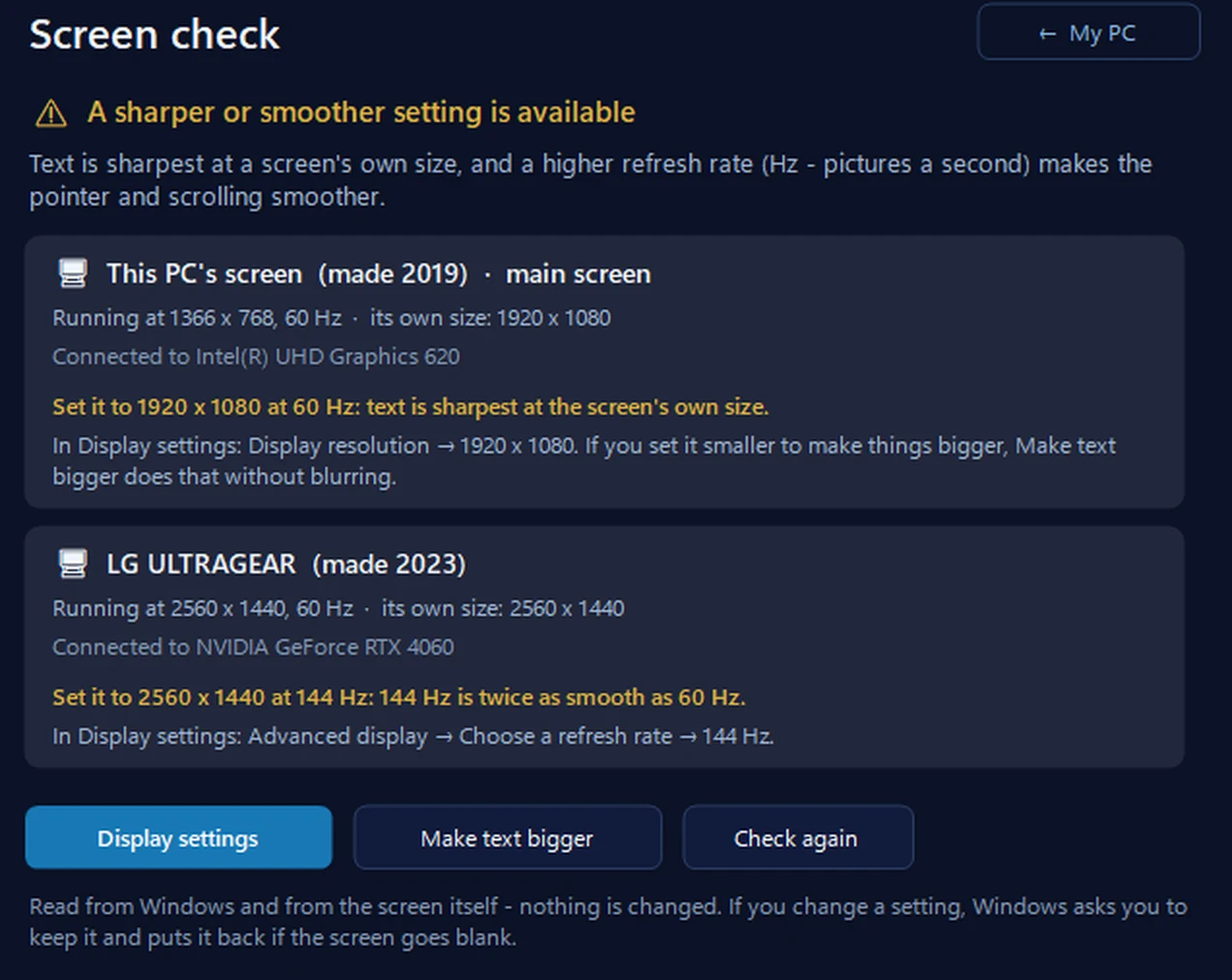
Screen check: is your screen at its sharpest and smoothest?
For every screen it shows the name and year it was made, the size and refresh rate it’s running at, its own best size, and a better setting when Windows offers one. It never changes the setting itself — it opens Display settings, and Windows puts the old setting back if the screen goes blank.
In the app: My PC, then Screen check.
Download 365 PC Manager free ↓What else it checks
Made by us, a family IT firm in Bournemouth since 1995, and digitally signed by 365 Techies Ltd.
/07 — WHEN TO CALL US
When to call us
If it still won’t go above 60Hz with the right cable, socket and driver, or the picture flickers or goes blank at a higher rate, we’ll find out why. Ring 01202 775566 or text 07520 615332, Monday to Friday, 9 to 5. With your permission we connect to your Windows PC and sort it while you watch: usually the same day, remote help from £20, and no fix, no fee.
Building or upgrading a gaming PC? Our gaming PC tune-up sets the screen, the drivers and the power settings up properly in one go.
FAMILY-RUN SINCE 1995 · ★ 4.9 ON GOOGLE · 200+ COMPUTERS UNDER OUR CARE · NO FIX, NO FEE · SAME-DAY REMOTE SUPPORT
// GOOD QUESTIONS
Frequently asked
How do I know my monitor is running at 144Hz?
Windows shows it: Settings > System > Display > Advanced display, under Choose a refresh rate. Many monitors also show the rate in their own on-screen menu. Our free 365 PC Manager app shows the rate each screen is running at too.
Can HDMI do 144Hz?
Yes, with HDMI 2.0 or 2.1 at both ends and a cable marked Premium High Speed or Ultra High Speed. Older HDMI often stops at 60Hz at higher resolutions, and some monitors only offer their top rate over DisplayPort, so DisplayPort is the safer choice.
Why did it go back to 60Hz after an update or a restart?
Usually a graphics driver update reset the setting, or Windows briefly used its basic driver. Set it again in Advanced display; if the higher rate has gone from the list, reinstall the graphics driver.
Why does my laptop screen only show 60Hz?
Many laptops lower the rate on battery to save power. Plug the charger in and check again; a Dynamic option means the laptop changes it as it goes.
Is 60Hz bad for ordinary use?
No. For email, browsing and films, 60Hz is fine. A higher rate makes the pointer, scrolling and games feel smoother, which is why it matters most for gaming.
Does a higher refresh rate use more electricity?
A little, mostly through the graphics card working harder in games. See what a PC costs to run for the bigger picture.
Can you set it up for me?
Yes. We connect to your Windows PC remotely and set the screen, driver and settings up while you watch, usually the same day. Remote help is from £20 and no fix, no fee. Ring 01202 775566.
// Still stuck?
Still stuck at 60Hz? We’ll sort it.
We connect to your Windows PC and get the screen running at its proper rate while you watch. No fix, no fee. Call 01202 775566 or text 07520 615332.
We’ll fix it with you
- Checking the problem is free
- Fixes from £20, agreed before we start
- We phone first, and you watch every step
Stop it happening again
- A full service every six weeks, written up
- Every program kept up to date
- Unlimited remote help when you need it
Plans from £18.25 a month per computer · cancel any time
Mon–Fri 9–5 · family-run since 1995 · rated 4.9 on GoogleGaming PC tune-up →