How to move your Virgin Media email to Gmail
Keeping your Virgin address means paying Junara once any free year ends. Or move it to Gmail once and keep it free.
★ 4.9 on GoogleFamily-run since 1995Real people on 01202 775566
DONE FOR YOU · AGREED BEFORE WE START
Let us do it: £60 per email address
For Windows PCs only.
Text 07520 615332Call 01202 775566
We move every folder into Gmail for you, remotely. No app passwords, no settings, nothing to learn, and the price includes a full service of your PC with a written report.
- Every message and folder into Gmail, with the original dates
- Works even if Virgin won’t give you an app password
- A full service of your PC, with a written health report
- Forwarding set up, and checked on your phone if you like
- Done remotely: we phone first, and you watch us start
For Windows PCs · agreed before we start · no fix, no fee · we can usually start the same day, Mon–Fri 9–5
FREE · NO SIGN-UP · FOR WINDOWS PCs
Or do it yourself, free, with 365 PC Manager
Our free app moves your Virgin email into Gmail for you, no Virgin app password needed.
Download free for WindowsDownload free ↓
For Windows PCs. You’ll need a Gmail account and a Google app password. Not for Macs. If Virgin won’t let you sign in, copy your email from the Chrome you already use with our free 365 Email Mover add-on, or press ‘Stuck? We’ll do it for you’ and we’ll move it for you.
- Check my Virgin email: every folder, how many emails, how big, and how many days the move will take. It only reads.
- Move it to Gmail myself: folders and dates kept. Gmail takes about 500 MB a day, so a big mailbox takes a few days — it carries on by itself.
- Where your address is used: the companies that email you, so you can change your address with each one.
- Stuck? We’ll do it for you: one tap asks us to ring you back.
Or: move it by hand with Thunderbird (needs a Virgin app password) · keep your Virgin address with Junara · is this Junara email real? · what’s happening, in full · no Virgin app password?
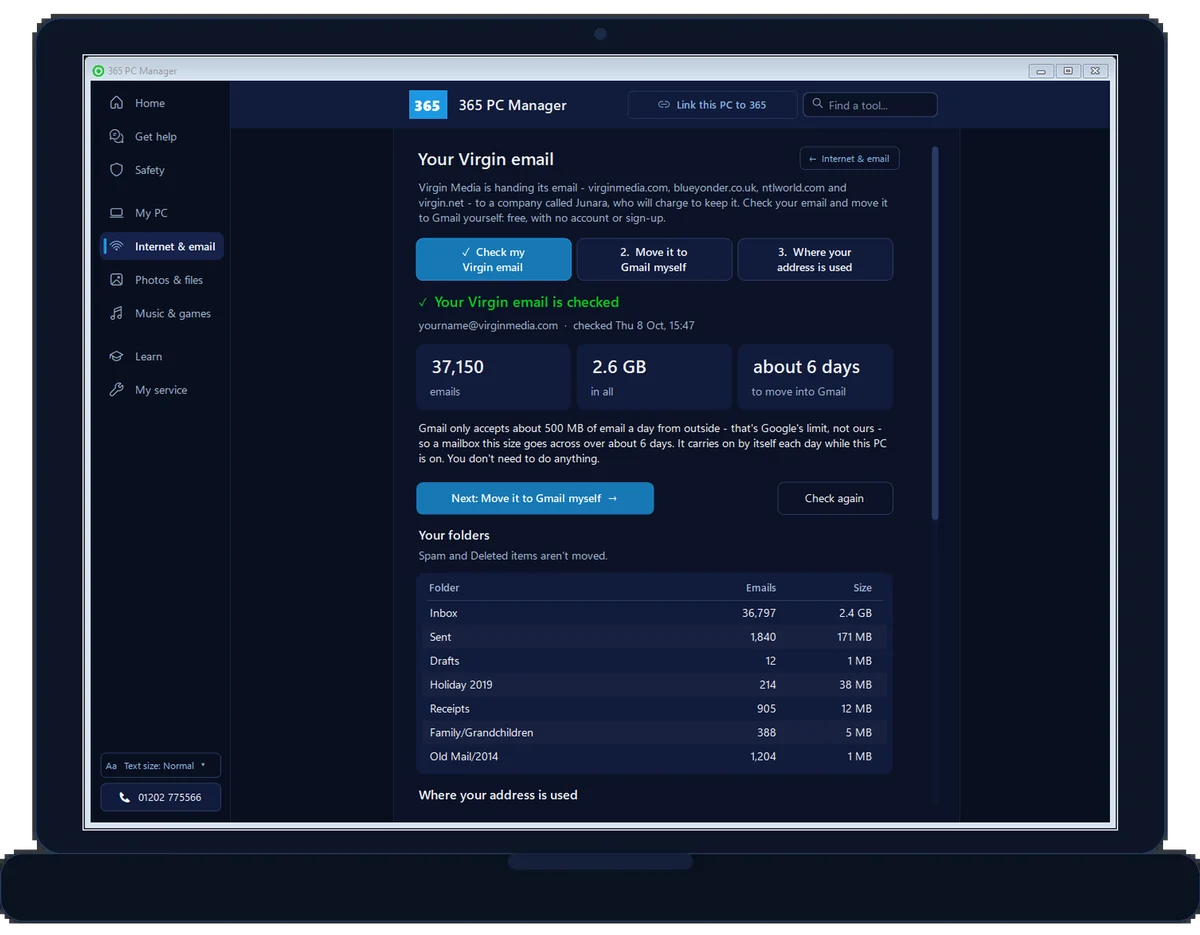
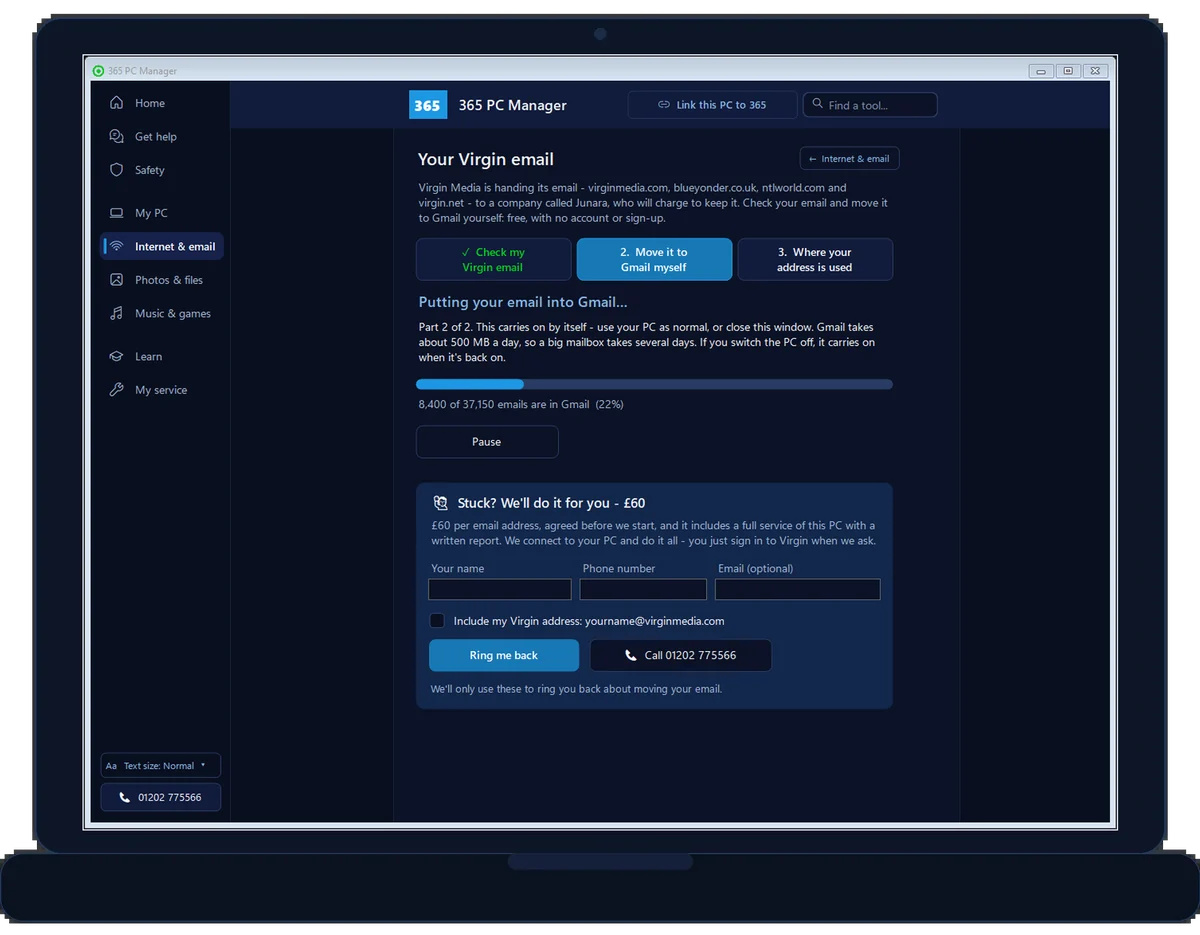
Real screens from 365 PC Manager, with a made-up sample mailbox. See every screen →
/01 — THE QUICK ANSWER
How to move Virgin Media email to Gmail
The easiest way now is our free Windows app, 365 PC Manager. It checks your Virgin mailbox, then copies every folder into Gmail for you — it needs no Virgin app password and works within Gmail’s daily limit by itself — and finishes by checking that every folder arrived. It is free, with no sign-up: see how it works. It works for virginmedia.com, ntlworld.com, blueyonder.co.uk and virgin.net addresses: they are all the same Virgin Media email system.
The by-hand way is to add both accounts to a free desktop program called Thunderbird using IMAP, then copy your messages and folders straight from one to the other. You might expect to point Gmail at your Virgin inbox and let it pull everything in, but Google has been retiring that automatic ‘Check mail from other accounts’ (POP) feature, and you can no longer set it up for a fresh move. Thunderbird signs in to both mailboxes at once and copies your old post across, keeping your folder structure intact rather than dumping everything into one pile.
Two things stop a lot of people part-way with Thunderbird. Since the switch to the Virgin Media O2 ID, Virgin often won’t give an app password — especially for a second mailbox — and without one Thunderbird can’t connect. And Gmail accepts only about 500 MB a day copied in, so a big mailbox stops with an error part-way through. The free app deals with both. Or, if you would rather not touch it at all, our email migration service does the whole thing for you remotely: we move your email for £60 per address, with a full PC service included.
// WINDOWS PCS ONLY
We do not support email on Apple Macs, iPads or iPhones. Apple does not allow our remote-support tool to take control of an iPad or iPhone (an Apple restriction), and our remote support covers Windows PCs only. On an Apple device, Apple’s own Mail help is the place to start.
// BY HAND · STEP BY STEP
Or move it by hand with Thunderbird, one step at a time
The by-hand way from this guide, one step at a time. It needs a Virgin app password: if you can’t get one, the free app doesn’t need it. Tick each step off and it shows the next. Nothing here leaves your device.Last reviewed 11 October 2026
-
01Generate a Virgin Media app password
In the My Virgin Media app, go to Account settings, then Account details, and under Virgin Media Mail generate a new app password. For a second address on the account, sign in to the app as that address. Do this while your account is still active, and keep the code to hand.
Done that step? -
02Set up Gmail and turn on IMAP
Create your Gmail account if you don't already have one. There is nothing to switch on in Gmail: since January 2025 IMAP is always on, so it will accept your incoming email.
Done that step? -
03Install Thunderbird
Download and install Mozilla Thunderbird, the free email program from the makers of Firefox. It lets you hold both mailboxes open at once so you can copy messages between them.
Done that step? -
04Add your Virgin Media account by IMAP
In Thunderbird, add your Virgin address using incoming server imap.virginmedia.com, port 993, with SSL switched on. Use your full email address as the username and the app password as the password.
Done that step? -
05Add your Gmail account
Add your Gmail account to Thunderbird the same way, choosing IMAP when asked. Both mailboxes will now appear in the left-hand list, side by side.
Done that step? -
06Copy your emails across
Select the Virgin folders or messages you want, right-click, choose Copy To, and pick the matching folder under Gmail. Leave the computer on to finish if you have a lot of email.
Done that step? -
07Check Gmail and update your details
Open Gmail on the web to confirm everything arrived, then set up forwarding and update your contacts and important logins before Virgin closes the old mailbox.
Done that step?
Rather we did it for you? We move it for £60 per email address, done remotely, for people across Bournemouth, Poole, Christchurch, Ringwood and the New Forest.
Done{mins}. Nice work.
Send yourself a test email to be sure it has stuck.
Stuck after all seven steps, or the deadline too close to risk it? We do the whole move for you, remotely.
With your permission we connect over a secure remote link, copy every message and folder from your Virgin Media, ntlworld or blueyonder account into Gmail, set up forwarding while the old address is still live, and check it works on your computer and your phone. Windows PCs only: we don’t support Macs, iPads or iPhones. We do the whole move for £60 per email address, agreed before we start.
How to move your Virgin Media email to Gmail - the fix order (365techies.co.uk/move-virgin-media-email-to-gmail/) 1. Generate a Virgin Media app password: In the My Virgin Media app, go to Account settings, then Account details, and under Virgin Media Mail generate a new app password. For a second address on the account, sign in to the app as that address. Do this while your account is still active, and keep the code to hand. 2. Set up Gmail and turn on IMAP: Create your Gmail account if you don't already have one. There is nothing to switch on in Gmail: since January 2025 IMAP is always on, so it will accept your incoming email. 3. Install Thunderbird: Download and install Mozilla Thunderbird, the free email program from the makers of Firefox. It lets you hold both mailboxes open at once so you can copy messages between them. 4. Add your Virgin Media account by IMAP: In Thunderbird, add your Virgin address using incoming server imap.virginmedia.com, port 993, with SSL switched on. Use your full email address as the username and the app password as the password. 5. Add your Gmail account: Add your Gmail account to Thunderbird the same way, choosing IMAP when asked. Both mailboxes will now appear in the left-hand list, side by side. 6. Copy your emails across: Select the Virgin folders or messages you want, right-click, choose Copy To, and pick the matching folder under Gmail. Leave the computer on to finish if you have a lot of email. 7. Check Gmail and update your details: Open Gmail on the web to confirm everything arrived, then set up forwarding and update your contacts and important logins before Virgin closes the old mailbox. Still stuck? 365 Techies fix it remotely: 01202 775566 - https://365techies.co.uk/remote-support//02 — VIRGIN EMAIL IS MOVING TO JUNARA
What’s happening to Virgin Media email: the move to Junara
Virgin Media is handing its whole email service — virginmedia.com, ntlworld.com, blueyonder.co.uk and virgin.net addresses — to a company called Junara. To keep an address you sign up with Junara. If you still have Virgin broadband, TV or a landline, the first 12 months are free (plus a 99p transfer fee); after that, and from the start if you have left Virgin, you pay Junara monthly or yearly for each mailbox, at a price shown once you start the sign-up.
Virgin emails each customer a sign-up date, at least 45 days after its first email. Miss it and the mailbox is suspended: you can still see old mail, but sending and receiving stop. You then have 120 more days to reactivate before it is deleted for good, and deleted mail cannot be recovered. Work to the date in the email Virgin sent you, not a figure you read online.
So there are two honest choices: sign up with Junara before your date and pay for each address once any free year ends, or move your email to free Gmail once — yourself with the steps below, or with us doing it for you for £60 per address.
Watch out for fake ‘Junara’ emails. Virgin’s own emails contain no sign-up link, and Virgin says never to pay through a phone call or an emailed link. If you are not sure a message is genuine, call us before you click.
Source: Virgin Media, Email service change, read 25 September 2026, and Virgin Media O2’s announcement of 9 September 2026.
/03 — WHAT YOU NEED FIRST
What you need before you start
Using our free app? You need only your Virgin address and its normal password, a Gmail account and a Google app password: what you need, in full. For the by-hand Thunderbird way, a little preparation makes it go smoothly. You’ll want three things ready:
- Your new Gmail account — set it up first if you haven’t already, and know the address and password.
- A Virgin Media Mail app password. Virgin no longer lets other programs sign in with your normal website password. Virgin describes making one in the My Virgin Media app on your phone: Account settings, then Account details; under Virgin Media Mail, tap Manage next to ‘Manage your Virgin Media Mail app password’, then ‘Generate new App password’. You paste this code in place of your password when connecting. For a second address on the account, sign in to the app as that address, with its own password. If the option isn’t there at all, try these checks — and if Virgin still won’t give you one, we can move your email without it.
- The Virgin server details: incoming server imap.virginmedia.com, port 993, with SSL switched on. Your username is your full email address and your password is the app password above.
On the Gmail side there is nothing to turn on: since January 2025 Google keeps IMAP always on, so Gmail will accept the incoming copy as it is. Menu names shift a little over time, so if a label doesn’t match exactly, look for the nearest wording — the steps are the same. With those in place you’re ready to copy your mail across.
Where does your email actually live?
Why email can be copied from one company to another, and why the older POP setting needs checking first.
An animated diagram with a spoken guide and captions.
What the film says
Where does your email actually live? Usually, not on your computer. It’s kept by your email company, like BT, Sky or Gmail. Your computer and your phone each show you a copy of the same email. So if your old email program stops working, your email is still there. A new program shows it again. But some older programs, like Outlook Express, were often set up to move email onto one computer. Then it’s only on that PC. Your phone can’t see it, and if the PC fails, it can be lost. Not sure which you have? Ring us before you change anything.
/04 — THE STEP-BY-STEP
Copying your email across with Thunderbird
With both accounts prepared, Thunderbird does the heavy lifting. It’s a free, well-established email program from the makers of Firefox. You add your Virgin Media address to it using the IMAP settings above, then add your Gmail account the same way, and both mailboxes appear side by side in one window.
From there it’s a copy-and-paste job: select the Virgin folder or messages you want, right-click, choose Copy To, and pick the matching folder under your Gmail account. Thunderbird uploads them into Gmail over the internet, so your inbox, sent items and any folders you’ve made all come across with their original dates and structure preserved.
If you have years of email, this can take a while — leave the computer on and let it finish rather than stopping halfway. Once it’s done, check your Gmail on the web to confirm everything arrived. The step-by-step checklist below walks through it in order, and if you’d like it on your phone too, see how to set up email on your phone.
/05 — GMAIL’S OWN IMPORT
What about Gmail's built-in import?
Gmail does still have a built-in ‘Import mail and contacts’ tool, tucked under Settings and then Accounts and Import. It runs as a one-off and can sometimes pull older messages across, so it’s worth knowing about — but there are two honest limitations. First, it works over POP behind the scenes and doesn’t always connect cleanly to Virgin Media. Second, it drops everything into your inbox and won’t recreate your folders.
The bigger point catches a lot of people out: the continuous ‘Check mail from other accounts’ option — where Gmail used to keep fetching new post from your Virgin inbox — is being retired by Google, and you can no longer set it up for a new account. Plenty of older tutorials still tell you to add your Virgin address there. That route is closing off, so don’t waste time on it.
For a clean move that keeps your folders and dates, the Thunderbird copy is more dependable. Gmail’s own import is a reasonable backup if you only want the messages and don’t mind them landing in one place.
/06 — AFTER YOU’VE MOVED
Tell people your new address and update your logins
Copying your email across is only half the job — you also need people and services to find you at your new Gmail address. While your Virgin mailbox is still open, do these before the deadline:
- Set up forwarding or an auto-reply on the Virgin account so anyone writing to the old address is nudged towards the new one.
- Email your key contacts — family, friends, your GP, clubs — from Gmail so they update your details.
- Update your important logins. Banking, shopping and utility accounts often send statements and, crucially, password-reset and security codes to your email. Point them at Gmail, and check anywhere you use two-factor authentication.
This last one matters most. Once Virgin closes the old mailbox, any reset email sent there simply never arrives, which can quietly lock you out of accounts months later. Sorting it now, while the old address still works, saves a real headache down the line.
Our checklist for changing your email address everywhere takes you through it in order, and the free app’s Where your address is used lists the companies that email you.
/07 — LET US DO IT FOR YOU
Rather have someone just do it for you?
If the deadline is close, or you’ve got years of email you can’t afford to lose, you don’t have to gamble on getting the settings right. This is a job we do all the time, and we can do it for you without anyone leaving home.
We connect to your computer over a secure remote link, copy every message and folder from your Virgin Media, ntlworld or blueyonder account into your Gmail, set up forwarding while the old account is still live, and make sure it all works — on your computer and, if you like, on your phone. It’s the same email migration work we handle for people across Bournemouth, Christchurch, Poole and Dorset every week.
We’re family-run from Kinson in Bournemouth, trading since 1995, with a 4.9-star Google rating and a straightforward no-fix-no-fee promise. The whole move costs £60 per email address, agreed before we start, and it includes a full service of your computer with a written report on its health. There’s usually same-day remote help, Monday to Friday, 9am to 5pm. Call 01202 775566, text 07520 615332, or get in touch — and if you’re on Plusnet rather than Virgin, we cover moving Plusnet email to Gmail too.
/08 — NO APP PASSWORD?
No Virgin app password? We built our own tool for that
Since Virgin moved its sign-ins to the Virgin Media O2 ID, many people can’t make a Virgin Media Mail app password at all — most often for a second mailbox on the account, where the new sign-in often only offers the main address’s app password. Without one, Thunderbird, Outlook and Gmail’s own import can’t connect, so every usual way of moving the mail stops at the first step.
So we built our own tool for the job, the 365 Mail Mover, and it is now free for everyone in our 365 PC Manager app for Windows. As long as you can still sign in to your Virgin mailbox with its normal password, it moves it — no Virgin app password needed. Your folders arrive in Gmail as labels under ‘Virgin Media’, every message keeps its original date and whether it was read, and nothing is moved or deleted on the Virgin side. You need a Gmail account with a Google app password.
Rather we did it? We do the whole move for you for £60 per email address, agreed before we start and done remotely — and it includes a full service of your computer, with a written report on its health. Call 01202 775566 and we’ll check your mailbox first, before any charge.
/09 — GMAIL’S DAILY LIMIT
Copying stopped part-way? That’s Gmail’s daily limit
If Thunderbird stops with ‘Account exceeded command or bandwidth limits’, or dragging folders into Gmail inside Virgin’s webmail keeps failing, nothing is broken. Gmail accepts only about 500 MB a day of email copied into it over IMAP — the way Thunderbird, Outlook and Virgin’s webmail all put it there — and once you go past that it refuses more for up to 24 hours.
A mailbox with years of email in it can easily be a few GB, so moving it is a job of several days, not an afternoon — and restarting a half-finished copy by hand is how mailboxes end up with gaps or duplicates.
That’s the other thing the 365 Mail Mover handles, free in our 365 PC Manager app. It stays within Gmail’s limit, carries on by itself each day (even after the computer restarts), never sends the same message twice, and checks at the end that every folder in Gmail matches the original. Or we do the whole move for £60 per email address, with a full PC service included — call 01202 775566.
FAMILY-RUN SINCE 1995 · ★ 4.9 ON GOOGLE · 200+ COMPUTERS UNDER OUR CARE · NO FIX, NO FEE · SAME-DAY REMOTE SUPPORT
// GOOD QUESTIONS
Frequently asked
Will I lose my old Virgin Media emails?
Not if you act in time. As long as you copy your messages out into Gmail before Virgin closes the mailbox, everything is safe. The risk comes after closure — once an ex-customer or legacy account is shut, the emails inside are permanently deleted and can’t be recovered. So the golden rule is simple: copy first, then let the old account lapse.
Are ntlworld and blueyonder addresses the same as Virgin Media?
Yes. virginmedia.com, ntlworld.com and blueyonder.co.uk all run on the same Virgin Media email system — they’re one settings family. That means the same server details (imap.virginmedia.com) and the same app-password process apply to all three, and the same account-closure changes affect them too. Treat an old ntlworld or blueyonder address exactly as you would a virginmedia.com one.
Why won’t Gmail just fetch my Virgin emails like it used to?
Because Google has been retiring that feature. You can no longer set up the automatic ‘Check mail from other accounts’ (POP) option for a new account, so Gmail won’t keep pulling new post from your Virgin inbox on its own. For a fresh move you now need a desktop program like Thunderbird, or Gmail’s one-off import, instead. People who set it up earlier lose it in January 2027 — what that means.
What is a Virgin Media app password and why do I need one?
It’s a separate one-off code that lets another program — Thunderbird, Gmail or your phone — sign in to your Virgin mailbox. Virgin no longer accepts your normal website password for this, because app passwords are more secure. You make one in the My Virgin Media app (Account settings, Account details, Virgin Media Mail), then paste it in place of your password when you connect. Making a new one stops the old one on any phone or tablet already using it, so update those too. For a second address on the account, sign in to the app as that address. If Virgin won’t give you one at all — common for a second mailbox since the O2 ID change — you can still move your email without it, free, with our 365 PC Manager app: find out more.
Can you move Virgin Media email without an app password?
Yes. Our own tool, the 365 Mail Mover, does it, and it is free for everyone in our 365 PC Manager app for Windows. As long as you can still sign in to your Virgin mailbox, it moves every folder into Gmail, with the original dates and read state, and nothing deleted from Virgin. Or we do it for you for £60 per email address, agreed before we start, including a full service of your computer with a written report on its health. Call 01202 775566.
Is the 365 PC Manager email move really free?
Yes. Checking your Virgin mailbox, moving it to Gmail and the list of where your address is used are free in 365 PC Manager, with no sign-up. It runs on your own Windows PC: your emails go from Virgin to Gmail through your computer, never through us, and we never see your passwords. You need a Gmail account with a Google app password. If you would rather we did it, it is £60 per email address, including a full PC service.
Can I keep using my Virgin Media email address?
Yes, by signing up with Junara before the date in the email Virgin sent you. Current Virgin broadband, TV or landline customers get the first 12 months free (plus a 99p transfer fee); after that, and from day one for former customers, it is a paid plan, monthly or yearly, for each mailbox. Miss that date and the mailbox is suspended, then deleted 120 days later. If you would rather not pay every year, move it to free Gmail instead: we can do it for £60 per address.
Will my folders and email dates come across?
With the Thunderbird method, yes. Copying over IMAP preserves your inbox, sent items, any folders you’ve created and the original date on every message, so Gmail looks familiar rather than a jumbled pile. Gmail’s own built-in import is less tidy — it can bring the messages but won’t rebuild your folder structure, dropping everything into the main inbox instead. When we move it for you, your folders become Gmail labels under ‘Virgin Media’, with every original date and read or unread state kept.
Can you just do this for me?
Yes — it’s one of the most common jobs we’re asked to do. We connect remotely, copy every message and folder from your Virgin, ntlworld or blueyonder account into Gmail, set up forwarding, and get it working on your devices, so you don’t have to touch a single setting. It costs £60 per email address, agreed before we start, and it includes a full service of your computer with a written report on its health — and it’s no-fix-no-fee. Call 01202 775566 or text 07520 615332.
How long does the move take?
It depends mostly on Gmail. It accepts only about 500 MB a day of email copied in over IMAP, so a few hundred messages go across in minutes, but years of email — often a few GB — takes several days whichever method you use. Our free 365 PC Manager app paces itself and carries on by itself each day, and its check tells you how long yours will take before you begin. When we do it for you, we tell you the same before we start.
Why did copying my Virgin email to Gmail stop part-way?
Almost always Gmail’s daily limit: it accepts only about 500 MB a day of email copied in over IMAP, then refuses more for up to 24 hours — Thunderbird shows ‘Account exceeded command or bandwidth limits’. Nothing is lost, but a big mailbox takes several days. Our 365 Mail Mover works within the limit by itself: it is free in our 365 PC Manager app, or we do the whole move for £60 per address, with a full PC service included. More about the limit.
// Still stuck?
Move your Virgin Media email safely — before it closes
We’ll copy every message and folder into Gmail for you, remotely and without the stress, for £60 per email address, with a full PC service and written report included. Family-run in Bournemouth since 1995, with a 4.9-star Google rating and no-fix-no-fee.
We’ll move it for you
- £60 per email address, agreed first
- Every message and folder into Gmail
- A full PC service and written report included
Stop it happening again
- A full service every six weeks, written up
- Every program kept up to date
- Unlimited remote help when you need it
Plans from £18.25 a month per computer · cancel any time
Mon–Fri 9–5 · family-run since 1995 · rated 4.9 on GoogleGet in touch →