// CAN’T HEAR ANYTHING?
No sound on your computer? Get it back
Videos play but there’s silence, or one program has gone quiet while everything else is fine. Nine times out of ten the sound is simply going somewhere else: a TV or monitor, headphones you forgot about, or a mute key. Here are the quickest checks first, then the deeper fixes. Rated 4.9 on Google.
- ● Quickest checks first
- ● Windows 11 and 10
- ● PCs and laptops
/01 — QUICK CHECKS
Try these first
- Look at the speaker icon by the clock. A cross or a line through it means muted: click it and turn the volume up.
- Laptops have a mute key, usually one of the F keys with a speaker symbol, sometimes with a small light. Press it once (with Fn on some laptops).
- Desktop speakers need their own power and volume knob turned up, and the plug in the green socket (or USB).
- Headphones plugged in? The sound goes to them, not the speakers. Unplug them, and switch off Bluetooth headphones that might still be connected from the next room.
- Restart the computer (Restart, not Shut down).
Want to test the speakers on their own? Our speaker and headphone test plays left, right and both, in your browser.
// FIX IT WITH ME · STEP BY STEP
Get the sound back, step by step
The steps from this guide, one at a time, in the order that fixes the most cases fastest. Tell it what happened and it shows the next step. Nothing here leaves your device.Last reviewed 30 October 2026
-
01Check mute and volume
Click the speaker icon by the clock, unmute and turn it up. On a laptop press the mute key; on a desktop check the speakers’ own power and volume.
Can you hear it now? -
02Pick the right output
Windows 11: speaker icon, then the arrow by the volume slider, and choose your speakers or headphones. Windows 10: click the device name above the slider.
Can you hear it now? -
03Check the Volume mixer
Settings, System, Sound, Volume mixer: make sure the program isn’t at zero or sent to another device.
Can you hear it now? -
04Run the troubleshooter
Settings, System, Troubleshoot, Other troubleshooters, Audio, then restart the Windows Audio service.
Can you hear it now? -
05Reinstall the driver
Device Manager, Sound, video and game controllers: roll back or uninstall the sound device and restart.
Can you hear it now?
Rather have it done for you? Remote help from £20, or in person across Bournemouth, Christchurch, Poole, Ringwood and the New Forest, with no call-out fee.
Sorted{mins}. Nice work.
Play something for a minute to be sure it stays.
Still silent after all five steps? That is a remote job.
With your permission we connect to your screen and sort it in one session. Usually the same day, remote help from £20, and no fix, no fee.
No sound on your computer? Get it back - the fix order (365techies.co.uk/no-sound-on-computer/) 1. Check mute and volume: Click the speaker icon by the clock, unmute and turn it up. On a laptop press the mute key; on a desktop check the speakers’ own power and volume. 2. Pick the right output: Windows 11: speaker icon, then the arrow by the volume slider, and choose your speakers or headphones. Windows 10: click the device name above the slider. 3. Check the Volume mixer: Settings, System, Sound, Volume mixer: make sure the program isn’t at zero or sent to another device. 4. Run the troubleshooter: Settings, System, Troubleshoot, Other troubleshooters, Audio, then restart the Windows Audio service. 5. Reinstall the driver: Device Manager, Sound, video and game controllers: roll back or uninstall the sound device and restart. Still stuck? 365 Techies fix it remotely: 01202 775566 - https://365techies.co.uk/remote-support/At a glance
| Most common | The sound is going to another device: a TV or monitor over HDMI, or headphones. |
|---|---|
| Quick checks | The volume icon, the laptop’s mute key, and the speakers’ own power and volume. |
| One program silent | Check the Volume mixer, and that the browser tab isn’t muted. |
| Troubleshooter | Windows’ audio troubleshooter fixes many cases by itself. |
| “No audio output device” | The driver: Device Manager, Sound, video and game controllers. |
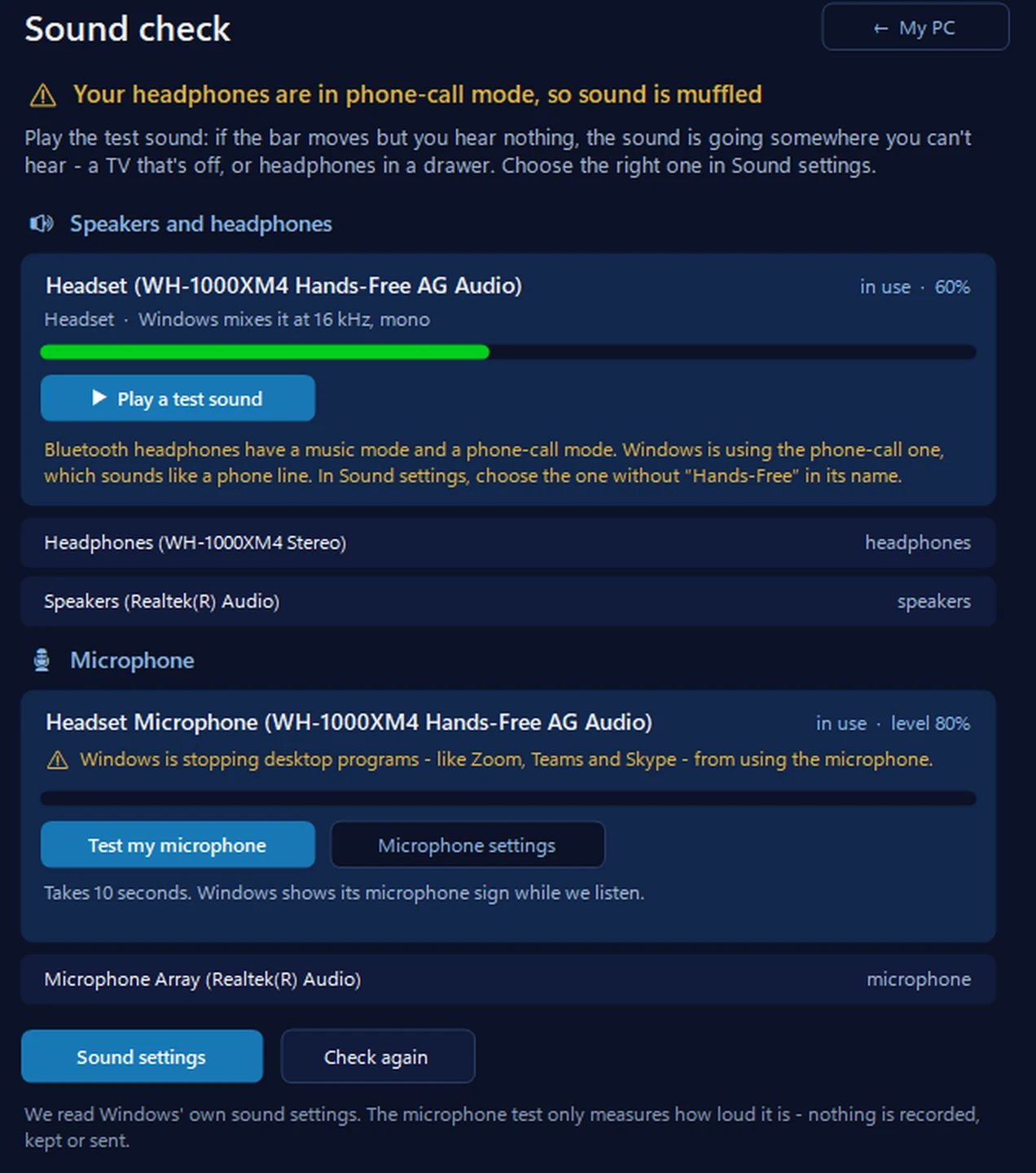
| Muffled, not silent | Bluetooth headphones stuck in call mode: a different fix. |
/02 — THE USUAL CAUSE
Make sure the sound is going to the right place
Windows sends sound to one device at a time, and it sometimes picks the wrong one by itself: after a monitor or TV is plugged in, a headset is used for a call, or an update.
- Windows 11: click the speaker icon by the clock, then the small > arrow at the end of the volume slider. Pick your speakers or headphones from the list.
- Windows 10: click the speaker icon; the device’s name is above the slider. Click it and pick the right one.
- Or open Settings, System, Sound and choose under Output.
The usual culprits: a monitor connected by HDMI or DisplayPort (many have no speakers, or very quiet ones), a TV, Bluetooth headphones and USB headsets.
/03 — ONE PROGRAM SILENT
When only one program has no sound
- The Volume mixer: Settings, System, Sound, Volume mixer. Each program has its own slider and can be sent to its own device: check yours isn’t at zero or going elsewhere.
- A browser tab: a muted tab shows a crossed-out speaker. Right-click the tab and choose Unmute site.
- Teams, Zoom and the like have their own speaker setting: in the program’s settings, under Devices or Audio, pick the same speakers Windows is using.
/04 — LET WINDOWS LOOK
Run the troubleshooter and restart the audio service
- The audio troubleshooter: Windows 11, Settings, System, Troubleshoot, Other troubleshooters, Audio (on newer versions it opens in the Get Help app). Windows 10, Settings, Update & Security, Troubleshoot, Additional troubleshooters, Playing Audio.
- Restart Windows’ audio service: click Start, type Services and open it, find Windows Audio, right-click it and choose Restart.
/05 — THE DRIVER
“No audio output device is installed”
That message, or a red cross on the speaker icon, means Windows can’t see the sound hardware. Usually it’s the driver.
- Right-click Start and open Device Manager. Open Sound, video and game controllers.
- Nothing listed, or a yellow warning sign? Click the Action menu, Scan for hardware changes.
- Started after an update? Right-click the sound device (often Realtek or Intel), Properties, Driver, Roll Back Driver if it’s available.
- Otherwise right-click it, Uninstall device, and restart: Windows puts the driver back by itself.
- Still nothing? Settings, Windows Update, Advanced options, Optional updates, or the PC maker’s own support site for your model.
Sound there but muffled or tinny on Bluetooth headphones? That’s a different problem: see Bluetooth headphones sound muffled.
/06 — THE QUICK WAY
Let our free app check the sound
FREE · WINDOWS 10 & 11 · NO SIGN-UP
Sound check: where is the sound going?
It shows which device Windows is sending the sound to — laptop speakers, headphones or a TV over HDMI — whether it’s muted, the volume, and a live level bar, with a test sound to be sure. It tests the microphone with a live bar too, and names Bluetooth headphones stuck in their muffled phone-call mode. Picking another device is Windows’ own job, so a button opens Windows’ Sound settings at the right place.
In the app: My PC, then Sound check.
Download 365 PC Manager free ↓What else it checks
Made by us, a family IT firm in Bournemouth since 1995, and digitally signed by 365 Techies Ltd.
/07 — WHEN TO CALL US
When to call us
Still not right? Ring 01202 775566 or text 07520 615332, Monday to Friday, 9 to 5. With your permission we connect to your Windows PC and sort it while you watch: usually the same day, remote help from £20, and no fix, no fee. If it’s the hardware, a broken headphone socket or laptop speakers, we collect it and repair it on the bench: see computer repairs.
FAMILY-RUN SINCE 1995 · ★ 4.9 ON GOOGLE · 200+ COMPUTERS UNDER OUR CARE · NO FIX, NO FEE · SAME-DAY REMOTE SUPPORT
// GOOD QUESTIONS
Frequently asked
Why is there suddenly no sound on my computer?
Most often Windows has started sending the sound to another device, such as a monitor or TV over HDMI or a pair of headphones. Click the speaker icon by the clock and pick your speakers. Otherwise it’s a mute key, the volume mixer or the driver.
What does “No audio output device is installed” mean?
Windows can’t see the sound hardware, usually because of the driver. In Device Manager, under Sound, video and game controllers, uninstall the sound device and restart, or roll the driver back if it started after an update.
Why does only one program have no sound?
Check its slider in Settings, System, Sound, Volume mixer, and that it isn’t sent to another device. In a browser, make sure the tab isn’t muted. Teams and Zoom have their own speaker setting too.
My monitor is plugged in by HDMI and there’s no sound. Why?
Windows may be sending the sound to the monitor, and many monitors have no speakers. Pick your speakers or headphones as the output instead.
Where is the audio troubleshooter in Windows 11?
Settings, System, Troubleshoot, Other troubleshooters, Audio. On newer versions of Windows 11 it opens in the Get Help app.
The sound works but my Bluetooth headphones sound muffled. Why?
They’re usually stuck in their phone-call (Hands-Free) mode, which Windows plays in low quality. See our page on muffled Bluetooth headphones.
Can you fix it remotely?
Usually, yes: settings and drivers are a remote job. If the speakers or the headphone socket are faulty, we collect the computer and repair it.
// Still stuck?
Still silent?
With your permission we connect to your Windows PC, find where the sound has gone and get it playing while you listen. Call 01202 775566 or text 07520 615332.
We’ll fix it with you
- Checking the problem is free
- Fixes from £20, agreed before we start
- We phone first, and you watch every step
Stop it happening again
- A full service every six weeks, written up
- Every program kept up to date
- Unlimited remote help when you need it
Plans from £18.25 a month per computer · cancel any time
Mon–Fri 9–5 · family-run since 1995 · rated 4.9 on GoogleStart with the quick checks →