// PRINTER GONE AFTER WINDOWS UPDATE
Your printer disappeared after an update?
Your printer was there yesterday and now it’s gone from Windows 11 — not offline, just missing from the list. Don’t panic: it’s almost always still installed. Here’s the calm, honest fix order, from a 30-second spooler restart to rolling the update back as a last resort.
Rated 4.9 on GoogleFamily-run since 1995 · no fix, no fee/01 — START HERE
Printer disappeared after a Windows 11 update? Start here
If your printer has disappeared from Windows 11 after an update, it is almost always still there — the update has broken the software link to it, not physically removed the printer. In the great majority of cases you can get it back by restarting the print spooler, re-adding the printer, or reinstalling its driver, and only rarely do you need to roll the update back.
First, work out whether it is truly gone or just hidden. Windows 11 has two places that list printers: the modern Settings > Bluetooth & devices > Printers & scanners page, and the older Devices and Printers window. Sometimes a printer disappears from the new Settings page while it is still listed in the old window. To open that classic window reliably, press Windows key + R, then copy and paste this exact line and press Enter: shell:::{A8A91A66-3A7D-4424-8D24-04E180695C7A}. (On current Windows 11 builds the old ‘control printers’ shortcut often just bounces you back to the Settings page, so we use this instead.) If your printer is listed in the classic window, it is installed and printing should still work — the Settings page simply isn’t showing it, which points to a software glitch rather than a lost printer.
It also matters whether your printer is plugged in by USB cable or connected over your Wi-Fi or network. If it went missing after a house move or a new router rather than an update, the cause is different — see our guides for the BT Smart Hub, Sky router, EE Smart Hub and after moving house.
// FIX IT WITH ME · STEP BY STEP
Get the printer back in the next ten minutes
One step at a time, in the order that fixes the most cases fastest. Tell it what happened and it shows the next step. Nothing here leaves your computer.Last reviewed 13 October 2026 · Windows 11 and Windows 10
-
01Is it really gone, or just hidden?
Windows 11 keeps two lists of printers, and an update often hides a printer from the new one while the old one still shows it. Press Windows key + R, paste this and press Enter to open the classic list:
shell:::{A8A91A66-3A7D-4424-8D24-04E180695C7A}Opens Devices and Printers, the classic window.Is your printer listed there? -
02Restart the Print Spooler
The spooler is the Windows service that runs printing. An update can leave it stopped. Press Windows key + R, type this and press Enter:
services.msc- Scroll to Print Spooler, right-click it and choose Restart (if Restart is greyed out, choose Start).
- Double-click it and make sure Startup type is Automatic.
Comfortable with a Terminal? Right-click Start, choose Terminal (Admin), paste and press Enter:
net stop spooler && net start spooler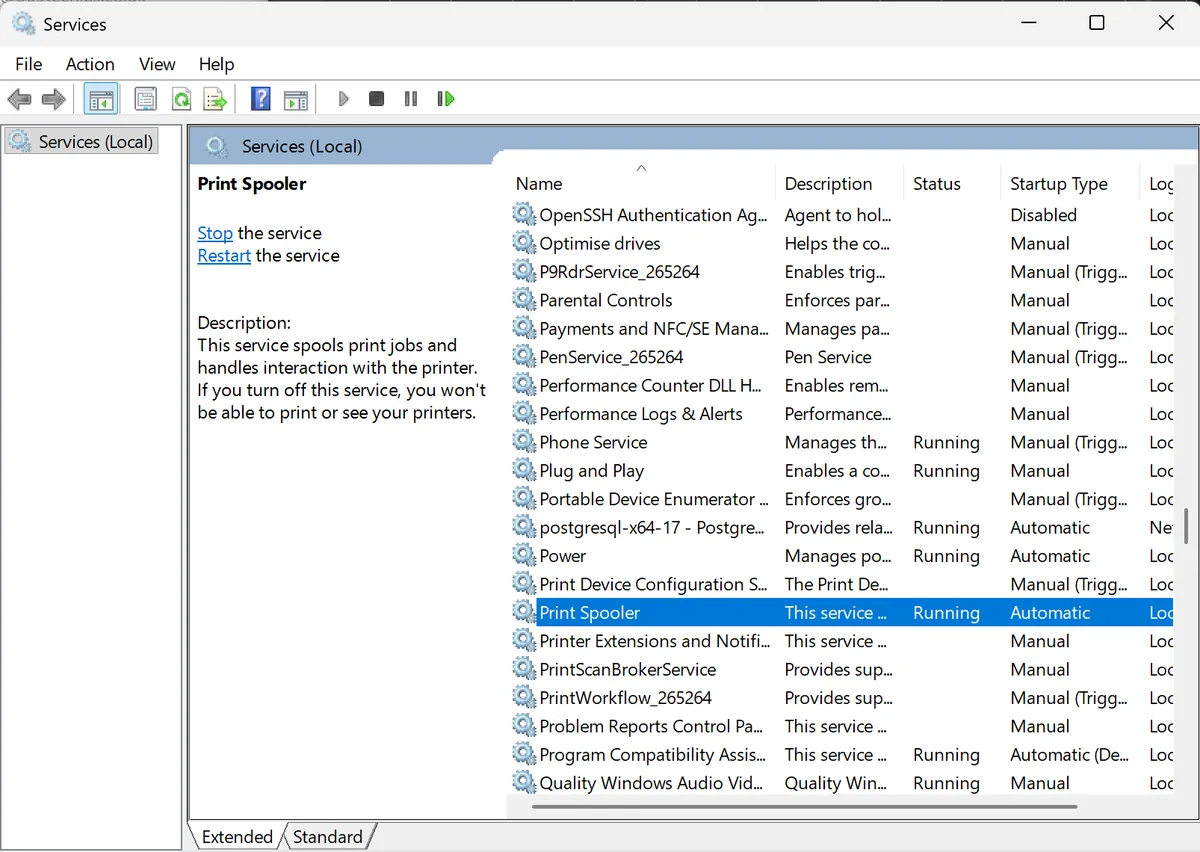
Services with Print Spooler selected: the Restart link is on the left. Real screenshot, Windows 11, September 2026. Is the printer back? -
03Clear the stuck print queue
A jammed queue can hold the spooler up. You are only deleting stuck print jobs, nothing important.
- In Services, right-click Print Spooler and choose Stop.
- Press Windows key + R, paste this and press Enter, then delete everything in the folder that opens:
%windir%\System32\spool\PRINTERS- Back in Services, right-click Print Spooler and choose Start.
Is the printer back? -
04Re-add the printer
Go to Settings → Bluetooth & devices → Printers & scannersSettings → Devices → Printers & scanners and click Add device. If Windows finds the printer, click Add; if not, click Add manually.
Open Printers & scanners →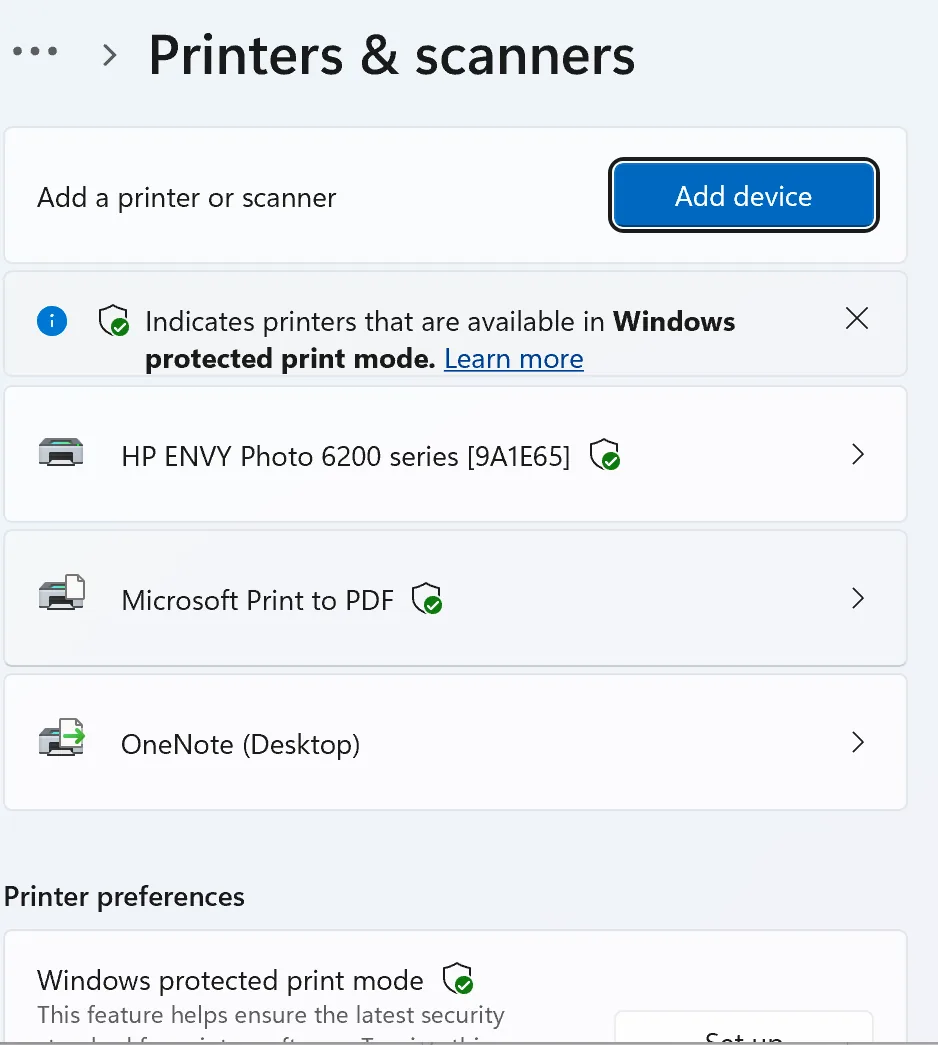
Windows 11, Settings → Bluetooth & devices → Printers & scanners. Real screenshot, September 2026. - USB printer: unplug the cable, wait ten seconds, plug it into a different USB port on the computer itself, not a hub.
- Wi-Fi or network printer: add it by its IP address, printed from the printer’s own menu or shown in your router.
Is the printer back? -
05Reinstall a clean driver from the maker
Updates sometimes strip out an older built-in driver. A driver straight from HP, Epson, Canon or Brother for your exact model is the reliable fix.
- In Printers & scanners, open the printer and choose Remove.
- Download the full driver or software package for Windows from the maker’s official site.
- Install it, then restart the computer.
To clear out the old driver package as well (optional), press Windows key + R, run this, and remove the old driver on the Drivers tab:
printui /s /t2Opens Print Server Properties on the Drivers tab.Is the printer back? -
06Roll back the update (last resort)
Only now, because updates carry security fixes too. Go to Settings → Windows Update → Update history → Uninstall updatesSettings → Update & Security → Windows Update → View update history → Uninstall updates, find the update dated around when printing broke, choose Uninstall and restart.
Open Update history →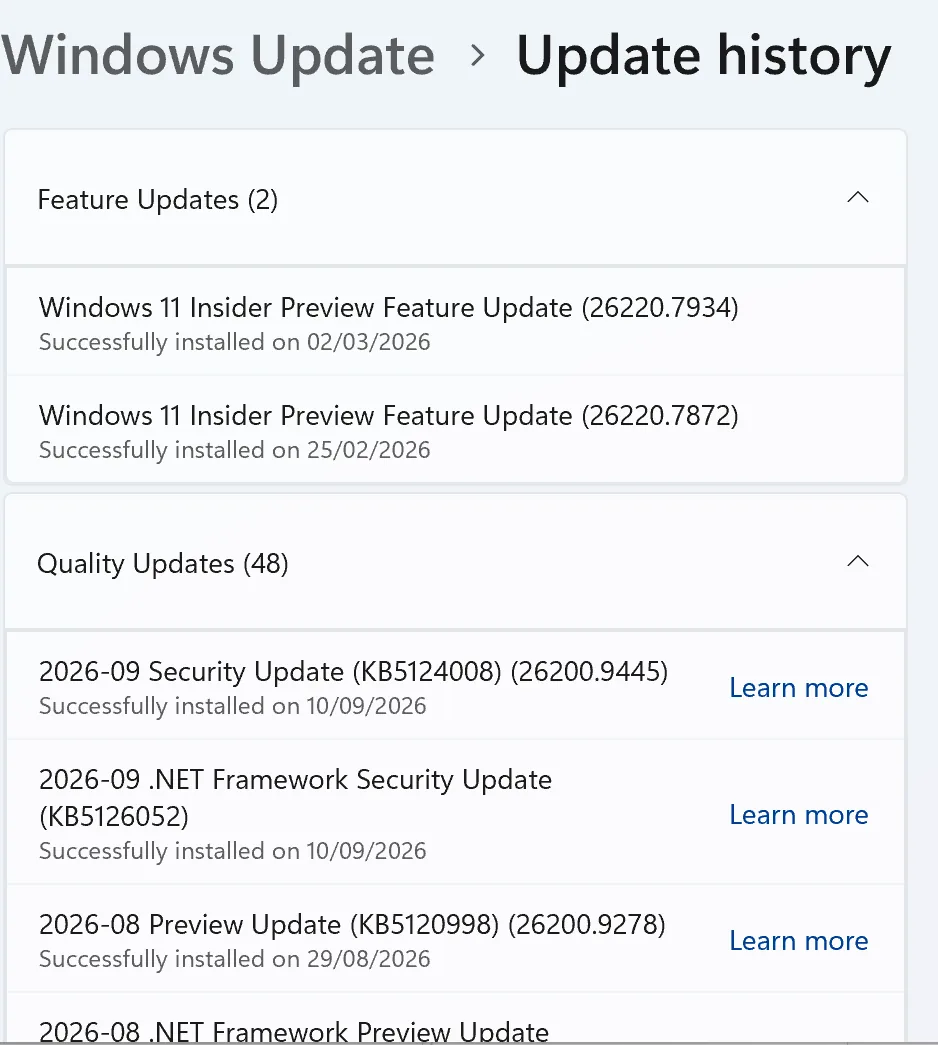
Windows 11, Settings → Windows Update → Update history. Real screenshot, September 2026. Windows will often try to reinstall the same update later, so pause updates for a while; and if the driver has genuinely been retired, rolling back only buys time.
Is the printer back?
Rather have it done for you? Remote help from £20, or in person across Bournemouth, Christchurch, Poole, Ringwood and the New Forest, with no call-out fee.
Printer back{mins}. Nice work.
Print a test page to be sure, and if it vanishes again after the next update, come straight back to step 2.
Still gone after all six? That is a remote job, and a quick one.
With your permission we connect to your screen, sort the spooler, the driver and the update in one session. Usually the same day, remote help from £20, and no fix, no fee.
Printer disappeared after a Windows update - the fix order (365techies.co.uk) 1. Is it hidden? Win+R, paste shell:::{A8A91A66-3A7D-4424-8D24-04E180695C7A} - if the printer is listed, re-add it (step 4). 2. Restart the Print Spooler: Win+R, services.msc, right-click Print Spooler, Restart; Startup type Automatic. 3. Clear the queue: stop Print Spooler, Win+R %windir%\System32\spool\PRINTERS, delete everything inside, start Print Spooler. 4. Re-add: Settings > Bluetooth & devices > Printers & scanners > Add device (USB: different port; Wi-Fi: add by IP). 5. Clean driver: Remove the printer, install the maker's full package for your exact model, restart (printui /s /t2 clears old driver packages). 6. Last resort: Settings > Windows Update > Update history > Uninstall updates, then restart. Still gone? 365 Techies fix it remotely: 01202 775566 - https://365techies.co.uk/remote-support/// THE QUICK CHECK
Is Windows’ printing service still running?
After an update, a printer can vanish because Windows’ printing service has stopped. Our free app shows whether it’s running, and lists every printer Windows still knows.
FREE · WINDOWS 10 & 11 · NO SIGN-UP
Has Windows lost the printer, or stopped printing?
Our free app lists every printer Windows still knows and whether it’s offline, shows any documents stuck in the queue (with a button that clears only those), and says whether Windows’ printing service is running. When that service stops, printers vanish and nothing prints; the app says so, and restarting the PC usually brings it back. It only reads, until you press a button.
In the app: My PC, then Printers.
Download 365 PC Manager free ↓What else it checks
Made by us, a family IT firm in Bournemouth since 1995, and digitally signed by 365 Techies Ltd.
// STOP IT HAPPENING AGAIN
The next update is already on its way
A Windows update knocked the printer off, but skipping updates isn’t the answer: they carry the security fixes that matter more every year. The answer is updates done on a schedule by someone who checks everything still works afterwards.
// WHY IT MATTERS MORE NOW
Criminals now use AI to hunt for a single out-of-date program to use as a back door.
The UK’s National Cyber Security Centre expects AI to mean increasing the volume of attacks against systems that have not been updated with security fixes
.
Rolling an update back to get printing again also rolls back its security fixes. Keep that as the last resort, not the habit.
NCSC, Impact of AI on cyber threat from now to 2027, May 2025
- A program that missed its updatesNot just Windows: the browser, the PDF reader, the printer software. Closed by: every program updated, every six weeks.
- A message that looks genuineScam emails and texts written with AI no longer give themselves away with clumsy spelling. Closed by: someone to check with before you click.
- A backup that quietly stoppedWhen ransomware or a dead drive strikes, a working backup is the difference. Closed by: a backup that is checked, not assumed.
SUPPORT PLAN · EVERY SIX WEEKS
Updates on our schedule, checked afterwards
- Windows and driver updates applied every six weeks and checked afterwards, with every other program brought up to date too
- If an update knocks the printer off anyway, getting it back is covered by unlimited remote support
- Antivirus, firewall, drive encryption and backup checked and written down in a dated Service Report
£18.25 a month per computer at home · business from £24.38. Rolling monthly, no lock-in.
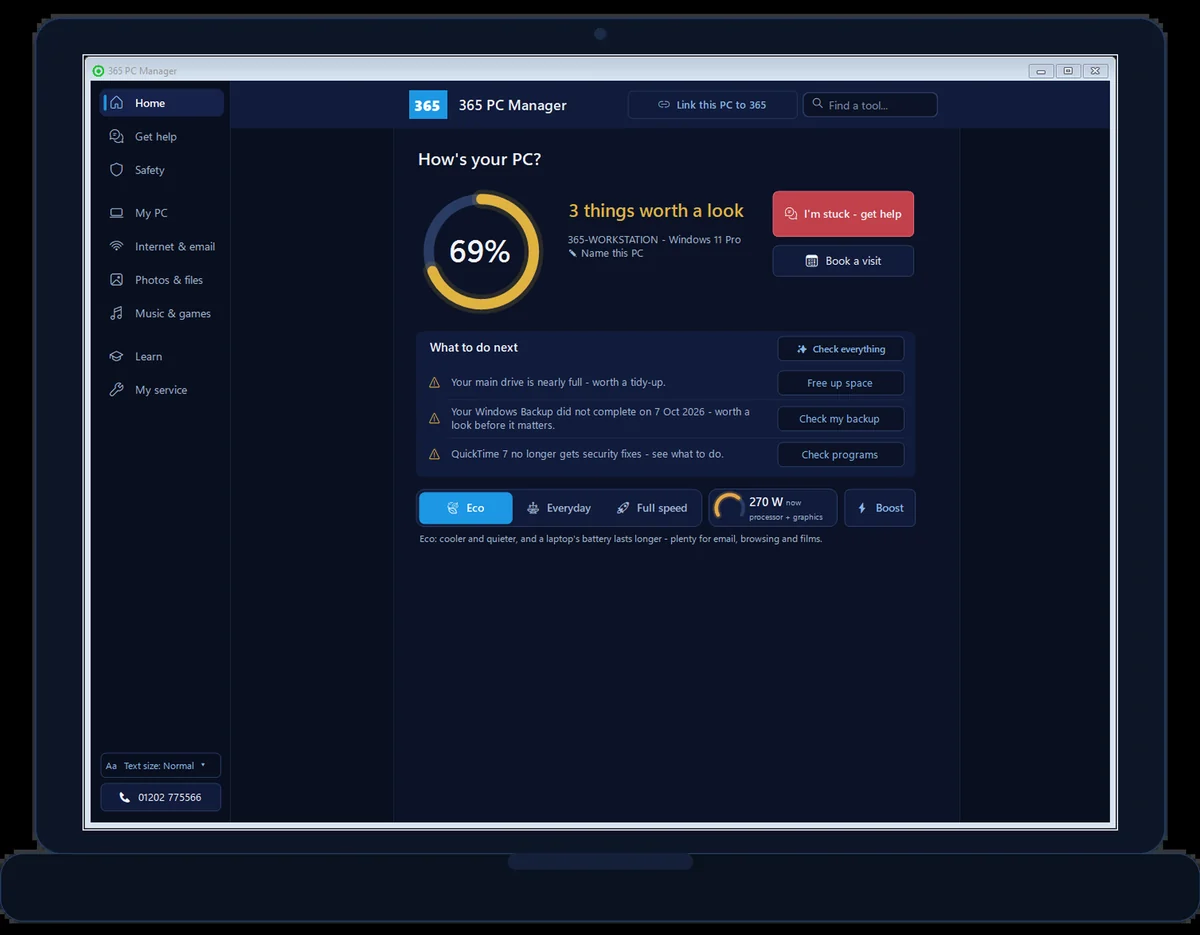
FREE APP · WINDOWS · REAL SCREENSHOT
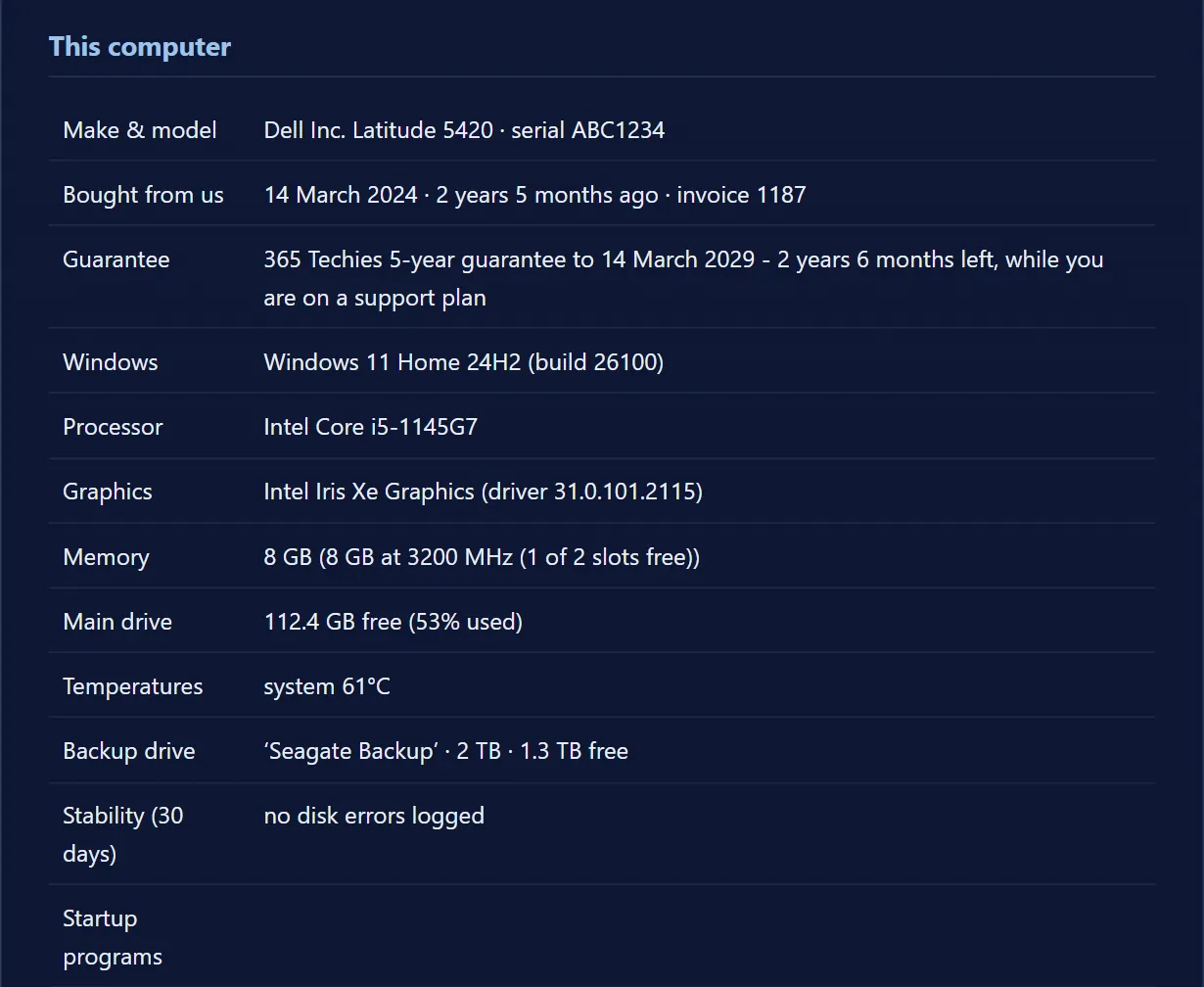
See how this PC is really doing
- Exact memory, drive health and free space
- Whether antivirus is on and a backup actually exists
- Battery wear, and when Windows is waiting for a restart
- Risky programs, network openings and missed Windows updates
365 PC Manager, digitally signed by 365 Techies Ltd. No fake errors, no scare tactics. It shows you where you stand; it isn’t an antivirus.
At a glance
| Is the printer really gone? | Almost never — the update breaks the software link, and the printer is usually still installed. |
|---|---|
| Most common cause | The update replaced or removed the printer’s driver, or left the Print Spooler service stopped. |
| DIY first step | Restart the Print Spooler (services.msc) — a 30-second fix that clears a large share of cases. |
| Can it be fixed remotely? | Yes — most printer-after-update problems are fixed in one short remote session, often the same day. |
| Will I lose my files? | No — clearing the print queue or reinstalling a driver doesn’t touch your documents; only a full System Restore needs a backup first. |
| When to call us | If the spooler restart and re-adding haven’t worked — call 01202 775566; no fix, no fee. |
// NEED THIS FIXED RIGHT NOW?
Skip the DIY — call 01202 775566 and we can be looking at your screen within minutes. You watch everything we do, and most problems on this page are fixed in one short remote session. (Mon–Fri, 9am–5pm.)
/02 — WHY IT HAPPENS
Why a Windows update makes a printer vanish
A Windows update touches the printing system in several ways, and any of them can make a printer disappear. The most common cause is the driver — the small piece of software that lets Windows talk to your exact model. A big update can replace, disable or remove that driver, and if nothing valid is put back in its place the printer drops off the list. Microsoft is also winding down third-party printer drivers: since January 2026 new ones for Windows 11 are only approved case by case, and from July 2026 new printer installs default to Windows’ own built-in driver where the printer supports it, so an older printer can end up on a basic Microsoft driver rather than the maker’s. If you want the plain-English version of what a driver is, see our driver jargon-buster.
The second common cause is the Print Spooler — the Windows service that queues and manages every print job. An update can leave the spooler stopped or in a confused state, and when it isn’t running your printers simply won’t show. A third possibility is simpler still: the printer is fine underneath, but the modern Settings page just isn’t displaying it — which is why the classic Devices and Printers window is worth checking first.
Finally, updates can reset USB port permissions or wipe the saved port or IP address of a network printer. The exact update behind any one case varies, so we work through the fixes in order rather than guessing. Our page on why Windows updates break things explains the wider pattern.
/03 — SPOOLER FIRST
Restart the Print Spooler — the 30-second first fix
Because a stopped or stuck spooler is the quickest thing to rule out, start there. Press Windows key + R, type services.msc and press Enter. Scroll down to Print Spooler, right-click it and choose Restart. If Restart is greyed out, choose Start. While you are there, double-click Print Spooler and check the Startup type is set to Automatic so it launches on its own next time.
If a restart alone doesn’t bring the printer back, a jammed print queue can be the culprit. The safe way to clear it is: in the same Services window, right-click Print Spooler and choose Stop. Then open Windows key + R, type %windir%\System32\spool\PRINTERS and press Enter, and delete everything inside that folder (you are only deleting stuck print jobs, not anything important). Go back to Services and Start the Print Spooler again.
Now check Settings > Bluetooth & devices > Printers & scanners to see if the printer has reappeared. A spooler restart on its own fixes a surprising number of ‘disappeared after update’ cases in under a minute. If your printer keeps dropping off even between updates, that is a slightly different pattern — our guide on why a printer keeps disconnecting covers it.
/04 — RE-ADD & REINSTALL
Re-add the printer and reinstall a clean driver
If the spooler is running and the printer is still missing, re-add it. Go to Settings > Bluetooth & devices > Printers & scanners and click Add device. Wait a few seconds; if Windows finds it, click Add. If it doesn’t appear, click Add manually (sometimes shown as ‘The printer that I want isn’t listed’). For a USB printer, unplug the cable, wait ten seconds and plug it back in — ideally into a different USB port directly on the computer, not through a hub. For a network or Wi-Fi printer, you may need to add it by its IP address, which you can usually print from the printer’s own menu or find in your router.
If it is a driver problem, the most reliable fix is a clean driver from the maker rather than a generic Windows one. Go to your printer manufacturer’s official website — HP, Epson, Canon or Brother — find your exact model, and download their full driver or software package for Windows 11. Before installing the new one, it is worth removing the old, broken driver: in Printers & scanners, open the printer and choose Remove, then install the freshly downloaded package and restart. A driver straight from the maker matches your model exactly and avoids the gaps left when an update strips out an older built-in driver.
/05 — LAST RESORT
Rolling back the update — and its trade-offs
Rolling the update back is a genuine option, but it is the last resort, not the first, because Windows updates also carry important security fixes. Only reach for it if printing broke immediately after a specific update and the steps above haven’t helped. To remove a recent quality update, go to Settings > Windows Update > Update history > Uninstall updates, find the most recent update dated around when the problem started, and choose Uninstall, then restart.
If the trouble started after a big feature update (for example moving up a version of Windows 11), you may instead see a Go back option under Settings > System > Recovery — but only for a limited window, usually around ten days, after which Windows deletes the old files and the button greys out. A full System Restore to a point before the update is another route, though it also undoes other settings and program changes made since that point, so back up anything important first.
Two honest caveats: Windows will often try to reinstall the same update later, so you may need to pause updates for a while; and if the driver has genuinely been retired, rolling back only buys time rather than fixing it for good. If you’re not comfortable weighing security against a working printer, this is a good moment to ask us. Our guide on how to update Windows safely has more.
/06 — HOW WE FIX IT
When to call us — and how we sort it
If you’ve restarted the spooler, tried re-adding the printer and you’re still staring at an empty list — or you simply don’t fancy digging through Services and driver downloads — that’s exactly what we’re here for. 365 Techies is a family-run Windows and Android specialist, trading since 1995 and based in Kinson, Bournemouth, with a 4.9-star Google rating.
Most printer-after-update problems we fix remotely, wherever you are in the UK: with your permission we connect to your screen, restart the spooler, clear out the broken driver, reinstall a clean one from the maker and re-add the printer while you watch. It usually takes one short session, and we can normally help the same day during office hours. If it needs hands-on attention, we offer home visits (priced before we come) and collection across Bournemouth, Christchurch, Poole and the wider Dorset area.
We’re no fix, no fee — if we can’t get your printer back, you don’t pay for the attempt. You don’t need a contract to call; we’re happy to sort a one-off, and we’ll tell you honestly if a driver has been retired and the tidiest answer is a small change to how the printer connects. To get started, call 01202 775566, text 07520 615332, or read more about how our remote support works. Our hours are Monday to Friday, 9 to 5.
Never have this at 9am again
On a 365 support plan, Windows and driver updates are applied on our schedule and checked afterwards, every six weeks, with a written Service Report each time. Home £18.25 per computer a month, business from £24.38, rolling monthly, no lock-in. The free 365 PC Manager app also tells you when Windows is waiting for a restart.
FAMILY-RUN SINCE 1995 · ★ 4.9 ON GOOGLE · 200+ COMPUTERS UNDER OUR CARE · NO FIX, NO FEE · SAME-DAY REMOTE SUPPORT
// GOOD QUESTIONS
Frequently asked
Has the update actually deleted my printer?
Almost never. A Windows 11 update breaks the software link to the printer — the driver, the spooler or the saved connection — rather than removing the hardware. The quickest proof is to press Windows key + R, paste shell:::{A8A91A66-3A7D-4424-8D24-04E180695C7A} and look in the classic Devices and Printers window that opens; if the printer is still listed there, it is installed and just hidden from the new Settings page.
Why did a Windows update make my printer disappear?
Usually one of three things: the update replaced or removed the printer’s driver and didn’t put a working one back; the Print Spooler service was left stopped; or the modern Settings page simply isn’t displaying a printer that is still installed. Microsoft now approves new third-party printer drivers only case by case and defaults new printer installs to its own built-in driver, so an older printer can end up on a basic Microsoft driver rather than the maker’s.
How do I restart the Print Spooler?
Press Windows key + R, type services.msc and press Enter. Scroll to Print Spooler, right-click it and choose Restart (or Start if it is stopped). Double-click it and make sure the Startup type is Automatic. This alone fixes a large share of ‘printer gone after update’ cases, so it is always worth trying first.
My printer shows in Devices and Printers but not in Settings — what now?
This can happen after some Windows 11 updates: the printer is installed and working, but the modern Printers & scanners page isn’t showing it. In the meantime you can keep using and managing the printer from the classic Devices and Printers window (Windows key + R, then paste shell:::{A8A91A66-3A7D-4424-8D24-04E180695C7A}). Restarting the Print Spooler and installing later Windows updates often restores the Settings view.
Should I roll back the Windows update?
Only as a last resort. Windows updates also patch security holes, so removing one has a real cost. Try the spooler restart, re-adding the printer and a fresh driver from the maker first. If printing clearly broke the moment a specific update installed and nothing else helps, uninstalling that update is reasonable — but Windows may reinstall it later, so you may need to pause updates too.
Will I lose my documents or print history?
No. Clearing the print queue only removes stuck or waiting print jobs, not your saved files, and reinstalling a driver or re-adding the printer doesn’t touch your documents. The one exception is a full System Restore, which rolls back Windows settings and installed programs to an earlier point — so if you go that route, back up anything important first, just in case.
Can you just sort this out for me?
Yes — with your permission we connect remotely to your Windows PC, restart the spooler, strip out the broken driver, install a clean one from the maker and re-add the printer, usually in a single short session and often the same day. We’re no fix, no fee, so if we can’t get it back you don’t pay. Call 01202 775566 to get started.
Can you guarantee it won’t happen again after the next update?
We can’t promise that, and we won’t pretend to — Windows updates are outside anyone’s control and the same problem can return. What we can do is install the right driver straight from the maker, set the spooler to start automatically and show you the two-minute fix so a repeat is quick to clear. If your printer is an older model whose driver has been retired, we’ll advise honestly on the best long-term option.
// Still stuck?
Printer vanished after an update? We’ll get it back.
Most printer-after-update problems we fix remotely, often the same day — and we’re no fix, no fee. Call 01202 775566 or text 07520 615332.
We’ll fix it with you
- Checking the problem is free
- Fixes from £20, agreed before we start
- We phone first, and you watch every step
Stop it happening again
- A full service every six weeks, written up
- Every program kept up to date
- Unlimited remote help when you need it
Plans from £18.25 a month per computer · cancel any time
Mon–Fri 9–5 · family-run since 1995 · rated 4.9 on GoogleSee remote support →