// EE SMART HUB PRINTER HELP
Printer won’t connect to your EE Smart Hub
Swapped to EE and now your printer refuses to find the wifi? You’re not alone — the EE Smart Hub hides your printer’s favourite 2.4GHz signal behind one shared network name, and older printers get lost. Here’s the plain-English fix, and how we can sort it remotely if you’d rather not poke around in hub settings.
Rated 4.9 on GoogleFamily-run since 1995 · no fix, no fee/01 — THE QUICK FIX
The quick answer
If your printer won’t connect to your EE Smart Hub, the usual cause is that the hub broadcasts its 2.4GHz and 5GHz wifi under a single network name and quietly steers devices between the two bands — yet almost every home printer can only see the slower 2.4GHz band. When the hub parks your printer on 5GHz, the printer simply can’t find the network. The dependable fix is to switch on EE’s Compatible WiFi: a separate, 2.4GHz-only network built for exactly this problem. Connect your printer to that and it stays put.
Compatible WiFi runs on WPA2 security by default, which is another reason it works — some older printers can’t handle the WPA3 security the newest EE hubs use on their main network. You turn it on in the EE app or the Hub Manager, give it a name and password, then run your printer’s wireless setup against it. The full step-by-step is further down this page.
Different situation? We have sister guides for a printer that won’t connect to a BT Smart Hub, a printer and a Sky router, or a printer that’s vanished after a house move.
// FIX IT WITH ME · STEP BY STEP
Get it talking to the EE hub, step by step
The steps from this guide, one at a time, in the order that fixes the most cases fastest. Tell it what happened and it shows the next step. Nothing here leaves your device.Last reviewed 13 October 2026
-
01Open the EE app or Hub Manager
On a phone or computer connected to your hub, open the EE app, or type 192.168.1.254 (or eehub) into a web browser. Sign in with the admin password printed on the pull-out card on the back of the hub.
Is the printer connecting now? -
02Turn on Compatible WiFi
Go to Advanced Settings, then Wireless, then Compatible WiFi, and switch it on. This creates a separate 2.4GHz network using WPA2 security, which older printers can understand.
Is the printer connecting now? -
03Name the compatible network
Give the Compatible WiFi its own name and password that you will recognise, then save. Write both down exactly, including any capital letters.
Is the printer connecting now? -
04Run the printer's wireless setup
On the printer's screen or its companion app, start the wireless setup wizard, choose the new Compatible WiFi name and type the password. Keep the printer within a few metres of the hub while it connects.
Is the printer connecting now? -
05If your printer only uses WPS
Instead of typing a password, open the Compatible WiFi page in the Hub Manager and press Start WPS there, then start WPS on the printer within two minutes. Use the on-screen button, not the physical WPS button on the hub casing.
Is the printer connecting now? -
06Print a test page to confirm
Print a wireless test or network configuration page from the printer. It should now show a connected status and an IP address, meaning it has joined the network.
Is the printer connecting now?
Rather have it done for you? Remote help from £20, or in person across Bournemouth, Christchurch, Poole, Ringwood and the New Forest, with no call-out fee.
Sorted{mins}. Nice work.
Print a test page, then set a fixed address in the hub if you have not already.
Still not connecting after all six steps? That is a remote job.
With your permission we connect to your Windows computer, get onto the hub, turn on Compatible WiFi and re-run the printer’s set-up while you watch. If the printer itself needs hands-on attention we say so and arrange a visit or a collection. Usually the same day, remote help from £20, and no fix, no fee.
Printer won’t connect to your EE Smart Hub - the fix order (365techies.co.uk/printer-wont-connect-to-ee-smart-hub/) 1. Open the EE app or Hub Manager: On a phone or computer connected to your hub, open the EE app, or type 192.168.1.254 (or eehub) into a web browser. Sign in with the admin password printed on the pull-out card on the back of the hub. 2. Turn on Compatible WiFi: Go to Advanced Settings, then Wireless, then Compatible WiFi, and switch it on. This creates a separate 2.4GHz network using WPA2 security, which older printers can understand. 3. Name the compatible network: Give the Compatible WiFi its own name and password that you will recognise, then save. Write both down exactly, including any capital letters. 4. Run the printer's wireless setup: On the printer's screen or its companion app, start the wireless setup wizard, choose the new Compatible WiFi name and type the password. Keep the printer within a few metres of the hub while it connects. 5. If your printer only uses WPS: Instead of typing a password, open the Compatible WiFi page in the Hub Manager and press Start WPS there, then start WPS on the printer within two minutes. Use the on-screen button, not the physical WPS button on the hub casing. 6. Print a test page to confirm: Print a wireless test or network configuration page from the printer. It should now show a connected status and an IP address, meaning it has joined the network. Still stuck? 365 Techies fix it remotely: 01202 775566 - https://365techies.co.uk/remote-support/// IS IT ON YOUR NETWORK?
Has the printer joined your hub?
Not sure whether the printer made it onto the Smart Hub’s network? Our free app scans your network and lists what’s there, printers included, with each one’s address.
FREE · WINDOWS 10 & 11 · NO SIGN-UP
See everything on your network
Our free app’s Devices on your network scan lists what’s connected to your router — PCs, phones, printers, cameras and recorders, TVs and storage drives — with each one’s address, found the same way Windows finds them for its Network folder. So after a new router you can see at once whether the printer or camera has joined. It doesn’t log in to anything or change anything, and it never scans a public network such as a café’s.
In the app: Internet & email, then Devices on your network.
Download 365 PC Manager free ↓What else it checks
Made by us, a family IT firm in Bournemouth since 1995, and digitally signed by 365 Techies Ltd.
// STOP IT HAPPENING AGAIN
Printing again? Keep it that way
Printers fall off the wifi again when something changes: a new hub, a reset, a new computer. On a support plan, getting it back is a phone call rather than a lost morning, and the computers themselves are kept up to date and checked.
// WHY IT MATTERS MORE NOW
Criminals now use AI to hunt for a single out-of-date program to use as a back door.
The UK’s National Cyber Security Centre expects AI to mean increasing the volume of attacks against systems that have not been updated with security fixes
.
NCSC, Impact of AI on cyber threat from now to 2027, May 2025
- A program that missed its updatesNot just Windows: the browser, the PDF reader, the printer software. Closed by: every program updated, every six weeks.
- A message that looks genuineScam emails and texts written with AI no longer give themselves away with clumsy spelling. Closed by: someone to check with before you click.
- A backup that quietly stoppedWhen ransomware or a dead drive strikes, a working backup is the difference. Closed by: a backup that is checked, not assumed.
SUPPORT PLAN · EVERY SIX WEEKS
Kept up to date, with help on the end of the phone
- Unlimited remote support: when the printer drops off the wifi again, we connect to your computer and put it back
- Every program on your computers updated every six weeks, not just Windows and Microsoft 365
- Antivirus, firewall, drive encryption and backup checked and written down in a dated Service Report
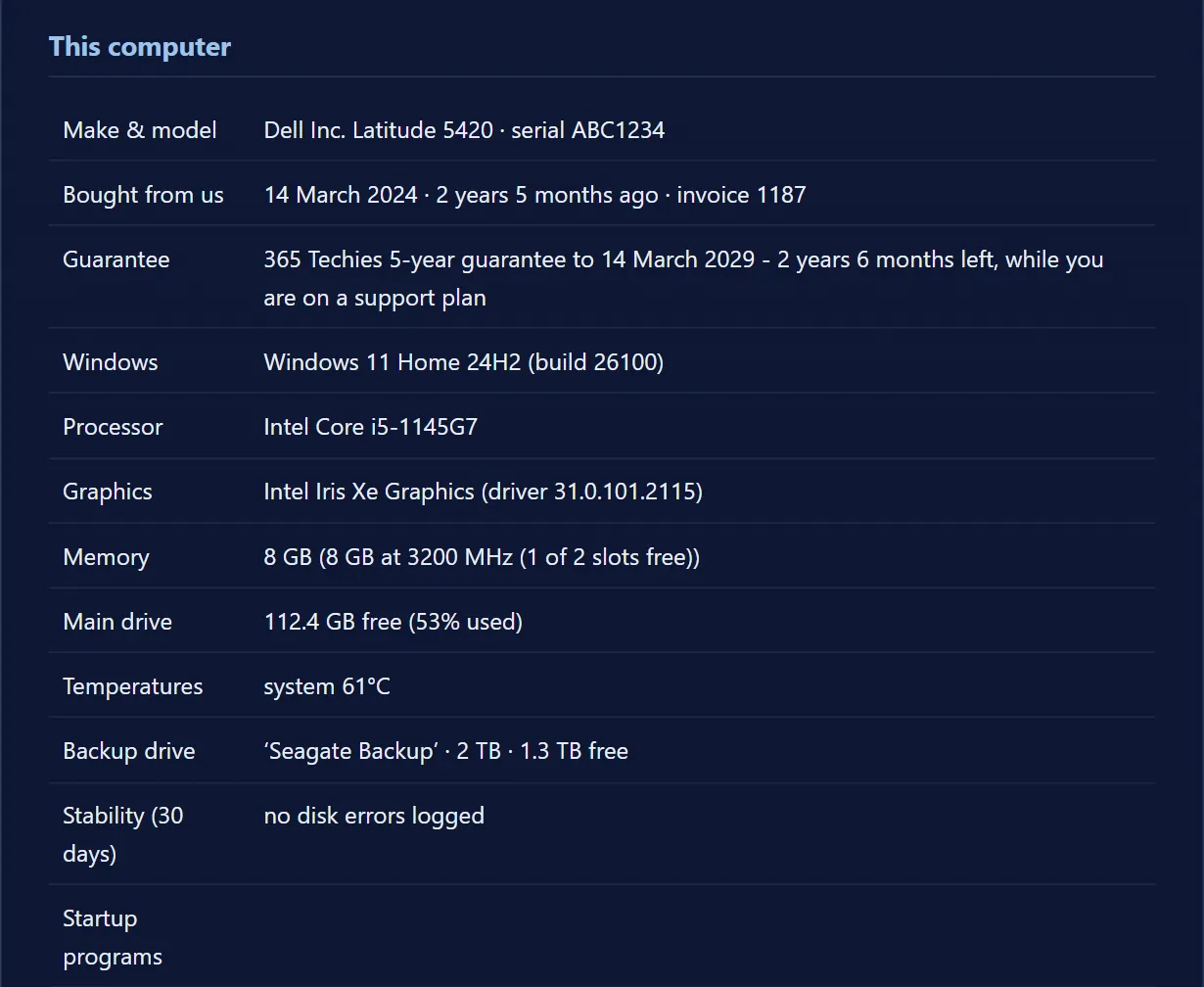
£18.25 a month per computer at home · business from £24.38. Rolling monthly, no lock-in.
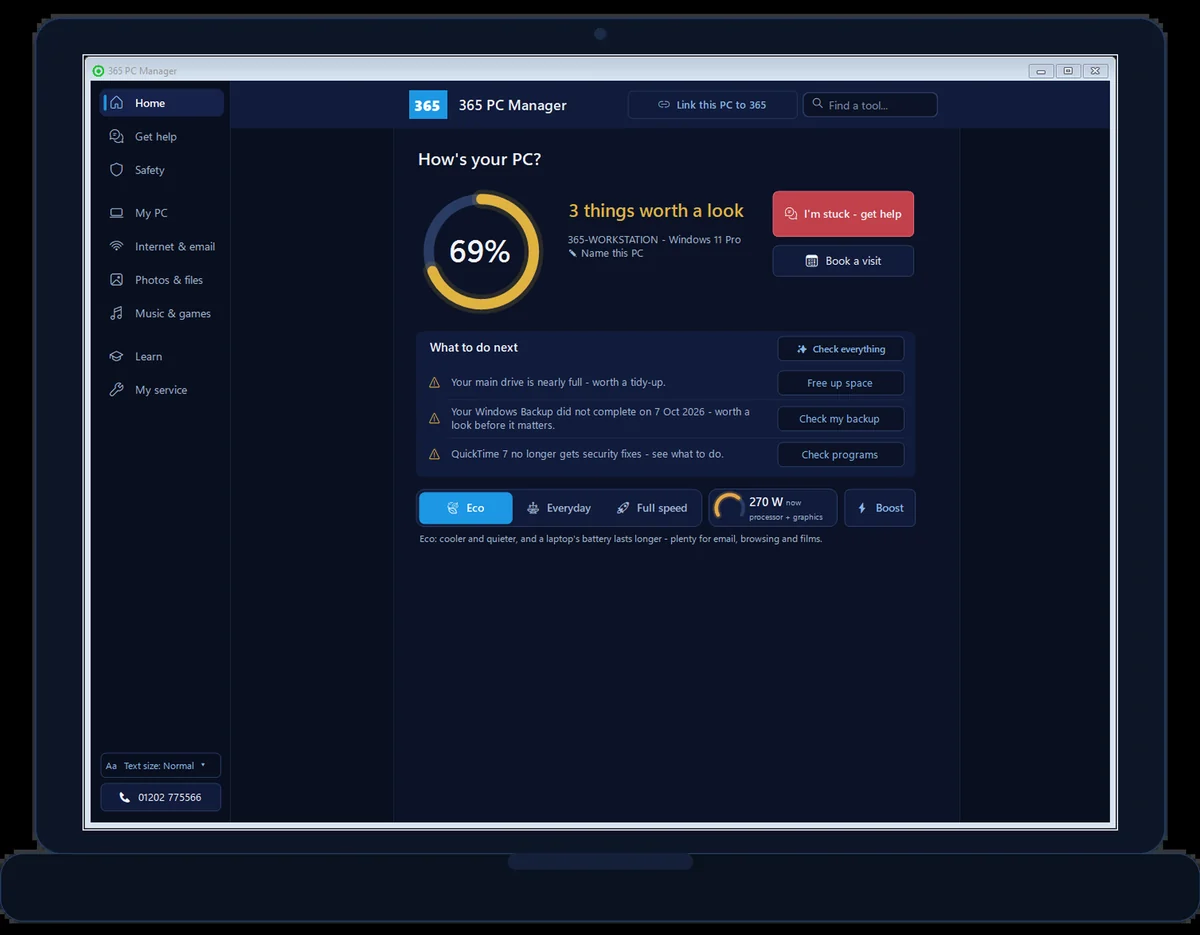
FREE APP · WINDOWS · REAL SCREENSHOT
See how this PC is really doing
- Exact memory, drive health and free space
- Whether antivirus is on and a backup actually exists
- Battery wear, and when Windows is waiting for a restart
- Risky programs, network openings and missed Windows updates
365 PC Manager, digitally signed by 365 Techies Ltd. No fake errors, no scare tactics. It shows you where you stand; it isn’t an antivirus.
At a glance
| Most common cause | After the BT-to-EE switch your printer is still trying to join the old BT wifi that no longer exists — plus band steering and WPA3 on newer EE hubs. |
|---|---|
| The reliable fix | Switch on the hub’s Compatible WiFi — a separate 2.4GHz network using WPA2 — and re-run the printer’s wireless setup against it. |
| DIY first step | Open the EE app, or type 192.168.1.254 (or eehub) into a browser and sign in with the admin password on the card on the back of the hub. |
| ‘MAC filter’ warning | Usually a false alarm — EE’s current hubs don’t use MAC filtering on the main network, so the real cause is almost always the wrong band or WPA3 security. |
| Can it be fixed remotely? | Yes — most EE-hub printer jobs are fixed remotely, usually the same day, in one short session while you watch. |
| When to call us | If you’d rather not poke around in hub settings, or it still won’t connect after these steps — 01202 775566, Mon–Fri 9am–5pm, no-fix-no-fee. |
// NEED THIS FIXED RIGHT NOW?
Skip the DIY — call 01202 775566 and we can be looking at your screen within minutes. You watch everything we do, and most problems on this page are fixed in one short remote session. (Mon–Fri, 9am–5pm.)
/02 — WHY EE HUBS TRIP PRINTERS UP
Why it happens on an EE hub
Three things about EE’s newer hubs catch printers out:
- Band steering. The EE Smart Hub Plus and Smart Hub Pro use one name for both wifi bands and decide which band each device gets. A printer that only speaks 2.4GHz can be handed a 5GHz connection it can’t use.
- WPA3 security. The latest hubs default to WPA3, a newer encryption standard. Plenty of printers that are only a few years old were built for WPA2 and quietly refuse to join a WPA3 network.
- The BT-to-EE switch. When BT customers moved across to EE, many received a brand-new hub with a different wifi name and password. Your printer still remembers the old BT network, so it keeps trying to connect to a wifi that no longer exists.
That last one is a very common cause. The printer isn’t broken and nothing you did was wrong — the wifi it was told to use has simply changed underneath it. Once you point the printer at a network it can actually see and log in to, it behaves again. If your printer connects but then keeps dropping off, our guide on why printers keep disconnecting covers that separately.
/03 — CONNECT VIA COMPATIBLE WIFI
The reliable fix: use Compatible WiFi
Here’s the approach that works on EE’s Smart Hub Plus and Smart Hub Pro (the older WiFi 5 EE Smart Hub doesn’t offer Compatible WiFi). The precise menu labels vary a little by hub model and firmware, but the shape is always the same.
First, get into the controls. The easiest route is the EE app on your phone. If you’d rather use a computer, open a web browser and type 192.168.1.254 (or eehub) into the address bar, then sign in with the admin password printed on the pull-out card on the back of the hub — that’s a different password from your wifi one.
Next, find Advanced Settings, then Wireless, then Compatible WiFi, and switch it on. Give it a name and password you’ll recognise and save. Now, on the printer itself, run the wireless setup wizard, pick that Compatible WiFi name and type the password carefully — capital letters matter. Keep the printer within a few metres of the hub while it joins, and give the hub a couple of minutes to settle after any change.
The full checklist is in the numbered steps below. If your printer only offers WPS (the one-button method), there’s a specific EE quirk covered there too. Prefer to watch someone do it? We can screen-share and walk you through it remotely.
/04 — MAC FILTER & WPA3 RED HERRINGS
Two things that send you down the wrong path
Two messages send people hunting for problems that aren’t really there when a printer won’t connect to an EE hub.
The ‘MAC address filtering’ report. Some printers — HP models in particular — run a self-test that claims a MAC address filter is blocking them. On EE Smart Hubs this is usually a false alarm: EE’s current hubs don’t use MAC filtering on the main network, so there’s nothing there to switch off. The printer’s diagnostic is guessing at why it failed and landing on the wrong reason. Don’t spend an afternoon looking for a filter that isn’t there — the real issue is nearly always the band or the security type.
WPA3 versus WPA2. If your printer genuinely won’t accept the password on the main network, the security standard is the likely culprit. Connecting through Compatible WiFi sidesteps it, because that network uses WPA2. If you’d rather keep everything on one network, some hubs let you set the main wifi to a WPA2/WPA3 transition mode, which keeps old and new devices happy. Not every hub or firmware version offers that, so Compatible WiFi remains the simplest, most reliable fix.
/05 — WHICH EE HUB HAVE YOU GOT?
Which EE hub do you have?
Knowing your hub helps, because the wording differs slightly:
- EE Smart Hub Plus — the dual-band WiFi 6 hub. It uses one network name across both bands, and it’s where the Compatible WiFi option lives.
- EE Smart Hub Pro — the newer WiFi 7 hub. Faster, but its stronger default security is exactly what trips older printers up, so the same Compatible WiFi fix applies.
- BT Smart Hub 2 — if you moved from BT to EE you may have kept this one. It’s WiFi 5 and behaves like its BT self, so our BT Smart Hub guide is the better match for you.
Whichever you have, you reach the settings the same way: the EE app, or a browser pointed at 192.168.1.254 (or eehub), using the admin password from the card on the back. Newer firmware may load the Hub Manager over a secure https address and warn you the page isn’t private — that’s normal for a device on your own home network, and you can safely continue. Need a hand with the wider setup? See our home network setup help.
/06 — WHEN TO CALL 365 TECHIES
When to let us do it for you
If you’d simply like it done, that’s what we’re here for. We’re 365 Techies — a family-run team in Kinson, Bournemouth, helping homes and small businesses across Bournemouth, Christchurch, Poole and Dorset since 1995. Most printer-and-wifi jobs like this we fix remotely, usually the same day: with your permission we connect to your Windows computer, get onto the hub, enable Compatible WiFi and re-run the printer’s setup while you watch. If the printer needs hands-on attention we can arrange a home visit (priced before we come) or collection locally.
We’ll also be straight with you if the printer itself is the problem. If it won’t hold any connection, the wifi card can be failing, the driver may need reinstalling, or a very old model may not cope with a modern hub at all — and we’ll tell you honestly rather than sell you a fix that won’t last. It’s no-fix-no-fee, so there’s no risk in asking. Call 01202 775566, text 07520 615332, or see our printer support page.
FAMILY-RUN SINCE 1995 · ★ 4.9 ON GOOGLE · 200+ COMPUTERS UNDER OUR CARE · NO FIX, NO FEE · SAME-DAY REMOTE SUPPORT
// GOOD QUESTIONS
Frequently asked
Why did my printer stop working when I switched from BT to EE?
Your new EE hub almost certainly has a different wifi name and password from your old BT one, and your printer is still trying to join the network that no longer exists. On top of that, EE’s newer hubs use band steering and stronger WPA3 security that some printers can’t follow. Re-running the printer’s wireless setup against EE’s 2.4GHz Compatible WiFi sorts it out.
Does the EE Smart Hub have a separate 2.4GHz network for printers?
Yes — it’s called Compatible WiFi. It’s a distinct 2.4GHz-only network using WPA2 security, designed for older devices and printers that struggle with the main network. You switch it on in the EE app or the Hub Manager, give it its own name and password, and connect the printer to that. It runs alongside your main wifi, so your other devices are unaffected.
My printer says a MAC address filter is blocking it — is that true?
Usually not. Several printers run a self-check that reports a MAC address filter when they fail to connect, but EE’s current hubs don’t use MAC filtering on the main wifi, so there’s nothing to disable. Treat that message as a red herring — the real cause is almost always the wrong band or WPA3 security, and Compatible WiFi gets around both.
Can I split the 2.4GHz and 5GHz bands instead?
You can, but on the Smart Hub Plus it’s effectively the same job as Compatible WiFi: on later firmware you switch the main network’s 2.4GHz radio off and run the 2.4GHz band as its own named network, then point the printer at that. It works, but it’s fiddlier, and not every hub or firmware version offers it yet. For most people, simply turning on Compatible WiFi and leaving the main network alone is the quicker, tidier route to the same result.
I can’t find Compatible WiFi in my hub settings.
The older EE Smart Hub (the WiFi 5 model) doesn’t offer Compatible WiFi at all; on a Smart Hub Plus or Pro it can be missing until the hub has the latest firmware. Leaving the hub switched on overnight usually lets it update itself. If it still isn’t there, the next best step is to switch the main wifi to a WPA2/WPA3 transition mode where the hub offers it, so older printers can still join — or let us take a look remotely and pick the best option for your hub.
Should my printer use WPA2 or WPA3?
Most home printers older than a year or two are built for WPA2. EE’s newest hubs default to WPA3, which those printers can’t join. Compatible WiFi uses WPA2, so it’s the safe choice. If you’d rather stay on one network, some hubs offer a WPA2/WPA3 transition mode that accepts both old and new devices.
Can you just set this up for me?
Gladly. Most EE-hub printer jobs we handle remotely, usually the same day — with your permission we connect to your Windows PC, enable Compatible WiFi on your hub and re-run the printer’s setup while you watch. If it needs hands-on work we cover Bournemouth, Christchurch, Poole and Dorset for home visits (priced before we come) and collection. Call 01202 775566 or get in touch.
What if the printer still won’t connect after all this?
Then the printer itself may be at fault rather than the hub. A failing wifi card, a corrupted driver, or a very old printer that can’t handle a modern hub can all cause it. We’ll test honestly and tell you whether it’s worth repairing or replacing — and because we’re no-fix-no-fee, you only pay if we get it working.
// Still stuck?
Printer still ignoring your EE hub?
We’ll enable Compatible WiFi and get your printer back online — usually remotely, the same day, no-fix-no-fee.
We’ll fix it with you
- Checking the problem is free
- Fixes from £20, agreed before we start
- We phone first, and you watch every step
Stop it happening again
- A full service every six weeks, written up
- Every program kept up to date
- Unlimited remote help when you need it
Plans from £18.25 a month per computer · cancel any time
Mon–Fri 9–5 · family-run since 1995 · rated 4.9 on GoogleGet in touch →