// WINDOWS RELIABILITY MONITOR
Reliability Monitor: how to open and read it
Reliability Monitor is the record Windows keeps of every crash, freeze, blue screen and failed update, day by day, with a stability score from 1 to 10. It has been part of Windows since Vista, it’s free, and most people have never opened it. Here’s how to open it, what every icon and number means, and what to do about what it shows. Rated 4.9 on Google.
- ● Built into Windows 11 and 10
- ● Free crash history app
- ● Windows specialists since 1995
/01 — OPEN IT
Three ways to open Reliability Monitor
- The quickest: press Windows + R, type perfmon /rel and press Enter.
- From Start: click Start, type reliability and choose View reliability history.
- From Control Panel: System and Security, then Security and Maintenance, open Maintenance and choose View reliability history.
It works the same way on Windows 11 and Windows 10, needs no administrator password, and changes nothing: it only shows what Windows has already written down. It can take a few seconds to open while it gathers the record.
// FIX IT WITH ME · STEP BY STEP
Read the record, step by step
The steps from this guide, one at a time, in the order that fixes the most cases fastest. Tell it what happened and it shows the next step. Nothing here leaves your device.Last reviewed 17 October 2026
-
01Open Reliability Monitor
Press Windows + R, type perfmon /rel and press Enter, or type reliability in the Start menu and choose View reliability history.
Is that step done? -
02Read the stability index
The blue line runs from 1 to 10. Dips show the days things went wrong.
Is that step done? -
03Click a day with a red cross
The list underneath shows which program or part of Windows failed, and what happened.
Is that step done? -
04Open the technical details
Double-click an entry to see the Fault Module Name or, for a blue screen, the BCCode stop code.
Is that step done? -
05Look for the pattern
One program again and again points to that program; trouble starting on one day points to what was installed that day.
Is that step done?
Rather have it done for you? Remote help from £20, or in person across Bournemouth, Christchurch, Poole, Ringwood and the New Forest, with no call-out fee.
Sorted{mins}. Nice work.
Fix one thing at a time, then look at the record again in a few days.
Can’t make sense of it? That is a remote job.
With your permission we connect to your screen and sort it in one session. Usually the same day, remote help from £20, and no fix, no fee.
Reliability Monitor: how to open and read it - the fix order (365techies.co.uk/reliability-monitor/) 1. Open Reliability Monitor: Press Windows + R, type perfmon /rel and press Enter, or type reliability in the Start menu and choose View reliability history. 2. Read the stability index: The blue line runs from 1 to 10. Dips show the days things went wrong. 3. Click a day with a red cross: The list underneath shows which program or part of Windows failed, and what happened. 4. Open the technical details: Double-click an entry to see the Fault Module Name or, for a blue screen, the BCCode stop code. 5. Look for the pattern: One program again and again points to that program; trouble starting on one day points to what was installed that day. Still stuck? 365 Techies fix it remotely: 01202 775566 - https://365techies.co.uk/remote-support/At a glance
| Open it | Press Windows + R, type perfmon /rel and press Enter. Or type reliability in the Start menu and choose View reliability history. |
|---|---|
| The score | A stability index from 1 (least stable) to 10 (most stable). Recent problems count more than older ones. |
| The icons | A red circle with a cross is a failure, a yellow triangle a warning, and a blue i information, such as an update that installed. |
| The rows | Application failures, Windows failures, Miscellaneous failures, Warnings and Information. |
| How far back | Up to a year of history, by day or by week. |
| Clear it? | There’s no clear button, and you don’t need one: fix the cause and the score climbs back by itself. |
| Free check | What keeps going wrong in our free 365 PC Manager app reads the same record in plain words. |
/02 — THE GRAPH
What the graph and the stability index mean
Across the top is a graph. Each column is a day (choose Weeks at the top left to see further back, up to a year), and the blue line is Windows’ stability index, from 1, the least stable, to 10, the most stable.
The index is worked out from the failures Windows has seen recently, and recent ones count more than older ones (Microsoft Learn). So a crash yesterday pulls it down further than one three weeks ago, and once the cause is fixed the line climbs back up by itself, a little each day without problems.
Under the line are five rows of icons:
- Application failures: a program crashed (“Stopped working”) or froze (“Stopped responding”).
- Windows failures: Windows itself stopped, such as a blue (now black) screen, or a part of Windows failed.
- Miscellaneous failures: usually “Windows was not properly shut down”: a power cut, the power button held in, or the PC switching itself off.
- Warnings: something that didn’t go to plan, most often an update or program that failed to install.
- Information: things that went right, such as updates and programs that installed. Handy for spotting what changed on the day the trouble began.
A red circle with a cross is a failure, a yellow triangle is a warning, and a blue i is information.
/03 — THE DETAIL
Find out exactly what happened
- Click a column with a red cross. The list underneath shows everything recorded that day: the program or part of Windows (the Source), a Summary such as “Stopped working”, and the time.
- Double-click an entry, or choose View technical details, for Windows’ full report.
- In a program crash, look for Fault Module Name: the file that actually failed. If it’s the program’s own file, the fault is in that program. If the same driver or Windows file turns up under several different programs, that file is the one to look at.
- In a blue screen (“Shut down unexpectedly”, problem event name BlueScreen), the BCCode is the stop code. Searching for it with your PC’s make and model often points to the driver involved.
At the bottom, View all problem reports lists every report in one place, and Save reliability history saves the lot as a file you can send to whoever is helping you.
/04 — WHAT IT MEANS
What the pattern usually tells you
- One program, again and again: the fault is in that program. Update it, or uninstall it and install it fresh; for Outlook and other Office apps, Office’s own Repair often sorts it. More in why does my PC keep crashing?
- Lots of different programs: something underneath them all, such as a driver, a nearly full drive, memory or heat.
- Trouble that starts on one day: click that day’s blue i icons to see what was installed, then update it or undo it.
- Several blue screens in a few weeks: usually a driver or a hardware fault, and worth sorting before it becomes a failure.
- “Windows was not properly shut down” when nobody switched it off: it can mean overheating or a power fault. See laptop overheating.
- The same update failing over and over: see Windows Update stuck or failing.
A single red cross is nothing to worry about. Every PC has the odd crash; it’s the pattern that matters.
/05 — CLEAR IT?
Can you clear or reset Reliability Monitor?
There’s no button to clear it, and you don’t need one. Once you’ve fixed the cause, the stability index climbs back by itself, because recent days count the most, and old entries drop off the record over time.
Guides that tell you to delete Windows’ record files to “reset” it only throw away the history you would need if the problem comes back. Leave them alone. To see whether something has come back since you fixed it, our free app’s Start a fresh list, below, does exactly that without deleting anything.
/06 — THE QUICK WAY
Let our free app read it for you
FREE · WINDOWS 10 & 11 · NO SIGN-UP
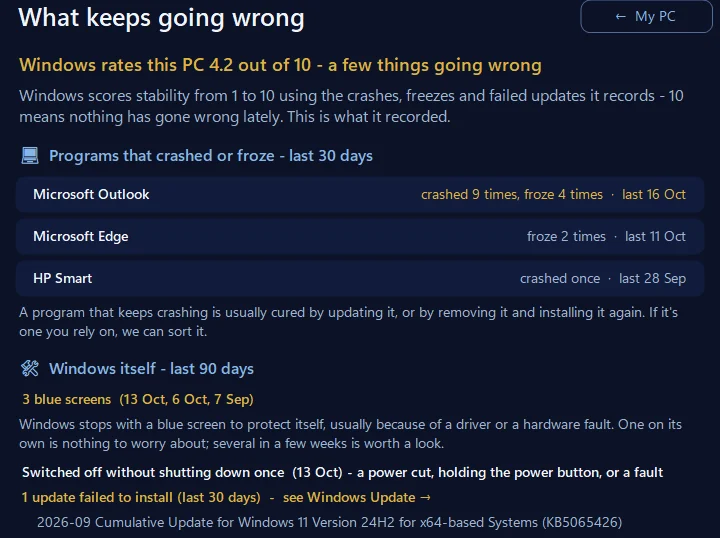
What keeps going wrong: Reliability Monitor, in plain words
It reads the same record as Reliability Monitor and puts it in plain words: Windows’ stability score, which programs crashed or froze in the last 30 days and how often, blue screens and unexpected shutdowns in the last 90 days, and updates that failed to install. Fixed something? Start a fresh list counts from now, so you can see whether it comes back. Nothing is deleted: Windows keeps its full record, and Show everything again brings the old list back. A button opens Windows’ own Reliability Monitor.
In the app: My PC, then What keeps going wrong.
Download 365 PC Manager free ↓What else it checks
Made by us, a family IT firm in Bournemouth since 1995, and digitally signed by 365 Techies Ltd.
/07 — WHEN TO CALL US
When to call us
If the red crosses keep coming, or blue screens are getting more frequent, we’ll go through the record with you and fix what’s behind it. Ring 01202 775566 or text 07520 615332, Monday to Friday, 9 to 5. With your permission we connect to your Windows PC and sort it while you watch: usually the same day, remote help from £20, and no fix, no fee.
FAMILY-RUN SINCE 1995 · ★ 4.9 ON GOOGLE · 200+ COMPUTERS UNDER OUR CARE · NO FIX, NO FEE · SAME-DAY REMOTE SUPPORT
// GOOD QUESTIONS
Frequently asked
What is Reliability Monitor?
A part of Windows 11 and 10 that records every program crash, freeze, blue screen, unexpected shutdown and failed update, day by day, and turns them into a stability index from 1 to 10.
How do I open Reliability Monitor?
Press Windows + R, type perfmon /rel and press Enter. Or click Start, type reliability and choose View reliability history.
Is Reliability Monitor in Windows 11?
Yes. It’s in Windows 11 and Windows 10 and works the same way in both. Nothing needs installing.
What is a good stability index?
10 is the most stable. There’s no official pass mark, and a busy PC often sits below 10. What matters is the trend and what’s behind the dips: a falling line with the same program crashing again and again is worth fixing.
How do I clear Reliability Monitor?
There’s no clear button. Fix the cause and the index climbs back by itself, because recent problems count the most. Deleting Windows’ record files only throws away history you may need later.
What does BCCode mean in Reliability Monitor?
It’s the stop code of a blue (or black) screen, shown in the technical details. It points to the kind of fault, and searching for it with your PC’s make often points to the driver involved.
Can you read it for me?
Yes. With your permission we connect to your Windows PC, go through the record with you and fix what’s behind it: remote help from £20, and no fix, no fee.
// Still stuck?
Can’t make sense of it?
We read the record with you, fix what’s behind the red crosses, and tell you straight if it’s hardware. Call 01202 775566 or text 07520 615332.
We’ll fix it with you
- Checking the problem is free
- Fixes from £20, agreed before we start
- We phone first, and you watch every step
Stop it happening again
- A full service every six weeks, written up
- Every program kept up to date
- Unlimited remote help when you need it
Plans from £18.25 a month per computer · cancel any time
Mon–Fri 9–5 · family-run since 1995 · rated 4.9 on GoogleOpen it now →