// HONEST ADVISOR
Repair or replace? Get an honest answer.
Answer four quick questions and we’ll give you a straight, no-pressure recommendation — based on the age, the fault and any quote you’ve been given. We’ll never push a sale.
- ● No-fix-no-fee
- ● We’ll tell you straight
- ● Free guidance
STEP 1 OF 4
What kind of computer is it?
STEP 2 OF 4
Roughly how old is it?
STEP 3 OF 4
What’s the main problem?
LAST ONE
Have you been quoted to fix it?
// ALSO IN OUR FREE WINDOWS APP
Let your PC answer for itself
FREE · WINDOWS 10 & 11 · NO SIGN-UP
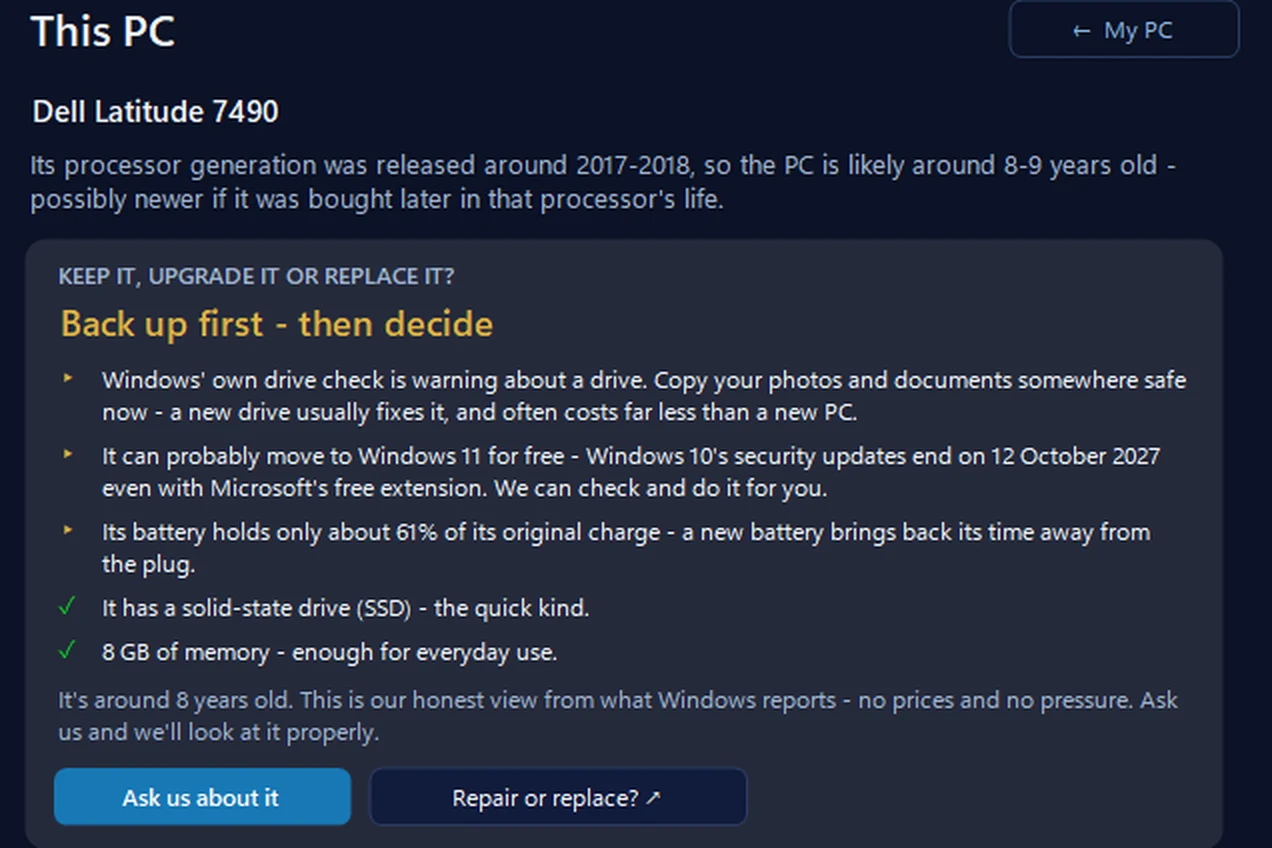
Keep it, upgrade it or replace it?
Instead of four questions, our free app reads the facts from Windows: whether the PC runs Windows 11 or its processor can take it, whether the drive is an SSD or an old hard drive and what Windows’ own drive check says, the memory, the battery’s wear and roughly how old the processor is. Then it gives a plain verdict — keep it, upgrade a part or replace it — and a drive that’s failing always comes first: back up. No prices and no pressure.
In the app: My PC, then This PC.
Download 365 PC Manager free ↓What else it checks
Made by us, a family IT firm in Bournemouth since 1995, and digitally signed by 365 Techies Ltd.
// GOOD QUESTIONS
Frequently asked
How do you decide whether to repair or replace?
We weigh up the computer’s age, the type of fault, and what a repair would cost against a replacement. A common rule of thumb is that if a repair costs more than about half the price of a new one, replacing is usually better value — but we always check honestly first. See our guide: is it worth repairing an old laptop?
Is the recommendation a quote?
No — it’s friendly guidance to point you in the right direction. The only way to know for sure is to look, which we do free on diagnosis (no-fix-no-fee), with a 12-month warranty on any repair.
My computer is losing files — what should I do first?
Back up anything precious straight away. Strange noises or disappearing files can mean a failing drive, and acting fast gives the best chance of saving your data. See our backup & recovery page, then get in touch.
Can you move my files to a new computer?
Yes — if replacing is the better option, we’ll move your files, photos, email and programs across and set it all up. See new computer setup.
Rather we just took a look?
Book a free, no-obligation diagnosis with free local collection. We’ll tell you honestly whether it’s worth repairing — and only ever recommend what’s right for you.
01202 775566 · help@365techies.co.uk · MON–FRI 9AM–5PM
// HOW IT WORKS
How to decide whether to repair or replace
As a rough rule, if a repair would cost more than about half the price of a comparable replacement — or the computer is over roughly five years old and out of security updates — replacing is usually the smarter move.
- The 50% rule: if the repair costs more than half the price of a similar new or refurbished machine, lean towards replacing.
- Age: under ~5 years and it’s usually worth fixing; well over 5 with repeated faults points to replacing.
- Security updates: if it can no longer get updates (e.g. stuck on an unsupported Windows version), that pushes towards replacing.
- Cheap wins: a slow but otherwise healthy PC is often transformed by an SSD or more memory — a repair, not a replacement.
Step by step
- Get the repair price — Find out what the fix actually costs — we quote clearly and for free, with no-fix-no-fee.
- Compare to a replacement — Weigh it against a comparable machine, including our refurbished business-grade Dells from £510.
- Check the age and updates — Over ~5 years old or no longer getting security updates tips the balance towards replacing.
- Ask about a cheap upgrade — If it’s just slow, an SSD or memory upgrade often fixes it for a fraction of a new PC.
Good to know
Should I repair or replace my computer?
A good rule of thumb: if the repair costs more than half the price of a comparable replacement, or the machine is over about five years old and no longer getting security updates, replacing usually makes more sense. If it’s simply slow, an SSD or memory upgrade is a cheap repair that often transforms it.
Is it worth repairing a computer over 5 years old?
Sometimes — a small, cheap fix like an SSD on an otherwise healthy machine can be well worth it. But repeated faults, expensive parts or the loss of security updates on an older machine usually mean a replacement is better value.