// WINDOWS 11 24H2 SHARED FOLDERS
Shared Folders Stopped Working After the Windows 11 24H2 Update
One Windows update landed and suddenly nobody in the office can reach the shared drive. It’s not a coincidence, and nothing is broken — Windows 11 24H2 has quietly raised the bar on file-sharing security. Here’s exactly what changed, the safe way to get back in, and the tempting bodge we’d steer you away from.
Rated 4.9 on GoogleFamily-run since 1995 · no fix, no fee/01 — WHAT ACTUALLY CHANGED
What the Windows 11 24H2 update actually changed
Your shared folders stopped working after the Windows 11 24H2 update because Microsoft tightened two file-sharing security defaults, and older shares no longer meet them. The two changes are SMB signing now being required on the connections your PC makes, and insecure ‘guest’ logons being switched off — even on Windows 11 Pro, where they used to be allowed.
SMB is the protocol Windows uses to reach folders on another computer or a NAS box. ‘Signing’ means each packet is stamped so it can’t be tampered with or relayed to a malicious server. Plenty of older network drives and cheaper NAS units either don’t support signing or ship with it turned off, so 24H2 simply refuses to talk to them.
The guest change bites hardest. Many home and small-office shares were set to ‘Everyone’ with no password — convenient, but it means anyone on the network can read them. 24H2 now blocks that unauthenticated ‘guest’ fallback outright. Nothing on your side is broken; the folder is still there and your files are safe. Windows is just enforcing a stricter, more secure standard than the one your network was built around. The fix is to bring the share up to that standard — not, ideally, to drag Windows back down to the old one.
// FIX IT WITH ME · STEP BY STEP
Fix it with me, one step at a time
The steps from this guide, one at a time, in the order that fixes the most cases fastest. Tell it what happened and it shows the next step. Nothing here leaves your device.Last reviewed 19 October 2026
-
01Confirm it's the 24H2 change
Check the error and the timing. If access broke right after a Windows feature update and machines still on the older build can reach the folder, 24H2's new SMB defaults are the cause. Note the exact error wording.
Can you open the shared folder now? -
02Write down the share path and host
Record the full path (it looks like \\PC-NAME\Folder) and which computer or NAS holds the folder. You'll need this to reconnect and it saves time if you call for help.
Can you open the shared folder now? -
03Set up a real login on the host
On the computer or NAS that shares the folder, make sure there is a genuine user account with a password, and that the folder is shared to that account rather than to Everyone with no password.
Can you open the shared folder now? -
04Reconnect with that username and password
On the affected PC, open File Explorer, type the share path into the address bar, and enter the username and password when prompted. Tick Remember my credentials so it persists.
Can you open the shared folder now? -
05Clear stale saved credentials if needed
If a correct password is rejected, open Control Panel, then Credential Manager, then Windows Credentials, delete old entries for that PC or NAS, and reconnect with the correct details.
Can you open the shared folder now? -
06For a NAS, enable SMB signing and update firmware
On a NAS, enable SMB signing in the file-sharing settings, set the minimum protocol to SMB2 or SMB3, and install any firmware update. Exact menus vary by make and model.
Can you open the shared folder now? -
07Only bodge it if you must, and temporarily
If a device genuinely cannot be fixed, you can re-enable insecure guest logons or relax signing, but this lowers security across your network. Treat it as a short-term patch while you arrange a proper fix or a cloud move.
Can you open the shared folder now?
Rather have it done for you? Remote help from £20, or in person across Bournemouth, Christchurch, Poole, Ringwood and the New Forest, with no call-out fee.
Sorted{mins}. Nice work.
Open, edit and save one file in the folder to be sure.
Still locked out after all seven steps? That is a remote job.
With your permission we connect to the host and the computer that cannot get in, give the share a proper login instead of the guest bodge, turn on signing and update the firmware on a NAS, and test it from a second machine. Usually the same day, remote help from £20, and no fix, no fee.
Shared Folders Stopped Working After the Windows 11 24H2 Update - the fix order (365techies.co.uk/shared-folders-not-working-after-windows-11-24h2-update/) 1. Confirm it's the 24H2 change: Check the error and the timing. If access broke right after a Windows feature update and machines still on the older build can reach the folder, 24H2's new SMB defaults are the cause. Note the exact error wording. 2. Write down the share path and host: Record the full path (it looks like \\PC-NAME\Folder) and which computer or NAS holds the folder. You'll need this to reconnect and it saves time if you call for help. 3. Set up a real login on the host: On the computer or NAS that shares the folder, make sure there is a genuine user account with a password, and that the folder is shared to that account rather than to Everyone with no password. 4. Reconnect with that username and password: On the affected PC, open File Explorer, type the share path into the address bar, and enter the username and password when prompted. Tick Remember my credentials so it persists. 5. Clear stale saved credentials if needed: If a correct password is rejected, open Control Panel, then Credential Manager, then Windows Credentials, delete old entries for that PC or NAS, and reconnect with the correct details. 6. For a NAS, enable SMB signing and update firmware: On a NAS, enable SMB signing in the file-sharing settings, set the minimum protocol to SMB2 or SMB3, and install any firmware update. Exact menus vary by make and model. 7. Only bodge it if you must, and temporarily: If a device genuinely cannot be fixed, you can re-enable insecure guest logons or relax signing, but this lowers security across your network. Treat it as a short-term patch while you arrange a proper fix or a cloud move. Still stuck? 365 Techies fix it remotely: 01202 775566 - https://365techies.co.uk/remote-support/// STOP IT HAPPENING AGAIN
Microsoft closed this door on purpose
24H2 tightened file sharing deliberately, and the bodge turns off the exact protections the update added, just as AI is making weak spots quicker to find. The lasting fix is shares with proper logins, and every machine kept current.
// WHY IT MATTERS MORE NOW
Criminals now use AI to hunt for a single out-of-date program to use as a back door.
The UK’s National Cyber Security Centre expects AI to mean increasing the volume of attacks against systems that have not been updated with security fixes
.
NCSC, Impact of AI on cyber threat from now to 2027, May 2025
- A program that missed its updatesNot just Windows: the browser, the PDF reader, the printer software. Closed by: every program updated, every six weeks.
- A message that looks genuineScam emails and texts written with AI no longer give themselves away with clumsy spelling. Closed by: someone to check with before you click.
- A backup that quietly stoppedWhen ransomware or a dead drive strikes, a working backup is the difference. Closed by: a backup that is checked, not assumed.
SUPPORT PLAN · EVERY SIX WEEKS
Every machine kept current, on one screen
- Every program on every computer updated every six weeks, not just Windows and Microsoft 365
- Every machine on one screen in your portal: updates, protection and backups across the lot
- A dated Service Report for each computer, every service, and unlimited remote support in between
Business from £24.38 a month per computer · home £18.25. Rolling monthly, no lock-in.

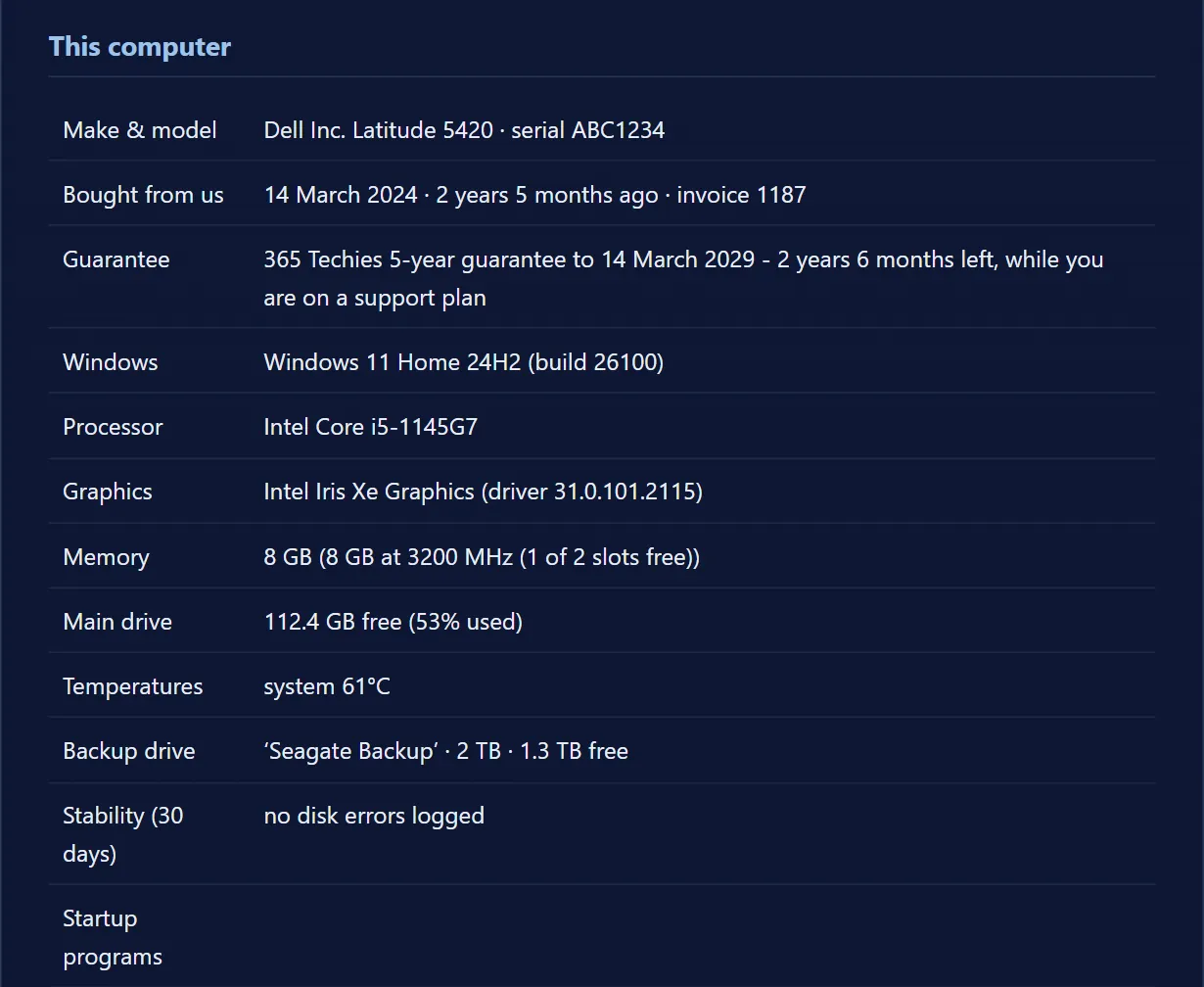
FREE APP · WINDOWS · REAL SCREENSHOT
See how this PC is really doing
- Exact memory, drive health and free space
- Whether antivirus is on and a backup actually exists
- Battery wear, and when Windows is waiting for a restart
- Risky programs, network openings and missed Windows updates
365 PC Manager, digitally signed by 365 Techies Ltd. No fake errors, no scare tactics. It shows you where you stand; it isn’t an antivirus.
At a glance
| Most common cause | Windows 11 24H2 now requires SMB signing and blocks unauthenticated guest access, so older shares and NAS boxes are refused. |
|---|---|
| Are my files lost? | No — nothing is broken and your files are safe; Windows is simply rejecting the connection. |
| DIY first step | Set up a real username and password on the PC or NAS hosting the folder, then reconnect in File Explorer with those details and tick Remember my credentials. |
| Is the quick bodge safe? | Re-enabling guest logons or relaxing signing gets you working but reopens credential-theft and relay attacks — treat it as a short-term patch only. |
| Will Microsoft reverse it? | No — it’s a deliberate security change, not a bug, so waiting for a rollback just prolongs the downtime. |
| Can it be fixed remotely? | Almost always — usually same-day, and no fix means no fee. |
// NEED THIS FIXED RIGHT NOW?
Skip the DIY — call 01202 775566 and we can be looking at your screen within minutes. You watch everything we do, and most problems on this page are fixed in one short remote session. (Mon–Fri, 9am–5pm.)
/02 — THE ERRORS YOU’LL SEE
The errors that confirm it’s 24H2
You can usually confirm this is the 24H2 change by the error you get. The most common ones are:
- 0x80070035 — ‘The network path was not found’. Misleading, because the path is fine; the connection is being refused before it gets that far.
- ‘You can’t access this shared folder because your organisation’s security policies block unauthenticated guest access.’ This is the guest-logon block, almost word for word. You may see error code 0x4f8 alongside it.
- A username and password box that rejects everything you type, or keeps reappearing in a loop — usually a stale saved credential, or a share that only ever offered guest access.
A useful tell is the timing: everything worked until a Windows feature update landed, then several machines (or just the ones that updated) lost access to the same folder at once. If a colleague on an older Windows build can still reach the share and a freshly-updated PC can’t, that’s 24H2 doing exactly what it was designed to do. Jot down the exact wording and the share path (it looks like \\PC-NAME\Folder) before you start — it saves time if you call us.
// THE QUICK CHECK
Let our free app tell you which fault it is
Not sure it’s the 24H2 change? On the PC that can’t get in, our free app tries the folder and reads the reason Windows gives.
FREE · WINDOWS 10 & 11 · NO SIGN-UP
Why won’t that shared folder open?
Its Shared folders page tries each mapped drive and each shared folder this PC has opened before — or one you type in — and says, in plain words, what Windows answered: opens fine, blocked because the folder lets anyone in without a password (the 24H2 change), username or password turned down, computer not found, no such folder or no permission. It tells you whether this PC has the 24H2 update and whether your network is set to Public, and links the fix for that cause. It changes nothing on your PC and never reads your saved passwords.
In the app: Internet & email, then Shared folders.
Download 365 PC Manager free ↓What else it checks
Made by us, a family IT firm in Bournemouth since 1995, and digitally signed by 365 Techies Ltd.
/03 — THE SAFE FIX
The safe fix: give the share a proper login
The safe fix is to give the share a proper login instead of relying on guest access. On the computer or NAS that hosts the folder, make sure there’s a real user account with a password, and that the folder is shared to that account. Then, on the PC that can’t get in, open File Explorer, type \\PC-NAME\Folder into the address bar, and when prompted enter that username and password. Tick ‘Remember my credentials’ so it sticks.
This works because Windows-to-Windows sharing fully supports SMB signing — once you authenticate properly, 24H2 is happy. Guest access was never the only option; it was just the lazy one.
If the login box keeps rejecting a password you know is right, a common culprit is a stale saved credential. Open Control Panel → Credential Manager → Windows Credentials, delete any entries for that PC or NAS, then reconnect and re-enter the details. If you map the share as a drive letter and it drops again later, our guide on a mapped network drive that keeps disconnecting covers the follow-on causes.
For a handful of machines this is ten minutes of work. Across a whole office — matching usernames, permissions and passwords on every PC — it’s fiddlier, which is where a tidy, documented setup pays for itself.
/04 — NAS & OLDER DEVICES
NAS boxes and older network hardware
If the folder lives on a NAS (a Synology, QNAP, WD, Buffalo or similar box) rather than another PC, the same two rules apply — but you fix them on the NAS, not in Windows. The proper path is to enable SMB signing on the NAS and give it a real user account with a password, then connect from Windows using those details.
The exact menu wording varies by make and model, so we won’t guess yours here — but in general you’re looking for the SMB or file-services settings, an option to enable or require signing, and a minimum SMB protocol of SMB2 or SMB3 (never SMB1, which is insecure and disabled in modern Windows). A firmware update often adds or fixes these options, so check for one first.
Some older or budget NAS units simply can’t do signing at all. If yours can’t, you’re left choosing between replacing it, living with the workaround below, or moving those files somewhere better. We’re happy to check your specific model and tell you honestly which camp it’s in.
/05 — THE BODGE (AND ITS COST)
The bodge — and why we’d rather you didn’t
You can force 24H2 back to the old behaviour, and half the internet will tell you to. We’d rather you understood the trade-off first, because these switches turn off the exact protections the update added.
There are two levers. Re-enabling insecure guest logons lets Windows connect to no-password shares again — via Group Policy (Computer Configuration → Administrative Templates → Network → Lanman Workstation → ‘Enable insecure guest logons’ → Enabled) or the matching registry value. Disabling the SMB signing requirement (a PowerShell or Group Policy change) lets it talk to devices that can’t sign. On 24H2 a no-password share needs both levers, because guest logons can’t be signed. Group Policy isn’t available on Windows 11 Home — but Microsoft says 24H2 Home doesn’t require SMB signing at all, so Home PCs are much less likely to be caught by this in the first place.
Here’s the honest bit: both of these reopen the door to credential theft and ‘relay’ attacks on your network — a stranger on your Wi-Fi, or malware on one machine, intercepting or impersonating your file traffic. On a home network with nothing sensitive, that risk is small. In a business handling client data, it’s the sort of thing that turns one infected laptop into a bad afternoon. Treat these as a short-term compatibility patch while you arrange a proper fix — not a setting you leave on and forget.
/06 — THE REAL FIX & WHEN TO CALL US
The real fix, and when to call us
The real fix is to stop your office depending on a fragile, password-free share in the first place. There are two solid directions, and the right one depends on how you work.
Keep it local, done properly. Matching user accounts, sensible folder permissions, signing enabled and everything documented, so the next Windows update doesn’t knock it over. If your ‘server’ is really just a desktop in the corner with a shared drive, our guide on using a desktop PC as an office server is worth a read — it works, but it needs setting up deliberately.
Move it to the cloud. For a lot of small businesses, the honest answer is that shared folders on a PC have had their day. Microsoft 365 with OneDrive, SharePoint and Teams gives you the same ‘shared drive’ feel without the SMB fragility, reachable from anywhere. Our plain-English guide to OneDrive, SharePoint and Teams explains the difference, and cloud migration covers moving over safely.
When to call us: if the office is at a standstill, if a NAS full of shared files has gone dark, or if you simply don’t want to touch registry keys and Group Policy. We’re a family-run team in Kinson, Bournemouth, trading since 1995, and we can usually pick this up the same day by remote support across the UK — no fix, no fee.
FAMILY-RUN SINCE 1995 · ★ 4.9 ON GOOGLE · 200+ COMPUTERS UNDER OUR CARE · NO FIX, NO FEE · SAME-DAY REMOTE SUPPORT
// GOOD QUESTIONS
Frequently asked
Why did my shared folders stop working straight after the 24H2 update?
Because Windows 11 24H2 turned on two stricter defaults at once: SMB signing is now required on your connections, and unauthenticated ‘guest’ access is blocked — even on Windows 11 Pro. Older shares and cheaper NAS boxes were built without those, so Windows now refuses them. Your files aren’t lost; the connection is simply being rejected.
What is SMB signing, in plain English?
SMB is how Windows reaches folders on another computer or NAS. ‘Signing’ stamps each packet so it can’t be secretly altered or bounced to a rogue server on the way. It’s a genuine security win — the snag is that some older devices don’t support it, so 24H2 won’t connect to them until they do.
Is it safe to just enable insecure guest logons?
It gets you working again, but it switches off a protection 24H2 added on purpose. On a home network with nothing sensitive, the risk is modest. On a business network it reopens the door to credential theft and relay attacks, so we’d only use it as a temporary bridge while setting up proper logins or a cloud move.
Should I disable SMB signing to fix it?
We’d avoid it where we can. Disabling the signing requirement lets Windows talk to devices that can’t sign, but it also removes the tamper-proofing for all your connections, not just the one you’re fixing. It’s better to enable signing on the device, update its firmware, or replace it if it’s too old to cope.
Does this affect Windows-to-Windows sharing or only NAS boxes?
Both, but they’re fixable in different places. Windows-to-Windows shares usually just need a real username and password instead of guest access — signing already works between Windows PCs. NAS boxes need signing enabled and a login set up on the NAS itself, and some older units can’t manage it at all.
Is Microsoft going to patch this back to how it was?
No — this isn’t a bug, it’s a deliberate security change, and it’s in Windows Server 2025 too. Waiting for a fix that isn’t coming just prolongs the downtime. The lasting answer is to bring your shares up to the new standard or move them to the cloud, rather than hoping the old behaviour returns.
Our accounts software shares a data folder across PCs — is that hit too?
It can be, yes. Line-of-business apps like Sage that keep a shared data folder on one PC rely on exactly the SMB access 24H2 tightened. If yours has stopped connecting, see our page on Sage 50 multi-user not connecting — the cause and the safe fix are the same family of settings.
Can you just fix this for us remotely?
Almost always, yes. We connect with your permission, work out whether it’s the guest block, signing, a NAS or a stale credential, and put it right the safe way — then leave it documented so the next update doesn’t break it. Call 01202 775566 or text 07520 615332. Usually same-day, and no fix means no fee.
Should we move our shared files to the cloud instead?
For many small offices, that’s the honest long-term answer. Microsoft 365 with OneDrive, SharePoint and Teams gives you the shared-drive feel without the SMB fragility, and it works from anywhere. It isn’t right for everyone — large local files or specific software can favour a proper local setup — so we’ll tell you straight which suits you.
// Still stuck?
Shared folders down and the office at a standstill?
We’ll work out whether it’s SMB signing, the guest block or a NAS — and fix it the safe way, usually same-day by remote support. Family-run in Kinson, Bournemouth since 1995. No fix, no fee.
We’ll fix it with you
- Checking the problem is free
- Fixes from £20, agreed before we start
- We phone first, and you watch every step
Stop it happening again
- A full service every six weeks, written up
- Every program kept up to date
- Unlimited remote help when you need it
Plans from £18.25 a month per computer · cancel any time
Mon–Fri 9–5 · family-run since 1995 · rated 4.9 on GoogleBook remote help →