WINDOWS BLOCKED A PROGRAM
Smart App Control blocked an app?
You tried to open or install something and Windows 11 said “Smart App Control blocked an app that may be unsafe”, with no button to run it anyway. That’s deliberate, and it doesn’t always mean the program is harmful. Here’s why it happens, your safe choices, and what switching it off really means. Rated 4.9 on Google.
- ● Why there’s no Allow button
- ● Safe choices first
- ● Off can be one-way
WHY IT BLOCKED IT
Why Smart App Control blocks programs
Smart App Control is a Windows 11 protection that checks every program before it runs. It lets a program through when Microsoft’s cloud service knows it to be safe, or when its maker has signed it with a certificate. Anything it can’t vouch for is blocked.
So it blocks plenty of harmless things: small free tools, older programs, things written by one person, and programs whose makers never paid for a signing certificate. It’s strict on purpose, because it’s aimed at people who mostly use well-known programs.
It’s only switched on for PCs that started with a fresh copy of Windows 11 (a new PC, or a reset). PCs upgraded from Windows 10 have it off. When it’s new it runs in Evaluation mode, watching how you use the PC, then switches itself on or off.
Not the same as “Windows protected your PC”. That blue box is SmartScreen, checking downloads, and it has More info, Run anyway. Smart App Control has no such button.
FIX IT WITH ME · STEP BY STEP
Get the program running safely, step by step
The steps from this guide, one at a time, in the order that fixes the most cases fastest. Tell it what happened and it shows the next step. Nothing here leaves your device.Last reviewed 13 November 2026
-
01Get the newest version from the maker
Download it from the maker’s own website, not a download site. Newer versions are often signed.
Is it running now? -
02Try the Microsoft Store
Search the Microsoft Store for the program or a well-known alternative.
Is it running now? -
03Ask the maker
Ask whether a signed version is available or coming.
Is it running now? -
04Switch it off only if you trust it
Windows Security, App & browser control, Smart App Control settings, Off. On most PCs it can only be switched back on by resetting Windows.
Is it running now?
Rather have it done for you? Remote help, usually £60, or in person across Bournemouth, Christchurch, Poole, Ringwood and the New Forest, with no call-out fee.
Sorted{mins}. Nice work.
Keep the installer from the maker’s own site, so you can reinstall it later.
Still blocked, and not sure about switching it off? Ring us.
With your permission we connect to your screen and sort it in one session. Usually the same day, remote help, usually £60, and no fix, no fee.
Smart App Control blocked an app? - the fix order (365techies.co.uk/smart-app-control-blocked-an-app/) 1. Get the newest version from the maker: Download it from the maker’s own website, not a download site. Newer versions are often signed. 2. Try the Microsoft Store: Search the Microsoft Store for the program or a well-known alternative. 3. Ask the maker: Ask whether a signed version is available or coming. 4. Switch it off only if you trust it: Windows Security, App & browser control, Smart App Control settings, Off. On most PCs it can only be switched back on by resetting Windows. Still stuck? 365 Techies fix it remotely: 01202 775566 - https://365techies.co.uk/remote-support/At a glance
| What it is | A Windows 11 protection that only lets programs run that Microsoft knows to be safe, or that are signed by their maker. |
|---|---|
| No Allow button | On purpose: it has no exceptions list. It’s on, or it’s off. |
| Try first | The newest version from the maker’s own website, or the Microsoft Store version. |
| Switching it off | Windows Security, App & browser control, Smart App Control settings, Off. |
| Off can be one-way | On most PCs it can only be switched back on by resetting Windows. |
| Not the same as SmartScreen | “Windows protected your PC” is SmartScreen, and does have Run anyway. |
YOUR CHOICES
Your safe choices, before switching anything off
- Get it from the maker’s own website, not a download site, and get the newest version. Many makers sign their newer versions, which Smart App Control lets through.
- Look for it in the Microsoft Store. Store programs are checked and run without being blocked.
- Look for an alternative that does the same job and is well known: there usually is one.
- Ask the maker whether a signed version is coming. Small makers often add it when people ask.
- Not sure where it came from? Don’t run it. Delete it, and check the PC: see how to tell if your computer has a virus.
SWITCHING IT OFF
Switching Smart App Control off, and what that means
If you trust the program and need it, you can switch Smart App Control off:
- Open Windows Security (Start, type Windows Security).
- Choose App & browser control, then Smart App Control settings.
- Choose Off.
Think before you do. On most PCs, once it’s off, the only way to switch it back on is to reset Windows. If the settings page still lets you choose On again after switching it off, your Windows is newer and it isn’t one-way.
With it off, the PC is still protected by Microsoft Defender and SmartScreen, as almost every Windows 10 PC always has been. It’s one layer less, not none.
THE QUICK WAY
Check Windows’ other protections are on
FREE · WINDOWS 10 & 11 · NO SIGN-UP
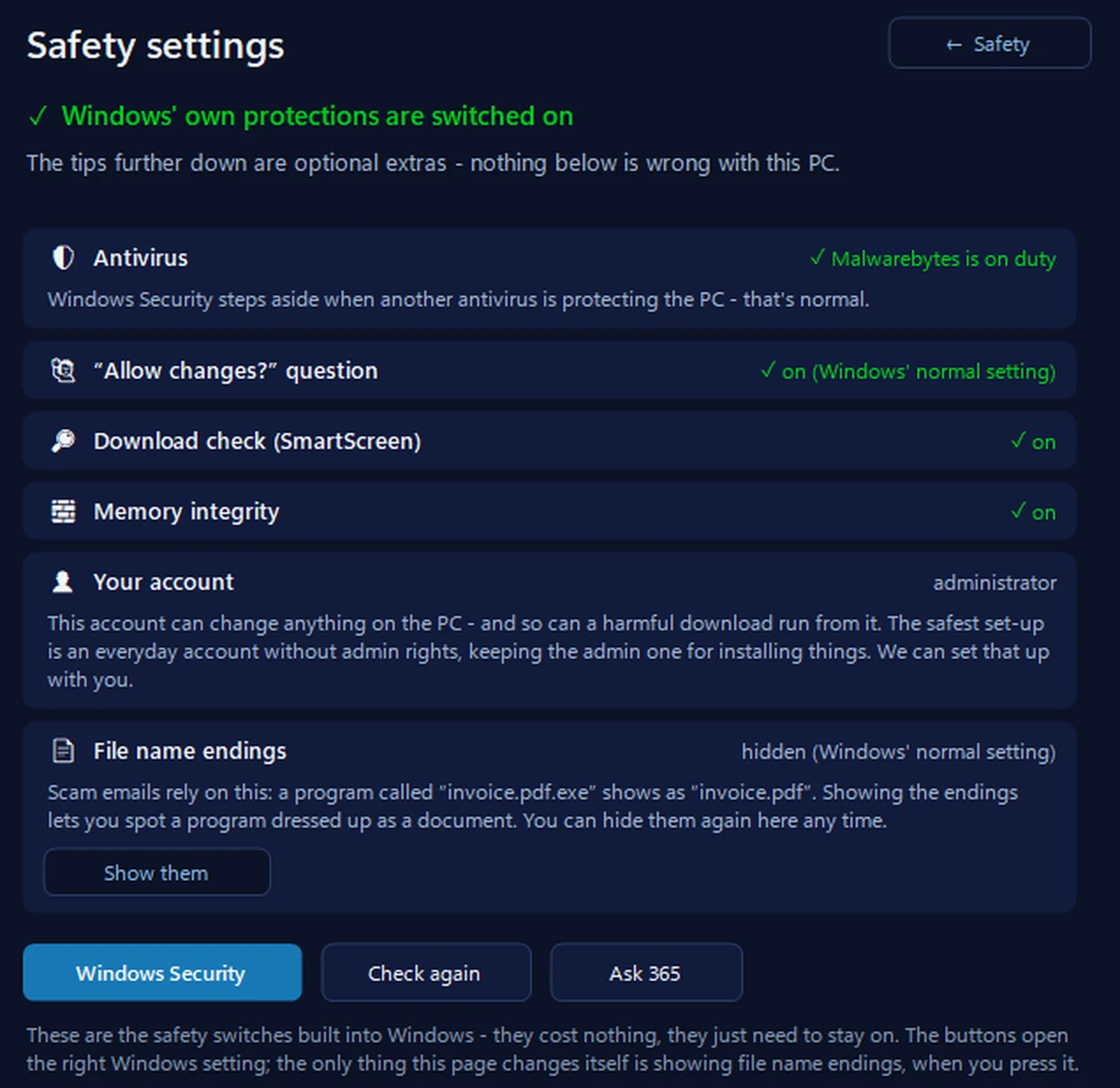
Safety settings: is the rest of Windows’ protection on?
Whatever you decide about Smart App Control, the app checks the protections that stay: which antivirus is on duty (and Defender’s tamper protection), SmartScreen’s check on downloads and whether a policy switched it off, the “allow this app to make changes?” question, and memory integrity. It doesn’t read Smart App Control itself: that’s in Windows Security, as above. Each button opens the right Windows setting.
In the app: Safety, then Safety settings.
Download 365 PC Manager free ↓ What else it checks
Made by us, a family IT firm in Bournemouth since 1995, and digitally signed by 365 Techies Ltd.
WHEN TO CALL US
When to call us
Still not right? Ring 01202 775566 or text 07520 615332, Monday to Friday, 9 to 5. With your permission we connect to your Windows PC and sort it while you watch: usually the same day, remote help, usually £60, and no fix, no fee. We check the program is what it claims to be, and find a signed version or a safe alternative where there is one.
FAMILY-RUN SINCE 1995 · ★ 4.9 ON GOOGLE · 200+ COMPUTERS UNDER OUR CARE · NO FIX, NO FEE · SAME-DAY REMOTE SUPPORT
GOOD QUESTIONS
Frequently asked
Why did Smart App Control block my app?
Because Microsoft couldn’t vouch for it and it isn’t signed by its maker. That happens to plenty of harmless programs, especially small or older ones.
Can I allow just one app?
No. Smart App Control has no exceptions list: it’s on or off. Try a signed version from the maker’s website or the Microsoft Store first.
Can I turn Smart App Control back on?
On most PCs, only by resetting Windows. Newer versions of Windows 11 are changing this: if the setting still offers On after you switch it off, yours can.
Is it safe to turn Smart App Control off?
Microsoft Defender and SmartScreen still protect the PC, as on almost every Windows 10 PC. It’s one layer less, so only do it for a program you trust.
Why is Smart App Control off and greyed out?
It’s only available on PCs that started with a fresh copy of Windows 11. PCs upgraded from Windows 10, or where it was switched off, show it off.
What is the difference between Smart App Control and SmartScreen?
SmartScreen checks downloads and websites, and its “Windows protected your PC” box has Run anyway. Smart App Control checks every program as it runs and has no way round it.
Can you help?
Yes. With your permission we connect to your Windows 11 PC, check the program and install it the safe way. Remote help, usually £60, no fix, no fee.
Still stuck?
Not sure whether to trust it?
With your permission we connect to your Windows 11 PC, check the program and install it the safe way. Call 01202 775566 or text 07520 615332.
We’ll fix it with you
- Checking the problem is free
- Fixes usually £60, agreed before we start
- We phone first, and you watch every step
Stop it happening again
- A full service every six weeks, written up
- Every program kept up to date
- Unlimited remote help when you need it
Plans from £18.25 a month per computer · cancel any time
Mon–Fri 9–5 · family-run since 1995 · rated 4.9 on GoogleYour choices →