// FREE SPEAKER AND HEADPHONE TEST
Free speaker and headphone test
Play a sound on the left, then the right, then both, and check the bass. You’ll know in seconds whether a side has stopped working, the headphones are the wrong way round, or a setting is to blame. Nothing to install, nothing recorded. Rated 4.9 on Google.
- ● Left, right and both
- ● Bass and treble check
- ● Nothing to install
/01 — THE TEST
Test your speakers or headphones
Turn the volume down a little first, put the headphones on the right way round (look for L and R), then press each button. The speaker on screen lights up on the side that should be playing.
Turn your volume down a little before you start, especially with headphones on.
The sounds are made in your browser. Nothing is recorded or sent anywhere.
// FIX IT WITH ME · STEP BY STEP
Get both sides working, step by step
The steps from this guide, one at a time, in the order that fixes the most cases fastest. Tell it what happened and it shows the next step. Nothing here leaves your device.Last reviewed 12 October 2026
-
01Push the plug fully in
Push the plug fully in. A headphone plug that’s only half in plays one side. Try it in the other socket, or clean any fluff out of the socket. Full detail in the guide below ↓
Do both sides work now? -
02Check Windows’ balance
Check Windows’ balance. On Windows 11: Settings, System, Sound, click your speakers or headphones, and make sure the Left channel and Right channel sliders match. Full detail in the guide below ↓
Do both sides work now? -
03Check Mono audio
Check Mono audio. It sends the same sound to both ears, which helps if you hear better in one ear. If you want proper left and right, switch it off: Settings, Accessibility, Audio, Mono audio. Full detail in the guide below ↓
Do both sides work now? -
04Try the headphones on another device
Try the headphones on another device, such as a phone. If one side is still silent there, the headphones or their cable are faulty. Full detail in the guide below ↓
Do both sides work now? -
05Bluetooth headphones sound muffled or tinny?
Bluetooth headphones sound muffled or tinny? They may be stuck in phone-call mode: see Bluetooth headphones sound muffled on a PC. Full detail in the guide below ↓
Do both sides work now?
Rather have it done for you? Remote help from £20, or in person across Bournemouth, Christchurch, Poole, Ringwood and the New Forest, with no call-out fee.
Sorted{mins}. Nice work.
Play left and right again to be sure.
Still one side silent after all five steps? That is a remote job, or new headphones.
With your permission we connect to your screen and sort it in one session. Usually the same day, remote help from £20, and no fix, no fee.
Free speaker and headphone test - the fix order (365techies.co.uk/speaker-and-headphone-test/) 1. Push the plug fully in: Push the plug fully in. A headphone plug that’s only half in plays one side. Try it in the other socket, or clean any fluff out of the socket. 2. Check Windows’ balance: Check Windows’ balance. On Windows 11: Settings, System, Sound, click your speakers or headphones, and make sure the Left channel and Right channel sliders match. 3. Check Mono audio: Check Mono audio. It sends the same sound to both ears, which helps if you hear better in one ear. If you want proper left and right, switch it off: Settings, Accessibility, Audio, Mono audio. 4. Try the headphones on another device: Try the headphones on another device, such as a phone. If one side is still silent there, the headphones or their cable are faulty. 5. Bluetooth headphones sound muffled or tinny?: Bluetooth headphones sound muffled or tinny? They may be stuck in phone-call mode: see Bluetooth headphones sound muffled on a PC. Still stuck? 365 Techies fix it remotely: 01202 775566 - https://365techies.co.uk/remote-support/At a glance
| How to use it | Press Play left, then Play right, then Play both. Each should come only from that side. |
|---|---|
| Sound in both ears on the left test | Mono audio may be on, or the speakers are a single box. Both are fine. |
| One side silent | Push the plug fully in, check Windows’ left and right balance, then try another device. |
| No bass on a laptop | Normal: small speakers can barely play deep sounds. |
| Can’t hear the high sound | Try a little louder. Many people hear very high sounds less well with age. |
| Private | The sounds are made in your browser. Nothing is recorded or sent. |
/02 — WHAT YOU SHOULD HEAR
What you should hear
- Play left: three notes, twice, only in your left ear or from the left speaker. Play right is the same on the right.
- Play both: the same notes from both sides at once, so they seem to come from the middle.
- Left to right: twelve notes that move from your left ear to your right. If they all sound in the same place, Mono audio is on or the sound is coming from one box.
- Low sound: a deep hum. Laptop, tablet and phone speakers can barely play it, so near-silence there is normal; headphones and proper speakers should play it.
- High sound: a high whistle. If you can’t hear it, try a little louder. Many people hear very high sounds less well as they get older, which is natural and not a fault with the speakers.
/03 — ONLY ONE SIDE WORKS
Only one side works
- Push the plug fully in. A headphone plug that’s only half in plays one side. Try it in the other socket, or clean any fluff out of the socket.
- Check Windows’ balance. On Windows 11: Settings, System, Sound, click your speakers or headphones, and make sure the Left channel and Right channel sliders match.
- Check Mono audio. It sends the same sound to both ears, which helps if you hear better in one ear. If you want proper left and right, switch it off: Settings, Accessibility, Audio, Mono audio.
- Try the headphones on another device, such as a phone. If one side is still silent there, the headphones or their cable are faulty.
- Bluetooth headphones sound muffled or tinny? They may be stuck in phone-call mode: see Bluetooth headphones sound muffled on a PC.
/04 — NO SOUND AT ALL
No sound at all
- Volume and mute: press Windows + A and check the volume slider isn’t at zero or muted.
- The right speakers chosen: in the same panel, click the arrow beside the volume slider and pick the speakers or headphones you’re using. Windows often switches to a TV or monitor that has no speakers.
- One program muted: Settings, System, Sound, Volume mixer shows each program’s own volume.
- Restart the computer. Use Restart, not Shut down.
- Run the audio troubleshooter: Settings, System, Troubleshoot, Other troubleshooters, Audio.
- Reinstall the sound driver: right-click Start, Device Manager, open Sound, video and game controllers, right-click your sound device, Uninstall device, then restart. Windows puts it back by itself.
/05 — THE QUICK WAY
Let our free app check the sound
FREE · WINDOWS 10 & 11 · NO SIGN-UP
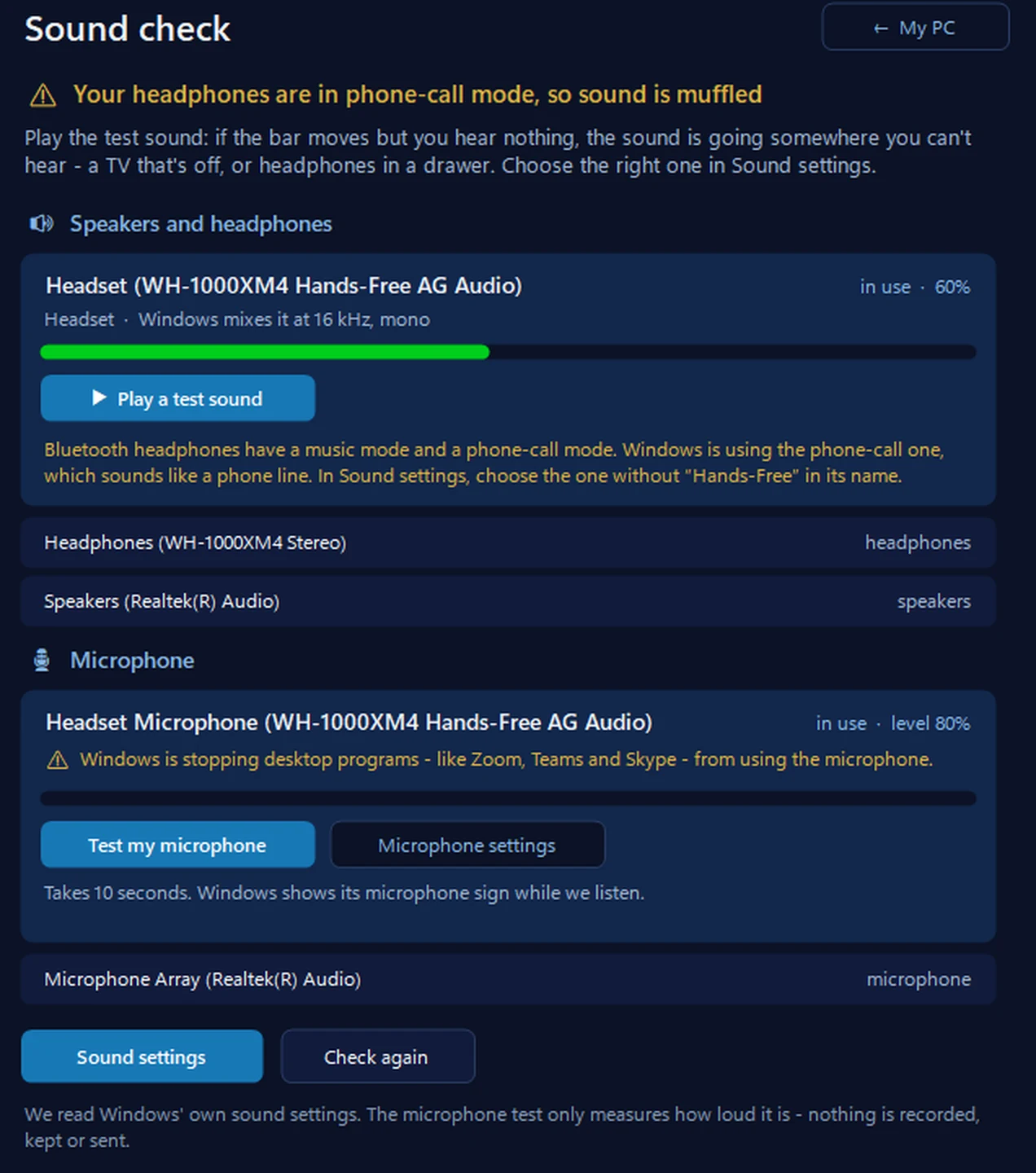
Sound check: what Windows is really doing with your sound
It shows where your sound is going — laptop speakers, headphones, a TV — whether it’s muted, the volume and a live level bar, with a test sound and a microphone test. If Bluetooth headphones are stuck in phone-call mode, it says so by name. It never changes anything itself: it opens Windows’ Sound settings so you choose.
In the app: My PC, then Sound check.
Download 365 PC Manager free ↓What else it checks
Made by us, a family IT firm in Bournemouth since 1995, and digitally signed by 365 Techies Ltd.
/06 — WHEN TO CALL US
When to call us
Still not right? Ring 01202 775566 or text 07520 615332, Monday to Friday, 9 to 5. With your permission we connect to your Windows PC and sort software problems while you watch: usually the same day, remote help from £20, and no fix, no fee. If the speakers or headphone socket are faulty, we collect the laptop free across Bournemouth, Christchurch, Poole and Dorset, tell you the price before any work, repair it and bring it back.
FAMILY-RUN SINCE 1995 · ★ 4.9 ON GOOGLE · 200+ COMPUTERS UNDER OUR CARE · NO FIX, NO FEE · SAME-DAY REMOTE SUPPORT
// GOOD QUESTIONS
Frequently asked
Why do I only hear sound in one ear?
Usually the plug isn’t fully in, Windows’ left and right balance is uneven, or one side of the headphones has failed. Try them on a phone: if one side is still silent, the headphones are faulty.
Why does the left test play in both ears?
Mono audio is on (Settings, Accessibility, Audio), or the sound is coming from a single speaker such as a laptop, TV or soundbar.
Why can’t I hear the low sound on my laptop?
Small laptop and tablet speakers can barely play deep sounds. That’s normal. Headphones or proper speakers should play it.
How loud should I set it?
Start low, especially with headphones on, and turn up until the notes are comfortable. You don’t need it loud to tell left from right.
Can it test my microphone too?
This page tests what you hear. Our webcam and mic test checks your microphone and camera.
Can you fix my laptop speakers?
Yes. We check the settings and driver remotely first. If the speakers or headphone socket are faulty, we collect the laptop locally, tell you the price before any work, and repair it.
// Still stuck?
Sound still not right?
With your permission we connect to your Windows PC and sort the sound while you watch, usually the same day. Call 01202 775566 or text 07520 615332.
We’ll fix it with you
- Checking the problem is free
- Fixes from £20, agreed before we start
- We phone first, and you watch every step
Stop it happening again
- A full service every six weeks, written up
- Every program kept up to date
- Unlimited remote help when you need it
Plans from £18.25 a month per computer · cancel any time
Mon–Fri 9–5 · family-run since 1995 · rated 4.9 on GoogleCall 01202 775566 →