// SOMETHING WENT WRONG IN WINDOWS
System Restore or Reset this PC?
Windows has three ways to put itself right, and they are very different. System Restore takes Windows back to an earlier day and leaves your files alone. The Windows Update repair reinstalls Windows and keeps everything. Reset this PC starts Windows again from scratch, and your programs go. Try them in that order, lightest first. Rated 4.9 on Google.
- ● Lightest fix first
- ● What each one removes
- ● Back up before a reset
/01 — WHICH ONE
Which one to use
- It went wrong after an update, a new program or a new driver: System Restore, to a day before it happened.
- Windows itself is misbehaving, and System Restore didn’t help or has no restore points: on Windows 11, Fix problems using Windows Update.
- It’s been slow and odd for months, or a virus has been in it: Reset this PC and Keep my files, after a backup.
- You’re selling it, giving it away or recycling it: Reset this PC and Remove everything, with the drive cleaned.
The rule of thumb: start with the fix that changes least. You can always go further; you can’t un-reset a PC.
// FIX IT WITH ME · STEP BY STEP
Put Windows right, lightest fix first
The steps from this guide, one at a time, in the order that fixes the most cases fastest. Tell it what happened and it shows the next step. Nothing here leaves your device.Last reviewed 28 October 2026
-
01Back up your files
Copy your photos and documents to a USB drive or OneDrive before any repair.
Is it working properly now? -
02Try System Restore
Start, type restore point, open Create a restore point, click System Restore and pick a day before the problem.
Is it working properly now? -
03Repair Windows and keep everything
On Windows 11: Settings, System, Recovery, Fix problems using Windows Update, Reinstall now.
Is it working properly now? -
04Reset and keep your files
Settings, System, Recovery, Reset PC, Keep my files, then Cloud download. Your programs will need reinstalling.
Is it working properly now? -
05Switch System Restore on for next time
In Create a restore point, select C:, click Configure, Turn on system protection, then Create.
Is it working properly now?
Rather have it done for you? Remote help from £20, or in person across Bournemouth, Christchurch, Poole, Ringwood and the New Forest, with no call-out fee.
Sorted{mins}. Nice work.
Switch System Restore on, and make a restore point, for next time.
Still wrong after all five steps? Ring us before you reset.
With your permission we connect to your screen and sort it in one session. Usually the same day, remote help from £20, and no fix, no fee.
System Restore or Reset this PC? - the fix order (365techies.co.uk/system-restore-vs-reset-this-pc/) 1. Back up your files: Copy your photos and documents to a USB drive or OneDrive before any repair. 2. Try System Restore: Start, type restore point, open Create a restore point, click System Restore and pick a day before the problem. 3. Repair Windows and keep everything: On Windows 11: Settings, System, Recovery, Fix problems using Windows Update, Reinstall now. 4. Reset and keep your files: Settings, System, Recovery, Reset PC, Keep my files, then Cloud download. Your programs will need reinstalling. 5. Switch System Restore on for next time: In Create a restore point, select C:, click Configure, Turn on system protection, then Create. Still stuck? 365 Techies fix it remotely: 01202 775566 - https://365techies.co.uk/remote-support/At a glance
| System Restore | Takes Windows, programs and drivers back to an earlier day. Your files stay. It can be undone. |
|---|---|
| Fix problems using Windows Update | Windows 11 only. Reinstalls Windows and keeps your files, programs and settings. |
| Reset this PC, Keep my files | Fresh Windows. Your files stay; your programs and settings go. |
| Reset this PC, Remove everything | Fresh Windows with nothing of yours left. For selling or giving away the PC. |
| Before any of them | Copy your photos and documents to a USB drive or OneDrive. |
| No restore points? | System Restore is switched off on many PCs. Switch it on now, for next time. |
/02 — SYSTEM RESTORE
System Restore: back to an earlier day
A restore point is a snapshot of Windows’ own settings, programs and drivers. Windows usually makes one before an update or a new driver, and you can make one yourself. Going back to it undoes the changes made since. Your documents, photos and emails are not touched.
- Click Start, type restore point and open Create a restore point.
- On the System Protection tab, click System Restore, then Next.
- Pick a restore point from before the problem started. Scan for affected programs lists what will be removed (programs installed since) and what may come back.
- Click Next, then Finish. The PC restarts, and it can take 15 minutes or more. Leave a laptop plugged in.
Changed your mind? Open System Restore again and choose Undo System Restore. (A restore run from the blue recovery screen can’t be undone.)
Windows won’t start? After two or three failed starts Windows opens its recovery screen by itself. Choose Troubleshoot, Advanced options, System Restore.
/03 — NO RESTORE POINTS?
No restore points? Switch System Restore on now
System Restore is switched off on many new Windows 11 PCs, so when something goes wrong there’s nothing to go back to. Switch it on today, for next time:
- Open Create a restore point as above.
- Select the Windows drive (usually C:), click Configure, choose Turn on system protection, and set Max Usage to about 5 to 10 per cent of the drive.
- Click OK, then Create to make the first restore point now.
It isn’t a backup: restore points live on the same drive and don’t include your files. If the drive fails, they go with it.
/04 — THE REPAIR THAT KEEPS EVERYTHING
Fix problems using Windows Update (Windows 11)
Windows 11 can reinstall itself without touching your files, programs or settings. It repairs Windows’ own files, which fixes a lot of strange behaviour, and it’s the step to try before a reset.
- Open Settings, System, Recovery.
- Next to Fix problems using Windows Update, click Reinstall now.
- Keep the PC plugged in and online. It downloads Windows, then restarts to install it, which takes an hour or so.
It may not show on a PC that a work or school manages. More on Windows’ own repairs in Windows Update stuck.
/05 — RESET THIS PC
Reset this PC: what you keep and what goes
Reset reinstalls Windows from scratch. Both choices remove every program you installed, including Microsoft Office, printer software and anything you paid for, and put Windows’ settings back to how they came.
- Keep my files keeps what’s in your own folders, such as Documents, Pictures and the Desktop. Windows leaves a list of the programs it removed on the desktop, so you know what to put back.
- Remove everything deletes your files too. Choose Clean data (or Clean the drive) if the PC is leaving you, so files can’t be recovered.
- Back up first. Copy your photos and documents to a USB drive or OneDrive, even with Keep my files. Note your email and other passwords, and find your Microsoft Office details.
- Open Settings, System, Recovery, and click Reset PC. (Windows 10: Settings, Update & Security, Recovery, Get started.)
- Choose Keep my files or Remove everything.
- Cloud download fetches a fresh copy of Windows from Microsoft (several gigabytes) and is the better choice if Windows is damaged. Local reinstall uses the copy already on the PC.
- Check the summary, then click Reset. Allow an hour or two, plugged in.
If the drive is encrypted, Windows may ask for the BitLocker recovery key part-way through: where to find it. Can’t get into Windows at all? Hold Shift while you click Restart on the sign-in screen, then Troubleshoot, Reset this PC.
/06 — THE QUICK WAY
Let our free app check before you start
FREE · WINDOWS 10 & 11 · NO SIGN-UP
Before you restore or reset: two checks
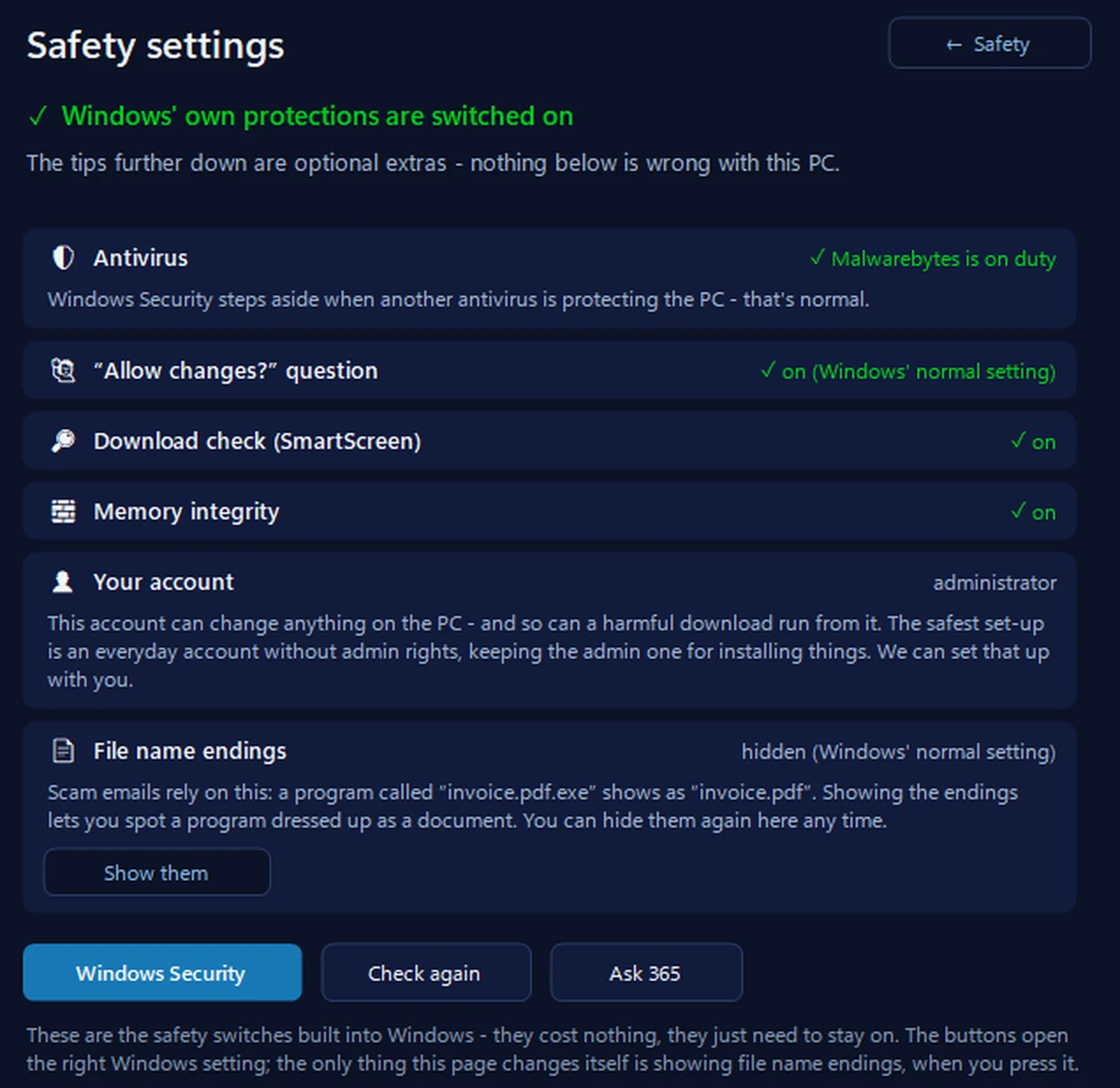
Its Safety page says whether System Restore is switched on, and the date of the newest restore point Windows made, so you know whether there’s a day to go back to. Its Backup page (under Photos & files) says which backup is on and when it last finished, and how big your important files are, so you know a reset can’t take anything you haven’t copied. It only reads.
In the app: Safety, then Safety settings.
Download 365 PC Manager free ↓What else it checks
Made by us, a family IT firm in Bournemouth since 1995, and digitally signed by 365 Techies Ltd.
/07 — WHEN TO CALL US
When to call us
Still not right? Ring 01202 775566 or text 07520 615332, Monday to Friday, 9 to 5. With your permission we connect to your Windows PC and sort it while you watch: usually the same day, remote help from £20, and no fix, no fee. Before any reset we copy your files somewhere safe and note your programs, then put back the ones you use. Want it done properly in one go? See our Windows reinstall service.
FAMILY-RUN SINCE 1995 · ★ 4.9 ON GOOGLE · 200+ COMPUTERS UNDER OUR CARE · NO FIX, NO FEE · SAME-DAY REMOTE SUPPORT
// GOOD QUESTIONS
Frequently asked
Does System Restore delete my files?
No. It takes Windows’ settings, programs and drivers back to an earlier day and leaves your documents, photos and emails alone. Programs installed since the restore point are removed.
Does Reset this PC delete my programs?
Yes, with either choice. Keep my files keeps your own files but removes every program you installed, so you’ll need to reinstall Office, printer software and the rest. Windows leaves a list of them on the desktop.
What is the difference between System Restore and Reset this PC?
System Restore goes back to a snapshot of Windows from an earlier day and keeps your files and most programs. Reset this PC reinstalls Windows from scratch and removes your programs, and can remove your files too.
Why are there no restore points?
System Restore is switched off on many PCs. Search for Create a restore point, select C:, click Configure and choose Turn on system protection. Restore points are also deleted when the space set aside for them fills up.
Can I undo System Restore?
Yes, if it was run from Windows: open System Restore again and choose Undo System Restore. A restore run from the recovery screen can’t be undone.
Should I choose Cloud download or Local reinstall?
Cloud download fetches a fresh copy of Windows and is better when Windows itself is damaged. Local reinstall is quicker on a slow connection. Both end in the same place.
How long does Reset this PC take?
Usually an hour or two, sometimes longer on an older PC with a hard drive. Keep a laptop plugged in and don’t switch it off part-way.
Can you do it for me?
Yes. With your permission we connect to your Windows PC, back up your files first, and use the lightest fix that works. Remote help from £20, no fix, no fee.
// Still stuck?
Not sure which one your PC needs?
With your permission we connect to your Windows PC, back up your files first, and use the lightest fix that works. Call 01202 775566 or text 07520 615332.
We’ll fix it with you
- Checking the problem is free
- Fixes from £20, agreed before we start
- We phone first, and you watch every step
Stop it happening again
- A full service every six weeks, written up
- Every program kept up to date
- Unlimited remote help when you need it
Plans from £18.25 a month per computer · cancel any time
Mon–Fri 9–5 · family-run since 1995 · rated 4.9 on GoogleWhich one to use →