// FREE FOR WINDOWS 10 & 11 · NOTHING UPLOADED · SIGNED BY 365 TECHIES LTD
Techies PDF: the free PDF editor for Windows that keeps your files on your PC
Techies PDF is a free program for Windows 10 and 11 from 365 Techies, the family-run IT firm in Bournemouth. Fill in and sign a PDF form without printing it, join PDFs into one, turn, move or take out pages, shrink a PDF so it can be emailed, turn photos into a PDF, copy the words out, and put a password on. All on your own computer: your documents are never uploaded anywhere. No adverts, no account, no watermark.
Our firm is rated 4.9 on Google365 Techies · family-run since 1995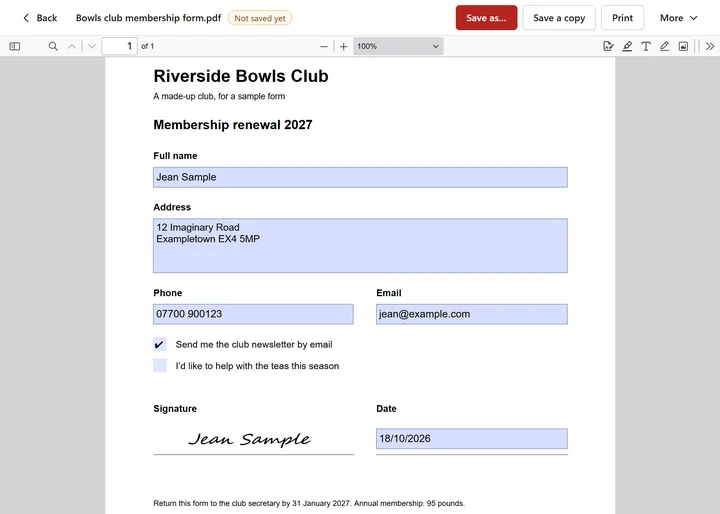
- £0for the program, with no adverts or watermark
- On your PCyour PDFs are never uploaded, to us or anyone
- Signedby 365 Techies Ltd, checked by Windows
- A personto ring: 01202 775566, Mon to Fri 9 to 5; any paid work is priced first
// DOWNLOAD · FREE · WINDOWS 10 & 11
Get Techies PDF
The program is free for everyone, at home or at work: no trial, no account to make with us, no adverts, no watermark on your PDFs and no daily limit.
- 1. Download it. Press the Download button. The file is called TechiesPDF-Setup-0.1.0.exe and is signed by 365 Techies Ltd.
- 2. Open the file. It installs in a few seconds and needs no administrator password. It adds a Start menu entry, a desktop icon if you like, and Techies PDF to the “Open with” list for PDF files. It doesn’t change your usual PDF program.
- 3. Open a PDF, or choose a job. Press Open a PDF (or drop one onto the window) to read, fill in or sign it, or pick a job such as Join PDFs together or Make a PDF smaller for email. To open a PDF straight into Techies PDF, right-click it and choose Open with.
What will Windows say when I open it?
Usually nothing: it’s digitally signed by 365 Techies Ltd. But a brand-new program can get a warning or two while Windows gets to know it. When downloading, Edge may say the file “isn’t commonly downloaded”: press the three dots next to it, choose Keep, then Show more and Keep anyway. When you open it, you may see a blue “Windows protected your PC” box: choose More info, check that the Publisher line says 365 Techies Ltd, then choose Run anyway. If the publisher says anything else, don’t run it, and ring us.
Will it take over from my usual PDF program?
No. It adds itself to the Open with list, so you can choose it when you want it, and your PDFs keep opening in whatever they open in now. If you’d like Techies PDF to open every PDF, choose it in Windows Settings, under Apps and then Default apps.
// WHAT IT DOES
The PDF jobs people ring us about, in one simple program
A form to sign, a letter that needs to go as one PDF, a scan that came out upside down, an attachment too big to send. Each job has its own big button and plain words, and you choose where the result is saved.
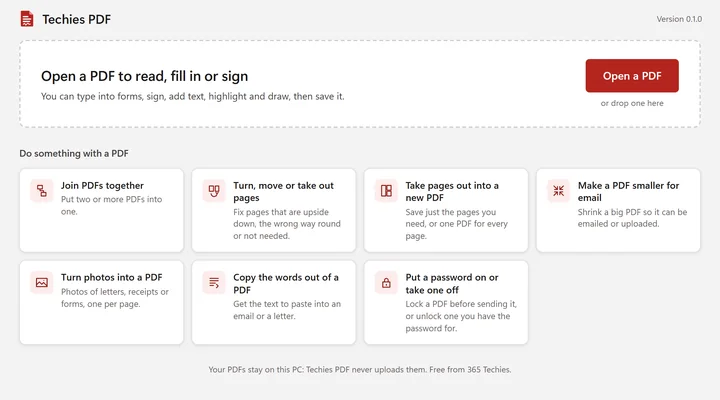
- Fill in & signType into forms, sign, add text, highlight
- Join PDFsPut two or more PDFs into one
- Turn & move pagesFix upside-down pages, change the order, take pages out
- Take pages outSave just the pages you need, or one PDF per page
- Make it smallerShrink a big PDF so it can be emailed
- Photos to PDFLetters, receipts and forms from your phone
- Copy the wordsGet the text out to paste somewhere else
- PasswordsLock a PDF, or unlock one you have the password for
// EVERY JOB, WITH PICTURES
How each job works
The pictures are the real program on made-up documents. Every job saves a new file where you choose and leaves the PDF you started with as it was.
A form to fill in, sign and send back
Fill in and sign a PDF without printing it
Open the PDF and type straight into its boxes, tick its boxes, and press Add or edit signatures to sign: type your name in a handwriting style, draw it with the mouse or a finger, or use a photo of your signature. Put it on the line, make it bigger or smaller, and press Save. If the PDF has no boxes to type in (a scanned form, say), Text puts words anywhere on the page. Highlight and Draw are there too, and Print when it has to go on paper.
Several PDFs that should go as one
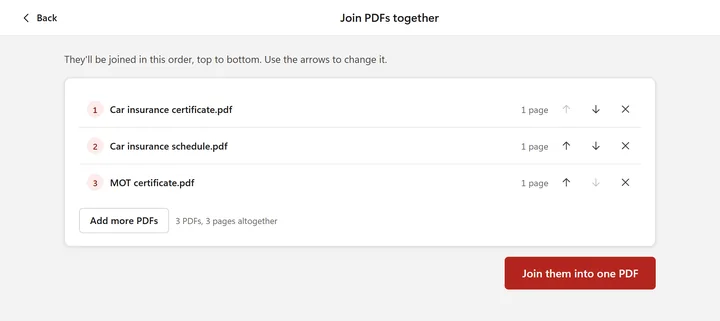
Join PDFs into one
Choose the PDFs (or drop them onto the window), put them in order with the arrows, and press Join them into one PDF. Insurance certificates, bank statements, a CV and its references: one tidy file to send. The PDFs you started with stay as they were.
A page upside down, or one you don’t need
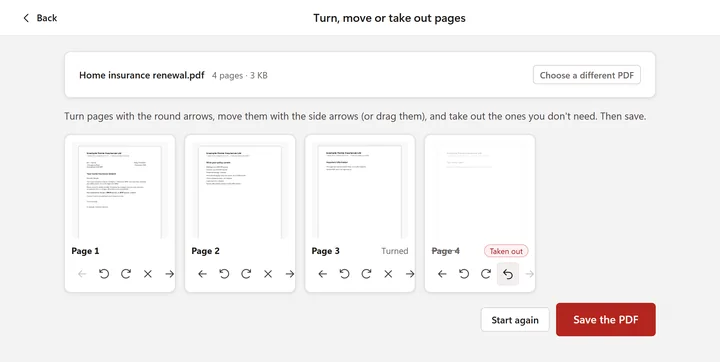
Turn, move or take out pages
Every page shows as a picture. Turn a page with the round arrows, move it earlier or later (or drag it), and take out the blank or unwanted ones, then save. Scanned letters that came out upside down are put right in two clicks.
Only some of the pages are needed
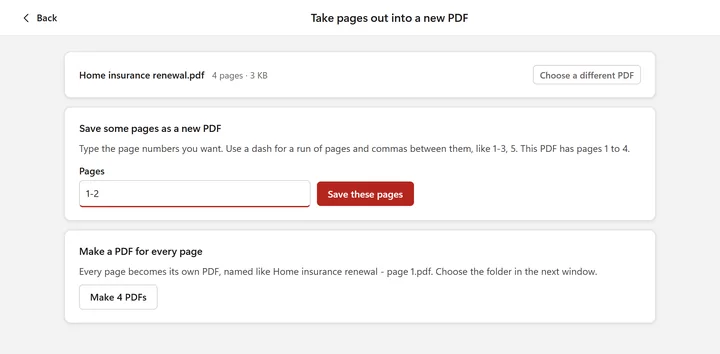
Save just the pages you need, or one PDF per page
Type the pages you want, like 1-3, 5, and they’re saved as a new PDF. Or press Make a PDF for every page and each page becomes its own file, named so you can tell them apart.
“The attachment is too big to send”
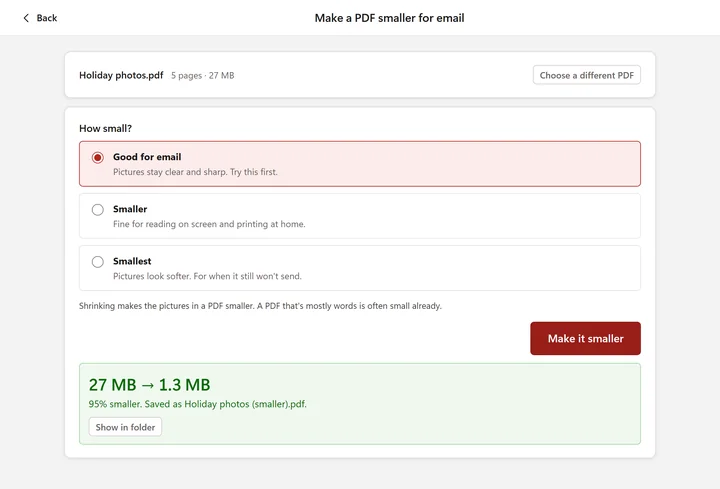
Make a PDF smaller for email
Most email can only take about 20 to 25 MB, and a PDF of phone photos or scans is often bigger. Choose Good for email (pictures stay clear and sharp), Smaller or Smallest, and a smaller copy is saved beside it. Our made-up PDF of five holiday photos went from 27 MB to 1.3 MB. A PDF that’s mostly words is usually small already, and if it can’t be made smaller it tells you so, rather than giving you a bigger one.
Letters and receipts photographed on a phone
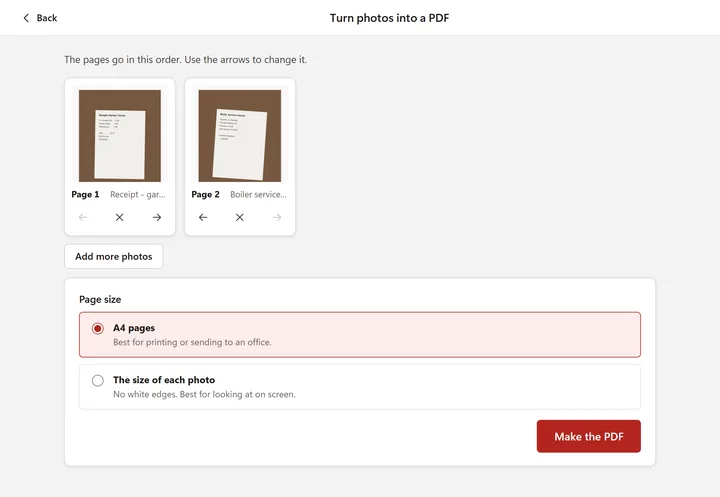
Turn photos into a PDF
Choose the photos (or drop them in), put them in order, and choose A4 pages for printing or sending to an office, or pages the size of each photo. Every photo goes the right way up, one per page. iPhone photos (HEIC) need turning into JPG first: here’s how.
You need the words, not the PDF
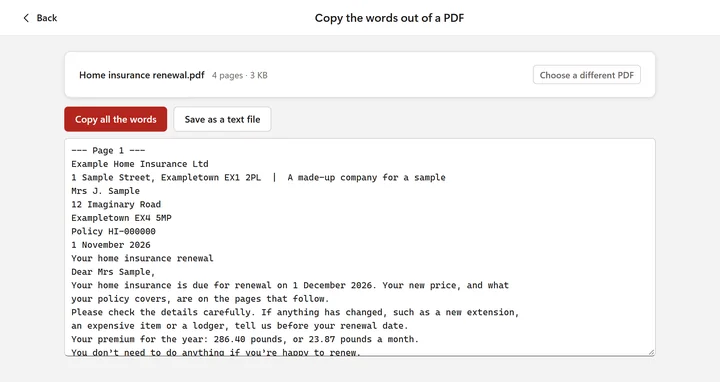
Copy the words out of a PDF
All the words, page by page, ready to Copy and paste into an email or a letter, or to save as a text file. If a PDF is a scan (a picture of a page), there are no words to copy, and Techies PDF says so rather than giving you nothing.
Sending something private
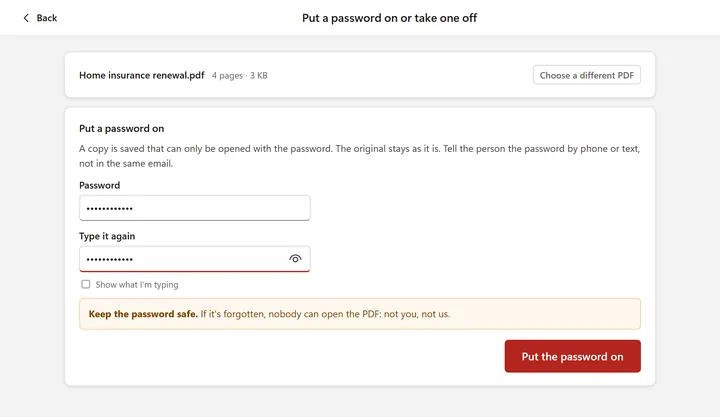
Put a password on a PDF, or take one off
Put a password on a copy before you email it (it’s locked with AES-256, the strongest kind PDFs use), and tell the person the password by phone or text, not in the same email. Got a PDF that asks for a password every time? Type the password once and a copy is saved that opens straight away. Taking a password off needs the password: Techies PDF never breaks a lock.
// WHY NOT A FREE PDF WEBSITE?
Why not just use a free PDF website?
Most free PDF websites work by uploading your document to their computers, doing the job there and sending it back. That’s fine for a takeaway menu. It’s not what you want for a passport form, a bank statement, a medical letter or a customer’s details.
Techies PDF
- Everything happens on your own PC. Your PDFs never leave it, so there’s nothing to upload and nothing to wait for.
- No account, no adverts, no watermark on what you save, and no “two free jobs a day”.
- Works without the internet, once it’s installed.
- Big, plain buttons for each job, from a firm in Dorset you can ring.
A typical free PDF website
- Your document goes to the company’s computers, usually abroad, under their privacy policy.
- Often limits on file size or how many jobs a day, a watermark, or a nudge to pay monthly.
- Needs a good internet connection for every job, both ways.
- Lots of options and adverts to find your way past.
Your PC can already open PDFs, usually in Microsoft Edge, and that’s fine for reading one. Techies PDF adds the jobs in one place: signing and filling in, joining, turning and taking out pages, shrinking, photos into a PDF and passwords.
// SAFE TO USE
Is it safe to open my PDFs with it?
Your documents
- Your PDFs are read and saved on your own computer. They are never sent to 365 Techies or anyone else.
- The jobs (joining, shrinking, pages, photos, passwords) always save a new file, so the PDF you started with is never changed.
- When you press Save on a PDF you’ve filled in or signed, the version before is kept on your PC as well, in case you need it back.
- Programs hidden inside a PDF (scripts) never run in Techies PDF.
What it tells us
- Nothing. Techies PDF doesn’t check in with us, count you, or send anything anywhere.
- It remembers the PDFs you opened lately (on your PC only, to show on its start screen); you can take any of them off the list.
- The installer is digitally signed by 365 Techies Ltd, so Windows can check it’s really ours and hasn’t been changed.
- Because it never contacts us, it doesn’t update itself: new versions will be on this page.
// HONEST LIMITS
What it can’t do (yet)
- It can’t change the words already in a PDF. It adds things on top: your typing in the form’s boxes, new text anywhere on a page, signatures, highlights and drawings. To reword a letter, change the document it came from (a Word file, say) and make the PDF again.
- No PDF to Word yet, and it can’t read the words in a scan (a picture of a page). Copy the words works on PDFs made from typed documents.
- A signature is a picture of your signature, not a certified digital signature. That’s accepted for most everyday forms, but some documents, such as a will, must be signed on paper. If in doubt, ask whoever sent you the form.
- Taking a password off needs the password. If it’s been forgotten, Techies PDF can’t open the PDF, and nor can we.
- Shrinking works on pictures. PDFs of photos and scans come down a lot; a PDF that’s mostly words is usually small already.
- iPhone photos (HEIC) need turning into JPG before they can go into a PDF (how to open HEIC photos on Windows).
- Windows 10 and 11 PCs only (64-bit). No Mac, iPhone, iPad or Android version. Its window is a Microsoft Edge window, which comes with Windows.
// IT KEEPS GETTING BETTER
Built by us, improved on request
Techies PDF is made and looked after by 365 Techies in Dorset, and it grows with what people ask for, as our other programs have. Want it to do something it doesn’t? Ring 01202 775566 or send us a message. New versions are put on this page.
What’s in it
Version 0.1.0. The first version: read, fill in and sign PDFs; join them; turn, move and take out pages; save some pages as a new PDF; make a PDF smaller for email; turn photos into a PDF; copy the words out; put a password on or take one off. Signed by 365 Techies Ltd.
Things we’d like to add (no dates yet): PDF to Word, and reading the words in scans.
// WHO MAKES IT
Who makes Techies PDF?
365 Techies Ltd, a family-run IT support firm looking after homes and small businesses in Bournemouth, Christchurch and Poole since 1995. We also make 365 PC Manager, a free health check for Windows PCs, and Techies One, a free program for email, photos, letters and sums. Techies PDF shows PDFs with Mozilla’s open-source PDF.js, the same engine Firefox uses. Ring 01202 775566, Monday to Friday, 9am to 5pm, or read more about us.
// GOOD QUESTIONS
Frequently asked
Is Techies PDF really free?
Yes. The program costs nothing: no trial, no adverts, no watermark on what you save, no daily limit and no account to make with us. If you’d like us to set it up or sort out a problem, that’s a paid job (remote jobs from £20), and we agree the price with you before we start.
Is there a free PDF editor for Windows?
Yes: Techies PDF, free for Windows 10 and 11. It fills in and signs forms, adds text, highlights and drawings, joins PDFs, turns, moves and takes out pages, shrinks PDFs for email, turns photos into a PDF, copies the words out and puts on or takes off a password. It can’t change the words already in a PDF: it adds things on top.
How do I sign a PDF on Windows?
Open the PDF in Techies PDF, press Add or edit signatures at the top right, and type your name in a handwriting style, draw it, or use a photo of your signature. Place it on the line, resize it if you need to, and press Save. It’s a picture of your signature, which is accepted for most everyday forms; some documents, like a will, must be signed on paper.
How do I fill in a PDF form?
Open it in Techies PDF and click in its boxes to type, and tick its tick boxes. Then press Save. If the form has no boxes (a scan, for example), press Text and click where the words should go.
How do I combine PDF files into one?
Choose Join PDFs together, pick the PDFs (or drop them onto the window), put them in order with the arrows and press Join them into one PDF. You choose where the new PDF is saved, and the ones you started with aren’t changed.
How do I make a PDF smaller to email?
Choose Make a PDF smaller for email, pick the PDF and press Make it smaller. Start with Good for email; if it’s still too big, try Smaller or Smallest. It works by making the pictures in the PDF smaller, so PDFs of photos and scans come down the most.
How do I rotate a page in a PDF and save it?
Choose Turn, move or take out pages, pick the PDF, press the round arrow under the page until it’s the right way up, then press Save the PDF.
How do I turn photos into a PDF?
Choose Turn photos into a PDF, pick the photos, put them in order and press Make the PDF. Each photo goes on its own page, the right way up, on A4 or at the photo’s own size. iPhone (HEIC) photos need turning into JPG first.
How do I remove a password from a PDF?
If you know the password: choose Put a password on or take one off, pick the PDF, type its password and press Take the password off. A copy is saved that opens without asking. Techies PDF can’t remove a password you don’t know, and no honest program can.
Can I edit the text in a PDF?
Not the words that are already there: Techies PDF adds text, signatures, highlights and drawings on top, and fills in forms. To change the wording, edit the document the PDF was made from and save it as a PDF again (Techies One’s Letters can save letters as PDFs).
Do I need Adobe Acrobat to fill in or sign a PDF?
No. Techies PDF fills in and signs PDFs for free, and joins, shrinks and rearranges them too. You’d only need a paid PDF program for things Techies PDF doesn’t do yet, such as changing a PDF’s own words or turning a scan into words you can copy.
Does Techies PDF upload my documents?
No. Everything happens on your own PC. Your PDFs aren’t sent to 365 Techies or anyone else, and the program doesn’t check in with us at all.
Does it work on a Mac, iPad or phone?
No, it’s for Windows 10 and 11 (64-bit) PCs only.
Rather we set it up for you?
We can install Techies PDF and show you round, over the phone or on a visit. It’s a paid job, from £20 remotely, and we agree the price before we start.
01202 775566 · help@365techies.co.uk · MON–FRI 9AM–5PM
Microsoft, Windows, Microsoft Edge and Word are trademarks of the Microsoft group of companies. Adobe and Acrobat are trademarks of Adobe. iPhone, iPad and Mac are trademarks of Apple Inc. Android is a trademark of Google LLC. Mozilla and Firefox are trademarks of the Mozilla Foundation. Other names belong to their owners. Techies PDF is made by 365 Techies Ltd and is not made, endorsed or supported by any company named here.