// OUT-OF-DATE PROGRAMS?
Update all your programs at once, free
Windows Update keeps Windows itself up to date, but not your other programs: the PDF reader, Zoom, 7-Zip, VLC, Firefox. Old versions are how a lot of attacks get in. Here’s how to update them all at once for free, with the tool already built into Windows, and the free alternatives. Rated 4.9 on Google.
- ● Free
- ● Windows 11 and 10
- ● No extra software needed
/01 — WHY IT MATTERS
Why your other programs need updating too
Windows Update looks after Windows, Microsoft Defender and, if you tick the option, Microsoft Office. It doesn’t touch the other programs you’ve installed. Browsers like Chrome and Firefox update themselves; many others only update when you open them and say yes, or never.
Each update fixes problems, and many fix security holes that attackers already know about. An old PDF reader, media player or zip program is a common way in. Keeping everything current is one of the five controls of the UK’s Cyber Essentials scheme for exactly that reason.
// FIX IT WITH ME · STEP BY STEP
Update everything, step by step
Work through it one step at a time: press Done when you have finished each step, or I am stuck here and we will take it from there. Nothing here leaves your device.Last reviewed 30 October 2026
-
01Close your programs
Save your work and close the programs you want to update.
Done that step? -
02Open Terminal
Right-click Start and open Terminal (or PowerShell on Windows 10).
Done that step? -
03See what needs updating
Type winget upgrade and press Enter to list programs with a newer version.
Done that step? -
04Update them all
Type winget upgrade --all and press Enter, and say Yes to the programs you recognise.
Done that step? -
05Update Store apps
Microsoft Store, Library, Get updates.
Done that step?
Rather have it done for you? Remote help from £20, or in person across Bournemouth, Christchurch, Poole, Ringwood and the New Forest, with no call-out fee.
All up to date{mins}. Nice work.
Do it again once a month, or let our free app remind you.
Stuck at a step? We can update them with you, remotely.
With your permission we connect to your screen and sort it in one session. Usually the same day, remote help from £20, and no fix, no fee.
Update all your programs at once, free - the fix order (365techies.co.uk/update-all-your-programs/) 1. Close your programs: Save your work and close the programs you want to update. 2. Open Terminal: Right-click Start and open Terminal (or PowerShell on Windows 10). 3. See what needs updating: Type winget upgrade and press Enter to list programs with a newer version. 4. Update them all: Type winget upgrade --all and press Enter, and say Yes to the programs you recognise. 5. Update Store apps: Microsoft Store, Library, Get updates. Still stuck? 365 Techies fix it remotely: 01202 775566 - https://365techies.co.uk/remote-support/At a glance
| Why bother | Out-of-date programs are a common way in for attacks. Windows Update doesn’t update them. |
|---|---|
| Built in | Windows’ own winget: winget upgrade --all updates most programs in one go. |
| Store apps | Microsoft Store, Library, Get updates. |
| Free tools | Ninite and Patch My PC both have free versions for home use. |
| No longer updated? | Programs that no longer get security fixes need replacing, not updating. |
| Close programs first | An update can’t finish while the program is open. |
/02 — THE BUILT-IN WAY
Update them all with Windows’ own winget
Windows 11 and recent Windows 10 include Microsoft’s own app installer, winget. It can see which of your programs have a newer version and update them.
- Right-click Start and open Terminal (Windows 10: type PowerShell in the Start menu and open it).
- Type winget upgrade and press Enter. The first time, say Y to accept the source agreement. It lists each program with a newer version.
- To update the lot, type winget upgrade --all and press Enter. Some programs ask “Do you want to allow this app to make changes?”: say Yes to the ones you recognise.
- Or update one at a time: winget upgrade followed by the program’s name in quotes.
Close the programs first: an update can’t finish while the program is open. And winget only knows programs in Microsoft’s community list; a few won’t show, so check those from their own Help menu (Help, Check for updates).
/03 — STORE APPS
Microsoft Store apps
Apps from the Microsoft Store update themselves by default. To check: open the Microsoft Store, click Library at the bottom left, then Get updates.
/04 — FREE TOOLS
Ninite and Patch My PC
If you’d rather click than type, two long-standing tools do the same job, free for home use:
- Ninite (ninite.com): tick the popular programs you want, download one installer, and running it again later updates them all. It covers its own set list of programs, not everything on your PC.
- Patch My PC Home Updater (patchmypc.com): scans for a long list of common programs and updates the ones that are out of date.
Download them only from their own websites. Avoid “driver updater” and “PC booster” programs that promise to update everything for a subscription: Windows Update already handles drivers.
/05 — TOO OLD TO UPDATE
Programs that no longer get updates
Some programs have simply stopped: their maker no longer releases security fixes. Updating doesn’t help; replacing them does. Common ones on older PCs are Adobe Flash Player (it ended in 2020), Office 2016 and Office 2019 (their support ended in October 2025) and programs whose maker’s website no longer offers a download. Uninstall them in Settings, Apps, and use a supported alternative.
/06 — THE QUICK WAY
Let our free app do it with one button
FREE · WINDOWS 10 & 11 · NO SIGN-UP
Updates for your programs: one button
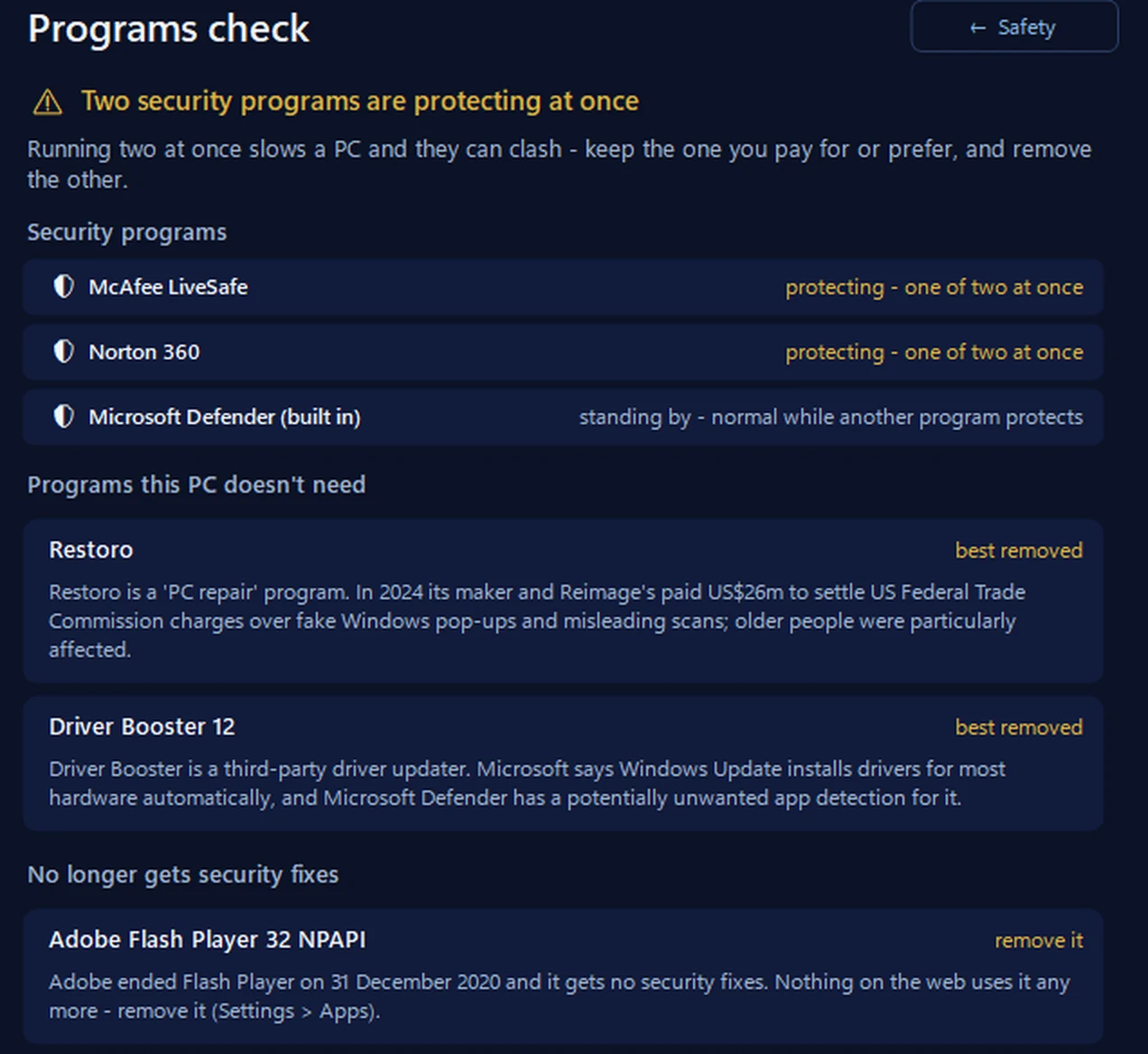
On its Programs check page, Updates for your programs asks Windows’ own app installer (winget, from Microsoft’s community list only) which of your programs have a newer version, and updates one, or all of them, when you press the button. Programs that need permission make Windows ask as usual. The same page names programs that no longer get security fixes, and ones the PC doesn’t need.
In the app: Safety, then Programs check.
Download 365 PC Manager free ↓What else it checks
Made by us, a family IT firm in Bournemouth since 1995, and digitally signed by 365 Techies Ltd.
/07 — WHEN TO CALL US
When to call us
Still not right? Ring 01202 775566 or text 07520 615332, Monday to Friday, 9 to 5. With your permission we connect to your Windows PC and sort it while you watch: usually the same day, remote help from £20, and no fix, no fee. On a support plan every program is brought up to date at each six-weekly service, and the written report lists what changed.
FAMILY-RUN SINCE 1995 · ★ 4.9 ON GOOGLE · 200+ COMPUTERS UNDER OUR CARE · NO FIX, NO FEE · SAME-DAY REMOTE SUPPORT
// GOOD QUESTIONS
Frequently asked
How do I update all my programs at once?
Open Terminal (right-click Start), type winget upgrade --all and press Enter. Windows’ own app installer updates every program it knows that has a newer version. For Microsoft Store apps, open the Store, Library, Get updates.
Does Windows Update update my programs?
No. It updates Windows, Microsoft Defender and, if you switch on the option, Microsoft Office. Other programs need updating separately.
Is winget safe?
Yes. It’s Microsoft’s own tool, built into Windows, and it installs the programs’ official versions. It only updates programs you already have unless you ask it to install something new.
Is Ninite free?
Ninite is free for home use and updates the programs on its own list. Patch My PC Home Updater is free for home use too.
What is a good Ninite alternative?
Windows’ own winget (winget upgrade --all), Patch My PC Home Updater, or our free 365 PC Manager, which uses winget behind a button.
Should I use a driver updater program?
No. Windows Update looks after drivers, and the PC maker’s own site has the rest. Paid driver updaters are one of the programs our app suggests removing.
Can you keep my programs up to date for me?
Yes. On a support plan every program is updated at each six-weekly service, and we tell you about any that need replacing.
// Still stuck?
Rather we kept them up to date?
On a support plan every program is brought up to date at each six-weekly service, and we tell you about any that need replacing. Call 01202 775566 or text 07520 615332.
We’ll fix it with you
- Checking the problem is free
- Fixes from £20, agreed before we start
- We phone first, and you watch every step
Stop it happening again
- A full service every six weeks, written up
- Every program kept up to date
- Unlimited remote help when you need it
Plans from £18.25 a month per computer · cancel any time
Mon–Fri 9–5 · family-run since 1995 · rated 4.9 on GoogleThe built-in way →