Move your Virgin Media email to Gmail, free
Our free Chrome add-on copies your Virgin Media, blueyonder, ntlworld or virgin.net email, and our free Windows app moves it into Gmail. No Virgin app password, no sign-up. Watch how, or let us do it for you.
★ 4.9 on GoogleFamily-run since 1995Signed by 365 Techies LtdWindows 10 & 11
Watch it done
The whole move, start to finish
Two free tools from us: the 365 Email Mover copies your Virgin email in Chrome, then 365 PC Manager moves it into Gmail. An 83-second video of the real screens (a made-up sample mailbox), with a spoken guide and captions.
On a phone this plays our 30-second version. The full 83-second walk-through starts with the Chrome add-on.
- Copy it in Chrome with the 365 Email Mover add-on
- Move it into Gmail with 365 PC Manager
- Check it all arrived, folder by folder
Add the Email Mover to Chrome ↗Download 365 PC Manager ↓
Prefer pictures? Every step below, with the screen you’ll see · or let us do it for £60 · Watch it on YouTube
FREE · NO SIGN-UP · FOR WINDOWS PCs
Do it yourself, free, with 365 PC Manager
Our free app moves your Virgin email into Gmail for you, no Virgin app password needed.
Download free for WindowsDownload free ↓
For Windows PCs. You’ll need a Gmail account and a Google app password. No Windows PC, just a phone, tablet or Mac? We do it for you. If Virgin won’t let you sign in, copy your email from the Chrome you already use with our free 365 Email Mover add-on, or press ‘Stuck? We’ll do it for you’ and we’ll move it for you.
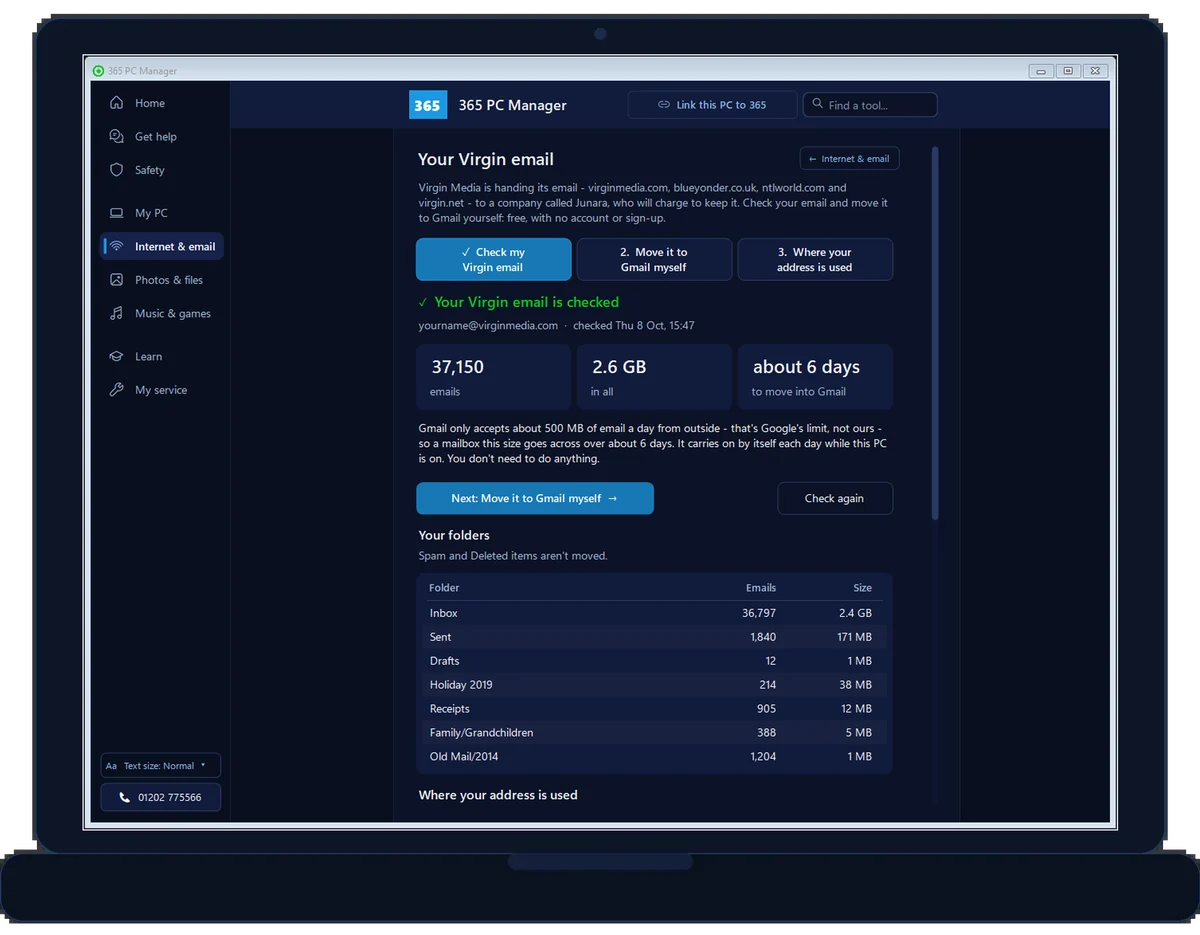
- Check my Virgin email: every folder, how many emails, how big, and how many days the move will take. It only reads.
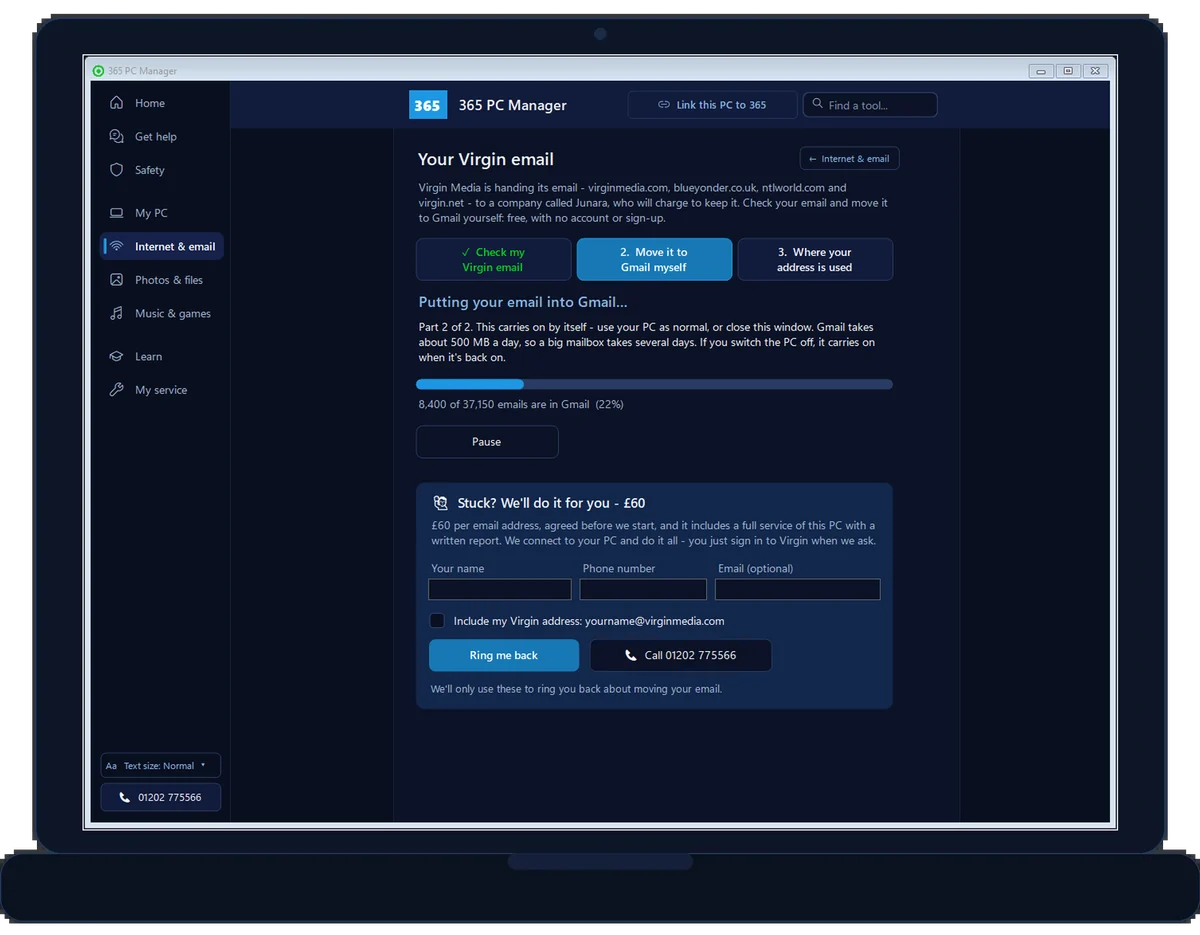
- Move it to Gmail myself: folders and dates kept. Gmail takes about 500 MB a day, so a big mailbox takes a few days — it carries on by itself.
- Where your address is used: the companies that email you, so you can change your address with each one.
- Stuck? We’ll do it for you: one tap asks us to ring you back.
DONE FOR YOU · AGREED BEFORE WE START
Let us do it: £60 per email address
We move every folder into Gmail for you, and send you your change list: every place that has your old address. Any device: on a phone or tablet, get two codes ready; on a Windows PC we do it all remotely, with a full service of your PC and a written report.
Call 01202 775566Or text 07520 615332
- Every message and folder into Gmail, with the original dates
- Any device: iPhone, iPad, Android or a Windows PC
- Your change list: every place that has your old address, banks and bills first
- On a Windows PC, a full service of it too, with a written health report
- No Virgin app password? On a Windows PC we can still move it
Any device · agreed before we start · no fix, no fee · we can usually start the same day, Mon–Fri 9–5
Deciding whether to keep your Virgin address? Keep it or move it · moving by hand instead: the Thunderbird guide · what you need · is it safe?
Step by step
How to move it, with the screens you’ll see
Real screens from the 365 Email Mover and 365 PC Manager, with a made-up sample mailbox. About ten minutes of your time; the rest happens by itself.
Part 1 · in Chrome Copy your Virgin email onto your PC
-
Add the free 365 Email Mover to Chrome
It’s on the Chrome Web Store: press Add to Chrome, then Add extension. Using Microsoft Edge? It works there too — Edge first asks you to Allow extensions from other stores.

-
Open your Virgin email and click the 365 button
Open Virgin Media’s webmail in Chrome and sign in as you normally do. Click the 365 Email Mover button at the top right of Chrome — if you can’t see it, it’s under the jigsaw-piece button. Then press Copy my email to this PC. (Check my mailbox first only counts, if you’d like to see the size.)

-
Leave the tab open while it copies
It copies about 500 emails a minute into your Downloads folder, so a big mailbox takes an hour or two. You can carry on using your PC, and if the page reloads it carries on by itself. Nothing in your Virgin mailbox is changed, and nothing is sent to us.

-
When it says Copied, go to 365 PC Manager
Your copy is in the Downloads folder, in files starting
mm365. Leave them there until your email is in Gmail. The add-on tells you what to press next.
Part 2 · in 365 PC Manager Move it into Gmail
-
Open Internet & email, then Virgin email – free
No 365 PC Manager yet? It’s free for Windows 10 and 11. The app spots your copy straight away: press Check my Virgin email and it reads the copy, so there’s no Virgin sign-in.

-
See how much there is, and how long it will take
Every folder, how many emails, the size, and how many days the move into Gmail will take. Then press Next: Move it to Gmail myself.
-
Make a Google app password, and start
On the Gmail account you’re moving to, switch on 2-Step Verification and make an app password: the app’s Open Google app passwords button takes you there, and our guide shows every screen. Type in your Gmail address and the 16 letters, then press Start moving my email.

-
It carries on by itself
Gmail takes about 500 MB a day, so a big mailbox takes a few days. Use your PC as normal. If you switch it off, it carries on when it’s back on, and it never sends the same email twice.
-
Check it all arrived
When it finishes, the app counts every folder in Gmail against Virgin. Your folders are labels under ‘Virgin Media’, with their dates, and read or unread as they were.

-
Change your address everywhere
Where your address is used lists the companies that email you, so you can change your address with each one. Set up forwarding on the Virgin mailbox while it still works. How to change it everywhere.

No Chrome or Edge? Press Check my Virgin email without a copy and 365 PC Manager opens Virgin’s sign-in in a window of its own. Virgin’s security check often stops sign-ins in a new window (“Sorry, we can’t sign you in just now”): if it does, don’t keep trying — use the add-on, or let us do it for you.
// HOW LONG IT TAKES
How long it takes, and why
Copying your email out of Virgin is quick: the add-on does about 500 emails a minute. Moving it into Gmail is what takes days, because Gmail accepts only about 500 MB a day of email copied into it this way. Go past that and it refuses more for up to a day — which is why moves done by hand so often stop part-way with an error. The app sends a little under the limit each day and then waits, so it never trips it.
| Up to about 450 MB | The same day |
|---|---|
| 1 GB | 2 to 3 days |
| 3 GB | About a week |
| 5 GB | About 12 days |
The check tells you the exact size of your mailbox and the number of days before you start. Leave the PC switched on if you can. If you switch it off, the move carries on by itself the next time you switch it on, and it never sends the same email twice. Start well before the date in your email from Virgin.
Source: Google, Gmail bandwidth limits (500 MB a day uploaded over IMAP), read 29 September 2026.
// WHAT YOU NEED
What you need before you start
Nothing you have to buy. Most people have everything already, apart from the Google app password, which takes about five minutes to make.
Don’t have a Gmail account yet? Make one free with Google first, and use a password you don’t use anywhere else. Want to keep your Virgin address instead? That means signing up with Junara: what it costs.
- A Windows 10 or 11 PC, desktop or laptop. It doesn’t run on a Mac.
- Google Chrome or Microsoft Edge, where you can open your Virgin email. Edge comes with Windows.
- Your Virgin email, signed in on Virgin’s webmail as usual. Not an app password.
- A Gmail account with 2-Step Verification on, and a Google app password for it.
- Room on the PC for about as much again as your mailbox, because the mail is copied to your PC first. The check shows the size.
- Time before your date: a few days for a big mailbox.
// IS IT SAFE?
Your email, your PC, your passwords
We are a family IT firm in Bournemouth, here since 1995, and our name is on the add-on and the app. They were built for the same job we do for customers every week — the difference is that you can do it yourself.
If anything looks wrong, stop and ring us on 01202 775566. Real people answer, Monday to Friday, 9 to 5.
- It runs on your own PC. Your emails go from Virgin to Gmail through your computer, never through our servers.
- We never see your passwords. The add-on works in the Chrome where you’re already signed in to Virgin, and the Google app password is kept encrypted on your PC.
- Nothing in Virgin is changed. The add-on and the check only read: nothing is moved, deleted or marked as read.
- Ours, and signed. The add-on is published by 365 Techies on the Chrome Web Store and works only on Virgin Media’s webmail. The app is digitally signed by 365 Techies Ltd.
- Easy to tidy up. When it’s done, delete the mm365 files from Downloads, remove the add-on from Chrome’s Extensions page, and delete the Google app password.
// WHO IT’S FOR
Who it’s for
Anyone with a virginmedia.com, blueyonder.co.uk, ntlworld.com or virgin.net address who wants their email in Gmail. Virgin is handing all four to a company called Junara: to keep the address you sign up with Junara and pay for each mailbox after any free period, or you move it once, to an address that stays yours whoever supplies your broadband. What is happening, and your deadline.
It works without a Virgin app password, so it suits the many people who can’t get one since the Virgin Media O2 ID change — most often for a second mailbox on the account.
The free tools are for Windows PCs only, and so is our remote support. On an iPhone, iPad, Android phone or a Mac? We can still move it for you: you get two codes ready, and we do the move on our own computers. If your Virgin mailbox is already suspended, ring us before you start. Plusnet address? That is a different move: Plusnet email to Gmail.
// GET THEM
Get the two free tools
Free · no sign-up · the app is for Windows 10 & 11 and digitally signed by 365 Techies Ltd. Already have the app? It updates itself.
Add the Email Mover to Chrome ↗Download 365 PC Manager ↓
Windows says “protected your PC”? What that means, and how to check it’s really ours
Windows SmartScreen shows that blue box for any program it hasn’t seen many people download yet — even signed ones. To check the file is genuinely ours: click More info and look for the publisher 365 Techies Ltd, then Run anyway. If it says “Unknown publisher”, don’t run it — ring us on 01202 775566.
Or right-click the file → Properties → Digital Signatures: it should show 365 Techies Ltd. If you’d rather we set it up for you, ring us.
Rather not do it yourself? We move it for you for £60 per address, from any device, with a list of every place that has your old address.
// GOOD QUESTIONS
Frequently asked
How do I move my Virgin Media email to Gmail?
On a Windows PC, with two free tools from us. Add the 365 Email Mover to Chrome, open your Virgin email in Chrome and press Copy my email to this PC. Then in 365 PC Manager open Internet & email, then Virgin email - free, press Check my Virgin email, add your Gmail address and a Google app password, and start. It copies every folder into Gmail, carries on by itself each day, and checks at the end that everything arrived. The video on this page shows every step. Or we do the whole move for you for £60 per email address, from any device, with a list of every place that has your old address (and on a Windows PC, a full service of it with a written report).
Is it free?
Yes. The 365 Email Mover add-on and 365 PC Manager are both free, with no sign-up and no card: checking your Virgin mailbox, moving it to Gmail and the list of where your address is used. We make it free because a lot of people are being asked to pay to keep an address they have had for years. If you would rather we did the whole move for you, that is £60 per email address, agreed before we start, from any device, and you get a list of every place that has your old address.
Do I need a Virgin app password?
No. The 365 Email Mover add-on copies your email from Virgin Media’s own webmail in your Chrome, where you are already signed in, so there is no app password and no new sign-in. That is why it also works for a second mailbox on the account, which Virgin often won’t give an app password since the Virgin Media O2 ID change.
Why do I need a Google app password?
It is how Gmail lets a program on your PC put email into your account. You make it once in your Google Account, which needs 2-Step Verification switched on, and you can delete it when the move has finished. Our step-by-step guide shows you how.
Does it work in Microsoft Edge?
Yes. Edge adds extensions from the Chrome Web Store: open the 365 Email Mover’s page in Edge, press Allow extensions from other stores when Edge asks, then Add to Chrome. Then open your Virgin email in Edge and carry on exactly as in Chrome.
How long does it take?
Copying your email out of Virgin takes about a minute for every 500 emails. Moving it into Gmail takes longer, because Gmail accepts only about 500 MB a day of email copied in this way, then refuses more for up to a day. So the app sends a little under that each day and carries on by itself. A few hundred MB goes across the same day; 3 GB takes about a week. The check tells you your own number before you start.
Will I lose any emails?
No. Nothing is deleted from Virgin: the add-on and the app copy. At the end the app counts every folder in Gmail against the original and shows you any difference. Spam and Deleted items are left out on purpose, and Gmail keeps only one copy of two identical emails, so a slightly lower count in Gmail can be normal.
Does it work for blueyonder, ntlworld and virgin.net addresses?
Yes. blueyonder.co.uk, ntlworld.com and virgin.net addresses all run on Virgin Media’s email system, with the same webmail, so the add-on and the app treat them exactly like a virginmedia.com address.
Will it delete anything from my Virgin mailbox?
No. The add-on and the check only read, and the move copies. Nothing in your Virgin mailbox is moved, deleted or marked as read, so it all stays exactly where it is until you decide what to do with the Virgin address.
Will my folders and dates come across?
Yes. Each Virgin folder becomes a Gmail label under ‘Virgin Media’, and every email keeps its original date and whether you had read it. Spam and Deleted items are left out. At the end the app counts each folder in Gmail against the original, so you can see everything arrived.
Where is the copy saved, and when can I delete it?
In your Downloads folder, in files whose names start with mm365. Leave them there until 365 PC Manager says every folder arrived in Gmail, then delete them. You can remove the add-on from Chrome’s Extensions page at the same time, and delete the Google app password.
Can it move a second Virgin mailbox?
Yes, one at a time. When the first has finished moving, delete its copy (the mm365 files in Downloads), sign in to the second mailbox in Virgin’s webmail, copy it with the add-on, and move it with the app in the same way.
Does it move my contacts and calendar?
No, it moves your email and folders. If you keep contacts in Virgin’s webmail and want them in Gmail too, ring us and we will help you bring them across.
Does it work on a Mac, iPad or phone?
No. 365 PC Manager is a Windows app, for Windows 10 and 11 desktops and laptops, and it is the part that puts your email into Gmail. Our £60 move is done by connecting to your PC, and our remote support covers Windows PCs only, so we can’t do it on a Mac, iPad or phone either.
Virgin says it can’t sign me in just now. What do I do?
That is Virgin’s own security check. It sometimes pauses a sign-in from a browser window it hasn’t seen before, such as the window 365 PC Manager can open. Don’t keep trying, and don’t press Register: use the 365 Email Mover add-on instead, in the Chrome you already read your Virgin email in, so there is nothing to sign in to. Or press ‘Stuck? We’ll do it for you’ in the app, or ring 01202 775566, and we move it for you — £60 per email address, agreed before we start, including a full service of your PC with a written report.
A new Chrome window says ‘Sign in to Chrome’. Should I?
No need: just ignore it. That only happens if you let 365 PC Manager open its own window for the Virgin sign-in instead of using the add-on. That window is separate from your normal browser and its saved passwords, and the app tidies it away afterwards.
My mailbox has already moved to Junara. Will it still work?
The add-on and the app read Virgin Media’s own webmail. If you have already signed up and your mailbox has moved to Junara, ring us before you start and we will look at it with you. If you haven’t decided yet, see keep it or move it?
What do the add-on and the app send to 365 Techies?
Never your emails, your passwords or your contacts. The add-on sends nothing at all: the copy goes into your Downloads folder, and the move goes from there to Gmail through your own PC. Like the rest of 365 PC Manager, the app checks in about once an hour with your PC’s health basics, as described on the app’s page. If you press ‘Stuck? We’ll do it for you’, it sends us your name, your phone number and the size of your mailbox, so we can ring you back.
Rather we just did it for you?
We move every folder into Gmail for you for £60 per email address, from any device, agreed before we start — and send you a list of every place that has your old address.
01202 775566 · help@365techies.co.uk · MON–FRI 9AM–5PM