// WINDOWS SECURITY SAYS IT’S MANAGED
Virus & threat protection “managed by your organization”?
It’s your own PC and there is no organisation, yet Windows Security says someone else is in charge of your antivirus — and some of its switches are greyed out. Usually it’s a leftover setting, not a hacker. Here’s how to find what set it, check your PC is actually protected, and put it back to normal. Rated 4.9 on Google.
- ● Find out what set it
- ● Free safety settings check app
- ● Virus and scam specialists
/01 — START HERE
What the message actually means
Windows Security says this when a policy has been set for Microsoft Defender Antivirus — a setting written into Windows that the app itself won’t override. On a work or school computer that’s normal: when a PC is enrolled in an organisation’s device management, Microsoft says its administrator can configure settings and enforce security policies (Microsoft).
On your own PC, it means something has written Defender policies there. The wording varies — “Your Virus & threat protection is managed by your organization”, “Some settings are managed by your organization” or “This setting is managed by your administrator” — but it’s the same thing, with the same fix.
(UK versions of Windows spell it “organisation”.)
// FIX IT WITH ME · STEP BY STEP
Put Windows Security back to normal, step by step
The steps from this guide, one at a time, in the order that fixes the most cases fastest. Tell it what happened and it shows the next step. Nothing here leaves your device.Last reviewed 13 October 2026
-
01Check for a work or school account
Open Settings, Accounts, Access work or school, and disconnect any account you no longer use.
Has the managed message gone? -
02See which antivirus is on duty
Open Windows Security, Virus & threat protection, and check which antivirus it names. Remove leftovers with the maker’s own removal tool.
Has the managed message gone? -
03Scan the PC
Run a Full scan, then a Microsoft Defender Offline scan from Scan options, and a second opinion from another scanner.
Has the managed message gone? -
04Remove what set the policy
Uninstall tweak tools and old antivirus, set Defender policies back to Not configured on Windows Pro, then restart.
Has the managed message gone? -
05Switch Tamper protection on
In Windows Security, Virus & threat protection, Manage settings, switch Tamper protection on so the settings can’t be changed behind your back.
Has the managed message gone?
Rather have it done for you? Remote help from £20, or in person across Bournemouth, Christchurch, Poole, Ringwood and the New Forest, with no call-out fee.
Sorted{mins}. Nice work.
Restart and open Windows Security again after each step.
Still says managed? That is a remote job.
With your permission we connect to your screen and sort it in one session. Usually the same day, remote help from £20, and no fix, no fee.
Virus & threat protection “managed by your organization”? - the fix order (365techies.co.uk/virus-threat-protection-managed-by-your-organization/) 1. Check for a work or school account: Open Settings, Accounts, Access work or school, and disconnect any account you no longer use. 2. See which antivirus is on duty: Open Windows Security, Virus & threat protection, and check which antivirus it names. Remove leftovers with the maker’s own removal tool. 3. Scan the PC: Run a Full scan, then a Microsoft Defender Offline scan from Scan options, and a second opinion from another scanner. 4. Remove what set the policy: Uninstall tweak tools and old antivirus, set Defender policies back to Not configured on Windows Pro, then restart. 5. Switch Tamper protection on: In Windows Security, Virus & threat protection, Manage settings, switch Tamper protection on so the settings can’t be changed behind your back. Still stuck? 365 Techies fix it remotely: 01202 775566 - https://365techies.co.uk/remote-support/At a glance
| What it means | A policy has been set for Microsoft Defender, the antivirus built into Windows. Companies use policies so staff can’t change settings. |
|---|---|
| On a home PC, usually | An old work or school account connected to the PC, leftovers from another antivirus, a “tweak” tool, or occasionally malware. |
| First check | Settings, then Accounts, then Access work or school. Disconnect any account you no longer use. |
| Are you protected? | Windows Security’s Virus & threat protection page names the antivirus on duty. Another antivirus switches Defender off by design. |
| Then | A full scan, a Microsoft Defender Offline scan, remove what set it, and switch Tamper protection on. |
| Work or school PC? | Then it’s normal. Leave it to your IT department. |
| Free check | Safety settings in our free 365 PC Manager app says which antivirus is on duty and whether Defender’s tamper protection is on. |
// NEED THIS FIXED RIGHT NOW?
Skip the DIY — call 01202 775566 and we can be looking at your screen within minutes. You watch everything we do, and most problems on this page are fixed in one short remote session. (Mon–Fri, 9am–5pm.)
/02 — THE USUAL CAUSES
What sets it on a home PC, most likely first
- A work or school account connected to the PC. Signing in to Office, Teams or Outlook with a work or school account can offer to let that organisation manage the device, and saying Yes enrols it. People often don’t notice, and it stays after they leave the job.
- Another antivirus, now or in the past. Microsoft says Defender turns itself off when it detects another antivirus program (Microsoft Learn). That on its own is normal, and Windows Security names the other program. But one removed badly can leave settings behind.
- A “tweak”, debloat or privacy tool that switches Defender off to “speed Windows up”. These write the same policies companies use.
- Malware. Switching off the antivirus is one of the first things harmful software tries. Microsoft says attackers often try to disable security features — which is exactly what tamper protection is there to stop (Microsoft Learn).
/03 — CHECK
Find what set it, in order
- Look for a work or school account. Open Settings, then Accounts, then Access work or school. If an account is listed that you no longer use, select it and choose Disconnect. If it’s your current employer’s, ask their IT team first: disconnecting can take away its email and files on this PC.
- See which antivirus is on duty. Open Windows Security, then Virus & threat protection. If it names another antivirus you still use and pay for, that’s fine. If it names one you removed long ago, run that maker’s own removal tool to clear what’s left.
- See the policies themselves. Right-click Start and choose Terminal (Admin) — on Windows 10, Windows PowerShell (Admin) — then type reg query "HKLM\SOFTWARE\Policies\Microsoft\Windows Defender" /s and press Enter. This only reads. On a normal PC it shows just the key’s name and an empty Policy Manager folder, or says the key can’t be found. Any line with a value, such as DisableAntiSpyware or DisableRealtimeMonitoring, is a policy something has set.
- On Windows Pro, Group Policy shows the same in plain words: type gpedit.msc in the Start menu, then go to Computer Configuration, Administrative Templates, Windows Components, Microsoft Defender Antivirus. Anything that isn’t “Not configured” was set by someone or something.
/04 — THE FIX
Put it back to normal
- Scan first. Run a Full scan in Windows Security, then a Microsoft Defender Offline scan (Virus & threat protection, then Scan options). It restarts the PC and scans before Windows loads, so save your work first (Microsoft). A second opinion from a scanner such as Malwarebytes is worth having too.
- Remove what set it. Uninstall tweak tools and any antivirus you no longer use (Settings, then Apps, then Installed apps), then restart.
- On Windows Pro, set any Microsoft Defender Antivirus policy you didn’t choose back to Not configured in gpedit.msc, then restart.
- Policies still listed? They were left in the registry under HKLM\SOFTWARE\Policies\Microsoft\Windows Defender. Removing them is the fix, but editing the registry wrongly can stop Windows working properly, so only do it on your own PC, back up the registry first, or ask us to do it.
- Switch Tamper protection on: Windows Security, then Virus & threat protection, Manage settings, Tamper protection. With it on, Microsoft says attempts to change Defender’s settings through the registry are blocked. It’s on by default on home PCs, so finding it off is a clue in itself.
Restart and open Windows Security again: the message should be gone and every switch usable.
/05 — NOT ALWAYS A PROBLEM
When a policy is there for a good reason
If the PC belongs to your employer or school, leave it alone: their IT team set it, and they look after it. Some family safety and security software sets policies on purpose too. The ones to remove are those nobody can explain — above all, anything that switches real-time protection off while no other antivirus is on duty.
Seeing “managed by your organization” in Chrome or Edge as well? That’s the same kind of leftover policy, in the browser: see Chrome says it’s managed by your organization.
/06 — THE QUICK WAY
Let our free app check it for you
FREE · WINDOWS 10 & 11 · NO SIGN-UP
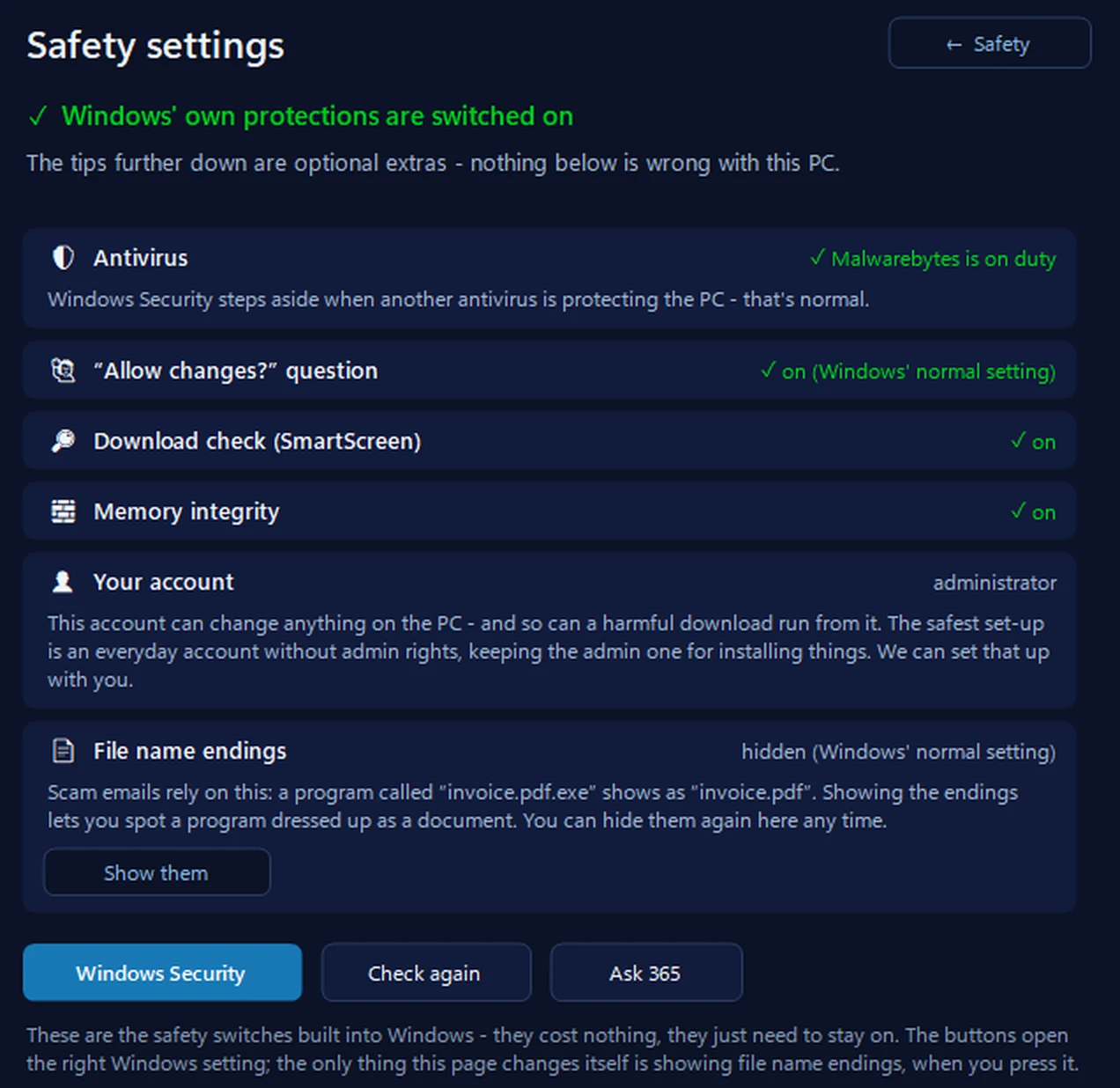
Safety settings: is your PC actually protected?
It says in plain words which antivirus is on duty — Microsoft Defender or another — and warns you if Windows can’t name one. When Defender is the one working, it shows whether tamper protection is on. It checks Windows’ other built-in protections too: the “allow this app to make changes?” question, SmartScreen’s check on downloads (and whether a policy switched it off) and memory integrity. It doesn’t list Defender’s policies — the steps above do that. Each button opens the right Windows setting; the only thing it changes itself is showing file name endings, when you press it.
In the app: Safety, then Safety settings.
Download 365 PC Manager free ↓What else it checks
Made by us, a family IT firm in Bournemouth since 1995, and digitally signed by 365 Techies Ltd.
/07 — WHEN TO CALL US
When to call us
If the message comes back after a restart, real-time protection keeps switching itself off, or a scan found something, get the PC checked properly before you use it for banking again. Ring 01202 775566 or text 07520 615332, Monday to Friday, 9 to 5. With your permission we connect to your Windows PC and sort it while you watch: usually the same day, remote help from £20, and no fix, no fee.
FAMILY-RUN SINCE 1995 · ★ 4.9 ON GOOGLE · 200+ COMPUTERS UNDER OUR CARE · NO FIX, NO FEE · SAME-DAY REMOTE SUPPORT
// GOOD QUESTIONS
Frequently asked
Does managed by your organization mean my PC has been hacked?
Not usually. It means a policy has been set for Defender, most often by an old work or school account, a leftover from another antivirus or a tweak tool. Malware can do it too, which is why a full scan and an offline scan come first.
Is my PC protected while it says this?
Open Windows Security, then Virus & threat protection. If it names an antivirus that’s on, you’re protected. If real-time protection is off and no other antivirus is named, you aren’t — put that right first.
I removed Norton or McAfee and now it says managed. Why?
The program has gone but some of its settings may not have. Run the maker’s own removal tool, restart, and Defender should take over again by itself.
It’s a work laptop. Should I remove it?
No. On a work or school computer, management is normal and expected. Leave it to your IT department.
Can you fix it remotely?
Yes. With your permission we connect to your Windows PC, find what set the policy, remove it safely and check you’re properly protected, while you watch. Remote help from £20, no fix, no fee.
// Still stuck?
Still says managed?
We find what set it, make sure your PC is properly protected and put Windows Security back to normal, while you watch. No fix, no fee. Call 01202 775566 or text 07520 615332.
We’ll fix it with you
- Checking the problem is free
- Fixes from £20, agreed before we start
- We phone first, and you watch every step
Stop it happening again
- A full service every six weeks, written up
- Every program kept up to date
- Unlimited remote help when you need it
Plans from £18.25 a month per computer · cancel any time
Mon–Fri 9–5 · family-run since 1995 · rated 4.9 on GoogleVirus removal →