// WINDOWS UPDATE ERROR
We couldn’t update the system reserved partition
The big yearly Windows update refuses to start, saying your PC “doesn’t currently meet Windows 11 system requirements”, or it restarts, says it’s undoing changes and gives up. Your PC is almost always fine. A tiny hidden partition Windows uses to start up has run out of room. Here’s how to check, the safe way to free it, and the “fixes” to avoid. Rated 4.9 on Google.
- ● Your files are safe
- ● About 15 minutes
- ● Fixed remotely
/01 — WHAT IT MEANS
What the message really means
You see it in one of two ways:
- Windows 11 Setup or the Installation Assistant stops with “This PC doesn’t currently meet Windows 11 system requirements. Here’s why: We couldn’t update the system reserved partition.”
- Windows Update downloads the yearly update, restarts, shows “Undoing changes made to your computer” and goes back to the desktop. Settings, Windows Update, Update history then lists it as Failed to install with an error code.
Despite the wording, your PC isn’t too old. On a modern PC the “system reserved partition” is the EFI system partition: a small hidden part of the drive, often only about 100 MB, that holds the files Windows needs to start. A version upgrade has to write new start-up files there and wants roughly 15 MB free. When it hasn’t got that, the upgrade either refuses to start or undoes itself after the restart.
Older PCs that were upgraded from Windows 10, and many laptops that came with a 100 MB partition from the factory, hit it most, and they hit it again at each yearly update.
The error codes you may see: 0x800F0922 in Update history, which Microsoft says means either the PC couldn’t reach Windows Update (a VPN can block it) or there isn’t enough free space in the System Reserved partition (Microsoft), and 0xC1900104 from Windows Setup. A yearly update that undoes itself can show a more general code too: on the Dell below it was 0x80242016. Whichever you have, the check in step 3 settles it in a minute.
// FIX IT WITH ME · STEP BY STEP
Free the space, step by step
The steps from this guide, one at a time, in the order that fixes the most cases fastest. Tell it what happened and it shows the next step. Nothing here leaves your device.Last reviewed 17 October 2026
-
01Open an admin terminal
Right-click Start and choose Terminal (Admin), or Windows PowerShell (Admin) on Windows 10.
Did the update install? -
02Check the free space
Run mountvol Y: /s, then fsutil volume diskfree Y:. Under about 15 MB free is the problem.
Did the update install? -
03Remove the foreign-language start-up fonts
Paste the one-line command that removes every .ttf in Y:\EFI\Microsoft\Boot\Fonts (and Y:\EFI\Dell\SOS\Fonts on a Dell) except wgl4_boot, segoe_slboot, segoen_slboot and segmono_boot.
Did the update install? -
04Check again and remove the letter
Run fsutil volume diskfree Y: to confirm 15 MB or more is free, then mountvol Y: /d.
Did the update install? -
05Restart and update
Restart, then Settings, Windows Update, Check for updates, or run the installer again.
Did the update install?
Rather have it done for you? Remote help from £20, or in person across Bournemouth, Christchurch, Poole, Ringwood and the New Forest, with no call-out fee.
Sorted{mins}. Nice work.
Check the free space again after the update, and before next year’s.
Still under 15 MB free, or still failing? That is a remote job.
With your permission we connect to your screen and sort it in one session. Usually the same day, remote help from £20, and no fix, no fee.
We couldn’t update the system reserved partition - the fix order (365techies.co.uk/we-couldnt-update-the-system-reserved-partition/) 1. Open an admin terminal: Right-click Start and choose Terminal (Admin), or Windows PowerShell (Admin) on Windows 10. 2. Check the free space: Run mountvol Y: /s, then fsutil volume diskfree Y:. Under about 15 MB free is the problem. 3. Remove the foreign-language start-up fonts: Paste the one-line command that removes every.ttf in Y:\EFI\Microsoft\Boot\Fonts (and Y:\EFI\Dell\SOS\Fonts on a Dell) except wgl4_boot, segoe_slboot, segoen_slboot and segmono_boot. 4. Check again and remove the letter: Run fsutil volume diskfree Y: to confirm 15 MB or more is free, then mountvol Y: /d. 5. Restart and update: Restart, then Settings, Windows Update, Check for updates, or run the installer again. Still stuck? 365 Techies fix it remotely: 01202 775566 - https://365techies.co.uk/remote-support/At a glance
| What it means | Windows’ small start-up partition (the EFI partition) is nearly full. The update needs about 15 MB free there. |
|---|---|
| The error codes | Often 0x800F0922 in Update history, or 0xC1900104 from Windows Setup. |
| Is my PC too old? | No. On a PC that already runs Windows 11 this is the only “requirement” it is failing. |
| What fills it | Start-up screen fonts in a dozen languages, and on Dell laptops a second set of fonts and two BIOS backup files. |
| The safe fix | Remove the Chinese, Japanese and Korean start-up fonts, keep the four English ones, then run Windows Update again. |
| Avoid | The old del *.* instructions, and partition tools that promise to enlarge it. |
| Your files | Not touched. The fix only removes font files from the hidden partition. |
/02 — A REAL ONE
What it looked like on a customer’s Dell
In October 2026 a customer’s Dell Latitude 3520 kept failing the Windows 11 26H2 update: it restarted, undid the changes and went back to the desktop (Update history showed error 0x80242016). Running Microsoft’s installer by hand then gave the “couldn’t update the system reserved partition” message.
Its EFI partition was 96 MB with 5 KB free. Inside: two Dell BIOS recovery files of about 15 MB each, Dell’s own recovery tool with a full second set of start-up fonts, and Windows’ start-up fonts in a dozen languages, the Chinese, Japanese and Korean ones 3 to 4 MB each. Removing those foreign-language fonts from both font folders, and keeping the four English ones, left 25 MB free. Windows Update then installed 26H2 at the next attempt, with every file and program still there. It took about fifteen minutes, done remotely.
/03 — CHECK IT FIRST
Check how full it is (changes nothing)
Right-click Start and choose Terminal (Admin) (on Windows 10, Windows PowerShell (Admin)), say Yes, then paste these lines one at a time, pressing Enter after each:
mountvol Y: /s
fsutil volume diskfree Y:
Get-ChildItem Y:\ -Recurse -Force -File | Sort-Object Length -Descending | Select-Object -First 12 FullName, Length
The first line gives the hidden partition the letter Y: for now (if Y: is already in use, use another spare letter such as S: in every line). The second shows its size and free space: under about 15 MB free is your problem. The third lists the biggest files on it, so you can see what’s filling it.
If mountvol gives an error instead, the PC may start the old (BIOS) way, where the partition is a visible “System Reserved” one instead; that’s a job for us rather than a paste.
/04 — THE SAFE FIX
Free the space safely
In the same window, paste this as one line. It removes only the foreign-language start-up fonts, from Windows’ font folder and, on a Dell, the recovery tool’s font folder too, and keeps the four English fonts the start-up screens use:
Get-ChildItem 'Y:\EFI\Microsoft\Boot\Fonts\*.ttf','Y:\EFI\Dell\SOS\Fonts\*.ttf' -Force -ErrorAction SilentlyContinue | Where-Object { 'wgl4_boot.ttf','segoe_slboot.ttf','segoen_slboot.ttf','segmono_boot.ttf' -notcontains $_.Name } | Remove-Item -Force -VerboseThen check the space again and remove the letter:
fsutil volume diskfree Y:
mountvol Y: /d- Paste one line at a time. If a line sits unrun at the prompt when you paste the next, they join together and do something you didn’t intend. Press Esc first to clear anything half-typed.
- Nothing else on that partition should be deleted. The fonts are only the lettering for the start-up and recovery screens; Windows keeps its own copies in C:\Windows\Boot\Fonts.
- Restart, then run Windows Update again (Settings, Windows Update, Check for updates), or run the installer again. On a PC already on Windows 11 25H2, the 26H2 update is a small one that arrives through Windows Update, so you don’t need to download Windows at all.
Still under 15 MB free afterwards? Don’t start deleting other files: on a Dell the big ones are the BIOS recovery images, and on any PC the rest are the files it needs to start. That’s the point to ring us.
/05 — WHAT NOT TO DO
The “fixes” to avoid
- The old
del *.*instructions. Many websites repeat an old Microsoft recipe: typeY:, thencd EFI\Microsoft\Boot\Fonts, thendel *.*. If thecdfails, or the window remembers a different folder on Y:,del *.*runs in the wrong place, and in the folder above the fonts that deletes the files your PC needs to start. It also skips hidden files, so it can free nothing while looking as though it worked. Use the full-path line above instead. - Enlarging the partition with a partition tool. The top search results sell software that promises to make it bigger. To do it, the tool has to move your whole C: drive in a special start-up mode; if that is interrupted or goes wrong, the PC won’t start, and nothing remote can reach it. Only ever with a full backup image first, ideally on a workbench. We do this in our workshop when a partition is genuinely too small to ever be enough.
- A clean install to “get past it”. It wipes your programs and settings for a problem that 15 minutes of tidying fixes.
BitLocker: removing font files doesn’t need BitLocker turning off, but before any work on the start-up side of a PC it’s worth knowing where your recovery key is: see computer asking for a BitLocker recovery key.
/06 — WILL IT COME BACK?
Will it happen again?
It can. Yearly updates may copy the full set of fonts back, and a 100 MB partition is always tight. Check the free space again after the update has finished, and before next year’s. Some makers’ update tools also write to this partition: on a Dell, put off installing SupportAssist OS Recovery updates until the Windows update is done, because that recovery tool keeps its files on the same partition.
If the upgrade gets past this but then only offers to keep Nothing, stop and don’t continue: see will I lose my files upgrading? for why, and the safe way round it.
/07 — THE QUICK WAY
Let our app check it, and tidy it
Version 36.4 of our free 365 PC Manager app checks this partition on its Windows Update page and says plainly when it’s too full for the next update. Its full service now tidies it safely, taking out the start-up fonts for languages the PC doesn’t use, and repairs damaged system files with Windows’ own tool. The Windows Update page itself only reads; the tidy happens when you run the full service.
FREE · WINDOWS 10 & 11 · NO SIGN-UP
Windows Update: is it really getting updates?
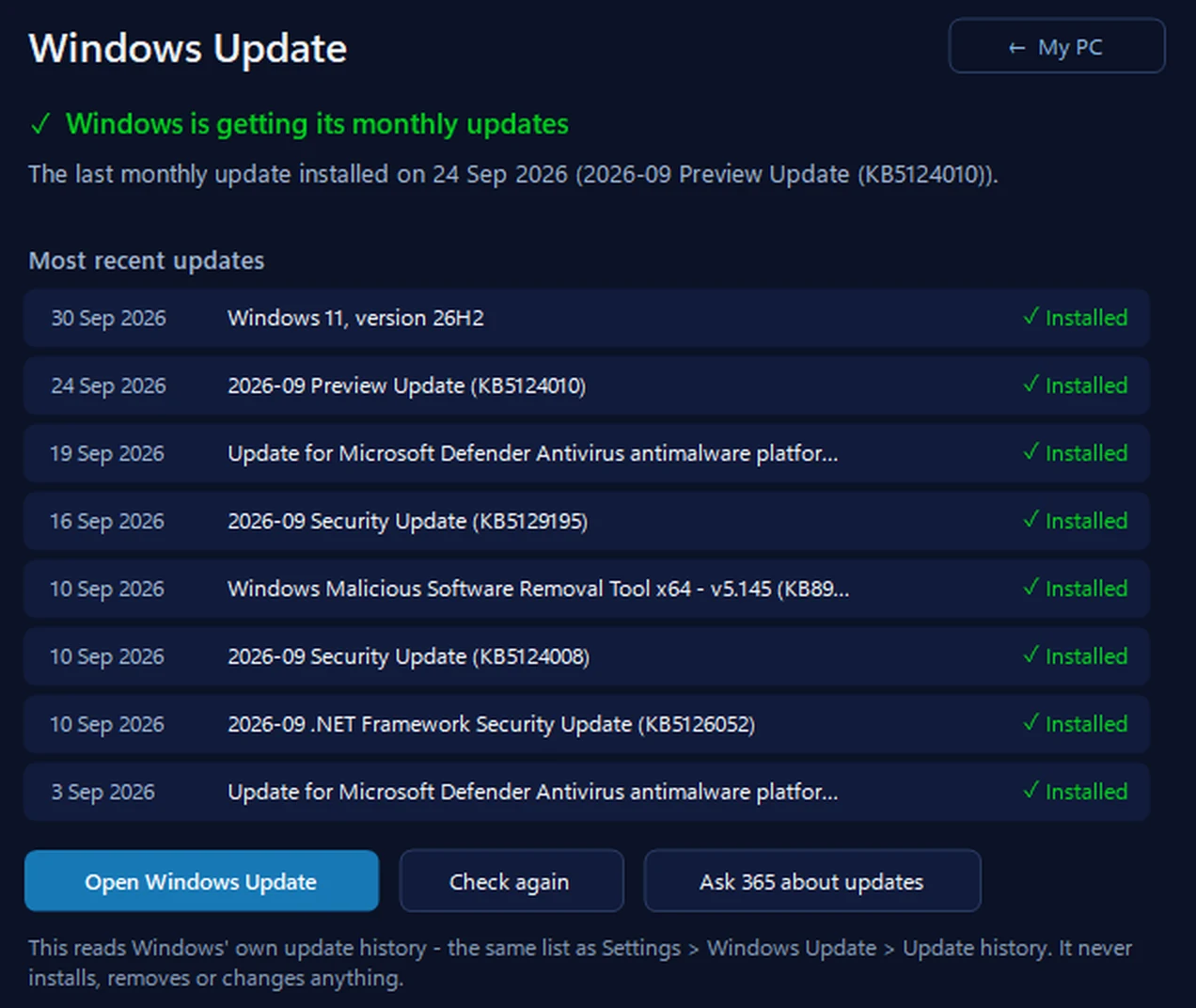
It reads Windows’ own update history — the same list as Settings, Windows Update, Update history — and says in plain words when the monthly update last installed, whether one update is failing over and over, and whether an update is waiting for a restart. It never installs, removes or changes anything.
In the app: My PC, then Windows Update.
Download 365 PC Manager free ↓What else it checks
Made by us, a family IT firm in Bournemouth since 1995, and digitally signed by 365 Techies Ltd.
/08 — WHEN TO CALL US
When to call us
Still not right? Ring 01202 775566 or text 07520 615332, Monday to Friday, 9 to 5. With your permission we connect to your Windows PC and sort it while you watch: usually the same day, remote help from £20, and no fix, no fee. If the partition is simply too small to ever be enough, we can collect the PC and enlarge it safely on the bench, with a full backup first.
FAMILY-RUN SINCE 1995 · ★ 4.9 ON GOOGLE · 200+ COMPUTERS UNDER OUR CARE · NO FIX, NO FEE · SAME-DAY REMOTE SUPPORT
// GOOD QUESTIONS
Frequently asked
What is the system reserved partition?
A small hidden part of the drive that holds the files Windows needs to start. On older PCs it’s labelled “System Reserved”; on modern ones it’s the EFI system partition. The error message still uses the old name.
What do 0x800F0922 and 0xC1900104 mean?
Both can mean the system reserved (EFI) partition hasn’t enough free space for the update. 0x800F0922 can also mean the PC couldn’t reach Windows Update, for example because a VPN is on, so switch any VPN off and check the partition’s free space as in step 3.
Why does it say my PC doesn’t meet the requirements?
Windows Setup lists this space check on its requirements screen. If your PC already runs Windows 11, free space on that partition is the only requirement it is failing.
Is it safe to delete the boot fonts?
The foreign-language ones, yes: they only draw the start-up and recovery screens in Chinese, Japanese and Korean, and Windows keeps its own copies on C:. Keep the four English ones so those screens still show their text.
Will I lose my files?
No. The fix only removes font files from the hidden partition, and the yearly update itself keeps your files, apps and settings.
Can I just make the partition bigger?
It can be done, but it means moving the whole C: drive in a special start-up mode, and if that fails the PC won’t start. Only with a full backup first, ideally on a workbench.
Will it come back next year?
It can, because yearly updates may restore the fonts and a 100 MB partition is always tight. Check the free space after each big update.
Can you fix it remotely?
Usually, yes: with your permission we connect to your Windows PC, free the space safely and get the update installed while you watch. Enlarging a partition that is simply too small is a workshop job, and we can collect.
// Still stuck?
Rather we did it?
With your permission we connect to your Windows PC, free the space safely and get the update installed while you watch. Call 01202 775566 or text 07520 615332.
We’ll fix it with you
- Checking the problem is free
- Fixes from £20, agreed before we start
- We phone first, and you watch every step
Stop it happening again
- A full service every six weeks, written up
- Every program kept up to date
- Unlimited remote help when you need it
Plans from £18.25 a month per computer · cancel any time
Mon–Fri 9–5 · family-run since 1995 · rated 4.9 on GoogleCheck it first →