// FREE CAMERA & MIC TEST
Test your webcam & mic before the call
Video call in ten minutes? Check your camera, microphone and speakers right now — privately. Nothing is recorded and nothing leaves your device.
- ● 100% on your device
- ● Nothing recorded
- ● Camera · mic · speakers
// FREE CAMERA & MIC TEST
Test your webcam, mic & speakers
Video call in ten minutes and nothing works? Test everything here first. Everything stays on your device — nothing is recorded, streamed or sent anywhere.
🎥 Camera
Click to see what your camera sees.
🎤 Microphone
Click, then speak normally.
🔊 Speakers
Play a tone through each side.
🔒 100% private: the video and audio never leave your computer — this page has no recording and no uploading. When you leave the page, everything stops.
Still not working in Teams or Zoom?
If it works here but not in your meeting app, it’s usually permissions or the wrong device selected — a five-minute fix. We sort cameras, mics, Teams and Zoom for home workers and businesses every week, remotely.
// ALSO IN OUR FREE WINDOWS APP
Who has used your camera?
FREE · WINDOWS 10 & 11 · NO SIGN-UP
See which programs have used your camera and mic
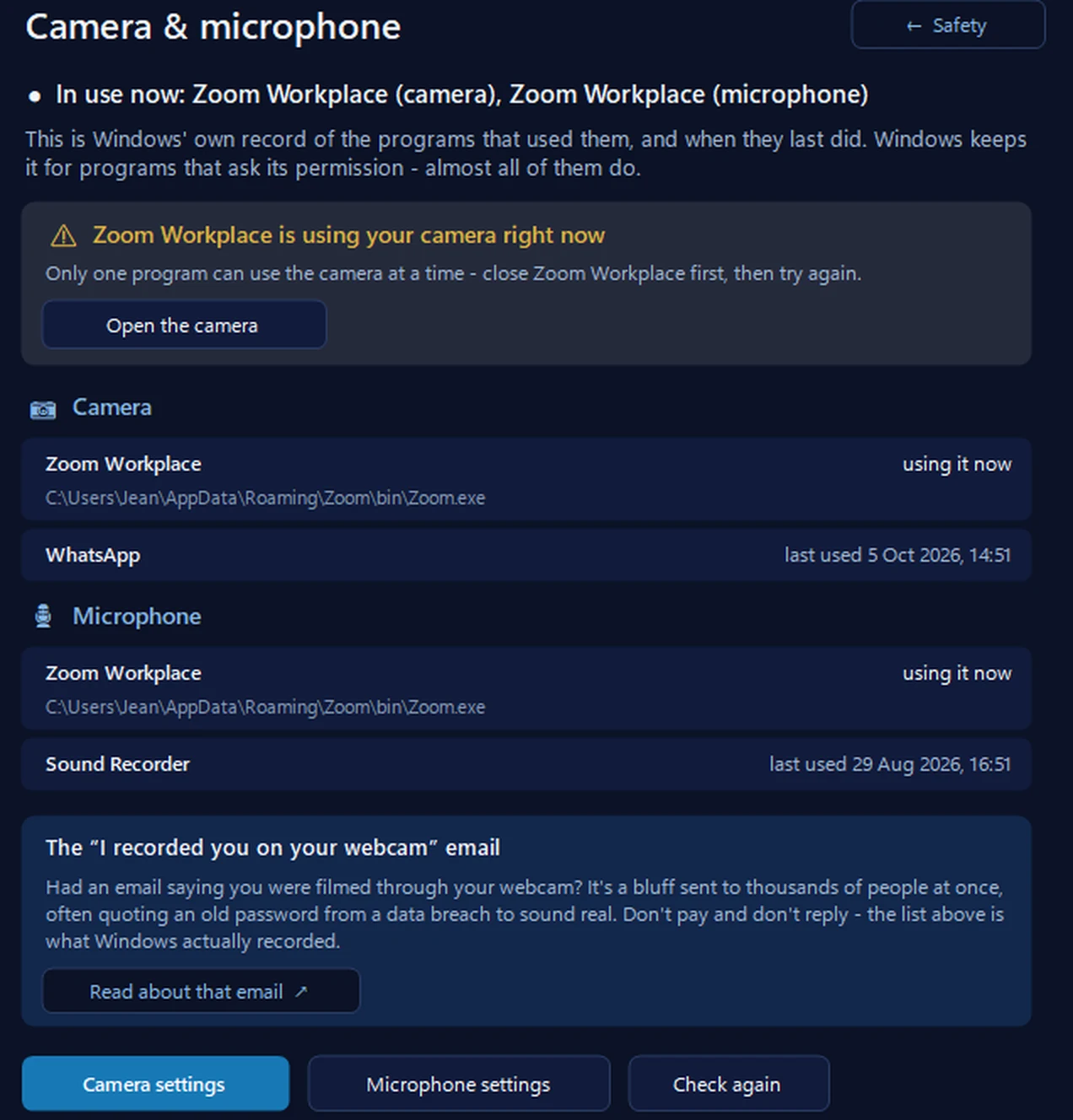
It lists the programs Windows says used your camera and microphone, and when each one last did — and what’s using them right now. Windows keeps this record for programs that ask its permission, which almost all do, so the app says “Windows has no record”, never “never used”. It changes nothing: its buttons open Windows’ camera and microphone settings.
In the app: Safety, then Camera & microphone.
Download 365 PC Manager free ↓What else it checks
Made by us, a family IT firm in Bournemouth since 1995, and digitally signed by 365 Techies Ltd.
// GOOD QUESTIONS
Frequently asked
Is this safe? Can you see my camera?
No — and that’s the point. The video and audio never leave your device: the test runs entirely in your browser with no recording and no uploading. When you leave the page (or click stop), everything stops.
It works here but not in Teams or Zoom — why?
Then your hardware is fine and it’s a settings problem: usually the meeting app has permission blocked, or it’s pointing at the wrong device (very common with laptops + webcams). Check the app’s device settings — or we’ll fix it remotely in minutes.
My camera shows a black screen
Close every other app that might be using it (Teams, Zoom, Skype run in the background), check the physical privacy shutter some webcams have, then try again. Still black? The Windows privacy settings may be blocking it — Settings → Privacy & security → Camera.
The mic meter barely moves
Get closer and speak normally — if it still barely registers, check Windows Settings → System → Sound → Input: right device selected and input volume up. Headset mics often have a physical mute switch too.
Can you set up my video calling properly?
Yes — cameras, mics, lighting, Teams and Zoom, all working reliably. It’s bread and butter for our home worker support.
// FREE TOOLS
While you’re at it — more quick checks
No sign-up, no catch — free tools built by our techies. See all our free tools →
Free tool
Live Broadband Speed Test
Measure your real download, upload and ping right now on a live animated gauge.
Try it →Free tool
PC Benchmark
How fast is your computer, really? Six live tests — CPU, encryption, memory, graphics & storage — with a score you can share.
Try it →Free tool
IT Health Check Tool
Get an instant IT & security score out of 100, plus a plain-English action plan.
Try it →Never fumble a video call again
We set up cameras, mics, Teams and Zoom so they just work — and we’re one message away when they don’t. Remote fixes for home workers and businesses across the UK.
01202 775566 · help@365techies.co.uk · MON–FRI 9AM–5PM
// HOW IT WORKS
How to test your webcam and mic before a Teams meeting
To test your webcam and mic for a Teams meeting, use this free on-device checker: click Test my camera to see a live preview, Test my microphone to watch the level meter move as you speak, and play the left/right/both tone to check your speakers — everything runs in your browser with nothing recorded, streamed or uploaded.
Step by step
- Test your camera — Click Test my camera and allow access — you'll see a live preview of exactly what your camera sees.
- Test your microphone — Click Test my microphone, allow access and speak normally — the on-screen meter moves to show your mic is picking up sound.
- Test your speakers — Play the tone through Left, Right and Both to confirm both sides of your speakers or headset work.
- Fix a black screen — If the camera shows black, close Teams, Zoom or Skype running in the background, check any physical privacy shutter, and check Windows Settings, Privacy & security, Camera.
- Get it working in Teams — If it works here but not in Teams, the meeting app usually has permission blocked or the wrong device selected — check the app's device settings.
Good to know
How do I test my camera and mic before a Teams meeting?
Open this page, click Test my camera to check the live preview, click Test my microphone and speak to watch the level meter respond, then play the speaker tone. It all runs privately in your browser with nothing recorded or sent, so you can confirm your webcam, mic and speakers work before you join the call.
Do I need to install anything to test my webcam for Teams?
No — this test runs entirely in your browser, so there's no app or download. Just click Test my camera and Test my microphone and allow access when your browser asks; if a check won't run, try a modern browser like Chrome or Edge. Teams itself is separate, but if the hardware works here it will work in Teams once its own camera and mic permissions are allowed.
Is this webcam and mic test safe and private?
Yes — the video and audio never leave your device. The test runs entirely in your browser with no recording and no uploading, and everything stops the moment you leave the page or close the tab. We can't see your camera or hear your mic at any point.