// WIFI ANALYZER FOR WINDOWS
A free WiFi analyzer for Windows, and who’s on your Wi-Fi
Want to know how good your Wi-Fi really is on your PC — the signal, whether you’re on 2.4 or 5 GHz, which Wi-Fi standard — and which devices are connected? Windows can tell you most of it without installing anything. Here’s where to look, what the numbers mean, and our free app that shows it all on one page. Rated 4.9 on Google.
- ● Free, no adverts
- ● Windows 11 and 10
- ● It only reads
/01 — NOTHING TO INSTALL
Where Windows shows your Wi-Fi’s details
Windows 11: open Settings, choose Network & internet, then Wi-Fi, and click your network’s properties (or Hardware properties). You’ll see the Protocol (for example Wi-Fi 6 (802.11ax)), the Network band (2.4 GHz or 5 GHz) and the Network channel.
Windows 10: open Settings, Network & Internet, Wi-Fi, click the network you’re connected to, and scroll to Properties for the protocol, band and channel.
The signal itself is the bars on the Wi-Fi symbol by the clock: four bars is strong, one is weak.
// FIX IT WITH ME · STEP BY STEP
Fix it with me, one step at a time
The steps from this guide, one at a time, in the order that fixes the most cases fastest. Tell it what happened and it shows the next step. Nothing here leaves your device.Last reviewed 18 October 2026
-
01Open the network properties
Windows 11: Settings, Network and internet, Wi-Fi, then your network properties. Windows 10: Settings, Network and Internet, Wi-Fi, then the network you are connected to.
Is it working now? -
02Read the protocol, band and channel
Protocol is the Wi-Fi standard, Network band is 2.4 GHz or 5 GHz, and Network channel is the channel the router uses.
Is it working now? -
03Or run one command
Open Command Prompt or Terminal, type netsh wlan show interfaces and press Enter: it lists the name, radio type, band, channel, speed and signal.
Is it working now? -
04Act on what it shows
Under about 50% signal, move closer or move the router; on 2.4 GHz, join the 5 GHz network if your router has one near the router.
Is it working now?
Rather have it done for you? Remote help from £20, or in person across Bournemouth, Christchurch, Poole, Ringwood and the New Forest, with no call-out fee.
Sorted{mins}. Nice work.
Restart once more and check it has stuck.
Still not working after all four steps? That is a remote job.
With your permission we connect to your screen and sort it in one session. Usually the same day, remote help from £20, and no fix, no fee.
A free WiFi analyzer for Windows, and who’s on your Wi-Fi - the fix order (365techies.co.uk/wifi-analyzer-for-windows/) 1. Open the network properties: Windows 11: Settings, Network and internet, Wi-Fi, then your network properties. Windows 10: Settings, Network and Internet, Wi-Fi, then the network you are connected to. 2. Read the protocol, band and channel: Protocol is the Wi-Fi standard, Network band is 2.4 GHz or 5 GHz, and Network channel is the channel the router uses. 3. Or run one command: Open Command Prompt or Terminal, type netsh wlan show interfaces and press Enter: it lists the name, radio type, band, channel, speed and signal. 4. Act on what it shows: Under about 50% signal, move closer or move the router; on 2.4 GHz, join the 5 GHz network if your router has one near the router. Still stuck? 365 Techies fix it remotely: 01202 775566 - https://365techies.co.uk/remote-support/At a glance
| Signal, band and standard | Windows 11: Settings, Network & internet, Wi-Fi, then your network’s properties. |
|---|---|
| All of it at once | Type netsh wlan show interfaces in Command Prompt or Terminal. |
| A weak signal | Under about 50% is weak: video calls and films can start to stutter. |
| 2.4 or 5 GHz | 5 GHz is faster but reaches less far; 2.4 GHz reaches further but is slower and more crowded. |
| Who’s connected | Your router’s app or settings page lists every device; our free app finds them from your PC. |
| Easiest of all | Our free 365 PC Manager shows the signal, band, standard and every device in plain English. |
/02 — THE ONE COMMAND
Everything at once: netsh wlan show interfaces
Press the Windows key, type cmd and press Enter (or open Terminal), then type netsh wlan show interfaces and press Enter. It lists, for the Wi-Fi you’re on:
- SSID: your Wi-Fi’s name.
- Radio type: the Wi-Fi standard. 802.11be is Wi-Fi 7, 802.11ax Wi-Fi 6, 802.11ac Wi-Fi 5 and 802.11n Wi-Fi 4; anything older (802.11a, b or g) is very old.
- Band (on Windows 11) and Channel: on most home Wi-Fi, channels 1 to 13 are 2.4 GHz and 36 and above are 5 GHz. Newer Wi-Fi 6E and 7 routers can also use a 6 GHz band, which Windows 11 names.
- Receive rate and Transmit rate: the speed between your PC and the router, in Mbps.
- Signal: the strength, as a percentage.
It only reads: nothing is changed.
/03 — WHAT IT MEANS
What the numbers mean, and what to do
- Signal under about 50%: move the PC closer to the router, or the router somewhere more open and higher up; thick walls, mirrors and fish tanks all get in the way. If it’s weak in whole rooms, a mesh Wi-Fi system is usually the answer.
- On 2.4 GHz: it’s the slower, more crowded band. If your router offers a separate 5 GHz network, connect to that when you’re near the router.
- Wi-Fi 4 or older: an older standard caps the speed. It can be the router or the PC’s own Wi-Fi: a newer router, or a USB Wi-Fi adapter for an old PC, can lift it.
- Receive rate is not your broadband speed. It’s the speed between your PC and the router. Your broadband can still be slower than that; the Wi-Fi signal test measures what you actually get.
/04 — WHO’S CONNECTED
How to see who’s on your Wi-Fi
Your router keeps the full list. Open your broadband provider’s app, or the router’s settings page (the address and admin password are usually on a sticker on the router), and look for a list called something like connected devices or my devices.
From a Windows PC, the command arp -a lists the devices your PC has heard from recently, by address only. It’s rarely the whole list, because devices that haven’t talked to your PC don’t appear.
Don’t be alarmed by a device with a strange name or no name: phones, tablets and laptops now hide behind a private Wi-Fi address that changes, so they rarely show a maker. Count your own devices first. If there’s still one you can’t place, change your Wi-Fi password on the router, then reconnect your own devices with the new one.
/05 — THE EASY WAY
Or let our free app show it all
FREE · WINDOWS 10 & 11 · NO SIGN-UP
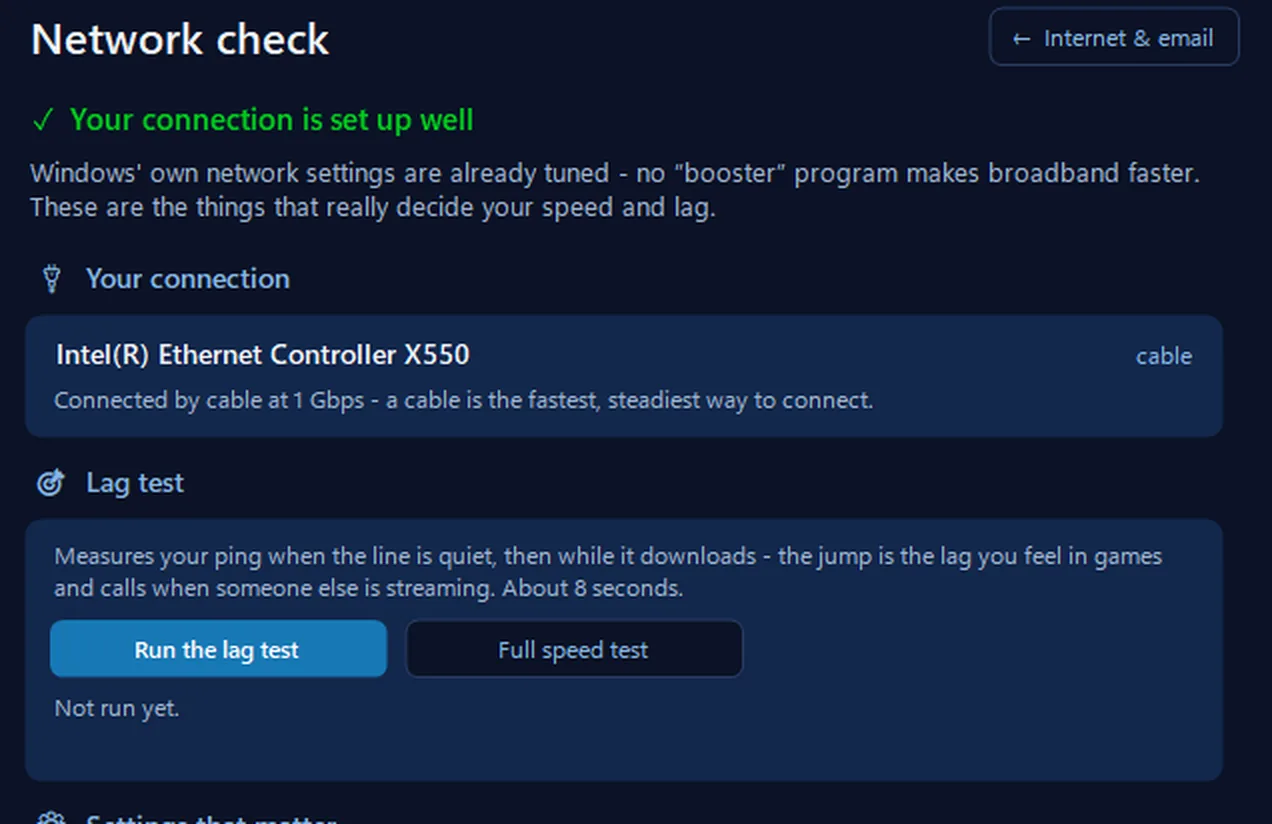
Network check: your Wi-Fi from the inside
It reads from Windows itself the Wi-Fi’s name, the signal, 2.4 or 5 GHz, Wi-Fi 4, 5, 6 or 7 and the link speed, and says plainly when the slower 2.4 GHz band or an older standard is holding it back. Its lag test shows whether games and video calls will stutter when the line is busy. It only reads.
In the app: Internet & email, then Network check.
Download 365 PC Manager free ↓What else it checks
Made by us, a family IT firm in Bournemouth since 1995, and digitally signed by 365 Techies Ltd.
FREE · WINDOWS 10 & 11 · NO SIGN-UP
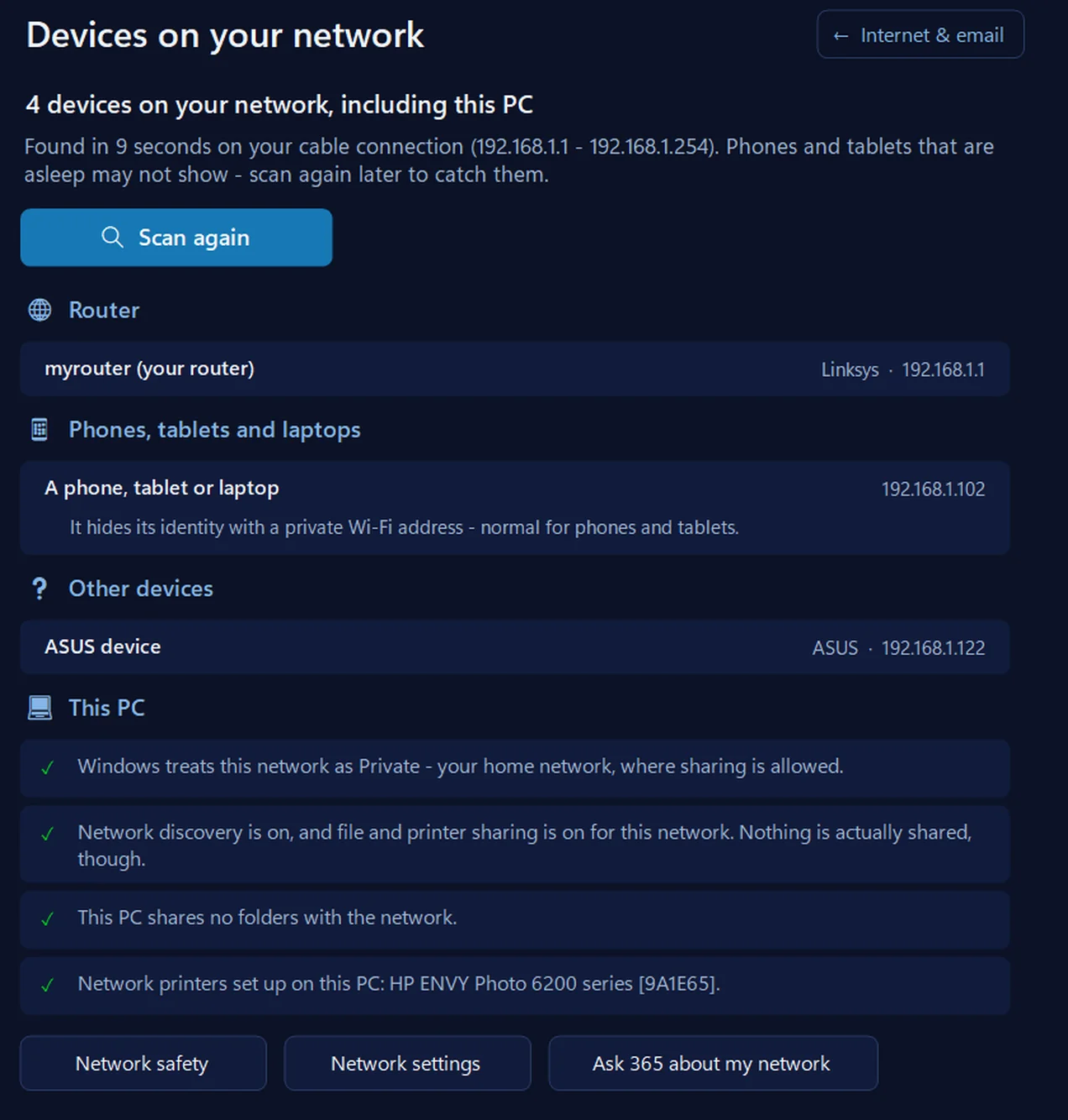
Devices on your network: everything connected, and what it shares
Tap Scan and it lists everything on your home network — the router, PCs, phones, TVs, printers, network drives and cameras — by name and maker where the device says so, and the folders PCs and network drives share. A phone hiding behind a private Wi-Fi address is named as one. It only looks when you tap, never on a public network such as a café’s, and it never logs in to anything or changes a setting.
In the app: Internet & email, then Devices on your network.
Download 365 PC Manager free ↓What else it checks
Made by us, a family IT firm in Bournemouth since 1995, and digitally signed by 365 Techies Ltd.
/06 — WHEN TO CALL US
When to call us
If the Wi-Fi is poor all over the house, a device on the list worries you, or you’d just like it looked at properly, we’re happy to help. Ring 01202 775566 or text 07520 615332, Monday to Friday, 9 to 5. With your permission we connect to your Windows PC and sort it while you watch: usually the same day, remote help from £20, and no fix, no fee.
FAMILY-RUN SINCE 1995 · ★ 4.9 ON GOOGLE · 200+ COMPUTERS UNDER OUR CARE · NO FIX, NO FEE · SAME-DAY REMOTE SUPPORT
// GOOD QUESTIONS
Frequently asked
Is there a free WiFi analyzer for Windows?
Yes. Windows itself shows the signal, band, standard and channel, in Settings or with the command netsh wlan show interfaces. Our free 365 PC Manager shows the same in plain English, adds a lag test and lists every device on your network.
Why can’t a website show my Wi-Fi’s name or band?
Browsers deliberately keep a web page from seeing your network name, band or standard, because your network name can help identify where you live. Only a program on the PC, such as Windows’ own settings or our app, can read them. A website can still measure how well your connection works, as our Wi-Fi signal test does.
What is a good Wi-Fi signal strength?
On the percentage Windows shows, above about 70% is good and under about 50% is weak, where video calls and films can stutter. The bars by the clock tell the same story more roughly.
Should I use 2.4 GHz or 5 GHz?
5 GHz when you’re reasonably near the router: it’s faster and less crowded. 2.4 GHz reaches further through walls, so it can be better at the far end of the house. Many routers give both the same name and choose for you.
How do I see who is on my Wi-Fi?
Your router’s app or settings page lists every connected device. From a Windows PC, our free app’s Devices on your network finds them for you, by name and maker where the device says.
There’s a device I don’t recognise. What should I do?
Count your own first: phones, tablets, TVs, speakers, the printer and smart plugs all count, and phones often hide behind a private address with no name. If one is still unexplained, change the Wi-Fi password on the router and reconnect your own devices with the new password.
Is the app safe to use on my network?
Yes. It only looks when you tap Scan, never on a public network such as a café’s, never logs in to anything and never changes a setting. It’s digitally signed by 365 Techies Ltd, a family IT firm in Bournemouth since 1995.
Does it work on Windows 10?
Yes, on Windows 10 and 11. The Band line in netsh appears on Windows 11; on Windows 10 the channel usually tells you (on most home Wi-Fi, 1 to 13 is 2.4 GHz and 36 and above is 5 GHz).
// Still stuck?
Wi-Fi still poor?
We can check your PC and Wi-Fi over a remote connection and tell you honestly whether it’s the PC, the router or the house. Call 01202 775566 or text 07520 615332.
We’ll fix it with you
- Checking the problem is free
- Fixes from £20, agreed before we start
- We phone first, and you watch every step
Stop it happening again
- A full service every six weeks, written up
- Every program kept up to date
- Unlimited remote help when you need it
Plans from £18.25 a month per computer · cancel any time
Mon–Fri 9–5 · family-run since 1995 · rated 4.9 on GoogleTest your Wi-Fi in the browser →