// HOME DIAGNOSIS PLAYBOOK
WiFi keeps dropping? Diagnose it before you replace anything
WiFi that drops for a few seconds and comes back is one of the hardest faults to pin down, because it has usually gone by the time anyone looks at it. This page is the method we use: separate a WiFi fault from a broadband fault, log the pattern so it can be proved, then decide whether it is your kit, your line or your provider — before you buy anything.
Rated 4.9 on GoogleFamily-run since 1995 · no fix, no feeIndependent, and dated. 365 Techies is an independent IT firm. We are not an authorised partner, reseller or agent of RUCKUS Networks, Belden, CommScope, Cisco or Cisco Meraki, and we have no access to their support entitlements on your behalf. Every date on this page comes from the vendor’s own published notices, linked in the source column, and was checked on 27 July 2026. Where we could not verify something from a vendor source we say “check with vendor” rather than guess.
// DIAGNOSE IT WITH ME · CHECK BY CHECK
Work through the checks with me, one at a time
The checks from this playbook, one at a time. Do each one and it shows the next. Nothing here leaves your device.Last reviewed 13 October 2026
-
01Is it one device, or everything in the house?
You genuinely cannot tell yet. Next time it goes, do not touch anything for sixty seconds. Full detail in the playbook below ↓
Done that check? -
02Did the broadband drop, or did the WiFi drop?
This is the whole page in one question, and it is the one that usually gets skipped. Two completely different faults produce the identical complaint — “the WiFi keeps dropping” — and until you know which one you have, everything you try afterwards is a guess. Full detail in the playbook below ↓
Done that check? -
03Start the drop diary
Start a note on your phone, or a sheet of paper by the router. Whichever you will actually use at half past nine on a Tuesday evening when it happens again. Full detail in the playbook below ↓
Done that check? -
04Do the drops run to a timetable?
Once you have a week of entries, read down the time column before you read anything else. Intermittent faults are less random than they feel — a good many of them only look random until somebody writes them down. Full detail in the playbook below ↓
Done that check?
Rather have it done for you? Remote help from £20, or in person across Bournemouth, Christchurch, Poole, Ringwood and the New Forest, with no call-out fee.
Checks done{mins}. Now you know which fault it is.
The two sections after the diary tell you what the pattern means, and how to make a provider report stick if it turns out to be the line.
Stuck on a check? Send us what you have so far.
Call, or send the drop diary through the contact page; a same-day answer is usual.
WiFi Keeps Dropping? Find the Real Cause First - the checks (365techies.co.uk/wifi-keeps-dropping/) 1. Is it one device, or everything in the house?: You genuinely cannot tell yet. Next time it goes, do not touch anything for sixty seconds. 2. Did the broadband drop, or did the WiFi drop?: This is the whole page in one question, and it is the one that usually gets skipped. Two completely different faults produce the identical complaint — “the WiFi keeps dropping” — and until you know which one you have, everything you try afterwards is a guess. 3. Start the drop diary: Start a note on your phone, or a sheet of paper by the router. Whichever you will actually use at half past nine on a Tuesday evening when it happens again. 4. Do the drops run to a timetable?: Once you have a week of entries, read down the time column before you read anything else. Intermittent faults are less random than they feel — a good many of them only look random until somebody writes them down. Stuck? Call 365 Techies on 01202 775566 or send the details: https://365techies.co.uk/contact/// SEE YOUR SIGNAL
Check your Wi-Fi signal from the PC
Want to see how strong the signal is where you sit, and which band you’re on? Our free app reads it from Windows.
FREE · WINDOWS 10 & 11 · NO SIGN-UP
See your Wi-Fi the way Windows sees it
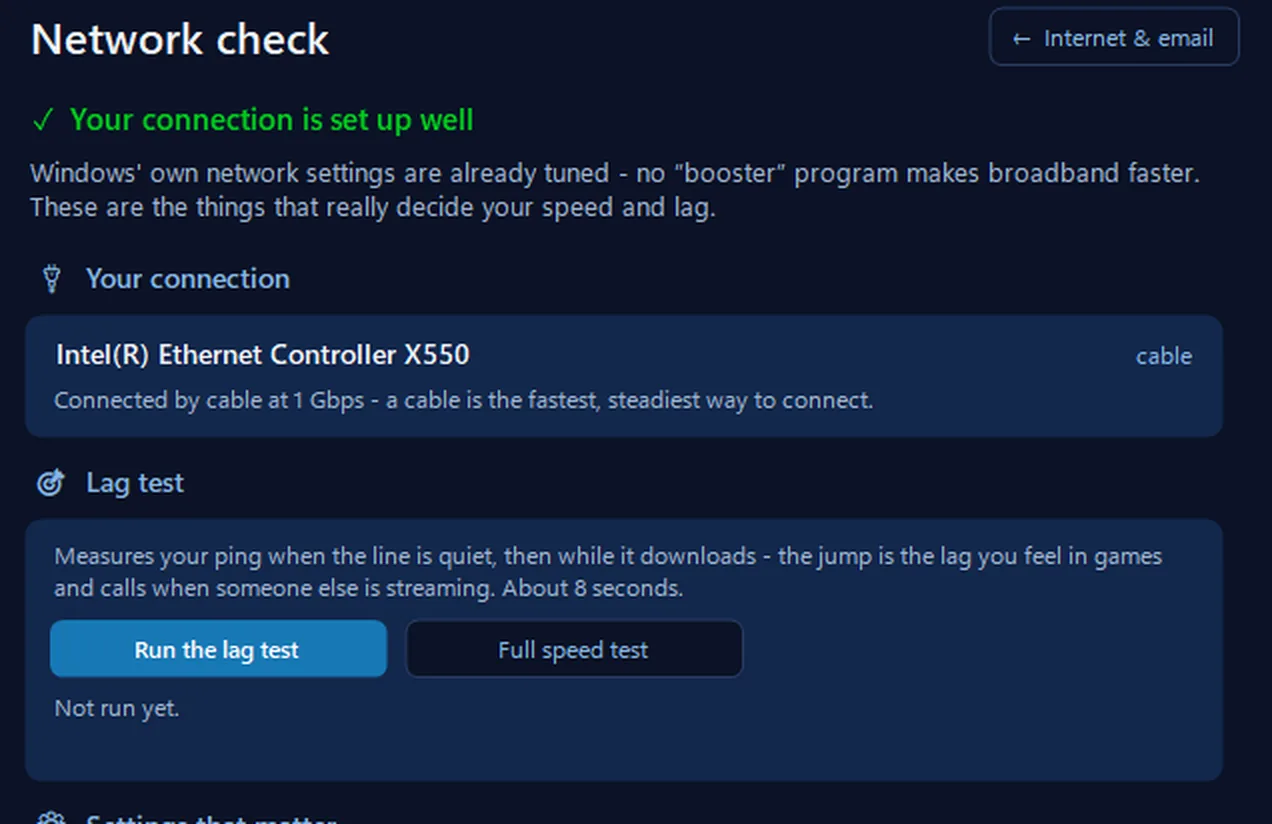
Our free app’s Network check reads your connection straight from Windows: on Wi-Fi, the signal strength, whether you’re on 2.4 or 5 GHz, the Wi-Fi standard and the link speed. Its lag test shows the delay when the line is busy, and it checks for a VPN and which DNS your PC uses. It shows your connection as it is now; it doesn’t keep a log of dropouts. On Windows 11 version 24H2 and later, Windows only shares Wi-Fi details with apps while Location is switched on, and the app tells you so.
In the app: Internet & email, then Network check.
Download 365 PC Manager free ↓What else it checks
Made by us, a family IT firm in Bournemouth since 1995, and digitally signed by 365 Techies Ltd.
One device, or everything in the house?
Start here. If one of these is you, the page you actually want is linked in the line — go there, it will save you an hour.
- You genuinely cannot tell yet. Next time it goes, do not touch anything for sixty seconds. Look at a second device in a different room, and look at the router’s broadband light. Those two glances decide which half of this page you need, and they cost you nothing.
- One device drops and everything else in the house carries on. The fault is on that device, not on the router. Go straight to the table further down — a laptop and a phone drop for different reasons, and both are normally fixed in a settings menu rather than with money.
- Everything dies at the same moment, including anything plugged in with a cable. Then this is not a WiFi fault at all. The next section is the important one for you: you are looking at the broadband line or the router itself.
- Nothing is connecting at all right now, and it has been dead for a while. That is an outage rather than an intermittent fault, and it needs a different first hour. Our broadband down guide is written with businesses in mind, but the order of the checks is the same at home.
- It never actually disconnects — pages just crawl and video stalls. Different fault, different page. Go to WiFi troubleshooting instead of reading on here.
- It only happens in one room, upstairs, or down the end of the garden. That is coverage, and coverage kit genuinely does fix coverage. Read mesh WiFi systems.
- This is a business, with staff, and probably an access point or two on the ceiling. The causes and the fixes are different. Go to business WiFi that keeps dropping out.
- You are in a motorhome, a campervan or on a boat. A mobile signal behaves nothing like a fixed line, and most of what follows assumes a fixed line. Read campervan WiFi that keeps dropping instead.
Did the broadband drop, or did the WiFi drop?
This is the whole page in one question, and it is the one that usually gets skipped. Two completely different faults produce the identical complaint — “the WiFi keeps dropping” — and until you know which one you have, everything you try afterwards is a guess.
A WiFi drop is a break in the short wireless hop between your device and the router. The broadband line underneath it never moves.
A broadband drop is the line itself letting go and re-establishing. The WiFi is working perfectly the whole time — there is simply nothing on the other end of it.
The test takes one drop and no equipment. Plug one computer into the router with an Ethernet cable and leave it there. If you have no cable and nothing to plug in, the next best thing is a phone or tablet sat on the router itself, close enough that signal strength cannot possibly be the issue. Then wait for the fault.
- The wired machine keeps working while the wireless devices drop. That is a WiFi fault. The line is fine.
- The wired machine dies at exactly the same instant as everything else. That is the line or the router. No amount of WiFi kit will touch it.
- The device sat on top of the router drops too. Same conclusion, one step less certain — but if it cannot hold a connection from six inches away, distance is not your problem.
What a line resync actually looks like. The router’s broadband light — the one usually labelled broadband, DSL, internet or WAN, depending on the make — goes out, flashes, or changes colour, and then settles again after a gap while the line retrains. On copper connections that gap is commonly a minute or two, though it varies by line and by provider, so treat that as a rough expectation rather than a specification. Every device in the house loses the internet at the same second, and they all come back at the same second. On full fibre, where there is no copper line to resync, a drop usually shows on the small box the fibre enters the house through, or as the router losing its connection to the provider.
What a wireless disconnect looks like. The broadband light never wavers. The wired machine never notices. Devices go one at a time, or the ones furthest away go while the ones nearby stay, and they often reconnect on their own within a few seconds.
Where to find the evidence. Most routers and ISP hubs keep an event log, and it is the thing people are least likely to have opened. Sign in to the router from a browser on the home network — the address and the default password are usually printed on a sticker on the underside — and look under a status, advanced, or troubleshooting section. It will be called something like event log, connection log, system log or helpdesk. Menu names differ on every make and change between firmware versions, so hunt rather than follow instructions from a web page.
What you are hunting for is a repeating pair of entries showing the connection going down and coming back up, with a time against each one. Those timestamps are worth more than any speed test, because they are the only record that survives the fault ending. Copy out a week of them and you have something a provider can act on.
The drop diary
- Start a note on your phone, or a sheet of paper by the router. Whichever you will actually use at half past nine on a Tuesday evening when it happens again. The best diagnostic tool in this fault is a biro.
- Record the date and the time to the minute. Not “evening”. Not “yesterday”. The minute is what turns a complaint into a pattern, and patterns are what get fixed.
- Record who it happened to and where they were. Back bedroom, kitchen, sofa. If every entry names the same room, you are looking at coverage and you should be on the mesh systems page instead.
- Record whether it was one device or all of them. This is the single most valuable column. A diary where one column says “laptop only” twelve times has already told you the answer.
- Record wired or wireless. If a cabled device is in the house, note whether it dropped too, every single time. This is the column that decides whether your provider has a case to answer.
- Record what was happening. A video call, a film streaming, a large upload, or nothing at all. Drops that only ever land during calls point somewhere quite different from drops that happen when the house is asleep.
- Record how long it lasted, and what ended it. Came back on its own after ten seconds is a different fault from needed the router restarting. Be honest about which one it was, including the times you restarted the router out of habit before waiting to see.
- Add the objective record: a continuous ping from a wired machine. This sounds technical and is not. On a Windows PC, open Command Prompt and type ping -t 1.1.1.1 then press Enter. On a Mac, open Terminal and type ping 1.1.1.1. Leave the window open in a corner of the screen. While the connection is healthy it sends one small message a second and prints the reply. When the connection breaks the replies stop and you get “Request timed out” lines instead; when it comes back, the replies resume. One warning, because it catches people out: do not count those timeout lines as seconds. Windows waits up to four seconds for each unanswered reply, so a short run of timeout lines can cover far more time than it appears to. Note the clock time when the replies stop and when they return, or photograph the window. Run the same thing on a wireless device at the same time and the comparison writes itself.
- Keep it for three to seven days before you ring anyone. That is a rule of thumb rather than a rule — the point is simply to cover a full weekend as well as weekdays, because household patterns and neighbourhood patterns are completely different on a Saturday.
When the drops run to a timetable
Once you have a week of entries, read down the time column before you read anything else. Intermittent faults are less random than they feel — a good many of them only look random until somebody writes them down.
The same time every night. A drop that keeps to a schedule usually has something scheduling it. Check the router for an automatic reboot timer, a WiFi schedule, or a parental-control window that switches the wireless off and back on. Check whether anything in the house is on a plug timer, including the router itself. If nothing on your side explains it, the remaining candidates are a neighbour’s equipment coming on at a fixed hour, or maintenance on your provider’s side. Any of those is findable; none of them is fixed by new hardware.
Only when it rains, or in the day or two afterwards. On a copper line this is the classic signature of moisture getting into a joint somewhere outside — at a pole, in a footway box, or where the line enters the building. It is commonly reported and it is the pattern engineers recognise fastest, though we would not claim every rain-linked fault has that cause. If your diary shows drops clustering with the weather, say so explicitly when you report it. It changes what gets tested.
Only when the microwave, a baby monitor or a camera is running. The 2.4 GHz band is crowded, and there are two different things going on in it. A microwave oven genuinely radiates near 2.4 GHz and interferes with WiFi while it runs; so do some baby monitors and older cordless gear, though plenty of monitors use other frequencies entirely and are innocent. Cameras and video doorbells are a different story — they are usually WiFi devices themselves, so they compete for airtime on the band rather than jamming it. Either way it affects wireless only, a wired machine sails through it, and the fix is channel choice or moving the router, not a new router.
Worse when the house is full. More people means more devices, more neighbouring networks in the evening, and a busier band. Again, wireless only. If your diary shows the line itself dropping when the house is full, that is a coincidence of timing rather than a cause, and the line is still the thing to chase.
And one honest warning about nightly reboots. On copper broadband — anything still running over a phone line rather than fibre to the property — the network runs an automatic line management system. It watches each line for disconnections and errors over time, and where it sees a lot of them it will generally settle that line onto a more cautious profile: a lower connection rate, or more error correction, traded for stability. That behaviour exists to keep unreliable lines usable, and it is doing its job. But it means a router rebooted every night is a line disconnected every night, and over weeks that can leave you on a more cautious profile than you started with. We are describing how line management generally works rather than quoting any figure, because the thresholds are not published. The practical point stands: a nightly reboot treats the symptom, hides the pattern, and can cost you speed you do not get back without asking for the profile to be reset.
One device or all of them?
| What you see | What it usually means | What to do |
|---|---|---|
| Only one laptop drops. Everything else is fine. | Windows power saving switching the wireless adapter off to save battery, or an old or generic wireless driver. Common on laptops that drop after the lid has been closed or when the battery is low. | In Device Manager, open the wireless adapter’s properties and turn off the option allowing the computer to switch the device off to save power. Then get the wireless driver from the laptop maker’s own support site rather than relying on Windows Update. |
| Only one phone drops, or it flips to mobile data on its own. | Phone-side network switching. Both Android and iPhone will fall back to mobile data when they judge the WiFi to be poor. On an iPhone this is WiFi Assist, which quietly routes app traffic over mobile while staying joined to the network. To you it just looks like the WiFi dropped. | On an iPhone the switch is in Settings under Mobile Data, near the bottom of the list — not in the WiFi settings. On Android it goes by different names depending on the maker, such as adaptive connectivity, smart network switch or auto-switch to mobile network, so search the settings rather than follow a fixed path. Turn it off while you test, then forget the network and rejoin it. If the drops stop, it was never the router. |
| Everything drops together, wired devices included. | The broadband line or the router. Nothing wireless is involved at all. | Open the router’s event log and find the disconnect entries. Keep the drop diary above for a week, then report it with the timestamps. See the last section for how to make that report stick. |
| Only devices upstairs or at the far end of the house drop. | Coverage. The signal is not reaching reliably, so devices hang on at the edge and let go. | This is a different fault with a different fix, and coverage kit genuinely solves it. Measure it room by room first with our free WiFi signal test, then read mesh WiFi systems. |
| It only ever happens on video calls. | Congestion or interference rather than a hard drop. Calls are the least forgiving thing on a home network — a two-second gap that nobody notices while streaming will end a call. | Test on 5 GHz rather than 2.4 GHz if your router offers both, move away from microwaves and monitors, and try the same call on a cable. If the cable is clean, it is wireless, and it is fixable without replacing the line. |
| It started right after a new device joined the network. | Often an address clash. The router hands out addresses from a pool, and a device with a fixed address set by hand — frequently a printer or a camera — can end up holding one the router later gives to something else. | Restart the router and the new device and see whether it settles. If it recurs, take the fixed address off whichever device has one and let the router allocate it, or move that address outside the router’s pool. |
| The extender’s network drops, but the main one is steady. | A single-band extender has one radio, so it receives and resends on the same channel and roughly halves what gets through. Devices also cling to an extender long after they have walked back into good main-router signal. | Unplug the extender for a day and see whether the complaints move or vanish. If they vanish, do not simply buy a better extender — either move the router, or read mesh WiFi systems, which is a different design and does not fail the same way. |
The purchase that almost never fixes this
Here is the trap, and it is an expensive one. A mesh system, a booster, an extender, a new router with more aerials — every one of those sits behind your broadband line. They improve how the signal travels around your house. They can do absolutely nothing about a line that keeps letting go, because when the line drops, the mesh drops with it, in perfect health, distributing nothing.
It is a common wasted purchase with this fault, and it is an easy one to make, because the symptom genuinely does feel like weak WiFi. Devices stall, they say “connected, no internet”, they recover when you walk nearer the router purely because that is when the line happened to come back. Buy the kit, install it, and for the first day or two it will seem better. Then the pattern returns unchanged and the money has gone.
Telling them apart before you spend takes one drop, not one purchase. If a device on a cable, or a device sat on the router itself, dies at the same instant as everything else, coverage kit will not help you and you should not buy any. If the wired machine sails through while the wireless devices fall over, then and only then is coverage worth spending on — and even then, measure the weak rooms first so you know how much you need.
When it IS your provider — and how to make the report stick
If your evidence points at the line, the next problem is not technical. It is getting the fault accepted. “It keeps dropping” is one of the most common things a support desk hears, and the standard response — restart the router, run a speed test, we can see no fault on the line — is designed for the caller who has nothing written down. An intermittent fault is invisible to a live line test, because by the time anyone runs one, the line is up.
What changes the conversation is evidence that exists whether or not the fault is happening at that moment:
- The drop diary, read out with dates and times. Twelve dated entries beat any adjective. If they cluster — every night at the same hour, every time it rains — lead with that, because it tells the person on the phone what kind of fault it is.
- The wired test, stated plainly. “A computer connected by Ethernet cable loses the connection at exactly the same moment as the wireless devices” removes their easiest explanation in one sentence.
- The router’s own connection log. The disconnect and reconnect entries, with timestamps, ideally photographed or copied out. This is your equipment’s own record, not your impression of events.
- What you have already ruled out. Say that you have restarted, that you have tried a different device, and that the fault follows the line rather than any one device. It stops the first ten minutes being spent on things you did last week.
What to ask for, in this order: a line test while you are on the phone; a check of the line’s recent error and disconnection history, which they can see and you cannot; and, if the pattern is physical — weather-linked, or worsening over months — an engineer visit to inspect the external line and its joints rather than another remote reset. If the line has been put on a cautious profile because of repeated dropouts, ask what happens to that profile once the underlying fault is repaired.
And be realistic about the record. Ask them to log the fault with a reference number every time you call, even when the call ends with nothing done. A pattern of logged calls is what eventually escalates a fault; three unlogged conversations count for nothing.
On money: there is an automatic compensation scheme in the UK covering things such as total loss of service, missed engineer appointments and delayed starts. It is a voluntary industry scheme rather than a universal right — most of the large providers have signed up to it, but not every provider has. We are deliberately not printing amounts or qualifying periods here, because they change, and because intermittent drops are treated differently from a complete loss of service. Check the current position with your provider, or on Ofcom’s own site, rather than trusting a figure on any web page including this one.
If you have kept the diary, done the wired test and still cannot get anywhere, ring us on 01202 775566 and talk it through. Often the useful thing we do is not technical at all — it is telling you which of your entries is the one worth leading with. We would rather more people could win this argument themselves.
// MEASURE IT, DO NOT GUESS
Score every room in ten minutes, before you spend anything
Our free WiFi test runs in a browser with no sign-up and scores each room in the house. It turns “it keeps dropping upstairs” into numbers you can put in the drop diary — and numbers are what a provider acts on when a description gets nowhere.
Not quite your fault? The rest of the family
Same method, different situation. These are separate pages because they are genuinely separate faults — not the same advice reworded.
Still dropping after all that?
Send us a week of your drop diary and a photo of the router’s lights. We will tell you whether it is the line, the kit or the house — no charge for the answer, and no obligation.
01202 775566 · help@365techies.co.uk · MON–FRI 9AM–5PM