Test your WiFi room by room — home, business or anywhere
Meet the 365 WiFi Optimizer — a survey that plays like a game. Pick Home, Business or Anywhere, walk from room to room while it measures your connection live, and every room gets a real download and upload test, a star rating and honest advice.
★ Rated 4.9 on GoogleFamily-run since 1995No fix, no fee
Welcome back.
Press start, then walk around
One screen, no scrolling: pick a room, hold still, it tests the signal and runs a speed test, stamps the score, next room. Saves as you go.
Tip: turn sound on and walk slowly — the ticks speed up as the connection improves, so you don’t have to stare at the screen.
A connection-quality score from real latency & stability — not radio bars (no website can read those).
// WHICH ROOM IS THIS?
// YOUR SURVEY
// YOUR ROOMS, RANKED
Saved in this browser only — we never see your survey unless you choose to send it below. Clearing browser data deletes it, so use Export if you want a copy.
// ONE QUICK QUESTION
What is this place?
This tunes the advice and the report — you can change it any time.
// ROOM SURVEY
Where are you standing?
Each room includes a real download and upload test (about 14 MB together) — happiest on WiFi, mind your allowance on mobile data.
Kitchen
Checking the signal…
Stand still — like taking a photo.
EXCELLENT
92
// YOUR WIFI REPORT
The PDF is yours to keep or send to anyone — branded, plain-English, no jargon. Room photos you added are included, so we can see the size of each area.
// TEST HISTORY · SAVED ON THIS DEVICE
Site
Every survey run is kept here — the story of your connection over time. Hardware moved? New mesh node? Run the survey again and watch the verdict change.
SETUP / CONDITIONS NOTE — e.g. “moved router to hall”, “heatwave”, “new mesh node”
// MOBILE SIGNAL MAP
📡 Signal Hunter
Work from anywhere? Go live from a field? Test the mobile signal right where you’re standing, drop a pin on your map, and build your own atlas of the places worth working from.
Uses your location only if you allow it, and only to pin your own map on this device. Nothing is shared unless you choose to share a spot — and never share from home.
Finding you…
Waiting for location permission…
This spot
Checking response times…
Hold still — about 20 seconds of real testing.
WORK-READY
—
Map © OpenStreetMap contributors. Every pin links to Google Maps for directions. Community pins are anonymous, rounded to ~11 m, and place-type only.
Finish with a branded PDF report anyone can understand, keep several sites on one dashboard, and map mobile signal with Signal Hunter when you work on the move. It all saves on your device as you go.
Also: Call 01202 775566
// AND HOW FAST IS IT HERE?
Run a real speed test
A genuine download test against Cloudflare’s global network — so you can see what you actually get in this spot, not just in theory.
Downloads about 15 MB to measure — mind your allowance on mobile data. A one-shot browser test can read a little low on very fast lines.
Want upload, bufferbloat and the full picture? Use our broadband speed checker.
// WHAT A BROWSER CAN’T SEE
Your Wi-Fi’s name, band and standard
FREE · WINDOWS 10 & 11 · NO SIGN-UP
See your PC’s Wi-Fi from the inside
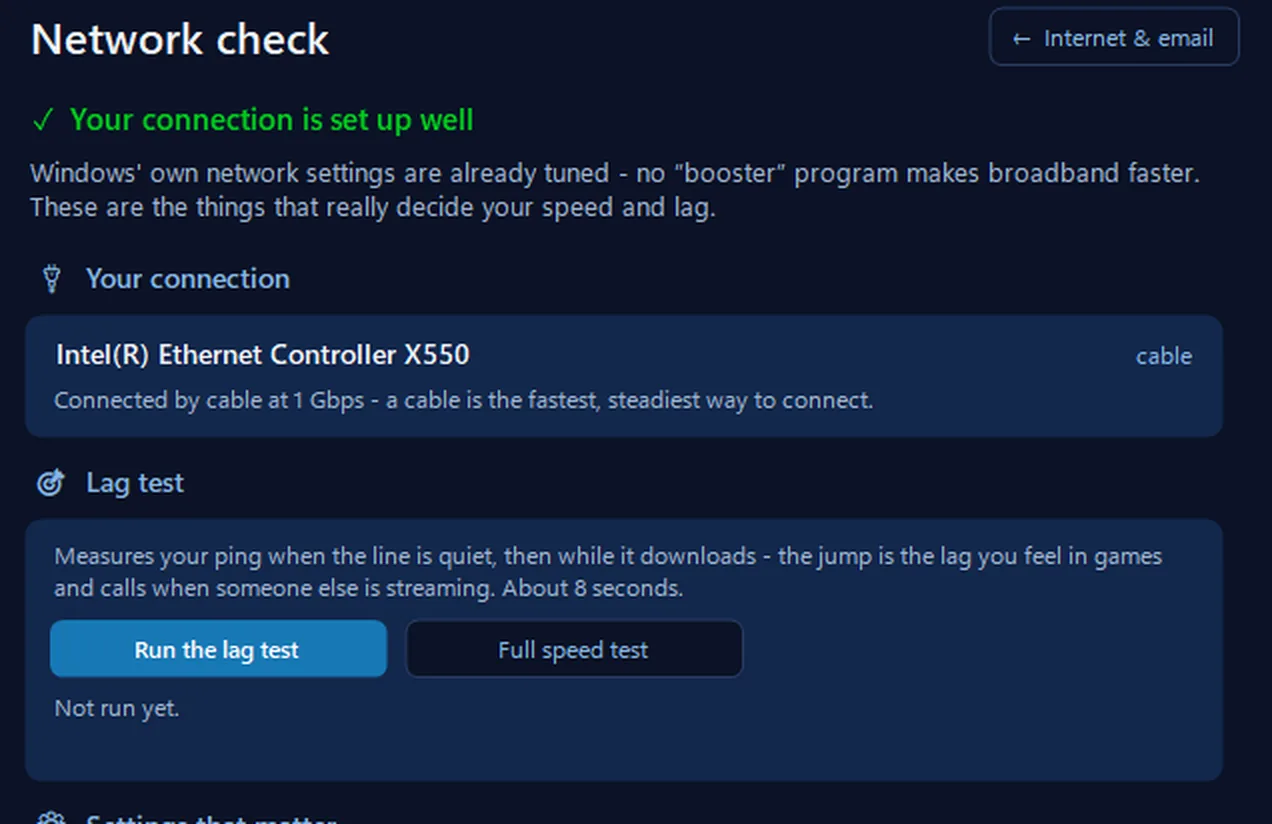
No website can read your Wi-Fi’s name, its band or its standard: browsers keep them hidden. On a Windows PC or laptop, our free app’s Network check reads them from Windows itself — the network name, the signal, 2.4 or 5 GHz, Wi-Fi 4, 5, 6 or 7 and the link speed — and says plainly when the slower 2.4 GHz band or an older standard is holding it back. Its lag test shows whether games and video calls will stutter when the line is busy.
In the app: Internet & email, then Network check.
Download 365 PC Manager free ↓What else it checks
Made by us, a family IT firm in Bournemouth since 1995, and digitally signed by 365 Techies Ltd.
// YOUR BROADBAND DEAL
Is your deal keeping up with what you measured?
Type in what you currently pay and what was advertised, and we’ll put it next to what you actually measured. Stays on your device with the rest of the survey.
// YOUR OFFICE, ON A BUSY DAY
What are they mostly doing?
Honest labels: the advertised speed is a marketing average, the minimum guaranteed speed is the only number your provider commits to, and what you measure over WiFi is your WiFi in that spot — not the line. Test wired before blaming your provider. We don’t compare live provider deals here because we won’t show prices we can’t verify — but send us your survey below and a human will genuinely look.
// YOUR SITES
Every site, one glance
More than one place to look after — home and office, a shop and a store room, a couple of holiday lets? Survey each one and see the whole estate at a glance: connection health, what it all costs a month, which contracts are coming up and where there’s no backup.
Sites live in this browser only, like the rest of your survey — Export keeps a copy of all of them. Want them managed properly, with history kept and renewals watched for you? That’s what monthly support is for.
// YOUR SURVEY REPORT
Keep it, move it, or send it to a human
Test a few rooms above and your summary will appear here.
Your survey lives in this browser only. Export it to keep a copy or move it to another device — then Import it there. Clearing browser data deletes the original.
// WANT THIS MANAGED FOR YOU?
This tool is free for everyone. With 365 Home & Business Support you also get your own customer portal (bookings, PC performance reports, your saved WiFi surveys and more), honest WiFi advice from a real local team, and a full computer service every 6 weeks.
// FREE HUMAN REVIEW
Send your survey to 365 Techies and a real person will look at your rooms, your speeds and your deal, and reply with honest advice — including “you’re fine, don’t spend anything” if that’s the truth. Free, no obligation.
// YOUR 365 ACCOUNT · KEEP THIS SURVEY
You’re signed in to your 365 portal. Save this survey — including any room photos — to your account so it’s there on any device, our team can see it when they help you, and nothing is lost if this browser is cleared. Delete it from your portal any time.
365 member? Sign in to your portal and your surveys can live on your account — on any device, never lost with browser data. Membership is free.
A business with more than one site? Our monthly support customers get this done properly — we survey each site, keep the history, watch the contract renewals and flag the weak links. Business WiFi covers what a proper multi-site install looks like.
// BEYOND THE WIFI
Good wifi, and computers that keep up with it
If the wifi tests well and the computer still crawls, the computer is the problem, and every device on your network is a way in if it misses its updates. A support plan looks after both sides.
// WHY IT MATTERS MORE NOW
Criminals now use AI to hunt for a single out-of-date program to use as a back door.
The UK’s National Cyber Security Centre expects AI to mean increasing the volume of attacks against systems that have not been updated with security fixes
.
NCSC, Impact of AI on cyber threat from now to 2027, May 2025
- A program that missed its updatesNot just Windows: the browser, the PDF reader, the printer software. Closed by: every program updated, every six weeks.
- A message that looks genuineScam emails and texts written with AI no longer give themselves away with clumsy spelling. Closed by: someone to check with before you click.
- A backup that quietly stoppedWhen ransomware or a dead drive strikes, a working backup is the difference. Closed by: a backup that is checked, not assumed.
SUPPORT PLAN · EVERY SIX WEEKS
WiFi advice, and a full service every six weeks
- Honest WiFi advice from a real local team, with your saved WiFi surveys in your own portal
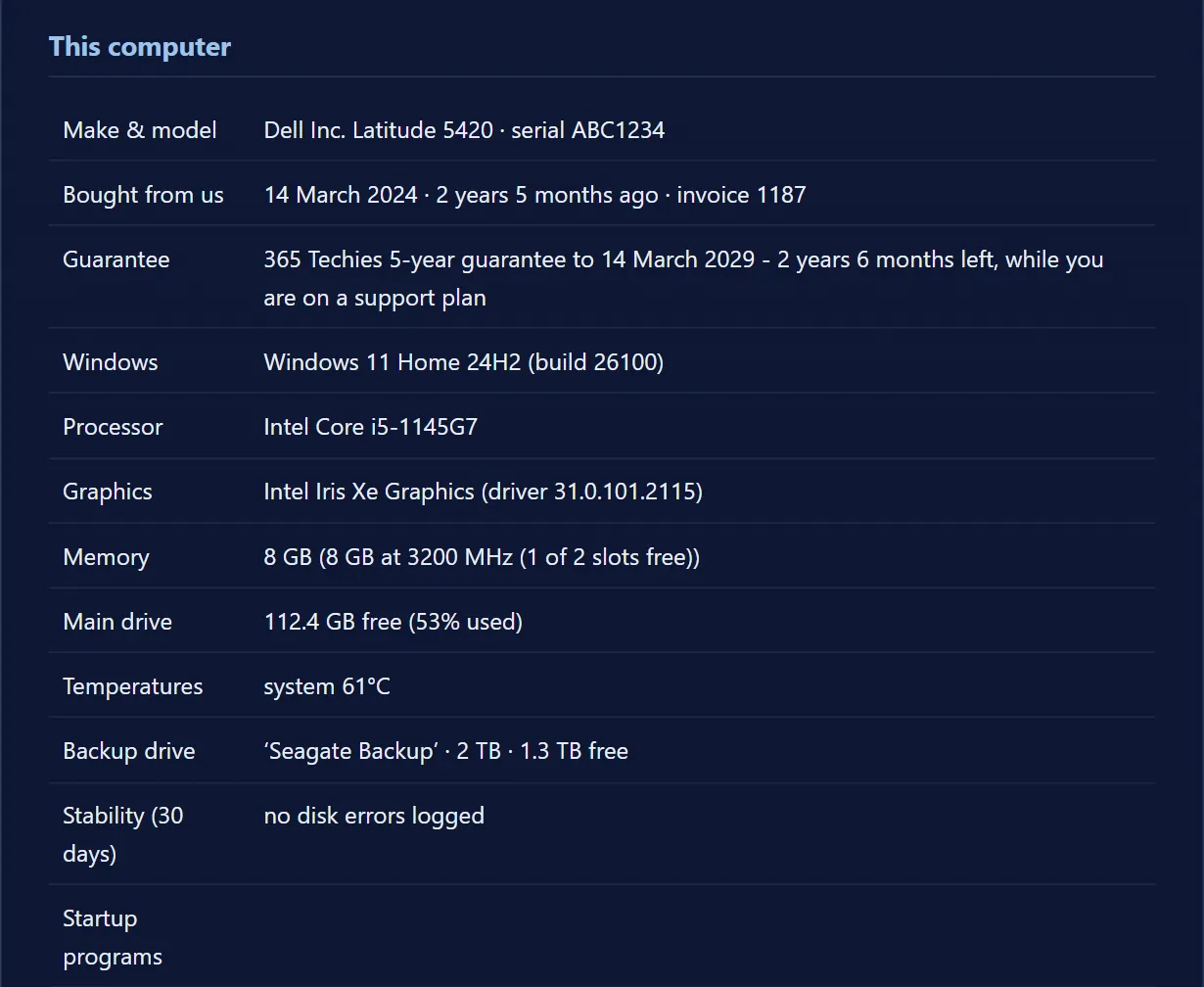
- A full computer service every six weeks: every program updated, not just Windows and Microsoft 365
- Antivirus, firewall, drive encryption and backup checked and written down in a dated Service Report
£18.25 a month per computer at home · business from £24.38. Rolling monthly, no lock-in.
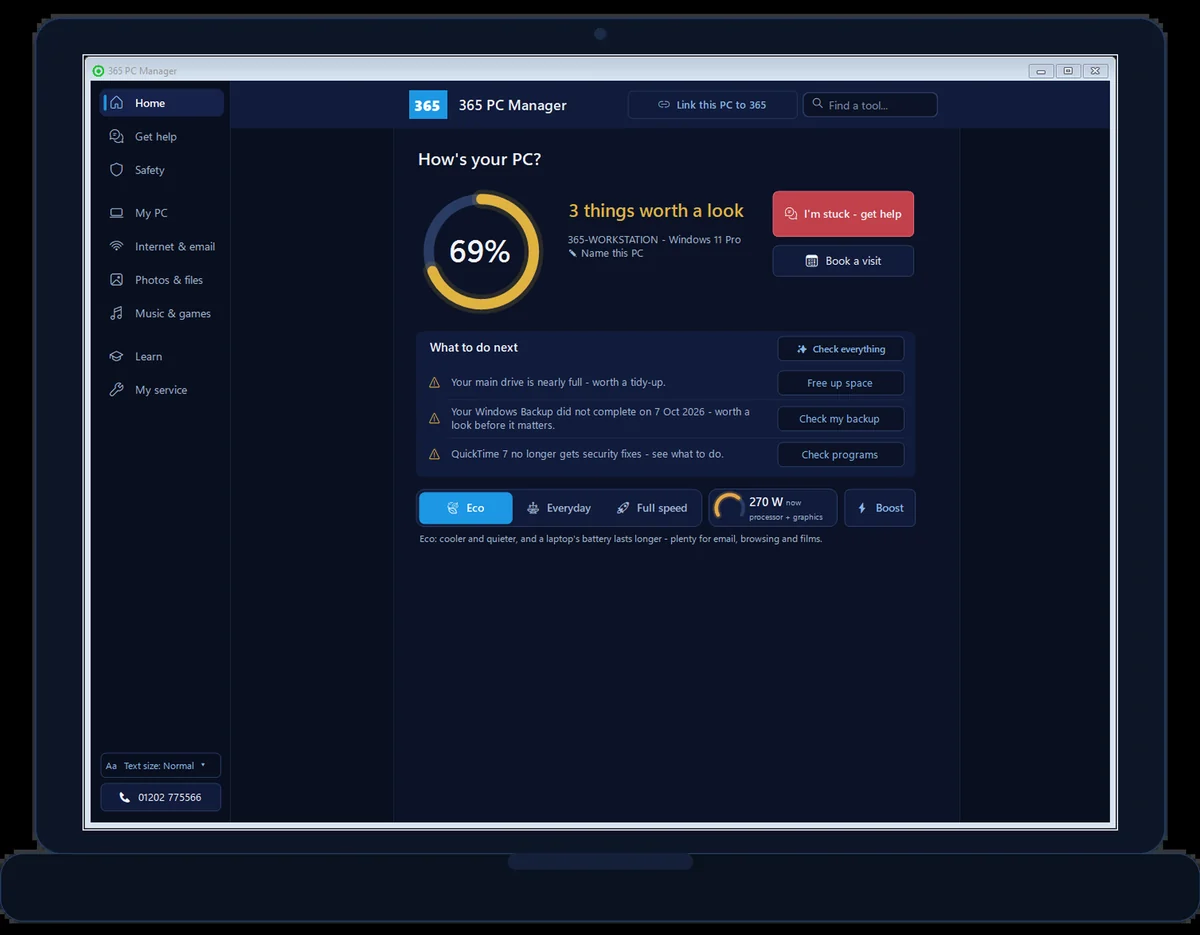
FREE APP · WINDOWS · REAL SCREENSHOT
See how this PC is really doing
- A real broadband speed test, kept so you can compare later
- Exact memory, drive health and free space
- Whether antivirus is on and a backup actually exists
365 PC Manager, digitally signed by 365 Techies Ltd. No fake errors, no scare tactics. It shows you where you stand; it isn’t an antivirus.
// SIGNAL HUNTER · WORK FROM ANYWHERE
📡 Signal Hunter: map where the signal is actually good
For nomads, van-lifers, content creators and anyone who works from wherever the kettle is: test the mobile signal where you’re standing — ping, download and upload — and drop a pin on your own map. Build your personal atlas of laybys, cafés and harbour walls that can actually hold a video call or a live stream… and, if you want, share the good ones to a community map so the next nomad finds them too.
Location is used only with your permission and stays on this device — pins go public only if you choose to share one, anonymously, rounded, place-type only. Every pin links to Google Maps for directions. Works on 4G, 5G and WiFi hotspots.
// YOUR CONNECTION
What we can genuinely see
Provider and area are estimated from your IP address (via Cloudflare, who therefore see it) and can be approximate — especially on mobile data or a VPN. The speed test also runs against Cloudflare’s network.
// HONEST ADVICE
What your readings actually mean
This updates from your real measurements — including telling you when something won’t help.
Run the live test above and your tailored advice will appear here.
// WHAT ACTUALLY HELPS
The honest fixes, in order of what usually works
Move the router, not the money
The single most effective free fix. Routers belong out in the open, high up and central — not in a cupboard, behind a TV, on the floor or next to the microwave.
Use the 5GHz network
Most routers broadcast two networks. 5GHz is much faster but travels less far; 2.4GHz reaches further but is slower and more congested. Near the router, pick 5GHz.
Mesh beats a booster
If the problem is range (fine near the router, poor in the back bedroom), a mesh system genuinely fixes it. Cheap plug-in “boosters” often just repeat a weak signal — slower, not better.
A new router won’t fix range
If your speed is fine by the router and dies at the far end of the house, a faster router changes nothing. Be wary of anyone selling you one to fix that.
WiFi 6 helps crowds, not distance
WiFi 6/7 mainly helps when lots of devices compete at once. If you have a black-spot, it’s the wrong purchase — sort coverage first.
If the line is slow, WiFi can’t save it
If speed is low even standing next to the router, the problem is the broadband line or package, not the WiFi. That’s a different fix — and worth knowing before you spend.
// BEING STRAIGHT WITH YOU
What this can’t see: your WiFi name, whether you’re on WiFi 5/6/7, which band or channel you’re using, or your mesh setup. No website can — browsers block it, because your network name can identify your home. Anyone showing you those on a web page is guessing.
What it genuinely measures: real latency, jitter and dropouts from your device, plus a real download test. That tells you whether the internet actually works where you’re standing — which is the thing that matters.
Want it just sorted?
We fix WiFi black-spots, fit mesh systems properly and sort broadband for homes and businesses across Bournemouth, Poole and Dorset — honestly, and only where it’ll actually help.
01202 775566 · help@365techies.co.uk · MON–FRI 9AM–5PM
// READING THE NUMBERS
What your reading actually means
Signal strength is measured in dBm, and it is a negative number — closer to zero is better. Engineers design to a target of −67 dBm at the edge of coverage, so that is a sensible bar for any room you actually work or watch television in.
- −30 to −55 dBm — excellent. You are close to the router with little in the way.
- −55 to −67 dBm — fine for video calls, streaming and everything normal.
- −67 to −75 dBm — marginal. It will connect, and it will disappoint.
- Worse than −75 dBm — effectively unusable. This is the “full bars, nothing loads” zone.
How to run this properly
Test in the same spot in the same minute, and run a wired test first — that is your ceiling, and nothing wireless beats it.
Record three numbers each time: download, upload and ping. On Windows, netsh wlan show interfaces tells you the band, channel and signal;
on a Mac, hold Option and click the WiFi icon. iPhones hide signal strength unless you switch on the Wi-Fi Scanner in Apple’s free AirPort Utility app (in Settings, under AirPort Utility), so an Android handset is easier if you are walking a survey.
The test that matters more than speed
Start a large download and watch your ping while it runs. If an idle ping of around 15 ms climbs to 250 ms under load, that is bufferbloat — and it is why calls break up the moment somebody else in the house uses the internet. It is invisible to a normal speed test, and it explains a lot of complaints that more megabits would not fix.
Where to go next
- The reading is fine but it is still slow → the fault-finding guide
- The reading is poor in one room → which mesh system actually suits a UK home
- The reading collapses through one wall → what British walls and insulation cost you
- You are setting a new system up → the step-by-step setup guide, ISP by ISP
- This is for an office → business WiFi in Dorset
// GOOD QUESTIONS
Frequently asked
Can this show my WiFi name or whether I have WiFi 6?
Honestly, no — and neither can any other website. Browsers deliberately don’t let a web page see your network name, the WiFi standard (WiFi 5/6/7), the band or the channel, because your network name can identify where you live. Only an app installed on the device can read those — on a Windows PC or laptop, our free app’s Network check shows the network name, the signal, the band, the Wi-Fi standard and the link speed (or read them in Windows itself). What this tool measures instead is arguably more useful: whether the internet actually works well where you’re standing. Hunting for an online WiFi heatmap? Here is what a browser genuinely can and cannot map.
So what is it actually measuring?
Real, live network behaviour from your device: latency (how long a tiny request takes to reach our server and come back), jitter (how much that wobbles — the real giveaway for a weak or congested signal) and dropouts (requests that fail). We combine those into a 0–100 score. Nothing is guessed or made up.
Why not just use the bars on my phone?
The bars only tell you the strength of the radio signal — not whether the connection is usable. You can have full bars and still have unusable internet (congestion, interference, a struggling router, or a slow line). This measures what actually matters: can you really use the internet from this spot.
Does it work on mobile data too?
Yes. It measures the connection your device is actually using, so it works the same on 4G/5G — handy for finding the best spot for a signal in a rural house, a caravan or a workshop.
Is it free, and do you keep my data?
Completely free, no sign-up. Your whole survey — rooms, readings and the broadband details you type — is saved in your own browser only, and we never receive any of it unless you press the send button, which asks for your consent first. Our latency beacon stores nothing about you; it just replies with a single character (like any web request, our host keeps standard server logs). Two parts do involve a third party, and we’d rather say so: the provider/area lookup and the speed test run against Cloudflare’s network, so they see your IP address.
Will my survey still be here if I come back later?
Yes — it saves itself on this device as you go, and when you return you’ll get a “welcome back” with the option to carry on where you stopped. Two honest limits: it lives in this browser, so clearing your browsing data deletes it, and it can’t follow you to another device by itself. The Export button gives you a file you can keep or Import on any other device. In private browsing it may not survive closing the window at all — the tool will warn you.
It says my signal is poor — what now?
Scroll to the advice section: it uses your real readings to suggest what actually helps, and it will tell you honestly when something won’t help (a new router often doesn’t fix a range problem, for example). If you’d rather someone just sorted it, we cover Bournemouth, Poole and Dorset — WiFi support.